






Export WordPress Site Is The Smartest Ways To Protect Your Website
Your WordPress site isn’t just a collection of web pages. It’s a business asset that stores your content, product listings, customer data, contact form submissions, and years of settings and configurations.
Building it takes real time and lots of money, and losing it, whether through a server error, a failed plugin update, or a hack, can cost you far more. That’s why knowing how to export WordPress sites properly is one of the most practical things you can do as a website owner.
In this guide, we show you what exporting means and situations where you’ll need it, which method suits your site, and how to store and handle your export files safely once you have them.
KEY TAKEAWAYS
- A content export and a full site backup are two different items; a complete backup needs both your website files and your database.
- The built-in WordPress export tool only produces an XML file; it doesn’t cover theme files, plugin files, site settings, or the database.
- Use a migration plugin, your hosting control panel, or SFTP and phpMyAdmin to export the entire site.
- Reliable hosting in South Africa reduces the risk of unexpected downtime, but it doesn’t replace the need for regular, tested backups.
- Back up before every major change and test your backups occasionally to confirm they restore correctly.
- Keep multiple backup copies in two or three different and secure locations.
TABLE OF CONTENTS
What Does It Mean to Export a WordPress Site?
The word “export” is used loosely, and that’s where a lot of confusion begins. Depending on what you’re trying to do, exporting your WordPress site can mean four quite different things:
- A content export uses WordPress’s built-in export tool to produce an XML file containing your posts, pages, comments, categories, tags, and links to your media files.
- A file export is a download of your site’s actual files: your themes, plugins, uploaded media, WordPress core files, and configuration files such as wp-config.php and .htaccess.
- A database export captures everything stored in MySQL, which includes your posts, pages, user accounts, settings, comments, WooCommerce orders, and form entries.
- A full backup combines both the files and the database into one complete copy of your site.
These aren’t interchangeable. Treating a content export as a full backup is one of the most common errors site owners make, and it’s usually only apparent when a migration or restore goes wrong.
Why South African Businesses Should Take Website Exports Seriously
For many South African businesses, a website isn’t just a digital brochure. It’s capturing leads while you’re in a meeting, processing orders while you’re asleep, and answering queries on public holidays when the office is closed. That kind of round-the-clock function means downtime isn’t just inconvenient; it directly affects revenue.
Load-shedding and connectivity interruptions add a layer of risk that businesses in other countries don’t always have to account for.
This is where good WordPress hosting in South Africa reduces that risk considerably, but no hosting setup is entirely immune to unexpected outages, hardware failures, or data loss. When something does go wrong, the difference between a quick recovery and starting from scratch often comes down to whether a reliable export exists.
A business that loses its website with no backup faces a real problem: lost leads, lost orders, lost content, and the cost of rebuilding something that already existed. Keeping a current export of your WordPress site isn’t a technical task reserved for developers; it’s a basic part of running a website responsibly.
The Main Reasons to Export a WordPress Website
There are several situations where having a current export makes a real difference. Some are planned, some are not, but being prepared for both is what protects your site.
Moving to a New Hosting Provider
Switching to better web hosting for small businesses is a natural step as a business grows. Before you make that move, a full export of your site files and database ensures nothing is left behind.
Even a migration that goes smoothly on the surface can result in missing plugin data, broken settings, or content that didn’t transfer correctly if you didn’t start with a complete export.
Changing Domains or Rebuilding a Website
When you decide to register a new domain name or restructure your site entirely, your existing content still has value. An export preserves your posts, pages, images, and settings so they can be brought into the new build rather than recreated from scratch.
For a site with years of published content, that’s a big thing. It saves considerable time and prevents content gaps that are easy to miss and hard to recover from.
Creating a Staging or Development Website
Developers and agencies routinely export a live site to create a staging or development copy. Working on a staging environment means plugin updates, theme changes, and new functionality can be tested properly before anything is implemented on the live site.
For agencies managing client websites, this isn’t optional; it’s standard practice. A live site is not where you want to find out that a plugin update conflicts with a custom configuration.
Keeping a Backup Before Major Changes
Before updating WordPress core, switching themes, installing new plugins, or making changes to a WooCommerce setup, an export provides a restore point.
If something breaks, you can return to a working state instead of troubleshooting a broken live site with no fallback. This applies to a simple brochure site just as much as it does to a busy online store. The size of the site doesn’t change how much a failed update can disrupt it.
Content Export vs Full Site Backup: What Is the Difference?
Most site owners use the terms interchangeably, but a content export and a full site backup are two different items that serve different purposes. Knowing which one you need before you start is what prevents a stressful situation from becoming a damaging one.
Content Export
The built-in WordPress export tool generates an XML file containing your content: posts, pages, comments, categories, tags, and references to your media files. What it doesn’t include is your theme files, plugin files, site settings, or the database itself. For moving content between two WordPress installations, that’s often enough.
Full Website Backup
However, for a full migration, a redesign, or recovering from something that’s gone seriously wrong, an XML file on its own won’t be enough. This is where a full site backup comes in handy.
It includes both your website files and a complete database export. Together, they provide everything required to restore or rebuild the site exactly as it was. Separately, neither is sufficient for a full recovery.
Method 1: Using the Built-In WordPress Export Tool
If you need to move written content between two WordPress installations, or you want a quick content-only backup, the built-in WordPress export tool is the simplest starting point. It requires no plugins, no FTP access, and no technical knowledge to use.
To access it:
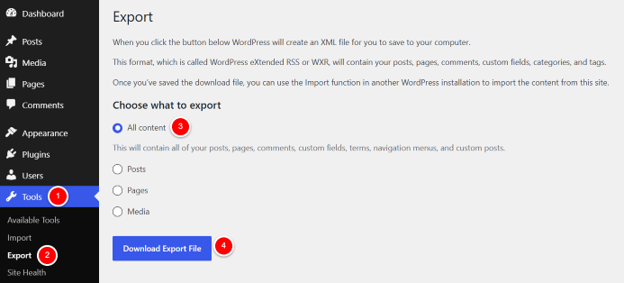
- Go to WordPress Dashboard → Tools →Export.
- From there, you can choose to export all content at once, or filter by specific types: posts, pages, media, or custom post types created by plugins.
- Once you’ve made your selection, click Download Export File to download the XML file to your computer.
It’s a straightforward tool, but it has clear limits. It doesn’t export your theme files, plugin files, site settings, or database. It also doesn’t export your actual media files; it only exports references to them, so images and videos won’t carry over automatically to the new site.
To use the exported file on another WordPress site, go through the following steps:
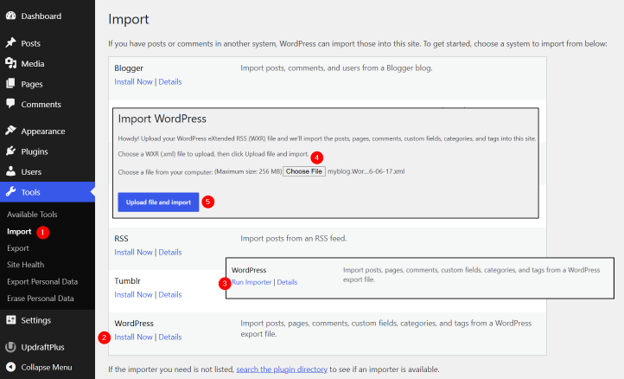
- Go to WordPress Dashboard → Tools → Import.
- Find WordPress in the list and click Install Now.
- Once it’s installed, click Run Importer.
- Click Choose File to select the XML file that you just downloaded, then click Upload File and Import.
- You’ll be prompted to assign the imported content to an existing user on the site. Make your selection and click Submit to complete the process.
Just remember that what you’re importing is content, not a complete replica of your site.
Method 2: Using a WordPress Migration or Backup Plugin
For most site owners who aren’t developers, a migration or WordPress backup plugin is the most practical way to create a complete export. Unlike the built-in WordPress export tool, these plugins bundle your site files and database together into a single downloadable archive, providing everything you need in one package.
Duplicator is one of the most widely used options. It creates what’s called a package: a compressed archive of all your site files combined with a full database dump. Once downloaded, that package contains enough to restore or migrate your entire site, not just the content layer.
Here’s how to use Duplicator to export WordPress sites:
Go to WordPress Dashboard → Plugins → Add Plugin. Search for Duplicator, install it, and click Activate.

Once activated, you’ll see Duplicator appear in the left-hand menu. Click this, then click Create New to start a new package.

Give your package a name or keep the default, then click Next.
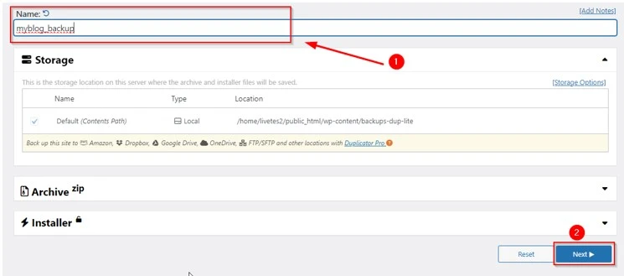
Duplicator will scan your site for potential issues. Review the results. If everything looks good, click Build to create the package.

Once the build is complete, click Download Both Files to save the Installer and Archive files to your computer. You’ll need both to restore or migrate the site.
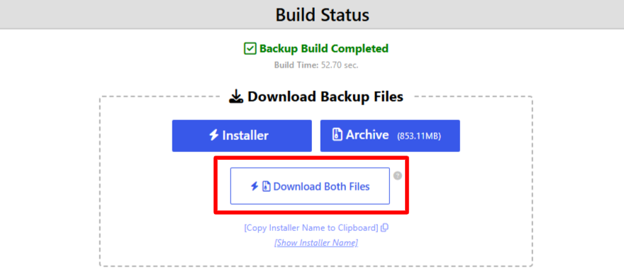
The free version handles most standard WordPress sites without issues. Where it starts to show limits is on larger or more complex sites, particularly busy WooCommerce stores with significant order history or large media libraries.
Those setups often benefit from a premium version that supports bigger file sizes and scheduled automatic backups. Avoid committing to any specific plan without checking current pricing and features at the time you need it.
One thing to consider: the destination site will typically need the same plugin installed to handle the import. It’s worth confirming this before you start the migration, so you’re not caught without the right tool at the other end.
Method 3: Using Your Hosting Control Panel
Most reputable hosting providers include backup tools directly in their control panel, which means you don’t need a plugin or FTP access to create a complete export.
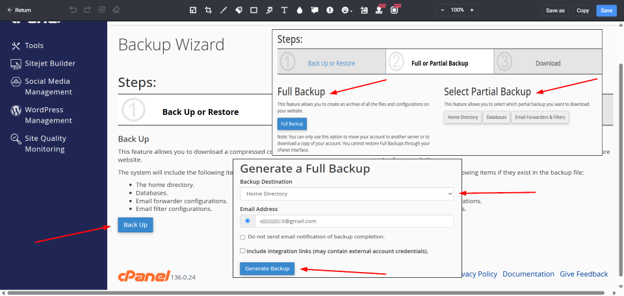
For sites on cPanel-based hosting, the Backup Wizard is the tool you need. It lets you generate either a full backup covering all your files and databases, or a partial backup if you only need specific parts of the site.
Here’s how to access and use it:
- Login to cPanel.
- Go to Files → Backup Wizard.
- Click Backup to begin, then choose between a Full Backup or a Partial Backup, depending on what you need. A full backup is the safer choice if you’re preparing for a migration or want a complete restore point.
- Select where you want the backup delivered. Most setups allow you to download it directly to your computer or have it sent to a remote location.
- Click Generate Backup. Depending on the size of your site, this can take a few minutes to complete.
Once it’s completed, you’ll receive an email notification at the given email address.
IMPORTANT:
Once it’s ready, download the backup file and save it somewhere secure, not just on the server where your live site is hosted.
This method is a practical option for business owners who want a thorough backup without added complexity. With WordPress hosting from a provider like Domains.co.za, backup access is available directly through the control panel, so there’s no need to install anything or rely on a third-party tool. Just remember that full backups can be large, so ensure you have enough storage space ready before you start.
Method 4: Manual Export with SFTP & phpMyAdmin
This method is best suited to developers and technically confident users who require full control over what gets backed up and how.
It involves two separate processes:
- Downloading your site files via SFTP.
- Exporting your database via phpMyAdmin.
It’s the preferred approach for large or complex sites where plugin-based tools hit file size limits, time out mid-process, or where a developer needs to work with individual files or database tables directly.
Why Website Files Matter
Your site files are the structural and functional layer of your WordPress installation. Without them, a database export alone can’t restore a working website.
To download your files, you’ll need an SFTP client. FileZilla is a widely used free option.
Here’s how to use it to export WordPress sites:
- Install FileZilla on your local machine.
- Connect it to your server using the SFTP credentials available in your hosting control panel.
- Navigate to the public_html directory. From there, download everything:
- The wp-content folder, which holds your themes, plugins, and uploaded media.
- Important files, including wp-admin, wp-includes, wp-config.php, and .htaccess.
- Select all files, then drag and drop them into a folder on your local machine.

For developers managing larger or more demanding sites, VPS hosting for developers and larger websites makes SFTP access more reliable and consistent, particularly when transferring large amounts of data.
Why the Database Matters
Your site files provide the structure, but the database is where all the content lives. Posts, pages, user accounts, comments, site settings, WooCommerce orders, customer records, product data, form entries, and plugin-generated content are all stored there. A site restored from files alone results in a broken shell with no content, users, or settings. Both parts are required for a complete manual backup.
To export WordPress database:
- Go to cPanel → Databases → phpMyAdmin.
- Select the database that corresponds to your WordPress site. If you’re unsure which one it is, check the DB_NAME value in your wp-config.php file.
- Once you’ve selected the correct database:
- Click Export.
- Choose Quick – display only the minimal options.
- Ensure the format is set to SQL.
- Click Export.
The file will download to your computer. Store it in the same location as your site files, so everything is organised and easy to find when you need it.

What Can Go Wrong If You Export the Wrong Things?
Choosing the wrong export method, or skipping part of the process, has real consequences. Most of these only become obvious when you’re trying to restore or migrate, and realise something critical is missing.
Migrating with Only the XML File
The XML export captures written content but leaves behind theme settings, plugin configurations, and anything stored in the database that the XML doesn’t capture. The content might come across, but the site won’t look or behave the way it used to.
Exporting WordPress Website Files Without the Database
This produces the opposite problem: a site that loads but has no posts, pages, users, or settings. Without the database, the files alone can’t produce a working website.
Missing wp-config.php During an SFTP Export
During a manual SFTP export, leaving out wp-config.php means the new site won’t know how to connect to its database. It’s a small file that’s easy to overlook and critical to include.
Broken Media After a Content Export
The built-in WordPress export tool only exports references to media files, not the files themselves. Imported content on the destination site will have broken images and missing videos until the actual media files are transferred separately.
Incomplete Database Export for WooCommerce Stores
For WooCommerce stores, an incomplete database export is particularly costly. Order history, customer records, and product data all live in the database. Without a full export, that information is gone.
Backups That Haven’t Been Tested
A backup that’s never been tested isn’t one you can rely on. A file can appear complete and still fail when you try to restore it. Testing a restore in a safe environment, even occasionally, is the only way to know that your backup works.
South African Business Continuity Considerations
South African businesses face a set of challenges that make reliable backup processes more important than they might be elsewhere.
For example:
- Load-shedding doesn’t just affect your office; it can affect hosting infrastructure too.
- Connectivity interruptions can take a site offline without warning.
- Unlike a physical shop that closes at 5 pm, a website keeps generating enquiries, processing orders, and representing your business 24/7. When it goes down at 11 pm on a Sunday, there’s no one available to fix it unless there is a clean, tested backup ready to restore from.
Remote teams and distributed agencies add another layer of complexity. If the only person who knows where the backup is stored is unreachable, or if the backup lives only on one person’s laptop, that’s a single point of failure that can turn a manageable problem into a serious one.
Backup files need to be accessible to the correct people, stored in multiple locations, and organised clearly enough that anyone authorised can find and use them.
A reliable export process, combined with solid hosting from a provider like Domains.co.za, provides your business with the genuine protection it needs. But the hosting is only part of it. Don’t store the only copy of your backup on the same server your live site runs on. If that server goes down, you lose the site and the backup at the same time.
POPIA, Customer Data, & Secure Backup Handling
When you export a WordPress site, you’re not just exporting content. Depending on what your site does, you could be exporting:
- Names.
- Email addresses.
- Phone numbers.
- Physical addresses.
- WooCommerce customer and order data.
- Contact form submissions.
That’s personal information, and in South Africa, the Protection of Personal Information Act (POPIA) requires businesses to handle it responsibly.
This guide doesn’t provide legal advice, but the practical implications are straightforward. Backup files that contain personal data should be stored securely, encrypted where possible, and accessible only to people who are authorised to handle them.
Don’t share export files over unsecured channels. Don’t leave them sitting in publicly accessible folders, on your server, or in an unprotected shared drive.
Securing your website with an SSL certificate is a sensible baseline for any WordPress site, but data security doesn’t stop at the live site. The copies you make of that site need to be treated with the same level of care, because a backup file that gets into the wrong hands carries the same risk as a breach on the live site itself.

Where Should You Store WordPress Export Files?
Once you have your export, where you store it matters as much as having it in the first place. A single copy in one location isn’t a reliable backup strategy.
Start by downloading the file to your local machine, then move it to an external encrypted drive for longer-term storage. Pair that with a cloud storage service such as Google Drive, Dropbox, or OneDrive, keeping a second copy in a separate location. If one copy is lost, corrupted, or inaccessible, the other is still there.
Organise your backup folders clearly. Use a naming convention that includes the site name and the export date, so you can quickly identify the correct file when you need it most.
Businesses that already use professional email hosting will find that cloud storage fits naturally into their existing, organised workflow, making it easier to keep backup files accessible to the right people without adding unnecessary complexity.
Whatever you do, don’t rely on a single copy stored only on the live server. That’s not a backup; it’s just a second version of the same risk.
How Often Should You Export or Back Up a WordPress Site?
There’s no single answer that works for every site. How often you should back up depends on how active your site is and how much you are prepared to lose if something goes wrong.
A useful way to consider this: how much content or data would you be comfortable losing if something went wrong today? That answer usually tells you how often you should back up.
Here’s a practical breakdown by site type:
- Brochure or Portfolio Sites That Change Infrequently: A monthly backup is generally adequate, though you should still back up before making any changes.
- Blogs or News Sites That Publish Regularly: Weekly backups at a minimum. If you’re publishing daily, daily backups make more sense.
- Lead Generation Sites That Capture Form Submissions & Enquiries: At least weekly, since form data lives in the database and won’t be recovered from a content export alone.
- WooCommerce Stores Processing Orders: Daily backups are strongly recommended. High-volume stores may benefit from real-time or hourly backups to avoid losing order data between scheduled runs.
- Sites Undergoing Active Development or Significant Changes: Back up before every meaningful change, regardless of when the last scheduled backup ran.
Common Mistakes to Avoid When Exporting a WordPress Site
Most export problems aren’t caused by technical failures. They are caused by avoidable oversights that only become apparent when it’s too late to fix them:
- The XML export only covers content, not your theme files, plugin files, settings, or database. Don’t treat it as a complete backup.
- When performing a manual SFTP backup, the files and the database must be exported separately. Downloading one without the other leaves you with an incomplete backup.
- If you temporarily make a private site public to run an export, switch it back to private immediately afterwards. Leaving it public puts your content at risk.
- Test your backups occasionally in a safe environment to confirm they can be restored. A backup file that fails during a restore isn’t one you can rely on.
- Don’t store backups only on the live server. If the server goes down, you lose the site and the backup at the same time. Keep copies in at least one separate location.
- Before relying on a backup plugin, check that it’s actively maintained and compatible with your current version of WordPress. Outdated or abandoned plugins can produce backups that don’t restore correctly.
- Always back up before updating WordPress core, themes, or plugins. Updates can break things unexpectedly, and a pre-update backup takes minutes compared to hours of troubleshooting.
- Label your backup files clearly with the site name and date. During a recovery situation, you don’t want to be guessing which of them is the correct version.
When to Ask Your Hosting Provider or Developer for Assistance
Some export and migration situations are straightforward enough to handle on your own. Others genuinely call for professional support, and knowing the difference can save you from making a recoverable problem much worse.
Consider reaching out to Domains.co.za support or a qualified WordPress developer if you’re dealing with any of the following:
- A large site where plugin-based export tools are reaching file size limits or timing out before the process completes.
- A WooCommerce store where order history, customer records, and payment-related data need careful handling during a migration.
- Database errors or signs of corruption are preventing a normal export from running.
- A failed migration where the site isn’t restoring correctly from your backup.
- A manual SFTP or phpMyAdmin export that stopped mid-process, leaving the site in a state where files and database no longer match.
Attempting to fix a failed migration without the correct knowledge can compound the problem. In some cases, it can lead to data loss that’s difficult or impossible to recover. If you’re unconfident about what went wrong or how to fix it, getting the right help early is always the better call.
Final Thoughts: A WordPress Export Is More Than a Technical Task
An export file isn’t just a compressed folder sitting on your hard drive. It’s a record of everything your business has built into its website: the content, customer data, product listings, configurations, and the functionality that took plenty of time and effort to implement.
Treating it that way changes how you approach the process.
It means:
- Backing up regularly, not just when something feels urgent.
- Storing copies in more than one place.
- Testing a restore occasionally so that you know the backup works when you need it.
- Choosing a hosting foundation that supports you when things don’t go to plan.
Protect your WordPress website with reliable hosting from Domains.co.za, built to support South African businesses with secure infrastructure, practical support, and easier website management. Because the best time to have a backup ready is before you need one.
![Strip Banner Text - Domains.co.za offers WordPress Hosting designed to keep your site stable and secure. [More Info]](https://www.domains.co.za/articles/wp-content/uploads/2026/07/export-wordpress-site-02.webp "Domains.co.za offers WordPress Hosting designed to keep your site stable and secure. [More Info]")
Power Up Your Site: How to Install a WordPress Plugin
VIDEO: Power Up Your Site: How to Install a WordPress Plugin
FAQS
Can I export a WordPress site without a plugin?
Yes. WordPress has a built-in export tool under Tools, then Export, which generates an XML file of your content. For a full site export, including files and the database, you can use your hosting control panel’s backup tool or export manually via SFTP and phpMyAdmin; both don’t require a plugin.
What is the difference between a WordPress export and a WordPress backup?
A WordPress export typically refers to the XML file produced by the built-in tool, which includes only content. A full backup includes both your website files and your database, providing everything required to restore or migrate the entire site.
Does exporting a WordPress site include images and media files?
The built-in export tool only exports references to media files, not the files themselves. To include actual images and videos in your export, you need to transfer the wp-content/uploads folder separately via SFTP or use a plugin that bundles media files into the backup package.
How long does it take to export a WordPress site?
It depends on the size of your site. A content export via the built-in tool takes seconds. A full backup through a plugin or cPanel can take anywhere from a few minutes to considerably longer for large sites with substantial media libraries or databases.
Can I export a WordPress site and import it to a different hosting provider?
Yes. A full export, including your site files and database, can be migrated to any hosting provider that supports WordPress. You need to import the database via phpMyAdmin and upload the files via SFTP on the new server, or use a migration plugin to handle the process.
What happens if I export only the database, not the files?
You’ll end up with the content, but none of the site’s structural or functional elements. Without the theme files, plugin files, and configuration files, the database alone can’t produce a working website.
Is it safe to store WordPress backup files in cloud storage?
Yes, provided you’re using a reputable service and the files are stored in a private, access-controlled folder. Given that backup files may contain personal information, avoid storing them in publicly accessible locations and limit access to authorised people only.
How do I know which database belongs to my WordPress site?
Check the wp-config.php file in your WordPress root directory. The DB_NAME value provides the exact name of the database your site uses.
Do I need to back up a WordPress site that doesn’t change often?
Yes. Even a site that rarely publishes new content can be affected by a hack, a failed update, or a server issue. A monthly backup is a reasonable minimum for low-activity sites, with an additional backup taken before making any changes.
What should I do if my WordPress export fails or produces an error?
First, check whether the issue is related to file size limits or server timeout settings, as these are common causes of failed exports on larger sites. If the problem persists, contact your hosting provider’s support team or a qualified WordPress developer for assistance.
Other Blogs of Interest
- Exploring WordPress User Roles: A Practical Guide
- Website Builder vs WordPress: Which Is Best For Your New Business
- Best WordPress Hosting For WordPress Websites In 2025
- Web Hosting vs WordPress Hosting: How To Choose
- Social Media WordPress Integration: Tips and Plugins

Rhett isn’t just a writer at Domains.co.za – he’s our resident WordPress content guru. With over 8 years of experience as a content writer, with a background in copywriting, journalism, research, and SEO, and a passion for websites.
Rhett authors informative blogs and articles that simplify the complexities of WordPress, website builders, domains, and cPanel hosting. Rhett’s clear explanations and practical tips provide valuable resources for anyone wanting to own and build a website. Just don’t ask him about coding before he’s had coffee.