


WooCommerce Shortcodes Make It Easier To Build A Better Online Store
Building a WooCommerce store that looks good and works well isn’t always straightforward. You want product listings in the right places, a checkout that runs smoothly, and account pages that customers can use. But not every store owner has a developer on call, and not every problem needs one.
WooCommerce shortcodes solve this. They are small pieces of code you drop into any page or post. In this guide, we explain WooCommerce shortcodes, how they work, and how South African store owners can use them to build better, more flexible online stores without incurring custom development costs.
KEY TAKEAWAYS
- WooCommerce shortcodes are bracketed code snippets that display store features on any WordPress page or post without custom development.
- Attributes like limit, columns, category, and orderby give you precise control over what each shortcode displays.
- Product display, cart, checkout, account, order tracking, and add-to-cart shortcodes cover most of what a functional WooCommerce store requires.
- Cart and checkout pages are revenue-critical; test them after every theme or plugin change.
- Don’t stack too many shortcodes on a single page because it slows load times.
- South African shoppers are largely mobile-first; always check shortcode-driven pages on smaller screens before publishing.
- SSL, updated plugins, and responsible handling of customer data are non-negotiable for any South African online store.
- Shortcodes work best when your store is already well-structured; they support good store architecture, but they don’t replace it.
- Outdated plugins, wrong product IDs, incorrect category slugs, and caching are the most common causes of shortcode issues.
- Load-shedding makes WordPress hosting in South Africa a business-critical decision, not just a technical one.
TABLE OF CONTENTS
What Are WooCommerce Shortcodes?
A shortcode is a small snippet of text in square brackets that tells WordPress to display something specific on a page or post. Instead of writing lines of code to pull in a product grid or build a checkout page, you type [products] or [woocommerce_checkout] and WordPress automatically handles the output.
Shortcodes also accept attributes that provide precise control over what gets displayed.
For instance:
[products limit="4" columns="2"]This snippet shows four products arranged in two columns. WooCommerce includes a built-in set of shortcodes, so once the WooCommerce plugin is installed, it’s ready to use without any extra setup.
Why Shortcodes Still Matter for WooCommerce Stores
Shortcodes let you add product displays, cart pages, checkout flows, and customer account features to any page or post without writing or editing a single line of code. That quick implementation matters when you’re running a store and need things to work without waiting on a developer.
They’re also flexible. You can place a shortcode anywhere in your content, so you’re not locked into a fixed page template or specific layout. That type of freedom is useful when your store needs to evolve quickly.
Blocks and page builders have grown in popularity, but shortcodes remain a dependable option, particularly for stores running classic WordPress themes where block-based tools aren’t always the right fit.
Where WooCommerce Shortcodes Fit into Your Store Strategy
Shortcodes aren’t a replacement for good store planning. They work best when you already have a clear idea of how your store is structured and where customers need to go. Once that structure is in place, shortcodes help you execute it.
They fit naturally into WooCommerce store customisation and product discovery, where you want to surface the right products on the right pages. They support merchandising decisions, letting you highlight featured items, sale products, or top sellers where they will have the most impact. They also handle the functional side of your store, from checkout flow to customer account management and order tracking.
A well-planned WooCommerce store uses shortcodes with intent, placing them where they genuinely serve the customer journey rather than filling space.
The Main Types of WooCommerce Shortcodes
WooCommerce shortcodes fall into four practical categories:
- Product display.
- Cart and checkout.
- Customer account and order tracking.
- Add to cart.
Each category serves a different part of the store, and together they cover most of what a well-functioning online shop requires.
Product Display Shortcodes
Product display shortcodes are the most versatile group. They control what products appear on a page and how they’re arranged. [products] is the starting point. It displays your full product catalogue on any page or post you choose.

From there, attributes let you shape the output.
For instance:
[products limit="6" columns="3"] shows six products in a three-column layout.
[products category=”Fitness Equipment”] pulls in only the products assigned to a specific category. You can also sort output using the orderby attribute, arranging products by date, price, or title, depending on what makes sense for that page.

Beyond the core [products] shortcode, WooCommerce includes several purpose-built display shortcodes:
- [featured_products] highlights items you’ve manually marked as featured.
- [sale_products] displays products currently on sale.
- [best_selling_products] surfaces your top sellers.
- [top_rated_products] shows products with the highest customer ratings.
- [recent_products] keeps returning visitors updated on your latest additions.
- [related_products] automatically displays relevant items on a product page, enabling cross-selling without any manual effort.
If you need to filter by a specific product attribute, [product_attribute attribute=”color” terms=”red,blue”] will display only products matching those terms.
The limit, columns, and orderby attributes work across most of these shortcodes, so the same logic applies wherever you use them.

Cart & Checkout Shortcodes
[woocommerce_cart] and [woocommerce_checkout] power the two most revenue-critical pages in any WooCommerce store.
- The WooCommerce cart shortcode displays everything a customer has added, along with quantities, totals, and the option to apply a coupon.

- A WooCommerce checkout shortcode renders the full checkout experience, including billing details, shipping options, and payment fields.

Both pages need to work correctly every time. Whenever you change/update any theme or plugin, testing these pages should be the first thing you do.
A broken checkout is lost revenue, and it’s one of the most common consequences of an untested update. To protect customer data at the point of purchase, ensure you secure your online store with an SSL certificate.

Customer Account & Order Tracking Shortcodes
[woocommerce_my_account] shows a dedicated user account page where customers can view their order history, manage their billing and shipping addresses, and update their account details. [woocommerce_order_tracking] adds a form that lets customers check their order status using their order ID and billing email.

Both shortcodes reduce the volume of support queries your store receives. When buyers can find answers themselves, they’re less likely to contact you directly and more likely to trust your store enough to return.
Add to Cart Shortcodes
The [add_to_cart id=”13″] places a purchase button anywhere on your site. You’re not limited to product pages. You can add an Add to Cart button to a landing page, a buying guide, a seasonal campaign page, or a product comparison page.
- id: This parameter specifies exactly which product the button applies to (required).
- quantity: This sets the number of units added to the cart by default when you click.
- show_price: It controls whether the product price appears alongside the button (set to “true” or “false”).

How Shortcodes Help South African Online Stores Sell More Effectively
Shortcodes become genuinely useful when you apply them to real store situations.
For example:
- Showcase What’s Popular: A small local retailer can use [products best_selling=”true” limit=”4″] on their homepage to immediately show new visitors their top-performing items without requiring a custom page builder.
- Create a Dedicated Specials Page: A fashion or lifestyle store can highlight promotional items by using [products visibility=”featured”], giving hand-picked selections a permanent, professional home that’s easy to update.
- Build Flash Sale Pages: Seasonal businesses can instantly aggregate discounted items with [products on_sale=”true”], keeping bargain hunters engaged on a single page.
- Simplify Navigation for Niche Stores: You can build targeted category landing pages using [products category=”shoes”] (replacing “shoes” with your specific category slug) to group relevant products and make browsing seamless.
- Monetize Blog Content: A consultant or digital product seller can drop an [add_to_cart id=”42″] button directly into a buying guide, instantly turning informational content into a high-converting sales page.
One thing worth keeping in mind is that most South African shoppers browse and buy from mobile devices. Any page layout built with shortcodes needs to display cleanly on smaller screens, so always check your alignments on a smartphone before publishing.
Also, pairing optimised shortcodes with high-performance WordPress hosting for WooCommerce stores ensures that these product grids load instantly, keeping mobile bounce rates low regardless of the device that customers use.

Shortcodes, Store Navigation, & Product Discovery
When customers land on your store and can’t quickly find what they’re looking for, they leave. This is where WooCommerce shortcodes assist. They prevent that by giving you precise control over what appears where.
For example:
Placing [products best_selling=”true” limit=”4″] on your homepage gives first-time visitors an immediate sense of what your store does well.

Adding a grid of top-rated items with [products top_rated=”true” limit=”4″] keeps customers browsing rather than bouncing.
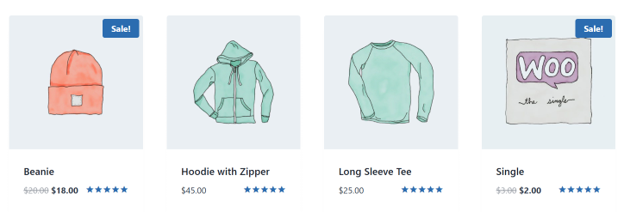
Building specific category sections with [products category=”bags”] offers shoppers a structured way to explore your catalogue without feeling overwhelmed.

None of this requires a page builder or a developer. When used strategically, shortcodes improve the flow of your store, help customers find relevant products faster, and create more opportunities for a purchase to happen naturally.
Common Mistakes Store Owners Make with Shortcodes
WooCommerce shortcodes are straightforward, but a few common errors can cause real problems. Knowing what to watch for saves time and protects your store’s performance:
- Stacking Too Many Shortcodes on One Page: Each shortcode triggers a database query. Too many on a single page can noticeably slow things down, especially on shared hosting.
- Copying Shortcodes Incorrectly: Broken brackets, curly quotes copied from a Word document, or an extra space inside the brackets are enough to stop a shortcode from working entirely.
- Using Outdated or Abandoned Shortcode Plugins: A plugin that hasn’t been updated in years may conflict with your current version of WooCommerce or WordPress. That conflict often surfaces at the worst possible moment.
- Ignoring Mobile Layout After Adding Shortcodes: What looks fine on desktop can break on a small screen. Check your pages on mobile every time you make a change.
- Forgetting to Test the Cart & Checkout Pages After Updates: Any theme or plugin change can affect these pages. Testing them immediately after an update is a habit worth building.
- Using Shortcodes to Replace Proper Store Architecture: Shortcodes work best when your store is already well structured. They can’t fix a poorly organised catalogue or unclear navigation.
Performance Considerations for WooCommerce Shortcodes
WooCommerce product shortcodes that you place on a page run a query against your database to fetch the relevant products. One or two shortcodes on a page is rarely an issue, but stacking several on a single page adds up quickly, and the effect on load times becomes noticeable, particularly on shared or underpowered hosting.
This is where caching helps significantly. A good caching setup means your pages don’t rebuild from scratch on every visit, which reduces the load on your server. Optimised product images also make a real difference, since large, uncompressed images slow down pages regardless of how well your shortcodes are configured.
Underpinning all of this is the quality of your hosting environment. That’s why choosing reliable web hosting for your online store ensures your shortcode-driven pages have the resources they need to load quickly and consistently.

Security & Trust Considerations for WooCommerce Stores
A WordPress eCommerce store collects sensitive customer information at every transaction: names, addresses, email addresses, phone numbers, and payment-related data. How that information is handled matters, both for customer trust and for responsible compliance with POPIA. Keeping that data secure isn’t a technical nicety; it’s a basic obligation for any South African store owner.
SSL is non-negotiable for checkout pages. Without it, browsers flag your store as unsafe, and customers abandon their purchase before it’s complete.
Beyond SSL, keeping WooCommerce, PHP, and all your plugins regularly updated closes security vulnerabilities before they can be exploited. Only install extensions from reputable sources with a track record of active maintenance and regular updates.
Customer communication is also a part of the trust picture. Order confirmations, shipping updates, and account notifications are part of the customer experience. When using a professional email hosting for customer orders, it reinforces trust and credibility at every touchpoint.

Load-Shedding, Uptime, & the South African eCommerce Context
South African store owners deal with a challenge that most ecommerce guides don’t account for: load-shedding.
When power cuts disrupt daytime routines, customers shift their browsing and buying to evening hours, often on mobile. A store that goes offline during a scheduled evening outage window doesn’t just inconvenience customers; it loses revenue that won’t return.
This makes hosting reliability more important than it might seem on paper. Your store needs to stay up and load fast without requiring you to be online to manage it. Uptime monitoring, automatic backups, and a hosting infrastructure that doesn’t buckle under traffic are practical necessities for any South African ecommerce business.
Also, when your store grows, the demands on your hosting grow with it. This is where VPS hosting for growing ecommerce websites provides dedicated resources that keep your store stable and responsive, regardless of what’s happening with the power supply at your premises.

WooCommerce Shortcodes vs Blocks & Page Builders
WooCommerce blocks, available through the WordPress Block Editor, and page builders offer a more visual way to build store pages. You can see what you’re designing as you go, which suits store owners who prefer working without code. For stores that need precise, repeatable product placements without the overhead of a page builder, shortcodes are often the faster and cleaner option.
Shortcodes also remain the more reliable choice for stores running classic WordPress themes that aren’t fully compatible with the Block Editor. In those setups, reaching for a page builder adds unnecessary complexity.
These aren’t competing tools. A store may use blocks on some pages, a page builder for others, and shortcodes for specific placements where simplicity and compatibility matter the most. What’s important is choosing the correct tool for the situation rather than defaulting to one approach for everything.
Troubleshooting WooCommerce Shortcodes That Do Not Work
When a shortcode doesn’t produce the expected output, the cause is usually straightforward. Working through these common issues in order will resolve most problems quickly:
Bracket Errors & Incorrect Quotes
Shortcodes need straight quotes, not the curly or smart quotes that word processors insert automatically. A single wrong character is enough to break the output entirely.
Wrong Product IDs or Incorrect Category Slugs
Double-check these against your WordPress dashboard. A product ID that’s off by one digit, or a category slug with a typo, will return nothing.
Theme Conflicts
Switch to a default WordPress theme temporarily. If the shortcode works with the default theme, your active theme is the source of the conflict.
Plugin Conflicts
Deactivate your plugins one at a time and test after each deactivation. This isolates which plugin is interfering with the shortcode output.
Outdated WooCommerce or PHP Versions
Running old versions of either creates compatibility issues that affect shortcode behaviour. Keeping both regularly updated is the simplest way to avoid this.
Caching Serves a Stale Page
If you’ve made changes but the output looks the same, clear your cache. Your hosting or caching plugin may be serving an older version of the page.
Best Practices for Using WooCommerce Shortcodes
Getting the most out of WooCommerce shortcodes comes down to using them deliberately rather than opportunistically. A few consistent habits make a significant difference:
- Plan Placement Around the Customer Journey: Before adding a shortcode, ask where it fits in the path from discovery to purchase. Every shortcode should serve the customer, not just fill a page.
- Use Attributes to Keep Displays Focused: A shortcode that shows every product in your catalogue isn’t always useful. Attributes like limit, columns, and category keep the output relevant to the page it’s on.
- Test on Mobile Before Publishing: Shortcode-driven product grids can behave differently on smaller screens. Always check before a page goes live.
- Don’t Stack Many Shortcodes: Don’t use multiple dynamic shortcodes on a single page, as each one adds a database query. Keep pages lean where possible.
- Keep WooCommerce & All Extensions Updated: Updates fix compatibility issues and security vulnerabilities that affect how shortcodes perform.
- Pair Shortcodes with Reliable Hosting: Dynamic pages need a hosting environment that can handle the load consistently and quickly.
If you’re building a new store from scratch, the first step is to register a domain for your online shop and set up a solid foundation before adding functionality with shortcodes.

Final Thoughts: Shortcodes Are Small Tools That Can Improve Big Store Journeys
WooCommerce shortcodes won’t fix a poorly structured store or compensate for slow hosting. What they will do is give you a practical, flexible way to place the right products, features, and actions in front of customers at the right moment, without needing a developer every time something must change.
They work best when the fundamentals are already in place:
- A well-organised catalogue.
- A clear customer journey.
- A hosting environment that keeps your store fast and reliable.
With those foundations solid, shortcodes become genuinely useful tools rather than quick fixes.
Build your WooCommerce store on a reliable South African WordPress hosting, designed to support faster pages, secure checkout journeys, and better online shopping experiences. If you need assistance getting started, Domains.co.za support is here to point you in the right direction.
![Strip Banner Text - Power your WooCommerce store with WordPress Hosting built for South African businesses. [Get Started]](/articles/wp-content/uploads/2026/07/woocommerce-shortcodes-02.webp "Power your WooCommerce store with WordPress Hosting built for South African businesses. [Get Started]")
Power Up Your Site: How to Install a WordPress Plugin
VIDEO: Power Up Your Site: How to Install a WordPress Plugin
FAQS
Do WooCommerce shortcodes work with the WordPress block editor?
Yes, you can add shortcodes in the Block Editor using the Shortcode block. Paste your shortcode into it, and it will render on the front end just as it would in the classic Editor.
Can I use more than one shortcode on the same page?
You can. But be mindful of how many you stack. Each shortcode runs a database query, so placing several on one page can affect load times. Keep the number reasonable and use caching to offset the impact.
What is the difference between [products] and [featured_products]?
[products] displays your full catalogue or a filtered selection based on the attributes you set. [featured_products] only shows products you’ve manually marked as featured inside your WordPress dashboard.
Will shortcodes slow down my WooCommerce store?
A small number of shortcodes won’t cause noticeable slowdowns. The risk increases when multiple dynamic shortcodes appear on the same page, particularly on shared hosting with limited resources. Caching and optimised images help manage this.
Can I use WooCommerce shortcodes in widget areas or sidebars?
Yes. Most WordPress themes support shortcodes in text widgets, which means you can display product grids, add-to-cart buttons, or other WooCommerce features in sidebar or footer widget areas.
Do I need to install a separate plugin to use WooCommerce shortcodes?
No. WooCommerce includes its own built-in shortcodes. You only need the WooCommerce plugin itself. Avoid installing third-party shortcode plugins that haven’t been updated recently, as they may conflict with current versions of WooCommerce.
How do I find the product ID needed for shortcodes like [add_to_cart id=”1″]?
No. WooCommerce includes its own built-in shortcodes. You only need the WooCommerce plugin itself. Avoid installing third-party shortcode plugins that haven’t been updated recently, as they may conflict with current versions of WooCommerce.
How do I find the product ID needed for shortcodes like [add_to_cart id=”1″]?
Go to your WordPress dashboard, navigate to Products, and open the All Products list. Hover over any product, and the ID will appear in the URL shown at the bottom of your browser. You can also find it in the product edit screen in the URL bar.
Can shortcodes display products from multiple categories at once?
Yes. The [products] shortcode accepts multiple category values separated by a comma, for example [products category=”accessories,hoodies”]. This allows you to pull products from various categories into a single display.
What happens to a shortcode if I deactivate WooCommerce?
The shortcode will no longer render and will either display as plain text or return nothing, depending on your theme. Always keep WooCommerce active on any store that relies on its shortcodes for product displays, cart pages, or checkout functionality.
Are WooCommerce shortcodes still relevant now that blocks are available?
Yes. Blocks offer more visual control, but shortcodes remain practical for classic themes, quick placements, and situations where a page builder or block setup adds unnecessary complexity. Many store owners use both, depending on the page and the purpose.
Other Blogs of Interest
- 5 Steps To Help Jumpstart An eCommerce Business This Year
- 3 Proactive Strategies to Maximise Your New eCommerce Website
- How Domains.co.za’s Managed cPanel Hosting For eCommerce Growth Support
- Why Choose WordPress For Ecommerce
- 7 Tips For Optimising Your Ecommerce Website

Rhett isn’t just a writer at Domains.co.za – he’s our resident WordPress content guru. With over 8 years of experience as a content writer, with a background in copywriting, journalism, research, and SEO, and a passion for websites.
Rhett authors informative blogs and articles that simplify the complexities of WordPress, website builders, domains, and cPanel hosting. Rhett’s clear explanations and practical tips provide valuable resources for anyone wanting to own and build a website. Just don’t ask him about coding before he’s had coffee.