





cPanel’s File Manager is essential for efficiently managing your website files. This tutorial covers the basics of the File Manager, including its key features to help you upload, edit, organise, and how to manage your files with ease.
File Manager can be accessed from the cPanel dashboard, available to users with one of the Domains.co.za Web Hosting plans.
TABLE OF CONTENTS
How to Use File Manager in cPanel
This article assumes that you have already logged in to your Domains.co.za account and have accessed your website via Site Builder.
Now, let’s explain how to use File Manager.
Access File Manager in cPanel
1. Scroll down to Files and click on File Manager.

2. This is the File Manager interface, where you can upload files to your account, delete files, change file permissions, and a host of other functions.
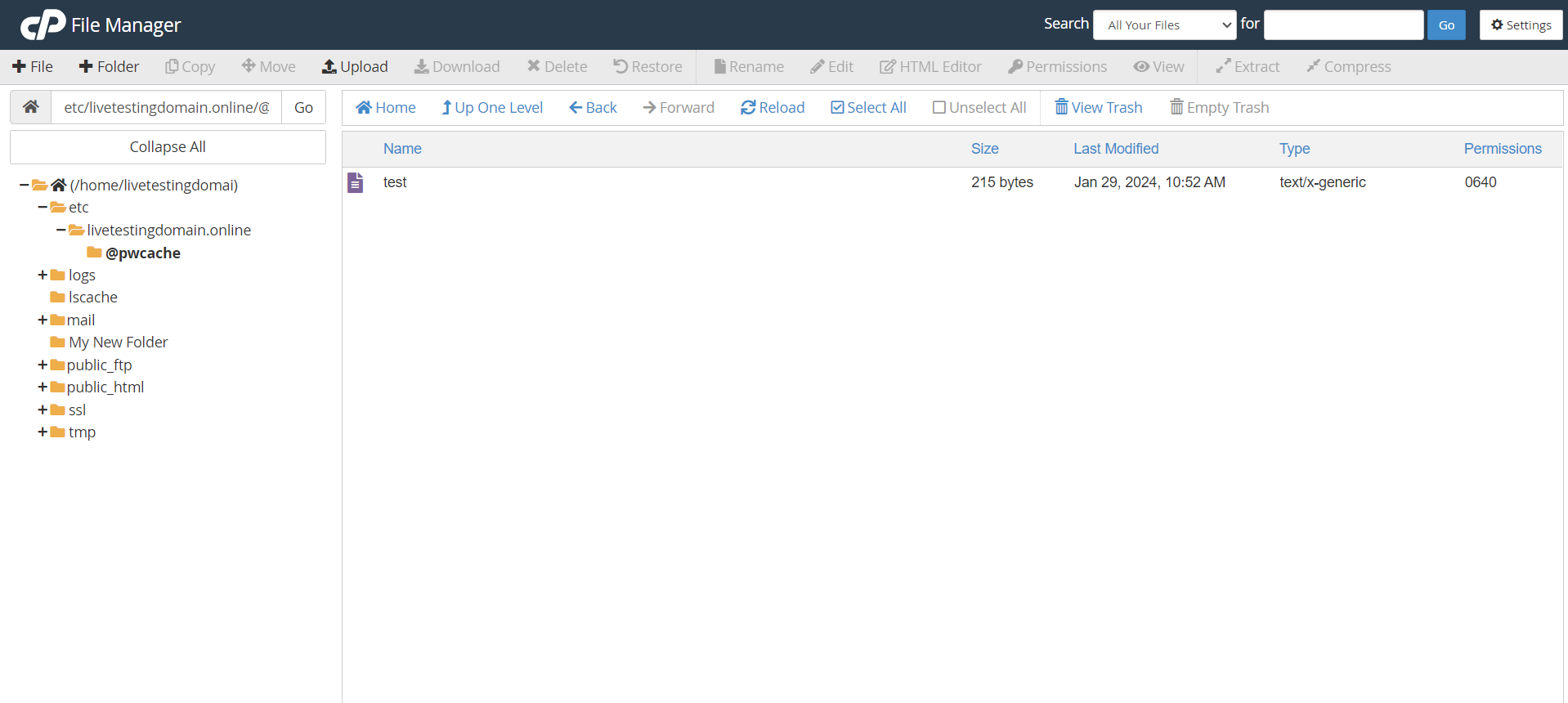
File Manager Dashboard
3. On the left is a collapsible list of folders in your account, while on the right you’ll find a list of all files and folders within the folder selected.

4. Your website files (html pages, gifimages, etc.) should go in the public_html folder.
5. Click the folder where you wish to store your files and click Upload to redirect to the upload page, which will resemble the image below.
6. Creating a new folder is also a simple task, just click Folder.
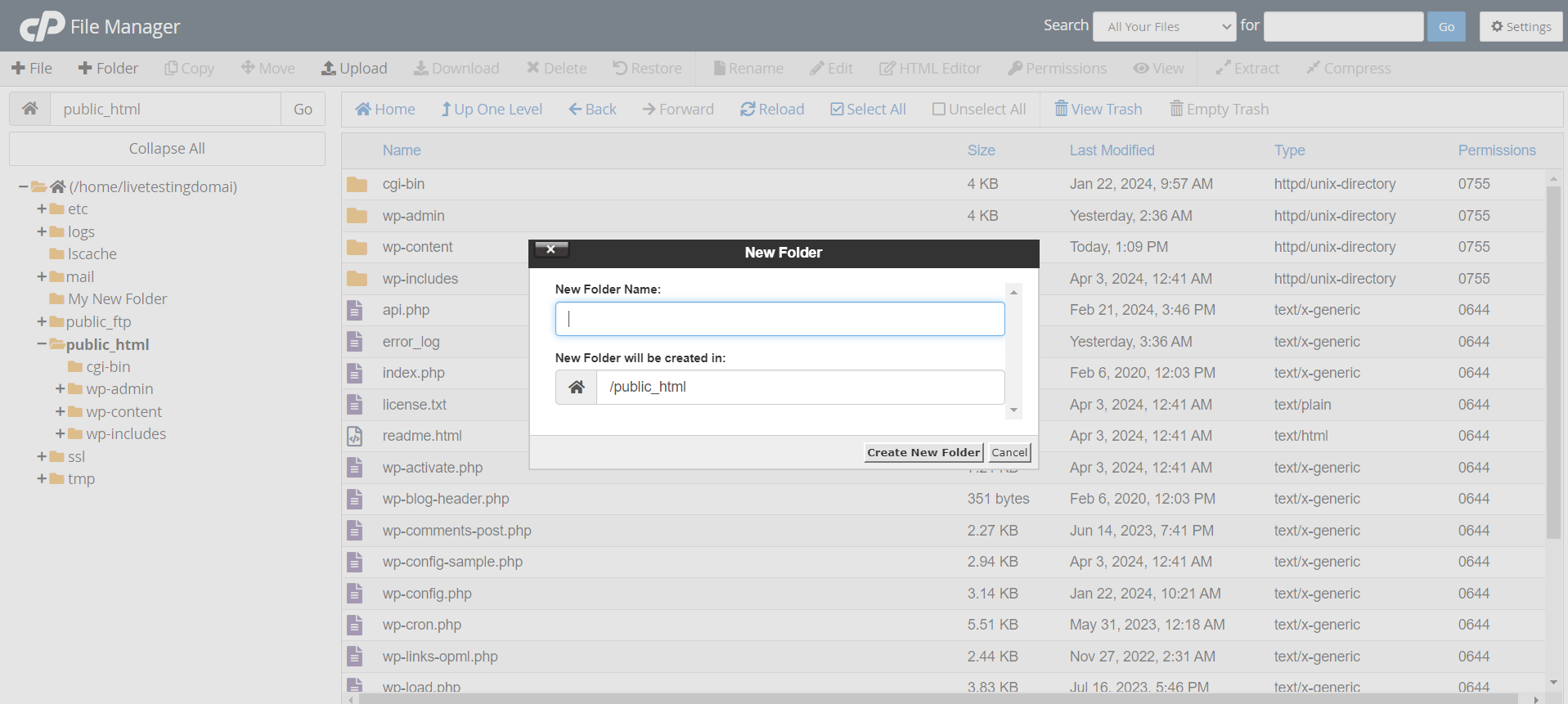
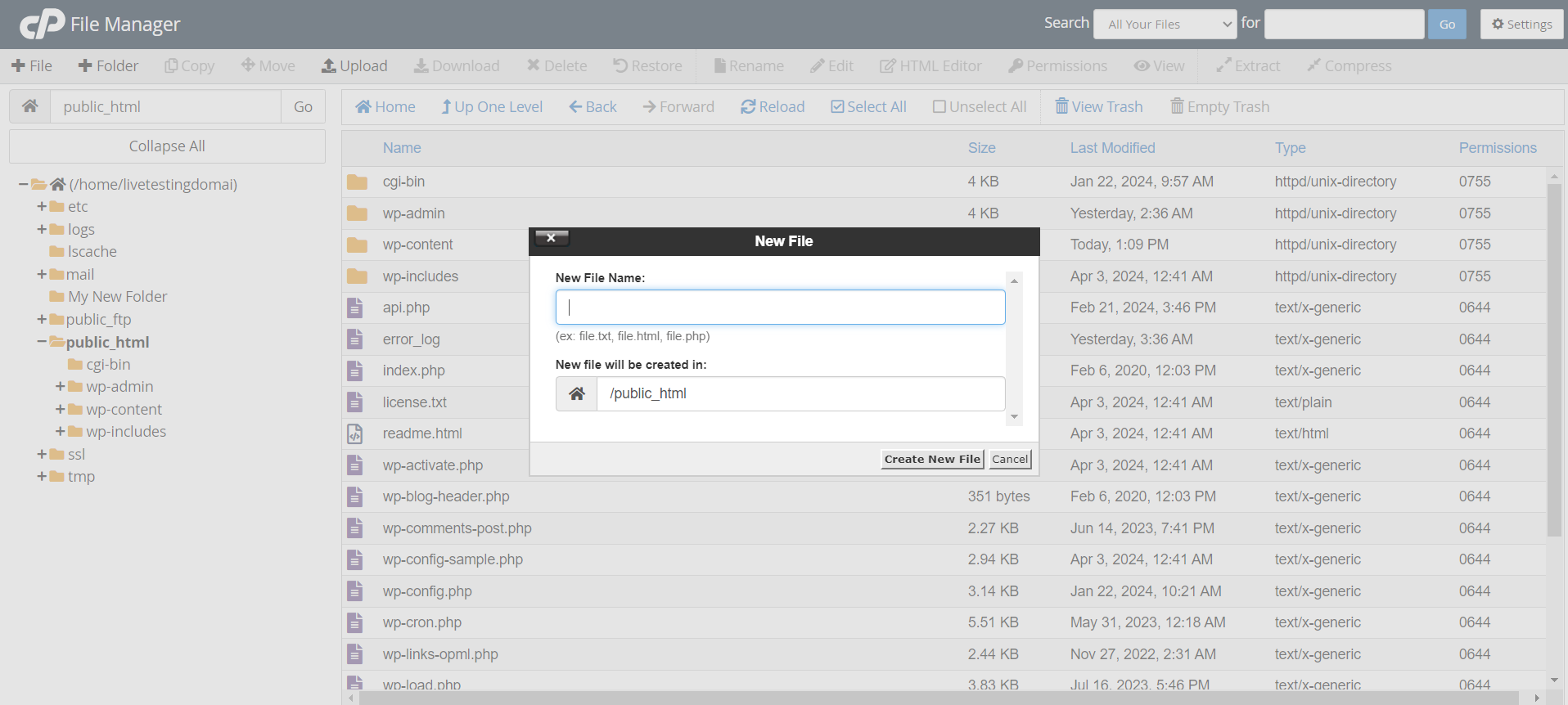
7. Creating a new file is just as easy; click File at the top of the screen.
Change File Manager Permissions
8. You can also use File Manager to change files or folder permissions. To do this, click your file or folder among the directories and click Permissions at the top of the screen.
9. cPanel’s File Manager simplifies managing the files and folders in your account when you don’t have access to an FTP application.
You’ve reached the end of the tutorial, and you now know how to use File Manager in cPanel.
Additional Information
General File Manager Information
Troubleshoot Website Issues: The File Manager in cPanel enables you to investigate and resolve issues directly on the server, such as broken links or missing files, facilitating quicker problem resolution.
Upload & Manage Website Files: The File Manager simplifies the process of uploading files from your computer to your web server. Whether you’re adding new content, such as images, documents, or web pages, this feature makes it straightforward.
Edit Website Files: With the File Manager in cPanel, you can edit files directly on the server. This eliminates having to download files, make changes locally, and re-upload them, streamlining the editing process.
Create or Delete Files & Directories: Adding new files and directories or removing old ones is easy with the File Manager. This helps you maintain an organised, well-structured website.
Set File Permissions: Adjusting file permissions through the File Manager allows you to control who can access, modify, or execute specific files on your server. Proper permission settings are crucial for the security and functionality of your site.
Login to Domains.co.za Account
1. Go to the Domains.co.za Login website page.

2. Enter your Email and Password and click the Sign In button.
3. You will see the Domains.co.za Dashboard, displaying the Manage Account menu on the left and your Account Information, Account Overview and Open Support Tickets on the right.

Login to cPanel from your Domains.co.za Dashboard
4. Click on Manage Services to view the sub-dropdown menu and select the hosting package for the domain you want to work with – in our example we are using Web Hosting.

5. Click the Manage button to the right of the domain name you want to access.
6. The display will now show Product Information, Quick Manage, Resource Usage and Site Statistics for that domain name.

7. Under Product Information, scroll down to Control Panel, which will display cPanel to the right, and click on the Login button.

8. The cPanel Dashboard will now be displayed.


