


How To Reinstall WordPress Without Losing Your Website Content
Reinstalling WordPress can sound risky, especially if your website supports your business, blog, online store, or customer enquiries. Losing your posts, pages, media, themes, or plugins isn’t something you can afford, and that fear is exactly what stops most people from acting when their site breaks.
What most people don’t realise is that reinstalling WordPress only replaces the core files; not your entire website. Your content, themes, plugins, and media live in a separate location and stay untouched, as long as you back up the site first and know which files to protect.
This guide covers everything you need to know about how to reinstall WordPress safely:
- When reinstalling WordPress makes sense.
- What to back up first?
- Which reinstall method to choose?
- How to restore your content after reinstallation.
- What to check once the reinstallation is complete.
- When to ask for assistance.
KEY TAKEAWAYS
- Back up your files and database, and store one copy off server before reinstalling WordPress.
- A reinstall replaces core files only. Your content, themes, plugins, and database stay intact as long as you protect the wp-content folder.
- Start with the dashboard method if the admin dashboard is accessible. Otherwise, use FTP or cPanel File Manager.
- WP-CLI is for developers only. A fresh installation is a last resort and requires a verified backup-and-restore plan before proceeding.
- Always try WordPress troubleshooting steps first: clear cache, check PHP compatibility, deactivate plugins, and run a malware scan.
- After reinstalling, run through the post-reinstallation checklist and create a fresh backup once the site is stable.
TABLE OF CONTENTS
Quick Answer: Can You Reinstall WordPress Without Losing Content?
Yes, you can reinstall WordPress without losing your content. A safe reinstall replaces only the WordPress core files while leaving your database and wp-content folder, which hold everything else completely intact, including your posts, pages, media, themes, plugins, and settings. However, a full backup of both your files and database is non-negotiable before you start, regardless of which method you use.
When Should You Reinstall WordPress?
Reinstalling WordPress isn’t the first thing you should do when something goes wrong. Many common WordPress problems can be fixed without touching the core files at all. But there are specific situations where a reinstall is the right call.
Reinstalling WordPress May Help When:
- WordPress core files are missing or corrupted.
- Persistent errors keep appearing even after basic troubleshooting.
- A WordPress update failed, leaving the site broken.
- The dashboard is loading incorrectly or behaving unexpectedly.
- The site has been hacked or compromised.
- Key functionality stopped working after an update.
- You need a clean set of WordPress core files to rule out file-level issues.
Try These Fixes First
Before you reinstall, it’s worth running through a few simpler checks. These take far less time and often resolve the problem without any risk to your site:
- Clear your site’s cache and your browser cache.
- Update all plugins and themes to their latest versions.
- Deactivate any plugins that were recently added or updated.
- Temporarily switch to a default WordPress theme to rule out a theme conflict.
- Check your error logs through cPanel or your hosting control panel.
- Confirm your server is running a PHP version that’s compatible with your WordPress version.
- Run a malware scan if you suspect the site may have been compromised.
If you’ve worked through all of these and the problem persists, reinstalling WordPress is a reasonable next step. At this point, the issue is likely at the core file level, and a reinstall gives you a clean foundation to work from.
Reinstalling WordPress vs Starting Fresh: What’s the Difference?
These two methods aren’t the same, and confusing them is one of the most common errors people make when their WordPress site breaks.
- Reinstalling WordPress core means replacing the engine that runs your site while keeping everything else in place.
- Starting fresh means removing the entire site and building again from scratch.
One is a targeted fix; the other is a last resort. Understanding which option applies to your situation before you start can save you a lot of time, and potentially your entire website.
| Option | What It Means | Risk Level | Best For |
| Reinstall WordPress Core | Replaces core files while keeping content and settings | Lower, if backed up | Corrupted files, failed updates |
| Fresh WordPress installation | Removes the old site and installs a clean version | High, if not backed up | Severe compromise, full rebuild |
| Restore from backup | Returns the site to an earlier working state | Depends on backup quality | Failed changes, broken updates, malware recovery |
This guide covers all three options, but for most users dealing with errors, failed updates, or corrupted files, reinstalling the WordPress core is the safest and most practical route. A fresh installation carries a much higher risk of data loss and should only be considered when there’s no other option and a verified backup is in place.
What to Back Up Before Reinstalling WordPress
A safe reinstall starts with a full backup; no exceptions. If something goes wrong mid-process, your backup is the only thing standing between you and a broken website with no way back.
Before you touch anything, ensure you have copies of both your website files and your database stored somewhere safe and accessible.
Here’s exactly what that includes:
Website Files
Your website files are everything stored on your server that makes your site work.
They include:
- WordPress core files (the files that run WordPress itself).
- Themes (your site’s design and layout files).
- Plugins (the tools and features added to your site).
- Uploads and media (images, videos, documents, and other files in your media library).
- Custom files (any files added outside of standard WordPress folders).
- wp-config.php (a critical file that contains your database credentials, security keys, and site configuration settings).
The wp-config.php file is easy to overlook, because it sits quietly in the root directory, but losing it or overwriting it during a reinstall can prevent your site from connecting to its database entirely.
Website Database
Your database is where WordPress stores everything that appears on your site. Without it, your site is just an empty shell.
A database backup should include:
- Posts and pages.
- Users and comments.
- Site settings and configurations.
- Plugin and theme settings.
- WooCommerce products, orders, and customer data, if you run an online store.
For South African businesses using WooCommerce to process orders or manage inventory, database backups are especially critical. Losing order history or customer records is not something a backup plugin or reinstall can recover without a proper export in place.
The wp-content Folder
The wp-content folder deserves its own mention because it’s the part of your WordPress installation that most users care about most.
It contains three things:
- Your themes.
- Your plugins.
- Your media uploads
Everything your visitors see, and most of the tools running behind the scenes, live inside this folder.
During a standard WordPress core reinstall, the wp-content folder should never be overwritten. It isn’t part of the core files, and messing with it unnecessarily puts your content and design at risk.
Keep it protected, and back it up separately before you begin.
How to Back Up Your WordPress Website
There are three main ways to back up your WordPress site before reinstalling. The one you use depends on your comfort level and what tools you have access to. Any of these methods will give you a reliable backup to fall back on if something goes wrong:
Option 1: Use a Backup Plugin (Recommended for Beginners)
A backup plugin is the easiest option if you can still access your WordPress dashboard. UpdraftPlus is one of the most widely used backup plugins available and works well for most WordPress sites.
- Go to Plugins → Add Plugin in your WordPress dashboard and search for UpdraftPlus.
- Install and activate the plugin.
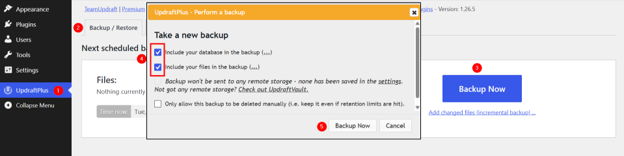
- Navigate to UpdraftPlus → Backup/Restore and click Backup Now. Ensure files and the database are both selected.
Once the backup is complete, save a copy to an off-server location such as Google Drive, Dropbox, or your local computer. Confirm the backup files are there and not corrupted before moving on.
EXPERT TIP:
Storing your backup off-server matters. If your server goes down or something goes wrong during the reinstall, a backup sitting on the same server won’t help you.
Option 2: Back Up Through cPanel
If you prefer to work directly through your hosting control panel, cPanel provides everything you need to manually back up both your files and database.
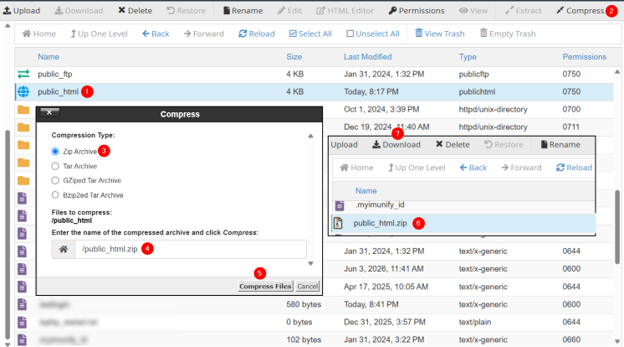
- Login to cPanel and open File Manager.
- Locate your WordPress installation folder, which is usually public_html.
- Select the folder, click Compress in the top-right corner.
- Now, choose the zip format, name your file, and click Compress Files.
- Once it’s ready, locate your zipped file in the same directory, select it, and click Download to save a copy on your computer.
- Go to cPanel → Databases → phpMyAdmin and select your WordPress database from the left-hand panel.
- Click Export.
- Choose the Quick – display only the minimal options export method.
- Select SQL.
- Click Export to start exporting your WordPress database.

Save the downloaded database file somewhere safe alongside your file backup. Keep both files together in a clearly labelled folder so you can find them quickly if you need to restore.
Option 3: Back Up Using FTP
File Transfer Protocol (FTP) is a reliable option when you want full control over which files you download, or when you can’t access cPanel or the WordPress dashboard. FileZilla is a free FTP client that works well for this.
- Open FileZilla and connect to your server using your FTP credentials (host, username, password, and port), which you can find in your hosting control panel.
- In the right-hand panel, navigate to your WordPress installation folder.
- Select all files and folders, then drag them to a folder on your local machine in the left-hand panel.
- Wait for the download to complete, as this can take some time depending on how large your site is.
- Once the files are downloaded, export your database separately through phpMyAdmin in cPanel or through your hosting control panel’s database manager.
IMPORTANT:
FTP backs up only your files, so the database export step is essential. Don’t skip it.
Which Reinstall Method Should You Use?
The right method depends on two things:
- Whether you can still access your WordPress dashboard.
- How comfortable are you working with hosting tools.
Each method carries its own level of risk, so it’s worth choosing carefully rather than jumping straight into the most technical option.
| Method | Best For | Skill Level | Main Risk |
| WordPress Dashboard | Users who can access the wp-admin | Beginners | Does not fix all file or database issues |
| FTP | Users who cannot access wp-admin | Intermediate | Accidentally overwriting wp-content |
| cPanel File Manager | Users who are comfortable with hosting tools | Intermediate | Uploading files to the wrong folder |
| WP-CLI | Developers and advanced users | Advanced | Running commands in the wrong directory |
| Fresh Install | Full rebuilds or severe compromise | Advanced / support recommended | Data loss if not backed up |
If you’re unsure where to start, use the dashboard method first. It’s the lowest-risk option and takes only a few clicks. If your dashboard is unavailable or the issue persists, switch to FTP or cPanel File Manager. WP-CLI and fresh installations are best left to developers or experienced users who are confident working at the server level.
How to Reinstall WordPress from Dashboard
Reinstalling WordPress from the dashboard is the easiest and lowest-risk method available. It downloads a fresh copy of the WordPress core files and automatically replaces the existing ones, without touching your content, themes, plugins, or database. If you can still access the WordPress admin dashboard, this is where you should start:
- Navigate to yourwebsite.com/wp-admin link (ensure you replace ‘yourwebsite’ with your actual domain name) and login to your WordPress admin dashboard.
- Go to Dashboard → Updates from the left-hand menu.
- Click the Re-install version x.x button. If you’re already running the latest version of WordPress, this button will still appear and will reinstall the current version.
- Wait for WordPress to download and replace the core files. The process usually takes less than a minute, depending on your connection speed
- Once it’s complete, visit your website and check a few key pages to confirm everything is loading correctly.

This method replaces only the WordPress core files, so your posts, pages, media, and settings won’t be affected when the process completes correctly. However, a full backup before you start is still essential. If something unexpected happens mid-process, you’ll want a restore point to fall back on.
How to Reinstall WordPress Via FTP
If you can’t access your WordPress dashboard, FTP allows you to replace the core files directly on your server. It’s a more hands-on method, but it’s straightforward when you follow the steps carefully. FileZilla is a free, widely used FTP client that works well for this.
- Download the latest version of WordPress. It will come as a .zip file.
- Unzip the downloaded file on your computer. This extracts the WordPress folder containing all the core files
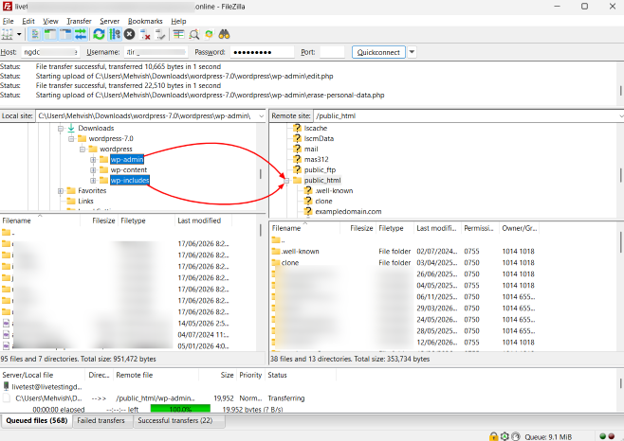
- Open FileZilla and connect to your server using your FTP credentials, which include your host, username, password, and port. You’ll find these in your hosting control panel
- In the right-hand panel, navigate to your WordPress installation folder. This is usually named public_html, though it may differ depending on your hosting setup.
- In the left-hand panel, open the unzipped WordPress folder on your computer.
- Select all files and folders from the unzipped WordPress folder, but deselect the wp-content folder before uploading. This folder must stay as it is.
- Drag the selected files to the right-hand panel to begin uploading. When FileZilla prompts you to overwrite existing files, select Overwrite.
- Once the upload is complete, visit your website and test a few pages to confirm the site is working correctly.
WARNING:
Do not delete or overwrite the wp-content folder at any point during this process. It contains your themes, plugins, and media uploads. Overwriting it without a verified backup means losing everything stored inside, and that’s not something you can easily undo.
How to Reinstall WordPress Using cPanel File Manager
If you’re hosting your website on a cPanel-based hosting plan, you don’t need an FTP client to reinstall WordPress. cPanel’s built-in File Manager gives you direct access to your server files through your browser, making it a practical option for users who are comfortable working inside their hosting control panel but haven’t set up FTP access.
- Login to your cPanel account through your hosting provider.
- Open File Manager from the cPanel home screen.
- Locate your WordPress installation folder. This is usually public_html, but if your site is installed in a subfolder, navigate to that directory instead
- Download the latest version of WordPress from WordPress.org to your computer, then upload the .zip file to your WordPress installation folder using the Upload button in File Manager.
- Once the upload is complete, select the .zip file and click Extract to unpack the files inside File Manager.
- Move the extracted WordPress core files into the correct installation directory, replacing the existing core files when prompted.
However:
- Do not overwrite the wp-content folder. Skip it entirely during this step.
- Don’t replace the wp-config.php file in your installation folder; in fact, confirm it’s still there and intact. This file holds your database connection details, and if it’s missing or overwritten, your site won’t be able to connect to its database. Do not replace this file.
- Visit your website and test a few pages to confirm everything is working as expected

IMPORTANT:
Pay close attention to which folder you’re uploading and extracting files into. If the files land up in the wrong directory, your site will break, or you’ll end up with a duplicate WordPress installation sitting alongside your existing one. Double-check the path in File Manager before you extract anything.
How to Reinstall WordPress Using WP-CLI
This method is intended for developers and experienced users who are comfortable working at the command line. If you’re not confident with Secure Socket Shell (SSH), skip to the troubleshooting section below or contact your hosting provider for assistance.
WP-CLI is a command-line tool that lets you manage WordPress through SSH instead of the dashboard. Rather than clicking through menus, you run commands directly on the server.
It’s fast, efficient, and particularly useful when you’re managing multiple WordPress sites or need server-level access to fix something the dashboard can’t reach.
Here’s how to do it:
- Open your terminal and connect to your server via SSH. The command follows this format:
ssh username@host -p port-numberThen, enter your password when prompted.
- Once connected, navigate to your WordPress installation directory using the cd command. For example:
cd public_htmlGetting this right is critical. Otherwise, you’ll end up installing in the wrong directory.
- Run the following command to download a fresh copy of the WordPress core files and overwrite the existing ones:
wp core download --forceThe –force flag tells WP-CLI to replace the current core files even if WordPress is already installed in that directory
- Once the download is complete, run this command to update the database and bring it in line with the new core files:
wp core update-db- Visit your website and check that everything is loading correctly. Navigate through a few pages and confirm the dashboard is accessible
IMPORTANT:
Before running any WP-CLI commands, ensure you’ve backed up the site and confirmed you’re in the correct installation directory. A command that is run in the wrong folder can cause problems that are difficult to reverse. If you’re not fully confident with SSH access, it’s better to use the cPanel File Manager or involve a developer.
When to Uninstall WordPress & Start Fresh
Starting fresh is the highest-risk option on this list, and it’s not the same as reinstalling WordPress core files. A core reinstall replaces specific files while keeping your content and settings intact.
However, a fresh installation removes everything: your files, your database, your media, your themes, your plugins, and your settings. Once it’s all gone, there’s no undoing it without a verified backup.
This option isn’t something to consider lightly, but there are situations where it’s genuinely the right call.
A fresh WordPress installation may make sense when:
- The site has been severely compromised, and malware is present in multiple locations, including themes, plugins, uploads, and the database.
- You’re rebuilding the site from scratch, and the existing installation is no longer required.
- The database is damaged beyond repair and can’t be restored to a working state.
- Old plugins or themes have created deep-rooted structural issues that a core reinstall can’t resolve.
- You’ve already exported your content and have a clear, tested plan for restoring it to a new installation.
WARNING:
Proceeding without a verified backup means permanently losing your website content, media files, user data, orders, and settings. Do not start a fresh installation unless you have a complete backup confirmed and a restore plan ready to execute.
If you’ve weighed the risks and a fresh install is the right path forward, here’s a brief overview of the process:
- Go to cPanel → Files → File Manager. Navigate to your WordPress installation folder and delete all existing files and folders.

- Navigate to Databases → Manage My Databases in cPanel, select your WordPress database, and delete it.

- On the cPanel’s Manage My Databases page, create a new database and database user, and note down the database name, username, and password for the installation step.

- Select ALL PRIVILEGES, then click Make Changes to grant the database user full permissions.

- Go to cPanel Home → WordPress and click Install Now to install a fresh copy of WordPress.
- Once the fresh installation is in place, restore your content from your backup.
At every step of this process, treat the backup as your safety point. If you’re not completely confident in what you’re doing, this is the point when bringing in a developer or contacting your hosting provider is the right decision.
How to Restore Your WordPress Website After Reinstalling
Once the WordPress reinstallation is done, your WordPress core is clean and ready. Next is getting your content, database, themes, and plugins back in place so your site works exactly as it did before.
NOTE:
How much restoration work you need to do depends on which reinstall method you used and what your backup covers.
Restore Website Files
If your wp-content folder was affected during the reinstall, or if you’re restoring after a fresh installation, you’ll need to restore your files manually.
To do this:
Use an FTP client or File Manager
Using FTP or cPanel File Manager, navigate to your WordPress installation folder and upload your backed-up wp-content folder, replacing the current one if necessary.
If you used a backup plugin like UpdraftPlus, you may navigate to WordPress Dashboard → UpdraftPlus → Backup / Restore → Existing backups to use its built-in restore function to handle this automatically.

Files to restore include your media uploads, themes, plugins, and any custom files that formed part of your original installation.
Restore the Database
If your database was affected or deleted, you need to import your backup through phpMyAdmin.
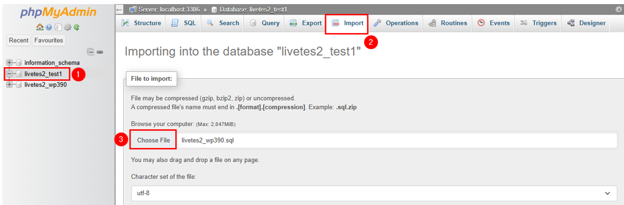
- Open phpMyAdmin from cPanel.
- Select the database you created for the reinstalled WordPress site from the left-hand panel.
- Click Import.
- Click Choose File to select your exported database file. Leave everything else as default.
- Finally, click Import.
Once the import is complete, open your wp-config.php file and confirm that the database name, username, password, and host all match the credentials for your current database. If these details don’t line up, your site won’t be able to connect to the database, and you’ll see a WordPress Database Connection Error.
Restore Content Using WordPress Importer
If you exported your content as an XML file before reinstalling, you may restore it through the WordPress dashboard without directly accessing the database.
Here’s how:
- Go to WordPress Dashboard → Tools → Import.
- Locate WordPress and click Install Now to install the importer.
- Next, click Run Importer.
- Click Choose File to upload your XML export file. Then, click Upload file and import.
- Follow the on-screen prompts to assign content to the correct users.
- Click Submit.

This method restores posts, pages, categories, tags, and other exported content. It won’t restore plugin settings, theme configurations, or WooCommerce data, so those will need to be handled separately.
Reinstall & Configure Themes & Plugins
With your files and database restored, the last step is ensuring your themes and plugins are properly installed and configured.
Go to Plugins → Add Plugin and reinstall any plugins that are missing. Once they’re active, work through each plugin’s settings and reconfigure them to match your previous setup. Pay particular attention to security plugins, caching tools, contact forms, and payment gateways, as these often need specific configuration to work correctly after a reinstall.

For your theme, go to Appearance → Themes, activate the correct theme, and check that your menus and widgets are set up as expected. If your theme uses a page builder or custom settings panel, review those as well to ensure nothing has reset.

Once everything is back in place, take a few minutes to click through your site and confirm it’s all working before you move on to the post-reinstallation checklist.
Common Issues After Reinstalling WordPress
Even when a reinstall goes smoothly, you might run into a few issues once the site is back up. Most of them are straightforward to fix once you know what’s causing them.
Database Connection Error
A database connection error means WordPress can’t communicate with its database. This usually comes down to incorrect credentials in the wp-config.php file, which is the most common cause after a reinstall or fresh installation.
To fix it, open wp-config.php in File Manager or via FTP and check the following lines:
define('DB_NAME', 'your_database_name');
define('DB_USER', 'your_database_username');
define('DB_PASSWORD', 'your_database_password');
define('DB_HOST', 'localhost');
Cross-reference each value with the database details in your hosting control panel. Even a single character out of place will prevent the connection from working. If the credentials look correct but the error persists, contact your hosting provider’s support team, as the issue may be on the server side.
Missing Files or Folders
If certain pages aren’t loading or features are broken after the reinstall, missing files are often the cause. This can happen when an upload is interrupted, files are placed in the wrong directory, the wp-content folder isn’t restored, or file permissions aren’t set correctly.
To fix this, start by checking your installation directory in File Manager or via FTP to confirm all the expected files and folders are present. If anything is missing, re-upload from your backup.
Once the files are in place, check the permissions. Files should be set to 644 and directories to 755. Incorrect permissions can prevent WordPress from reading files even when they’re there.
Plugin or Theme Conflicts
A conflict between plugins or between a plugin and your theme can cause errors, a broken layout, or a white screen after reinstalling.
This often happens when:
- A plugin isn’t compatible with the current version of WordPress.
- The PHP version on the server doesn’t match what a plugin or theme requires.
- Plugin settings carried over from the old installation are no longer valid.
To isolate the problem, deactivate all plugins through Plugins → Installed Plugins and reload the site. If it loads correctly, reactivate your plugins one at a time and reload after each one until you find the one causing the issue.
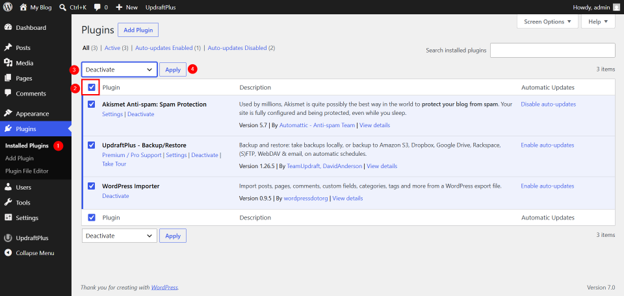
If the problem is theme-related, temporarily switch to a default WordPress theme via Appearance → Themes and see if the error clears. When you’ve identified the source, update or replace the problem plugin or theme.

Broken Links or Missing Images
Broken links and missing images after a reinstall are usually caused by one of four things:
- Incorrect upload paths.
- Media files that weren’t restored.
- A database import issue affecting attachment records.
- The permalink settings that were reset during the reinstall.
The first thing to do is go to WordPress Dashboard → Settings > Permalinks, then click Save Changes without changing anything. This refreshes the permalink structure and fixes many broken links on its own.

If images are still missing, check your media library and compare it with your backup to identify which images need to be re-uploaded. For broader link issues across the site, a broken link checker plugin can scan your pages and flag anything that needs attention.
Post-Reinstallation Checklist
Before you consider the job done, run through this checklist. It only takes a few minutes and can save you from discovering a problem when your visitors have found it first.
- Check Homepage Loads Correctly: Visit your site’s homepage and confirm it’s displaying as expected. A broken homepage is the first thing visitors and search engines will notice.
- Check Important Pages: Navigate to your key pages, including About, Contact, Services, and Shop. Confirm the content is intact and the layout is correct.
- Test All Forms: Submit a test entry through every form on the site, including contact forms, enquiry forms, and newsletter sign-ups. Ensure the submissions are coming through to the right place.
- Test Checkout or Booking Functions: If your site processes orders, bookings, or payments, run a test transaction to confirm the entire process works from start to finish. For South African WooCommerce stores, check that your payment gateway is active and processing correctly.
- Check WordPress Dashboard: Login to your admin account and confirm the dashboard loads without errors. Check that all menu items are accessible and nothing looks out of place.
- Confirm Media Files Display Correctly: Browse through a few pages and posts that contain images or other media. Open your media library and check that files are present and loading as expected.
- Check Menus & Widgets: Go to Appearance → Menus and confirm your navigation menus are assigned correctly. Check that your sidebar and footer widgets are in place and displaying properly.
- Re-save Permalinks: Go to Settings → Permalinks and click Save Changes without altering anything. This refreshes your URL structure and prevents unnecessary 404 errors across the site.
- Update WordPress, Plugins, & Themes: Go to Dashboard → Updates and apply any available updates. Running outdated software is one of the most common causes of WordPress issues, so get everything up to date before moving on.
- Change Passwords If the Reinstall Was Security-Related: If you reinstalled because the site was compromised, change your WordPress admin password, database password, FTP password, and cPanel password immediately. Use strong, unique passwords for each.
- Reinstall Security & Caching Plugins: If your security or caching plugins weren’t restored with the rest of your setup, reinstall and configure them now. Don’t leave your site running without them, particularly after a security-related reinstall.
- Check SSL: Look for the https:// prefix in your browser’s address bar. If it’s missing or showing a warning, your SSL certificate may need to be reissued or reactivated. Contact your hosting provider if you’re unsure.
- Check Analytics & Tracking Code: If you use Google Analytics, Google Tag Manager, or any other tracking tool, confirm the code is still present and firing correctly. A reinstall can sometimes dislodge tracking scripts, particularly if they were added through a plugin that needs reconfiguring.
- Review for Broken Links: Install a broken link checker plugin and run a scan across the site. Fix or redirect any broken URLs before they affect your search engine rankings or user experience.
Once you’ve confirmed the site is stable and everything is working correctly, create a new full backup and store it off server. This provides a clean restore point going forward, and ensures your backup reflects the site’s current working state.
How Domains.co.za Can Assist
If you’re reinstalling WordPress because of a one-off issue, the steps given here should get you back on track. But if you’re dealing with recurring errors, slow performance, or repeated compromises, it’s worth taking a closer look at whether your current hosting environment is suited to what your site needs.
A WordPress site running on an underpowered or poorly configured hosting plan will keep running into problems regardless of how many times you reinstall. For example, insufficient memory limits, outdated PHP versions, and a lack of proper security configurations are hosting-level issues that a reinstall won’t fix.
Domains.co.za offers WordPress Hosting built specifically for South African websites, with an environment configured to support WordPress from the ground up. If your site has outgrown its current plan or you’re simply looking for a more stable foundation to build on, it’s a practical option worth considering.
Beyond WordPress hosting, Domains.co.za also offers:
- Web Hosting for businesses that need reliable cPanel-based hosting for their websites.
- VPS Hosting for sites that need more control, dedicated resources, and room to scale.
- SSL Certificates to keep your site secure and maintain visitor trust. This is particularly important if you run an online store or handle customer data.
- Domain Registration, if you’re setting up a new site or moving to a fresh installation under a new domain name.
- Email Hosting for professional domain-based email addresses that work independently of your website hosting.
Whatever stage your WordPress site is at, having the right hosting infrastructure underneath it makes everything easier to manage and far less likely to break.
![Strip Banner Text - Fast WordPress Hosting Built for South African Businesses. [Get Started]](/articles/wp-content/uploads/2026/07/wordpress-performance-issues-02.webp "Fast WordPress Hosting Built for South African Businesses. [Get Started]")
Power Up Your Site: How to Install a WordPress Plugin
VIDEO: Power Up Your Site: How to Install a WordPress Plugin
FAQS
Why might I need to reinstall WordPress?
You may need to reinstall WordPress if your core files are corrupted, a WordPress update fails, the dashboard behaves incorrectly, or the site has been compromised. It’s also worth considering if persistent errors remain after basic WordPress troubleshooting steps have been exhausted.
Can I reinstall WordPress without losing my content?
Yes. A reinstall replaces the WordPress core files only. Your posts, pages, media, themes, plugins, and settings remain intact as long as you protect the wp-content folder and database. Always create a full backup before starting.
What should I back up before reinstalling WordPress?
A WordPress backup before reinstall is non-negotiable. Back up your website files, including the wp-config.php and wp-content folders, and export your database through phpMyAdmin. Store both backups off server before you begin.
What’s the easiest way to reinstall WordPress?
The easiest method is through the WordPress dashboard. Go to Dashboard →> Updates and click Re-install version x.x (here, x.x would be the version number). This replaces the core files automatically without affecting your content or settings.
How do I reinstall WordPress if I can’t access wp-admin?
Use FTP or cPanel File Manager to upload fresh WordPress core files directly to your server. Download the latest version from WordPress.org, unzip it, and upload all files except the wp-content folder to your installation directory.
What is the wp-content folder, and why does it matter?
The wp-content folder contains your themes, plugins, and media uploads. It’s the part of your WordPress installation that holds your content and design, and it should never be overwritten during a standard core reinstall.
Can I reinstall WordPress using cPanel?
Yes. Login to cPanel, open File Manager, and navigate to your WordPress installation folder. Upload the latest WordPress .zip file, extract it, and replace the existing core files without overwriting the wp-content folder and wp-config.php file.
What is WP-CLI?
WP-CLI is a command-line tool that lets developers manage WordPress through SSH instead of the dashboard. To reinstall WordPress using WP-CLI, navigate to your installation directory and run ‘wp core download –force’, followed by ‘wp core update-db’. It’s intended for advanced users only.
What should I do if I get a database connection error after reinstalling?
Open wp-config.php and check that the database name, username, password, and host are correct. Cross-reference these details with your hosting control panel. If the credentials are correct and the error persists, contact your hosting provider’s support team.
Should I start fresh instead of reinstalling WordPress?
Only if the site has been severely compromised, the database is damaged beyond repair, or you’re rebuilding from scratch. A fresh installation removes all files, database content, media, themes, and plugins. It should only be done with a verified backup and a clear restore plan in place.
What should I check after reinstalling WordPress?
Check that key pages load correctly, forms and checkout functions work, media displays properly, menus and widgets are in place, SSL is active, permalinks are saved, and all plugins and themes are regularly updated. Run a broken link scan and create a fresh backup once the site is confirmed stable.
Can reinstalling WordPress fix a hacked website?
It can replace compromised core files, but it won’t remove malware from themes, plugins, uploads, or the database. After reinstalling, run a full malware scan, update all passwords, and install a security plugin. If the compromise was severe, a fresh installation combined with a full security review is the safer option.
Other Blogs of Interest
- Why WordPress and WordPress Hosting are the duo your SME needs in 2024
- Looking for Fast – Secure and Stable WordPress Hosting for Your Website
- Website Builder vs WordPress: Which Is Best For Your New Business
- Web Hosting vs WordPress Hosting: How To Choose
- Why Choose WordPress For Ecommerce

Rhett isn’t just a writer at Domains.co.za – he’s our resident WordPress content guru. With over 8 years of experience as a content writer, with a background in copywriting, journalism, research, and SEO, and a passion for websites.
Rhett authors informative blogs and articles that simplify the complexities of WordPress, website builders, domains, and cPanel hosting. Rhett’s clear explanations and practical tips provide valuable resources for anyone wanting to own and build a website. Just don’t ask him about coding before he’s had coffee.