






How To Fix Common WordPress Performance Issues
A slow WordPress website doesn’t just frustrate visitors; it can cost you enquiries, sales, and trust. The longer your pages take to load, the more likely people are to leave before they’ve even seen what you offer.
Most WordPress performance issues stem from a handful of causes, such as large images, outdated plugins, heavy themes, poor caching, database clutter, or a hosting plan that’s struggling to keep up. This guide will help you identify what’s wrong, show you how to apply the right fix, and help you know when your web hosting environment needs a second look.
KEY TAKEAWAYS
- Large images, outdated plugins, heavy themes, database bloat, poor caching, and limited hosting resources are the most common causes of WordPress performance issues.
- Use speed-testing tools and your hosting dashboard to identify the actual cause.
- Keep plugins and themes regularly updated, remove what you don’t use, and test changes on a staging site before going live.
- Compress, resize, and format images correctly before uploading.
- Treat caching and database maintenance as ongoing tasks, not one-off fixes.
- If issues persist after WordPress performance optimisation, your hosting plan may need to be reviewed.
TABLE OF CONTENTS
Quick Answer: What Causes WordPress Performance Issues?
WordPress performance issues are commonly caused by large, unoptimised images, outdated or poorly coded plugins, heavy themes, insufficient caching, database bloat, or limited hosting resources.
To fix them, test your site speed, update WordPress core, review your plugins and themes, optimise your images, clear your cache, clean the database, and check whether your hosting plan still meets your site’s needs.
What Are WordPress Performance Issues?
WordPress performance issues are anything that slows down, interrupts, or weakens how your website loads, functions, or responds. They don’t always look the same. Sometimes it’s a page that takes too long to open. Other times it’s an error message, a blank screen, or a checkout that won’t complete.
Some of the most common signs include:
- Pages that take longer than three seconds to load.
- A slow or unresponsive WordPress dashboard.
- Long server response times.
- Database connection errors.
- Frequent timeouts.
- 500 internal server errors.
- White screen errors with no explanation.
- High CPU, RAM, or storage usage on your hosting account.
- Images that load slowly or not at all.
- Poor performance on mobile devices.
- Broken layouts after a plugin or theme update.
If any of these are familiar, your site is telling you something is wrong. The cause might be minor, or it may point to something that needs proper attention. Either way, identifying the problem correctly is what will make the fix work.
Why WordPress Performance Matters
Website speed isn’t just a technical concern. It directly affects how visitors experience your site and whether they stay long enough to become customers.
When a page loads fast, visitors are more likely to browse, fill in a contact form, or complete a purchase. When it’s slow, they leave. Most users abandon a page that takes longer than three seconds to load, and they rarely return. You don’t just lose a visit; you lose an enquiry, a sale, or a lead.
A slow site also quietly damages trust. If your checkout is sluggish or your contact page takes too long to respond, visitors start to question whether your business is reliable. First impressions matter, and your website’s speed is often the first impression you make.
That loss of trust also has an SEO cost. Search engines take page speed and user experience into account when ranking websites. A slow site with a high bounce rate is less likely to perform well in search results, which makes it harder for potential customers to find you before they find a competitor.
What This Means for South African Businesses
In South Africa, 92.52% of web traffic comes from mobile devices, and internet connectivity isn’t always consistent across the country. If your WordPress site is already slow on desktop, it’s likely to be even slower on mobile, and that’s where many of your potential customers are browsing.
For businesses relying on WordPress hosting for bookings, enquiries, online orders, or lead generation, that slowness has a direct cost. A visitor who can’t load your services page or cannot complete a checkout won’t wait around. They will move on to a competitor whose site works, and you may never know they were there.
Speed alone won’t guarantee better rankings or more sales, but a site that loads well, works on mobile, and doesn’t give errors provides your business with a much stronger foundation to build on.
How to Identify WordPress Performance Issues
Before you start making changes, you need to know what’s causing the problem. WordPress troubleshooting works best when you start with a clear diagnosis instead of jumping straight into fixes, which can waste time and sometimes make things worse.
Here’s what you need to do to gather some information:
Test Your Website Speed
Speed testing tools provide an objective look at how your site is performing and where the problems are coming from.
Three reliable options are:
- Google PageSpeed Insights.
- GTmetrix.
- Pingdom.
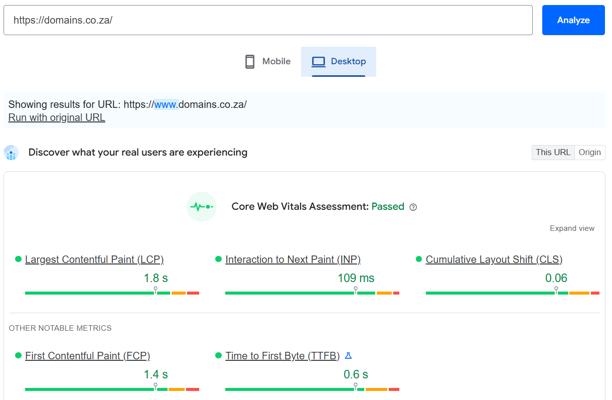
- Google PageSpeed Insights analyses your page and scores it for both mobile and desktop. It highlights issues affecting your Core Web Vitals, including:
- Largest Contentful Paint, which measures how long your main content takes to appear.
- Time to First Byte, which reflects how quickly your server starts responding to a request.
- GTmetrix goes a step further by showing a waterfall chart that explains how each element on your page loads. This makes it easier to spot large files, render-blocking scripts, excessive HTTP requests, and unoptimised images that increase your load time.

- Pingdom lets you test from different locations, which is useful for understanding how your site performs for visitors in different regions. It surfaces load time, page size, and the number of requests your page makes, giving you a clear picture of where the weight is coming from.
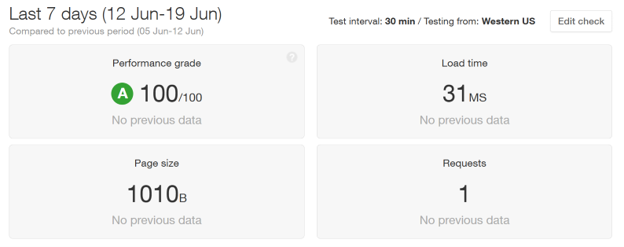
Running your site through at least one of these tools before making any changes gives you a baseline to measure your improvements against.
Check Your Hosting Resource Usage
If your speed test results point to slow server response times, the next place to look is your hosting account. Your hosting dashboard, including cPanel if your plan includes it, can show you whether your site is putting too much strain on the server.
Here’s what to check:
- CPU & RAM Usage: If either is consistently high, your server may be struggling to handle your site’s requests.
- Disk Space: Worth reviewing if your site hosts a lot of media files or if backups are eating into your storage allocation.
- PHP Version: Older PHP versions are slower and less secure. Running an outdated version can affect both performance and compatibility with newer plugins and themes. Most hosting dashboards let you update this directly.
- Error Logs: These record what’s going wrong on the server side and can point you towards specific plugins, scripts, or configuration issues that aren’t visible from the front end of your site.
- Database Usage: A bloated or poorly optimised database can slow down server response times, particularly on busier sites.
- Traffic Spikes: If your site slows down or crashes during periods of high traffic, your error logs and resource usage stats will usually reflect that.
Review Recent Website Changes
If your site was performing well and then slowed down, something changed. Think back to what occurred just before you noticed the problem.
Common triggers include:
- Installing or updating a plugin.
- Switching or updating a theme.
- Updating WordPress core.
- Adding tracking or analytics scripts.
- Uploading large images or video files.
- Installing a page builder.
- Including WooCommerce and new ecommerce functionality.
Any one of these can introduce a conflict, add extra load, or change how your server handles requests.
Working backwards from when the problem started is often the quickest way to find the cause, especially when the issue appeared suddenly rather than gradually.
Common Signs of a Slow WordPress Website
WordPress speed issues don’t always announce themselves with an error message. Some appear as minor frustrations that gradually get worse. If you’re noticing any of the following, your WordPress site likely has a performance issue worth investigating:
- Pages take longer than three seconds to load.
- Images load slowly or appear broken on the page.
- Contact forms are slow to respond or fail to submit.
- Checkout pages freeze, time out, or don’t complete the order.
- The WordPress admin dashboard feels sluggish to navigate.
- The site goes down or becomes unresponsive during busy periods.
- Visitors encounter 500 errors when trying to access pages.
- The site loads as a blank white screen instead of your content.
- You’re seeing database connection errors on the front end.
- Your hosting dashboard is flagging high CPU or RAM usage.
- Plugin updates, theme updates, or backups are taking unusually long to complete.
If several of these apply to your site at the same time, the underlying cause is likely multiple issues working together. The sections below cover each problem area and how to address it.
Common WordPress Errors That Affect Performance
Some WordPress performance issues appear as visible errors rather than just slow load times. Knowing what each error means makes it much easier to find the right fix.
Error Establishing a Database Connection
This error means WordPress can’t connect to its database, so it can’t retrieve your content, settings, or user data. When this happens, your site won’t load at all.
The most common cause is incorrect database credentials in your wp-config.php file. If the database name, username, password, or hostname doesn’t match what your hosting account has on record, the connection will fail. It’s worth double-checking these details with your hosting provider if you’re unsure.

Other causes include corrupted database tables, high server load, or your hosting plan hitting its resource limits. If the error appears intermittently rather than all the time, server load or resource restrictions are more likely to be to blame.
Internal Server Error (500)
A 500 error is a general server-side error that tells you something went wrong, but it doesn’t tell you exactly what. That’s what makes it one of the more frustrating errors to troubleshoot.
Common causes include:
- Plugin or theme conflicts.
- A PHP memory limit that’s too low for your site’s needs.
- A corrupted .htaccess file.
- A server configuration problem.
A good starting point is to navigate WordPress Dashboard → Plugins → Installed Plugins to deactivate your plugins one by one and check whether a specific plugin is triggering the error.
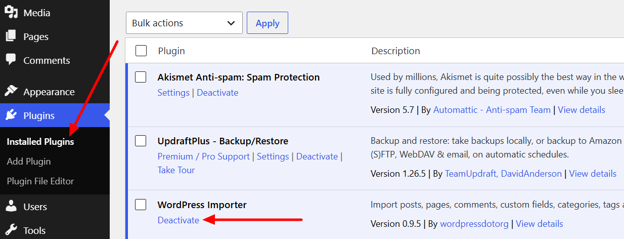
If that doesn’t resolve it, rename your .htaccess file. You can find it in your WordPress installation directory.
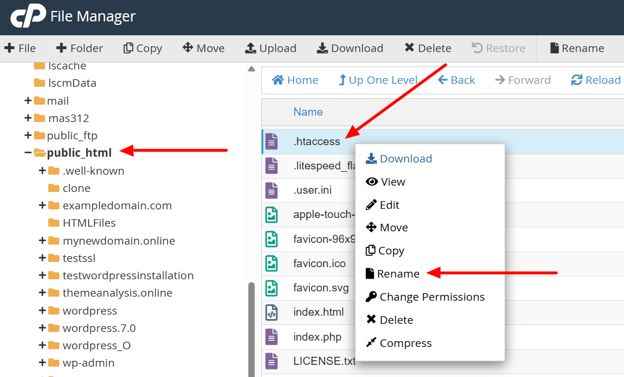
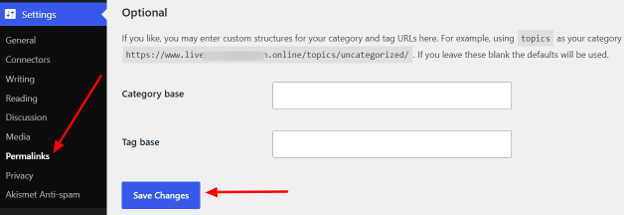
Then, regenerate it by going through the following steps:
- Go to WordPress Dashboard → Settings → Permalinks.
- Scroll down to the bottom and click Save Changes.
Maximum Execution Time Exceeded
This error appears when a script on your site takes longer to run than the server’s time limit allows. The default limit is typically 30 seconds, though this varies depending on your hosting configuration.
It’s commonly triggered by heavy plugins, large data imports, long-running updates, or resource-intensive tasks running in the background.
While it’s possible to increase the maximum execution time by adding the php_value max_execution_time 300; statement to your .htaccess file, this is often a temporary measure.
If a script is consistently hitting the limit, the underlying process likely needs to be optimised rather than given more time to run.
White Screen of Death
The White Screen of Death (WSoD) is exactly what it sounds like: your site loads as a completely blank white page with no content, no error message, and no indication of what went wrong.
It’s often caused by a PHP error, a memory issue, or a conflict between a plugin and your active theme. Because there’s no visible error message, it can be difficult to diagnose without enabling WP_DEBUG in your wp-config.php file, which logs errors to a file you can review.
Deactivating recently installed or updated plugins is also a practical first step.

Memory Limit Errors
WordPress and its plugins rely on your server’s PHP memory to function. Each active plugin, theme feature, and background process draws from that allocation. If your site’s total memory demand exceeds what your hosting plan provides, you’ll start seeing memory limit errors.
These errors can often be resolved by increasing the PHP memory limit, which you can usually do through your hosting dashboard or by adding the following statement to your wp-config.php file.
define('WP_MEMORY_LIMIT', '256M');However, if memory errors keep recurring after increases, it’s usually a sign that your site needs a technical review to find out what’s consuming resources or that your current hosting plan no longer meets your site’s requirements.
Plugin Issues That Can Slow Down WordPress
Plugins are what make WordPress so flexible. They let you add contact forms, booking systems, SEO tools, security features, and much more without writing a single line of code.
But every plugin you activate adds something to your site: extra scripts, additional CSS and JavaScript files, database queries, and sometimes background tasks that run whether a visitor is on your site or not. The more your site has to load, the slower it becomes.
That doesn’t mean plugins are the problem; it means they need to be managed carefully.
Common WordPress plugin issues include:
- Too many active plugins are loading scripts on every page.
- Outdated plugins that haven’t been updated to work with your current version of WordPress.
- Abandoned plugins with no recent updates or active developer support.
- Multiple plugins doing the same job, such as two different caching or SEO plugins running at the same time.
- Heavy page builder extensions that load large libraries of scripts and styles across the entire site.
- Security plugins are running intensive background scans during peak traffic hours.
- Backup plugins are scheduled to run at times when your site is busiest.
To keep your plugins from becoming a performance problem:
- Delete plugins you no longer use, rather than just deactivating them.
- Keep all active plugins updated to their latest versions.
- Replace resource-heavy plugins with lighter alternatives where possible.
- Avoid installing multiple plugins that provide the same functionality.
- Check a plugin’s update history, active installations, and user reviews before adding it to your site.
- Test new plugins on a staging site before taking them live.
- If performance drops suddenly, deactivate plugins one by one to identify which one is causing the issue.
A well-maintained plugin setup can genuinely improve your site. The goal isn’t to use as few plugins as possible; it’s to ensure every plugin you’re running earns its place.
WordPress Theme Issues That Can Affect Website Speed
Your theme controls how your website looks and how its pages are structured. A well-built theme does this efficiently, loading only what’s necessary. But many popular multipurpose themes take a different approach. They are packed with built-in sliders, animation libraries, layout builders, and design options that load on every page, whether you’re using those features or not.
That extra weight adds up quickly, and visitors end up downloading files your site doesn’t need.
Common theme-related performance problems include:
- Bloated multipurpose themes that load excessive scripts and styles across the entire site.
- Outdated themes that haven’t been updated to work with the current version of WordPress or PHP.
- Poor mobile performance caused by large design elements that don’t scale well on smaller screens.
- Excessive animations that add visual weight and delay how quickly content appears.
- Heavy image sliders that load multiple large files even before a visitor scrolls.
- Oversized CSS and JavaScript files that slow down page rendering.
- Compatibility issues that surface after a WordPress core update, causing layout breaks or errors.
To reduce the impact your theme has on performance:
- Choose a lightweight, well-coded theme that loads only what your site needs.
- Keep your theme updated to maintain compatibility and security.
- Avoid themes that rely heavily on animations or built-in sliders unless they’re essential to your design.
- When troubleshooting a performance or layout issue, temporarily switch to a default WordPress theme, such as Twenty Twenty-Four, to check whether your active theme is the cause.
- Use a child theme for any custom design changes so your edits aren’t overwritten when the parent theme updates.
- If URL issues appear after a theme change, go to Settings → Permalinks in your WordPress dashboard and click Save Changes to refresh your permalink structure.
Choosing the correct theme from the start makes a noticeable difference. A lightweight theme gives your site a much better foundation than trying to optimise a heavy one.
Database Performance Issues
Every piece of content on your WordPress site, including your pages, posts, settings, comments, user data, and plugin configurations, is stored in a database. Every time someone visits your site, WordPress queries that database to retrieve what it needs. The more disorganised the database, the slower those queries become.
The problem is that databases accumulate data over time, much of it unnecessary.
For instance:
- WordPress saves a revision every time you edit a post.
- Spam comments pile up in the background.
- Plugins leave behind data when they’re uninstalled.
- WooCommerce stores session data for every visitor, including those who have never completed a purchase.
None of this is actively harming your site, but it adds weight that gradually slows things down.
Common causes of database bloat include:
- Old post revisions are saved automatically with every edit.
- Auto-drafts that were never published or deleted.
- Spam comments are sitting in the moderation queue.
- Leftover data from plugins that have since been removed.
- Expired transients, which are temporary data entries that WordPress doesn’t always clean up on its own.
- WooCommerce session data and old order records accumulate over time.
- Unused tables left behind by uninstalled plugins.
Here’s what you need to do for your WordPress database optimisation:
- Back up your database before making any changes. This is not optional. If something goes wrong during a cleanup, the only way to recover your data is to use a recent backup.
- Remove spam comments and clear out unnecessary drafts.
- Delete old post revisions or limit the number of WordPress saves going forward by adding define(‘WP_POST_REVISIONS’, 3); to your wp-config.php file.
- Clean up expired transients using a trusted plugin or directly through phpMyAdmin.
- Remove unused plugin tables carefully, and only if you’re confident the plugin won’t be reinstalled.
- Optimise your database tables by rebuilding and reorganising stored data to improve query performance.
- Use a reputable database optimisation plugin to automate routine clean-up tasks.
If you suspect corrupted tables or need to perform repairs, consult your web hosting provider in South Africa or a developer before attempting repairs manually. An incorrect repair can cause more damage than the original problem.

Unoptimised Images
Images are often the single biggest contributor to slow WordPress pages. A well-designed page can still load painfully slowly if the images on it haven’t been properly prepared for the web. Unlike plugin conflicts or server errors, image issues are usually straightforward to fix and deliver an immediate improvement to load times.
Common image problems include:
- Uploading images that are far larger than the site needs to display them.
- Using the wrong file format for the type of image.
- Skipping compression before or after upload.
- Not resizing images before adding them to the media library.
- Using too many large banners or full-width hero images on a single page.
- No lazy loading, which means every image loads at once, regardless of whether the visitor can see it.
- Sliders that load several full-width images simultaneously add significant page weight.
To get WordPress image optimisation right, you need to address four things: compression, resizing, format selection, and lazy loading
Compress Your Images
Compression reduces an image’s file size without necessarily affecting how it looks on screen. There are two approaches worth understanding:
- Lossless Compression: It reduces file size while maintaining identical image quality for the original.
- Lossy Compression: Thisreduces file size more aggressively by discarding some image data, though the difference is usually imperceptible to the human eye at moderate compression levels.
For most websites, lossy compression at a reasonable quality setting provides the best balance between file size and visual quality. Tools like TinyPNG and ImageOptim work well for compressing images before upload.
If you’d rather handle it within WordPress, plugins like Smush can compress images automatically on upload and bulk-optimise your existing media library.
Resize Images Before Uploading
If your site displays an image at 1,200px wide, there’s no reason to upload one that’s 4,000px wide. The browser must still download the full-sized file before scaling it down for display, which wastes bandwidth and slows the page.
Resize your images to the largest dimensions they will appear on your site before uploading them to WordPress. This one habit alone can make a meaningful difference to your page load times, particularly on image-heavy pages.
Use the Right Image Format
The format you choose affects both file size and image quality.
As a general guide:
- JPEG works best for photographs and images with lots of colours and gradients. It uses lossy compression and produces small file sizes without a noticeable drop in quality.
- PNG is better suited to graphics, logos, icons, and images that require a transparent background. It uses lossless compression, so file sizes tend to be larger than JPEG.
- WebP is a modern format that offers strong compression and good quality for both photographs and graphics. In most cases, it produces smaller files than JPEG and PNG.
- WordPress supports WebP natively from version 5.8 onwards, and plugins like ShortPixel can automatically convert your existing images to WebP.
Enable Lazy Loading
By default, WordPress loads every image on a page at once, even images the visitor can’t yet see, because they’re further down the page. Lazy loading changes this behaviour by delaying the loading of off-screen images until the visitor scrolls near them.
This reduces the amount of data the browser needs to download on initial page load, which speeds up the appearance of your above-the-fold content.
WordPress has supported native lazy loading since version 5.5, so in many cases it’s already enabled. If you’re using an older setup or want more control over the behaviour, a performance plugin (e.g., WP Optimize) can handle this for you.
WordPress Caching Issues
Every time someone visits a page on your WordPress site, the server normally must process PHP, run database queries, and build the page before sending it to the visitor’s browser.
For a busy site, this happens hundreds or thousands of times a day. Caching reduces that workload by storing ready-made versions of your pages, so the server doesn’t have to rebuild them from scratch on every visit.
When caching is set up correctly, it’s one of the most effective ways to improve WordPress performance. But cached files can become outdated or corrupted, causing visitors to see outdated content, broken layouts, or unexpected errors even after you’ve made changes to your site.
There are three main types of caching that apply to WordPress. Each work at a different level of your site:
Browser Caching
Browser caching instructs a visitor’s web browser to store certain files locally after their first visit. These files include images, stylesheets, and scripts that don’t change often, so there’s no need to download them again on every page load.
On return visits, the browser loads these files from its local storage instead of fetching them from the server, which makes the page load noticeably faster.
Page Caching
Page caching stores a complete, static version of your web pages on the server. When a visitor requests a page, the server delivers the pre-built version from the cache rather than generating it fresh each time. This is particularly effective for pages with content that doesn’t change frequently, and it significantly reduces the processing load on your server during periods of high traffic.
Object Caching
Object caching works at a deeper level by storing the results of individual database queries in memory. When WordPress requires the same data again, it retrieves it from the cache rather than running the query against the database a second time.
This is especially useful for dynamic sites, WooCommerce stores, and membership sites where the same data is requested repeatedly across multiple page loads.
When to Clear Your Cache
Caching is designed to serve stored content quickly, which means your site won’t automatically reflect changes you’ve made until the cache is cleared.
Clear your cache after:
- Updating page or post content.
- Changing or updating your theme.
- Installing or updating plugins.
- Editing your site’s CSS.
- Troubleshooting layout issues or broken elements.
- Changing navigation menus.
- Noticing that visitors are seeing outdated content.
Most caching plugins include a Clear Cache button in the WordPress dashboard, making this straightforward to do without technical knowledge. If you’re using a hosting plan with server-level caching, your hosting dashboard may also include an option to flush the cache directly.
File Permissions & .htaccess Issues
This is a more advanced area of WordPress troubleshooting. If you’re uncomfortable working with server files, it’s worth contacting your hosting provider or a developer before making any changes here.
However, understanding what these settings do can help you identify whether they’re contributing to the WordPress performance issues.
File Permissions
File permissions determine what WordPress is permitted to read, write, and modify on your server. Every file and folder on your hosting account has a permission setting that controls access for the server, WordPress itself and other processes.
When permissions are set incorrectly, WordPress can’t do what it needs to. It might be unable to save uploads, install updates, write to log files, or modify configuration settings. In some cases, incorrect permissions can also create security vulnerabilities by allowing more access than necessary.
The recommended permission settings for a WordPress installation are:
- 755 for Folders: This allows the server to read and execute the folder while preventing unauthorised write access.
- 644 for Files: This allows WordPress and the server to read files, while restricting write access to the file owner only.
You can check and adjust file permissions through your managed cPanel hosting‘s File Manager tool, or via an FTP client if your host doesn’t provide a built-in tool.
The .htaccess File
The .htaccess file is a server configuration file that WordPress uses on Apache-based servers to control redirects, permalink structures, access rules, and other important settings. It’s a small file, but it plays a significant role in how your site functions.
If the .htaccess file becomes corrupted or misconfigured, it can cause a range of problems, including 500 internal server errors, broken permalinks, and redirect loops. These issues can appear suddenly after a plugin update, a theme change, or a manual edit to the file.
The simplest fix is to regenerate the file from scratch.
To do this:
- Connect to your server via FTP or File Manager.
- Rename the existing .htaccess file to something like .htaccess_old.
- Then login to your WordPress dashboard, go to Settings → Permalinks, and click Save Changes without making any changes.
WordPress will automatically generate a clean, default .htaccess file.
If renaming the file doesn’t resolve the issue, or if you’re seeing errors you can’t account for, reach out to your hosting provider. They can review your server configuration and rule out anything outside of WordPress itself.
When Your Hosting Plan May Be the Problem
If you’ve worked through your plugins, themes, images, caching, and database, and your site is still underperforming, it’s worth taking a closer look at your hosting environment. Even a well-maintained WordPress site will struggle if the hosting plan it runs on no longer suits its requirements.
WordPress hosting performance affects more than just uptime.
It determines:
- How much processing power your site has available.
- How quickly the server responds to requests.
- How well your site handles traffic.
- How reliably background tasks like backups and updates are completed.
As your site grows, the resources it needs increase with it. A plan that worked well when your site was new may not be sufficient anymore.
Signs that your hosting plan may be contributing to the problem:
- CPU usage is consistently high, even during normal traffic periods.
- Memory errors keep returning, despite increasing PHP memory limits.
- The WordPress admin dashboard is slow to load or respond.
- Requests are timing out regularly.
- WooCommerce checkout pages are slow, freezing, or failing.
- Traffic spikes cause the site to slow down significantly or go offline.
- Database queries are taking longer than they should.
- Time to First Byte remains slow even with server-side caching in place.
- 500 errors keep reappearing without a clear cause from a plugin or theme.
- Backups and plugin updates are failing or taking an unusually long time to complete.
If several of these apply, your hosting plan deserves a review.
Domains.co.za offers hosting options suited to different website needs:
- WordPress hosting is built for WordPress sites that need a reliable, optimised environment without the overhead of managing server configuration yourself.
- Website Hosting is a solid choice for general business websites that need dependable uptime, cPanel access, and professional email hosting.
- For larger or more resource-intensive sites, Virtual Private Server (VPS) hosting provides dedicated resources and greater control over the server environment.
- And if your site isn’t running an SSL Certificate yet, that’s worth addressing, too. This protects your visitors’ data and builds the kind of trust that keeps people on your site.
Remember, switching hosting plans won’t automatically fix every performance issue, but if your site has outgrown its current environment, no amount of optimisation will fully compensate for insufficient resources. Getting the foundation right makes everything else work better.
WordPress Performance Troubleshooting Checklist
If you’re unsure where to start, or you wish to confirm you haven’t missed anything, work through this checklist from top to bottom. It follows a logical order, starting with diagnostics and moving through to hosting, so you’re fixing the most common causes before looking at deeper infrastructure issues.
- Test your website speed using Google PageSpeed Insights, GTmetrix, or Pingdom.
- Review any recent changes to your site, including plugin installs, updates, or theme switches.
- Update WordPress core to the latest stable version.
- Update all active plugins and themes regularly.
- Remove plugins you’re no longer using.
- Deactivate plugins one by one to test for conflicts if performance drops suddenly.
- Switch to a lightweight theme or test with a default WordPress theme to rule out theme-related issues.
- Compress and resize images before uploading and convert to WebP where possible.
- Enable lazy loading for images, so off-screen content doesn’t load until it’s required.
- Clear your cache at both the browser and plugin levels.
- Clean the database by removing spam comments, old revisions, auto-drafts, and expired transients.
- Check your PHP version and update it if you’re running an outdated release.
- Review your server error logs for recurring issues or specific plugin and script errors.
- Check CPU, RAM, and disk usage in your hosting dashboard to identify resource strain.
- Review your hosting plan if resource usage is consistently high or your site has grown significantly.
- Contact your hosting provider’s support team if server errors persist after working through the list
Not every item on this list will apply to every site, but running through it provides a clear picture of where the problem is coming from and what’s already been ruled out.
How Domains.co.za Can Assist
Sorting out plugins, images, caching, and database health will resolve most WordPress performance issues. But if your site is still struggling after working through those areas, your hosting environment is worth reviewing.
Domains.co.za offers WordPress Hosting, Web Hosting, and VPS Hosting for South African businesses at different stages of growth. If your site also needs an SSL Certificate or a domain name, those are available, too. If you’re unsure whether your current hosting plan is still the right fit, the Domains.co.za support team can help you work that out.
![Strip Banner Text - Fast WordPress Hosting Built for South African Businesses. [Get Started]](https://www.domains.co.za/articles/wp-content/uploads/2026/07/wordpress-performance-issues-02.webp "Fast WordPress Hosting Built for South African Businesses. [Get Started]")
Power Up Your Site: How to Install a WordPress Plugin
VIDEO: Power Up Your Site: How to Install a WordPress Plugin
FAQS
Why is my WordPress site so slow?
The most common causes are large, unoptimised images, too many or poorly coded plugins, a heavy theme, database bloat, insufficient caching, or a hosting plan that can’t meet your site’s current demands.
How can I check what is slowing down my WordPress website?
Run your site through Google PageSpeed Insights or GTmetrix to identify specific issues. Then, check your hosting dashboard for high resource usage and review any recent changes to plugins, themes, or content.
Can plugins slow down WordPress?
Yes. Every active plugin adds scripts, database queries, and background tasks to your site. Outdated, poorly coded, or duplicate plugins are particularly likely to cause performance problems.
Do themes affect WordPress performance?
Yes. Themes that load excessive scripts, animations, sliders, and built-in page builders add unnecessary weight to every page. A lightweight, well-coded theme performs significantly better.
Does WordPress hosting affect website speed?
Yes. Your hosting plan determines server response time, available CPU and RAM, PHP performance, and how well your site handles traffic. Insufficient hosting resources will limit your site’s performance regardless of how well it’s been optimised.
How often should I optimise my WordPress database?
For active websites, monthly maintenance is a reasonable starting point. Always back up your database before running any clean-up or optimisation tasks.
Should I use WebP images on WordPress?
Yes, where possible. WebP produces smaller file sizes than JPEG and PNG while maintaining good image quality. WordPress has supported WebP natively since version 5.8.
What should I do if my WordPress site shows a 500 error?
Deactivate your plugins one by one to check for conflicts, then rename your .htaccess file and regenerate it through Settings → Permalinks. If the error continues, check your PHP memory limit and contact your hosting provider.
When should I upgrade my WordPress hosting?
Consider upgrading if you’re experiencing consistently high CPU or RAM usage, frequent memory errors, repeated timeouts, WooCommerce performance issues, or crashes during traffic spikes that persist after optimising your site.
Can caching fix all WordPress speed problems?
No. Caching improves performance by reducing server load, but it won’t resolve issues caused by unoptimised images, heavy plugins, a bloated database, or insufficient hosting resources. It works best as part of a broader optimisation approach.
Other Blogs of Interest
- SEO Best Practices For Your WordPress Website
- 5 Benefits of Managed WordPress Hosting
- Why WordPress and WordPress Hosting are the duo your SME needs in 2024
- Exploring WordPress User Roles: A Practical Guide
- Website Builder vs WordPress: Which Is Best For Your New Business

Rhett isn’t just a writer at Domains.co.za – he’s our resident WordPress content guru. With over 8 years of experience as a content writer, with a background in copywriting, journalism, research, and SEO, and a passion for websites.
Rhett authors informative blogs and articles that simplify the complexities of WordPress, website builders, domains, and cPanel hosting. Rhett’s clear explanations and practical tips provide valuable resources for anyone wanting to own and build a website. Just don’t ask him about coding before he’s had coffee.