






Why WordPress Recovery Mode Matters When Your Website Breaks
You update a plugin on a Monday morning, refresh the page, and your website is gone – no dashboard access, no clear explanation, just a broken screen where your business used to be. If you rely on your site for enquiries, bookings, or sales, that’s not a small inconvenience. It’s a real problem.
WordPress Recovery Mode is the built-in feature that provides a way back in when things go wrong. This guide covers what it is, what causes a WordPress critical error, how to use Recovery Mode to get your site working again, and what good WordPress troubleshooting looks like so you’re not back in the same situation next month.
KEY TAKEAWAYS
- WordPress Recovery Mode is a built-in feature that restores dashboard access after a critical error.
- The most common triggers are plugin conflicts, theme conflicts, custom code errors, and core update issues.
- Keep your admin email address current. It’s how WordPress reaches you when something breaks.
- If the recovery email doesn’t arrive, you can access Recovery Mode manually through your browser.
- Recovery Mode is a diagnostic tool, not a replacement for backups and regular maintenance.
- If troubleshooting stalls, contact your hosting provider to request they access logs and restore backups you can’t.
TABLE OF CONTENTS
What Is WordPress Recovery Mode?
It’s a built-in feature that’s been part of WordPress since version 5.2. When WordPress detects a critical error on your site, it doesn’t just allow everything to collapse. It automatically pauses the broken component, whether that’s a plugin or a theme, and sends an email to the address registered as your site’s admin.
That email contains a special login link that lets you access your WordPress dashboard even when the site itself isn’t loading properly.
Some people refer to it as WordPress safe mode, but Recovery Mode is the correct term for this built-in feature. It’s worth knowing the difference, because searching for the wrong term can send you down the incorrect troubleshooting path when you’re already under pressure.
Why a Broken WordPress Website Can Harm Your Business
For many South African small businesses, the website isn’t just an online brochure. It’s where customers send enquiries, place orders, book appointments, and find contact details. When your WordPress website goes down, all this stops.
A broken site means enquiry forms that don’t submit, ecommerce checkouts that fail at payment, booking tools that won’t load, and WhatsApp call-to-action buttons that lead nowhere. Customers who land on a broken page don’t usually wait around. They leave, and most don’t return.
The risk is higher in South Africa than many business owners realise. While national load-shedding has eased, localised load reduction and cellular network disruptions still create unpredictable windows where customers struggle to get online or reach you.
If your site is also broken during those brief windows when a customer has signal and electricity, the damage compounds quickly. That’s why reliable web hosting for your business matters as much as the platform you build on.

Common Reasons WordPress Enters Recovery Mode
Recovery Mode is triggered when WordPress encounters a critical error it can’t work around on its own. In most cases, that error traces back to one of four causes:
Plugin Conflicts
Plugins are the most common trigger by a significant margin. Installing a new plugin, updating an existing one, or running two plugins that do the same thing can all produce a WordPress plugin conflict that results in a fatal error.
Abandoned plugins are a particular problem. If a plugin hasn’t been updated in two or three years, it may not be compatible with the current version of WordPress or PHP, and that incompatibility can take your entire site down.
Theme Conflicts
A WordPress theme conflict can be just as disruptive. Theme updates sometimes break custom styling, clash with an active plugin, or introduce code changes that the rest of your site isn’t ready for.
The problem worsens when edits have been made directly to theme files rather than through a child theme. Without a child theme, those customisations are overwritten every time the theme updates, making it much harder to trace what changed.
Custom Code Errors
Editing your site’s functions.php file, adding tracking scripts, or dropping in a code snippet copied from a tutorial can all cause problems if the code isn’t tested first.
These errors are often silent. Everything looks fine until something triggers the fault, and then the site goes down without much warning. Any code changes should be tested on a staging environment before they’re applied to a live site.
WordPress Core Update Issues
WordPress core updates are important. They patch security vulnerabilities, improve performance, and keep the platform moving forward. But occasionally, a core update exposes a compatibility issue with an older plugin or theme, particularly when the update changes the PHP version your site runs on.
This is one of the more common WordPress troubleshooting scenarios and one that’s easy to miss if you’re not checking compatibility before updating.
How WordPress Recovery Mode Helps You Regain Control
When WordPress detects a critical error, it doesn’t wait for you to notice. It sends an email to the admin address registered on your site that contains a special login link.
When you click that link, it opens your WordPress dashboard in Recovery Mode, where you can see exactly which plugin or theme triggered the error. From there, you can deactivate the issue and work on a fix without affecting the rest of your site.
However, if the email doesn’t arrive, it’s worth checking whether your admin email address is still current. An outdated address is one of the most common reasons people can’t access WordPress Recovery Mode when they need it most.
If you’re in that situation, you can bypass the email entirely by navigating to the following link directly in your browser:
yourdomain.com/wp-login.php?action=entered_recovery_mode directlyAlso, replace yourdomain.com with your own domain name. This manually initialises Recovery Mode and takes you to the login screen so you can get back into the dashboard.

What to Check Before You Start Troubleshooting
Before you change anything on your site, take a few minutes to get oriented. Rushing straight into troubleshooting without the correct information can turn a fixable problem into a bigger one.
Start with your website backup. If you have a recent one, you’re on the safe side. However, if you don’t, login to your hosting control panel and check what’s available in your File Manager or cPanel before you touch anything else. Restoring from a backup is always faster than trying to undo changes you made under pressure.
Next, confirm that you have access to your admin email address. As covered earlier, that’s where WordPress sends the Recovery Mode link, and you will need it.
While you’re in your hosting control panel, ensure you know how to access your File Manager or FTP client. If dashboard access fails completely, that’s your next line of access to your site’s files.
It also helps to consider what changed recently. A plugin update, a theme switch, a code edit, or a WordPress core update applied in the last 24 to 48 hours is almost always the starting point. Knowing what changed tells you where to look first.
Finally, consider how business-critical the site is currently. If your site is actively taking orders, handling bookings, or fielding enquiries, every hour it’s down has a direct cost. That urgency should shape how you approach the next steps.
The faster you can identify the cause the sooner you can retrieve it for customers. A good WordPress hosting provider in South Africa will have support available when you need it, and that’s worth factoring in before you decide how far to troubleshoot on your own.

WordPress Recovery Mode vs Manual Troubleshooting
When WordPress catches the error automatically, Recovery Mode is the cleanest place to start. It tells you what triggered the problem, provides dashboard access, and lets you deactivate the faulty component without touching your server files. If it works, it’s the fastest path back to a functioning site.
But Recovery Mode doesn’t always trigger. If the error is severe enough to prevent WordPress from loading at all, or if the email link has expired or never arrived, you need to sort the issue manually.
The most reliable manual method is to rename your plugins folder via your hosting File Manager or FTP client (e.g., FileZilla).
To do this:
- Navigate to cPanel → Files → File Manager. Otherwise, use an FTP client to connect to your web hosting server.
- Go to /public_html/wp-content directory.
- Locate the plugins folder.
- Right-click on it and choose Rename.
Changing the folder name from plugins to something like plugins_disabled deactivates all plugins at once because WordPress can no longer find them.

Once you’re back in the dashboard, rename the folder back to plugins, then head to Plugins → Installed Plugins and reactivate them one at a time until you find the one causing the problem.

If a theme is the suspected cause, you can switch to a default WordPress theme through your hosting File Manager. Navigate to wp-content/themes and rename your active theme’s folder, for example, from mytheme to mytheme_disabled. WordPress will no longer be able to see the active theme and will automatically fall back to a default theme, which should restore dashboard access.
Nothing is deleted in this process, so you can rename the folder back to its original name once you’ve identified whether the theme was the problem.
Alternatively, if you have access to your database via phpMyAdmin, go to the wp_options table and look for the template and stylesheet rows. Update both values to match the folder name of a default WordPress theme, such as twentytwentyfour. This switches the active theme at the database level without needing to touch any theme files directly.

Both methods work, but editing server files does carry risk. One wrong move in the File Manager can create new problems on top of the existing ones.
If you’re comfortable with direct server access, VPS hosting for developers and growing websites gives you more control over your environment, which makes this type of troubleshooting more straightforward.
South African Business Considerations
WordPress website downtime hits South African businesses in ways that don’t always appear immediately: a quote request that was never submitted, an online order that failed at checkout, a WhatsApp button that led to a broken page, a booking that couldn’t be completed because the scheduler wouldn’t load. Each of those is a customer who moved on without contacting you.
What makes this more difficult locally is load-shedding. If your site breaks during a stage four evening slot and your developer is off the grid, the window of damage extends through the night. By morning, you’ve lost hours of potential leads with no way to know exactly how many people tried to reach you and couldn’t.
This is where the choice of local WordPress hosting provider becomes more than a technical decision. When something breaks, and you need assistance fast, local support that you can reach matters.
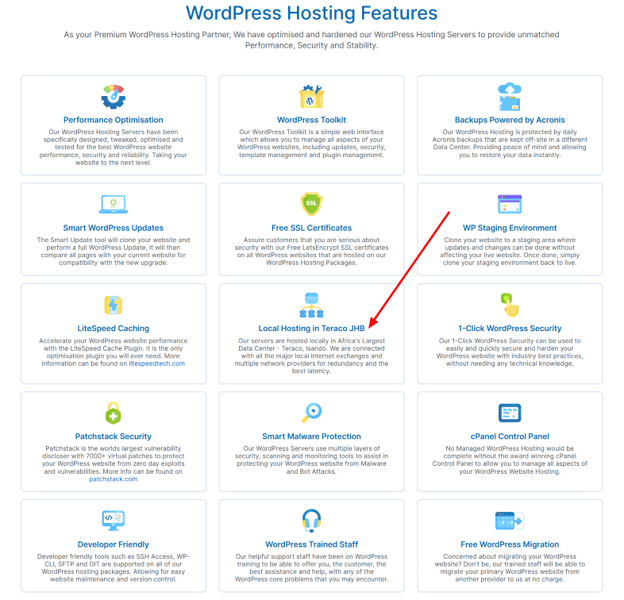
Response times, availability, and familiarity with the local infrastructure all affect how quickly you recover. If you’re unsure what support looks like with your current host, it’s worth checking what Domains.co.za support offers before you’re in the middle of a crisis.
Security, Backups, & POPIA Considerations
If your WordPress site collects customer information, whether it’s names, email addresses, phone numbers, or payment details, a broken or compromised site isn’t just a technical problem.
Under the Protection of Personal Information Act (POPIA), businesses in South Africa are responsible for keeping that data secure and accessible only to the correct people. A site that’s poorly maintained, running outdated plugins, or left without proper backups creates real exposure.
The baseline is straightforward:
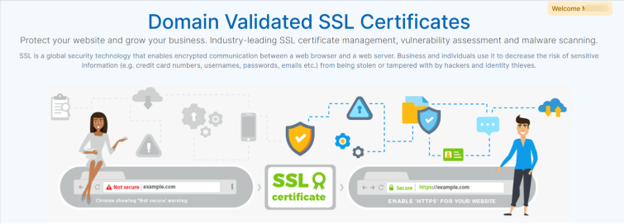
- Secure your website with an SSL certificate so that data passed between your site and your customers is encrypted.
- Back up your website regularly so that if something goes wrong, you can quickly restore it without losing customer records or transaction data.
- Limit admin access to those who genuinely need it and review that list periodically. The more admin accounts exist, the more entry points there are for something to go wrong.
Also, keeping your plugins and themes updated reduces the number of known vulnerabilities on your site, which is one of the most practical things you can do consistently.
It’s also worth keeping your business email separate from your website hosting. Professional email hosting ensures that even if your website has an issue, your business communication stays online, and your customer correspondence doesn’t get caught in the same outage.

How to Prevent Repeated Recovery Mode Issues
WordPress Recovery Mode exists for emergencies, but ending up there repeatedly is a sign that something in your maintenance routine needs attention. Most of the issues that trigger it are preventable.
Here’s what to stay on top of:
- Remove Unused Plugins: Every plugin you’re not actively using is an unnecessary risk. The more plugins running on your site, the higher the chance of a WordPress plugin conflict, particularly as WordPress continues to update. If you’re not using it, remove it.
- Avoid Duplicate Functionality: Installing two plugins that do the same job creates unnecessary overlap. Choose one and stick with it.
- Check Compatibility Before Updating: Before you update any plugin, theme, or WordPress core, check the compatibility notes. A two-minute check before an update is far less disruptive than an hour of troubleshooting after one.
- Test Updates on a Staging Site: If your hosting environment supports it, use a staging site to apply updates before they go live. This lets you catch problems without your customers ever seeing them.
- Verify PHP Compatibility: Before any major update, confirm that your current PHP version is compatible with what’s being installed. PHP mismatches are a common but easily overlooked cause of fatal errors.
- Use Themes from Reputable Sources: Stick to themes from WordPress.org or well-known commercial theme marketplaces. They are vetted for quality and maintained regularly, which makes compatibility issues less likely.
- Schedule Automatic Backups. If your site handles transactions or bookings, daily backups are the minimum. Set them to run automatically so you never have to remember. With us, your website will be backed up daily.
- Set up an Uptime Monitor: You shouldn’t find out your site is down from a customer. An uptime monitor alerts you the moment something goes wrong, so you can act before the damage builds up.
When to Contact Your Hosting Provider
There’s a point in every troubleshooting process when operating on your own no longer makes sense. If you’ve worked through WordPress Recovery Mode, deactivated your plugins, switched your theme, and still can’t access your dashboard or identify the cause, that’s the point.
A good hosting provider can do things you can’t easily do from the front end. They can pull server logs, check PHP error logs, confirm whether the issue is on the server side rather than within WordPress itself, and restore your site from a backup if that’s what’s required.
If your site is actively losing business while you troubleshoot, don’t let uncertainty extend the downtime. Reach out to Domains.co.za experts and let someone with direct server access take a look.
Final Thoughts: Recovery Mode Is a Safety Net, not a Maintenance Plan
WordPress Recovery Mode does what it’s designed to do: it catches critical errors, provides a way back into your dashboard, and buys you time to fix the problem. But it’s a response to something going wrong, not a reason to be less careful about maintaining your site.
The businesses that recover fastest from a broken site aren’t the ones that know the most about troubleshooting. They are those with a recent backup, updated plugins, and a hosting provider they can reach when it matters. If those three things are in place, most WordPress problems stay manageable.
Keep your WordPress website stable, secure, and easier to manage with WordPress hosting in South Africa from Domains.co.za, built for South African businesses that need reliable performance and practical support.
![Strip Banner Text - Keep your WordPress site running smoothly with hosting built for South African businesses. [Get Started]](https://www.domains.co.za/articles/wp-content/uploads/2026/07/wordpress-recovery-mode-02.webp "Keep your WordPress site running smoothly with hosting built for South African businesses. [Get Started]")
Power Up Your Site: How to Install a WordPress Plugin
VIDEO: Power Up Your Site: How to Install a WordPress Plugin
FAQS
What is WordPress Recovery Mode?
It’s a built-in WordPress feature that provides access to your dashboard after a critical error, so you can identify and fix the problem without taking your site completely offline.
When does WordPress trigger Recovery Mode?
WordPress triggers this automatically when it detects a fatal error, usually caused by a plugin, theme, custom code, or a conflict with a core update.
Is WordPress Recovery Mode the same as safe mode?
No. Safe mode is an informal term. Recovery Mode is the correct name for this specific built-in WordPress feature.
What if I don’t receive the Recovery Mode email?
First, check that your admin email address is correct. If it is incorrect, you can navigate to yourdomain.com/wp-login.php?action=entered_recovery_mode in your browser to manually access Recovery Mode. Don’t forget to replace yourdomain.comwith your actual domain.
How long does the Recovery Mode link last?
The link is valid for one hour. If it expires before you use it, you’ll need to request a new one or use the manual URL method.
Can I fix my site without using Recovery Mode?
Yes. You can rename your plugins folder via file manager or FTP to deactivate all plugins, then login and reactivate them one by one to find the cause.
Will Recovery Mode affect my visitors?
No. Recovery Mode only affects your admin session. Your site remains visible to visitors while you troubleshoot.
Does Recovery Mode fix the problem automatically?
No. It provides access to identify and sort the problem. The actual fix still requires you to deactivate the faulty plugin, revert a theme change, or correct a code error.
How do I exit Recovery Mode?
Once you’ve resolved the issue, click the exit Recovery Mode link at the top of your WordPress dashboard. Test your site thoroughly before exiting.
What if Recovery Mode doesn’t resolve the issue?
Contact your hosting provider. They can check server logs, review PHP error logs, and restore your site from a backup if needed.
Other Blogs of Interest
- The World’s Most Loved CMS – WordPress Celebrates Its 21st Birthday
- Exploring WordPress User Roles: A Practical Guide
- Best WordPress Hosting For WordPress Websites In 2025
- Web Hosting vs WordPress Hosting: How To Choose
- Why Choose WordPress For Ecommerce

Rhett isn’t just a writer at Domains.co.za – he’s our resident WordPress content guru. With over 8 years of experience as a content writer, with a background in copywriting, journalism, research, and SEO, and a passion for websites.
Rhett authors informative blogs and articles that simplify the complexities of WordPress, website builders, domains, and cPanel hosting. Rhett’s clear explanations and practical tips provide valuable resources for anyone wanting to own and build a website. Just don’t ask him about coding before he’s had coffee.