


This guide shows you how to create a WordPress staging site using your hosting tools and provides additional information about how staging environments work and why they are useful for website management.
A WordPress staging site is a separate copy of your live website that allows you to safely test changes before making them public. This environment is commonly used for testing new plugins, Themes, updates, custom code, and design changes without affecting visitors to your main website.
Using a staging site is highly recommended for website owners who regularly update or customise their WordPress websites. Instead of experimenting directly on your live website, a staging site provides a secure testing environment where you can identify compatibility issues, troubleshoot errors, and review changes before publishing them.
TABLE OF CONTENTS
How to Setup a WordPress Staging Site
1. Login to the Domains.co.za Customer Portal using your account credentials.
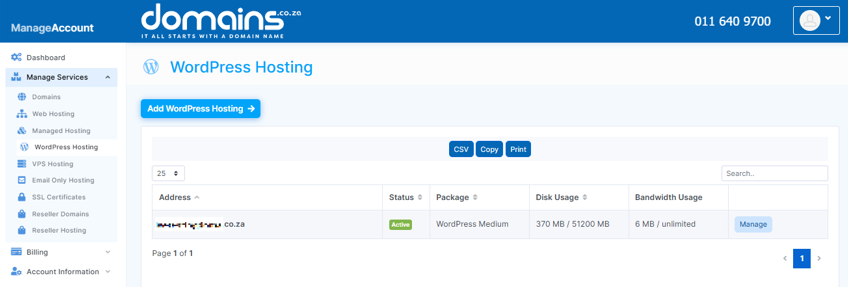
2. Navigate to Manage Services from the dropdown menu.
3. Select your WordPress Hosting package and click Manage.
4. Click Login to cPanel to access your hosting control panel.
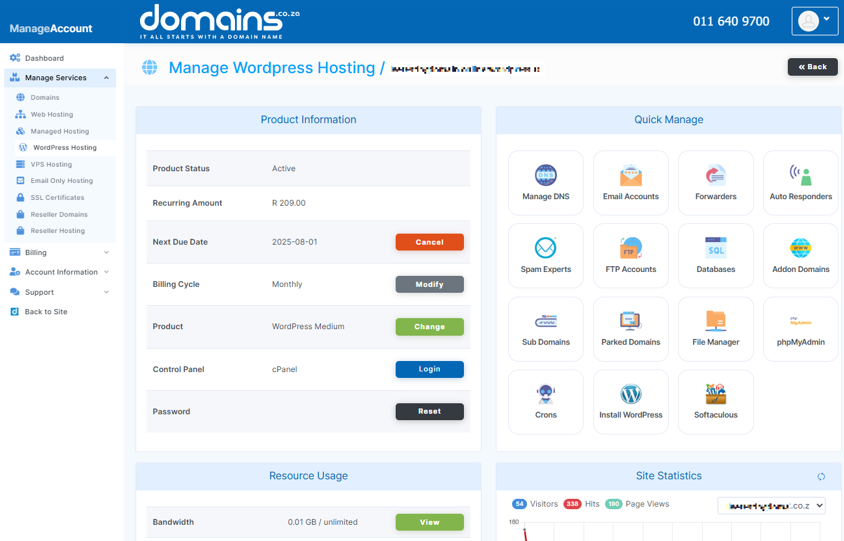
5. In cPanel, locate the Softaculous Apps Installer section and open it.

6. Click Installations at the top of the screen.
7. Locate your WordPress installation from the list.
8. Click Create Staging next to the installation.
9. Enter a name for your staging site or leave the default settings to create an exact copy of your live website.
10. Select the option to disable search engine visibility if required.
11. Click Create Staging to begin the process.
12. Wait for the staging site creation process to complete.
13. Use the provided links to access your staging site and its WordPress admin area.
Additional Information
- A staging site is a duplicate version of your live WordPress website used for testing and development purposes.
- Your staging site includes copies of your posts, pages, Themes, plugins, media files, databases, and user accounts.
- Changes made on the staging site will not automatically appear on your live website unless they are published manually.
- Testing plugin and Theme updates on a staging site can help prevent downtime and compatibility issues on your live website.
- Staging sites are useful for troubleshooting errors such as plugin conflicts, Theme problems, and White Screen errors.
- Search engines should usually be blocked from indexing staging sites to prevent duplicate content issues.
- If major changes are made to the live website after creating the staging site, those changes will not automatically sync to the staging environment.
- |To avoid confusion and unnecessary storage usage, it is recommended you delete outdated staging sites once testing is complete.
Login to Domains.co.za Account
1. Go to the Domains.co.za website Account Login page.

2. Enter your Email and Password and click the Sign In button.
3. You will see the Domains.co.za Dashboard, displaying the Manage Account menu on the left and your Account Information, Account Overview and Open Support Tickets on the right.


