


Email forwarding allow you to redirect emails from one address to another automatically. This is especially useful if you want messages sent to multiple email addresses to arrive in a central inbox, or if you’re using a personal mailbox to monitor a business address.
With the cPanel Email Forwarders feature, you can set this up quickly and easily, whether you’re redirecting mail within the same domain or to an external service such as Gmail or Outlook.
TABLE OF CONTENTS
How To Setup Email Forwarding In cPanel
This article assumes that you have already logged into your Domains.co.za Account and have accessed the cPanel Dashboard – refer below for steps on how to do this.
Follow these steps to create an email forwarder using your Domains.co.za hosting:
Locate Email Forwarding
1. Scroll to the Email section and click Forwarders.

2. Click Add Forwarder.
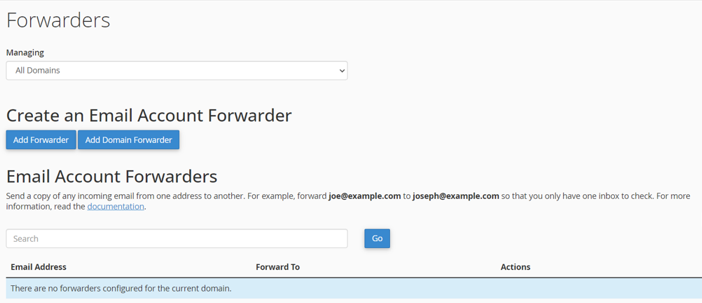
Setup Email Forwarding
3. In the Address to Forward field, enter the local part of the email (e.g., info if the full address is info@yourdomain.com).
4. Select the appropriate domain from the drop-down list.
5. In the Destination section, select Forward to Email Address and enter the full destination address (e.g., yourname@gmail.com).
6. Click Add Forwarder to complete the setup.
Note: You can repeat these steps to set up multiple forwarders for different addresses.
How to Buy Email Hosting in South Africa
VIDEO: How to Buy Email Hosting in South Africa – Domains.co.za Step-by-step Guide
Additional Information
Why Email Forwarding?
Email forwarders help consolidate your communications by sending copies of emails from one account to another. This can streamline workflow and reduce the need to check multiple mailboxes. It is useful for redirecting role-based emails such as sales@, support@, or info@, to a main team inbox.
Email Forwarding Reminder
Remember, if your domain is not properly authenticated, forwarded messages may be flagged as spam by external email providers. Setting up SPF, DKIM, and DMARC records can help maintain deliverability and reputation.
General Email Forwarding Info
- Forwarders do not store emails on the original server unless the address is also configured as a mailbox. If you need to keep a copy of incoming mail, consider creating the mailbox first, then adding the forwarder.
- You can also set up domain forwarders, which forward all incoming emails sent to any address at one domain to the same address at another domain. However, these are less commonly used.
- Email forwarders are different from email aliases. A forwarder redirects mail, and an alias may include broader routing rules or be used as part of mailing lists.
- For privacy and compliance, tell team members when their email is being forwarded, especially if you are forwarding to a shared inbox.
- Whenever you wish to stop forwarding, return to the Forwarders section in cPanel and click Delete next to the relevant forwarder.
Login to Domains.co.za Account
1. Go to the Domains.co.za Login website page.

2. Enter your Email and Password and click the “Sign In” button.
3. You will see the Domains.co.za Dashboard, displaying the Manage Account menu on the left and your Account Information, Account Overview and Open Support Tickets on the right.

Login to cPanel from your Domains.co.za Dashboard
4. Click on Manage Services to view the sub-dropdown menu and select the hosting package for the domain you want to work with – in our example we are using Web Hosting.

5. Click the Manage button to the right of the domain name you want to access.
6. The display will now show Product Information, Quick Manage, Resource Usage and Site Statistics for that domain name.

7. Under Product Information, scroll down to Control Panel, which will display cPanel to the right, and click on the Login button.

8. The cPanel Dashboard will now be displayed.


