Domains.co.za
  • Domains
    Register Domains
    Register your perfect domain today.
    It’s quick and easy.
    AI Domain Name Generator AI Domain Name Generator
    Create your perfect Domain Name today.
    Transfer Domains
    Transfer your domains to us in a few easy steps.
    Whois Search
    View the whois information on a domain name.
    Bulk Domain Registrations
    Register and check the availability of multiple domains at once.
    Bulk Domain Transfer
    Move multiple domains to us quickly and easily.
    Domain Protection
    Protect your personal information.
  • Hosting
    cPanel Hosting Web Hosting
    cPanel Web Hosting From R109/mo
    WordPress Hosting
    Experience the best in WordPress Hosting
    Email Only Hosting
    Easy setup, automated updates & backups
    Site Builder Site Builder
    Create your stunning website, it's fast and easy
  • VPS
    Linux VPS Hosting
    UltraFast  VPS Hosting From R209/mo
    Windows VPS Hosting
    UltraFast  VPS Hosting From R1139/mo
    Managed cPanel Hosting Managed cPanel Hosting
    Managed cPanel Virtual Machines From R2999/mo
    Self-Hosted n8n VPS Self-Hosted n8n VPS
    Unlimited Workflow Automation From R319/mo
  • Security
    Domain Validated SSL
    Domain Validated SSL Certificates
    Organization Validated SSL
    Organization Validated SSL Certificates
  • Resellers
    Domain Reseller
    Resell Domains on our platform From R89 per domain
    Web Hosting Reseller
    Reseller Web Hosting on SSD Hosting Servers From R419/mo
  • Help
    Open a Ticket
    Log a support or billing enquiry with one of our departments.
    011 640 9700
    Need Help? Give us a call
    About Us
    Information about Domains.co.za
    Knowledgebase
    Check out our extensive Knowledge Base for help
    Network Status
    Just to check everything is hunky dory
    Accreditations
    View the organisations and registries we are accredited with
    Blog
    View insights into the latest scoops
    Articles & Tutorials Articles & Tutorials
    Practical guides and insights to help you succeed
  • Checkout
011 640 9700
Contact Support
Sign In

How To Setup Email Outlook 2016 or Microsoft 365

< All Topics
  1. Main
  2. Email
  3. How To Setup Email Outlook 2016 or Microsoft 365
Summarize with:
ChatGPT
Claude
Perplexity

How to setup email Outlook 2016 or Microsoft Outlook 365. It is an excellent way to manage your emails efficiently and stay organised directly from your desktop. Whether you’re using POP or IMAP, this guide will provide you with a step-by-step guide to configure your email account so you can send, receive, and organise emails with ease.

By following these instructions, you can ensure the setup process is smooth and efficient, making Microsoft Outlook your go-to tool for efficiently managing calendars, emails, and other important interactions.

TABLE OF CONTENTS

  • How To Setup Setup Email Outlook 2016
    • Access Account Settings
    • Choose Your Account Type: IMAP or POP
  • Additional Information

How To Setup Setup Email Outlook 2016

This tutorial assumes you have already logged in and set up your email account in your Control Panel.

1. Begin by launching Microsoft Outlook on your computer.

Access Account Settings

2. Click File in the top left corner. From the dropdown menu, select Account Settings > Account Settings.
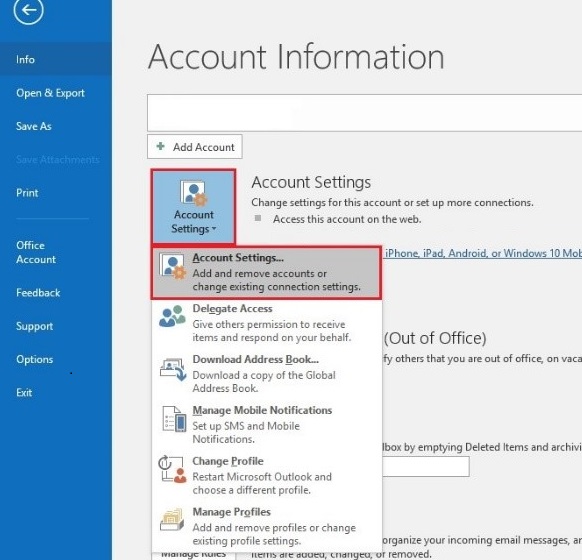
How To Setup Email Outlook 2016 or Microsoft 365

3. In the Account Settings window, click New to add a new email account.
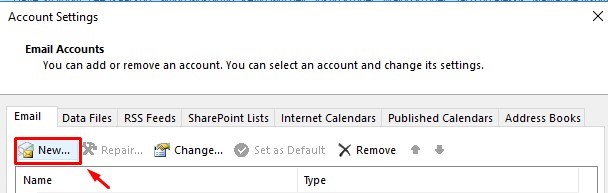
How To Setup Email In Microsoft Outlook 2016 or 365

4. Click Advanced Options and ensure you check the box labeled Let me setup my account manually. This option gives you control over the configuration process.
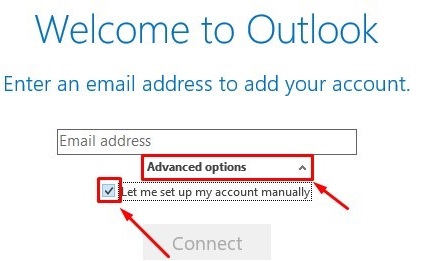
How To Setup Email In Microsoft Outlook 2016 or 365

5. Depending on your requirements, select either IMAP or POP as the account type. IMAP is recommended for users who access their email from multiple devices, while POP is suitable for users who prefer to download their emails to a single device.

Choose Your Account Type: IMAP or POP

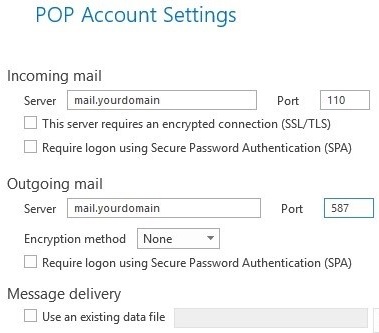
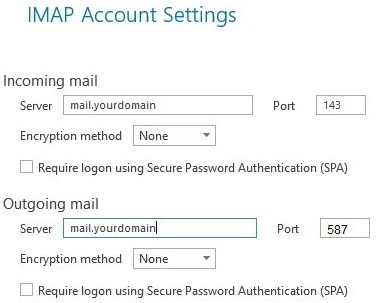
6. Fill in the required details for your email account:

  • Incoming Mail Server: Replace mail.domainname with your actual domain name.
  • IMAP Port: 143 (for IMAP accounts).
  • POP Port: 110 (for POP accounts).
  • Outgoing Mail Server: Use port 587 for the outgoing mail server, regardless of whether you’re using IMAP or POP.
How To Setup Email In Microsoft Outlook 2016 or 365

7. After entering the server details, click Next. Outlook will prompt you to enter the password for your email account. Type in your password and click OK. Outlook will then complete the setup process.

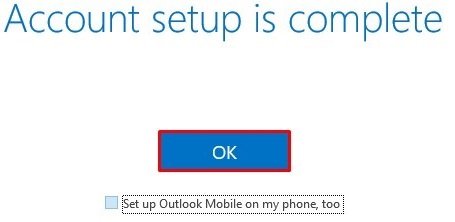
8. Once your account is successfully configured, you’ll see a confirmation message. Your email account is now setup and ready to use in Outlook.
How To Setup Email In Microsoft Outlook 2016 or 365

Additional Information

  • Selecting between POP & IMAP: IMAP maintains your emails are synchronised across all devices, making it the best option if you access your email from various devices. If you prefer to manage your emails on a single device, POP downloads emails to your local device and frequently deletes them from the server.
  • Configuring Email Hosting: Ensure the server settings you enter for your email account are correct. This includes port numbers, security configurations like SSL/TLS, and the names of the receiving and outgoing servers. It may be impossible for you to send or receive emails due to incorrect settings. If you’re unsure and want accurate information, contact your email hosting provider.
  • Sync Settings: IMAP users can configure synchronisation settings to determine how frequently Outlook checks for new emails and syncs folders. You can adjust these settings under File > Account Settings > [Your Account] > Change.

Troubleshooting Tips
If you encounter issues during setup:

  • Double-check that your server settings are correct.
  • Verify your email address and password for any errors.
  • Ensure your computer is connected to the internet.If the setup fails, try removing the account and setting it up again.
  • For persistent issues, consult Outlook’s help documentation or contact your email provider’s support team.
Views26796
Previous How To Setup Email Forwarding In cPanel
Next How To Setup Email Outlook 2023 Or Microsoft 365
[post-views]

Categories

  • Home
  • 23 Billing
  • 69 Domains
  • 126 Email
  • 16 ESET
  • 41 General
  • 197 Hosting
  • 3 Integrations
  • 3 Link In Bio
  • 3 n8n VPS Hosting
  • 6 Pre-Sales
  • 21 Registrars
  • 21 Resellers
  • 59 Site Builder
  • 65 SSLs
  • 5 VPS Hosting
  • 85 WordPress
Domains.co.za - Web Hosting
Domains.co.za - Site Builder Add-on
Domains.co.za - WordPress Hosting
Domains.co.za - AI Domain Name Generator
Domains.co.za

We are a domain name and website hosting provider committed to offering affordable web hosting solutions that enable businesses to establish a strong online presence.

Secure Payment Gateways

Peach Logo DPO Logo PayFast Logo Visa Logo Mastercard Logo Netcash Logo Ozow Logo

Read more about our secure payments.

Hosting

  • WordPress Hosting
  • Web Hosting
  • Managed cPanel Hosting
  • Email Hosting
  • Linux VPS Hosting
  • Windows VPS Hosting
  • Site Builder
  • PHP Extended Support
  • Self-Hosted n8n VPS

Domains

  • Register Domains
  • Transfer Domains
  • WHOIS Search
  • Bulk Domain Registrations
  • Bulk Domain Transfers
  • Domain Protection

Security

  • Domain Validated SSLs
  • Organization Validated SSLs

Resellers

  • Reseller Web Hosting
  • Domain Reseller
  • Registrar Services
  • Integration
  • Domain Reseller Login

Legal

  • Terms and Conditions
  • UDRP
  • Our SLA
  • Abuse Policy
  • Disclosure Requests

Our Company

  • About Us
  • Contact Us
  • Accreditations
  • Careers

Help

  • System Status
  • Affiliate Program
  • Knowledgebase
  • Blog
  • Report Abuse
Facebook Instagram YouTube Twitter LinkedIn Google Business
Copyright © 2026 Domains.co.za. All Rights Reserved.