





Here’s a step-by-step guide to help you edit the Page Structure and Main Toolbar settings in Site Builder, a well as managing additional Elements like Animations etc. These will assist you in creating a professional-looking website with our easy to use Website Builder.
This article is related to our You Tube video: How To Edit The Page Structure – Main Toolbar Settings In Site Builder.
Building a structured, user-friendly website on the Domains.co.za Website Builder is easy with the main and right-hand toolbars.
TABLE OF CONTENTS
How to Edit the Page Structure and Main Toolbar Settings in Site Builder
This tutorial assumes that you have already logged in to your Domains.co.za account and have accessed your website’s Site Builder.
How to Edit the Main Toolbar in Site Builder
- Open the Main Toolbar: Access the Main Toolbar on the left in the Website Builder.
- Add Elements: Click on an Element (like “Text”, “Images”, or “Buttons”) and drag it onto the page. You’ll see sample layouts for each Element, which can help you quickly style each component to suit your design.
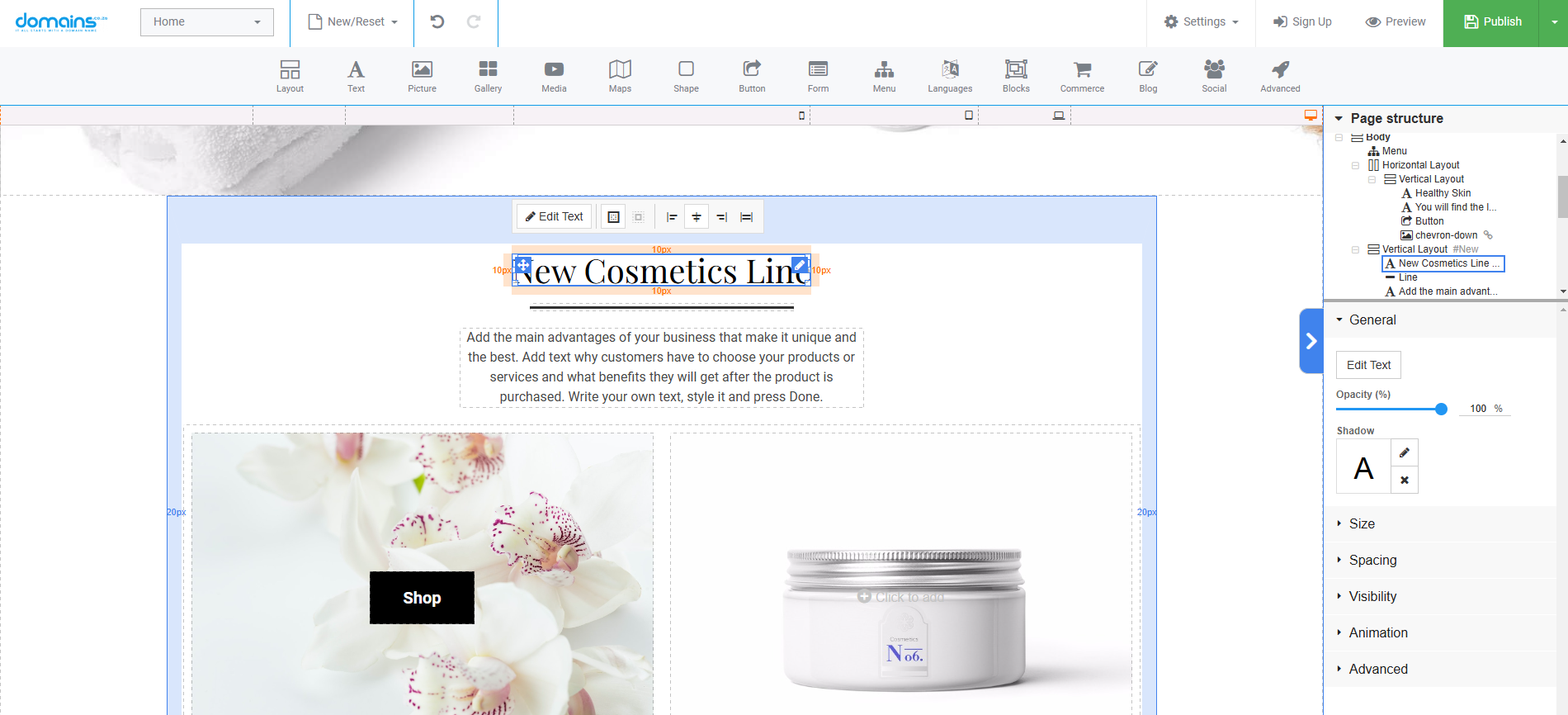
Organise the Page Structure
- Access Page Structure: On the right, you’ll find the “Page Structure” panel showing three main sections: “Header”, “Body”, and “Footer”. This is your website’s layout foundation.
- Arrange Sections: Organise Elements into each section by dragging and dropping; this helps keep your page consistent and easy to navigate.
- Use Sub-Sections: Create Sub-Sections by adding “containers” within the body. This is useful to organise specific content, like text with images, or call-to-action buttons.
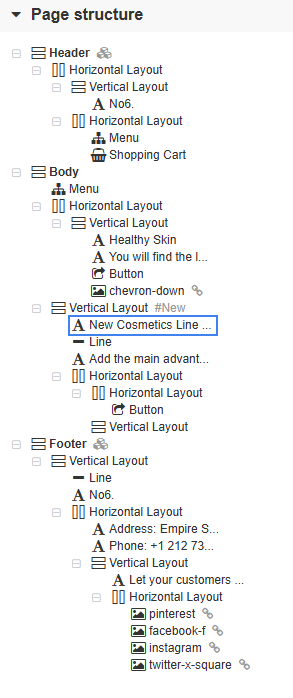
Customise the Navigation Side Menu Settings
- Layout Options: In the right panel, select an Element to see its Layout Settings.
- Positioning: Adjust Elements to be horizontal, vertical, or floating, based on your design preference.
- Backgrounds & Borders: Customise the look with colour backgrounds, borders and shadows to make sections stand out.
- Set Dimensions: Define width and height, in pixels or as percentages, to optimise for devices of different sizes.
- Adjust Margins & Padding: Use Spacing settings to balance space around Elements. Margins create space outside borders, while Padding adjusts spacing within the borders.
- Visibility Settings: Control which Elements appear on specific devices. For example, you can hide larger images on mobile to improve the loading time and enhance user experience.
Add Animations
- Open Animation Settings: Select an Element and find Animation settings in the right panel.
- Apply Animation Effects: Choose effects like “fade-in”, “bounce”, or “rotate”. Adjust duration, direction, and delay for a smooth effect that draws attention without distraction.
- Set Looping Options: Enable Animations to repeat (loop) if you want continuous movement or keep them subtle by only playing once.
Advanced Settings
- Anchor Links: Set Anchors to create internal links for easier navigation, especially on single-page websites.
- Assigning Class Names: For custom coding, you can add Class Names to Elements, allowing you to apply CSS or JavaScript later.
- Renaming Elements: Change how Elements are labelled in the page structure for easy identification.
YouTube Video: Master Your Website’s Page Structure and Main Toolbar – Website Builder Tutorial
Additional Information
- Preview Changes: Use “Preview” to view your design on mobiles, tablets, and desktops. This helps you ensure Elements look correct across all devices.
- Save Frequently: Save your changes regularly as you go.
- Experiment and Update: As your site evolves, return to these settings to add new features, adjust layouts, or test animations.
Login to Domains.co.za Account
1. Go to the Domains.co.za website Account Login page.

2. Enter your Email and Password.
3. Then click the “Sign In” button.


