


WordPress Widgets Help You Add Useful Features Without Rebuilding Your Website
WordPress widgets allow you to add useful features to your site without editing your main pages or writing any code. You can drop in a search box, a list of recent posts, or a contact form. You may add social links, a call-to-action button, or a cart link if you sell online.
What makes them handy is where they sit. You add a widget once to an area that repeats across your site, and it appears on every page which uses that area. So, visitors see it wherever they go, whether that’s your home page, a blog post, or a product page.
This guide shows you where widgets can go and how to add, customise, and style them, one step at a time. You learn which types suit your goals and how to use them without slowing your site down or cluttering the page. We also discuss mobile screens, SEO, and POPIA. And if you’re running a South African business, there are a few local items worth knowing, load-shedding included.
Let’s get started.
KEY TAKEAWAYS
- Widgets are working website features that are in theme-controlled areas.
- Look for built-in widgets first, and a plugin only for features core lacks.
- Place widgets by purpose, keep each area uncrowded, and test them on mobile.
- For South African sites, keep WhatsApp, calls, and cart access within reach of your thumb.
TABLE OF CONTENTS
What WordPress Widgets Are, & What Widget Areas Do
A widget is a small block of content or a feature you add to your WordPress site. Each one handles a single job. One may show a search box, another a list of recent posts, and another a sign-up form. You add it once, set it up, and it runs on its own. No coding is required.
Every widget must sit somewhere, and that’s what a widget area is for. WordPress widget areas are the places on your site built to hold widgets. The most common are the sidebar and the footer.
Some themes also provide a header area, or room above and below your content. Whatever you place in one of these areas appears on the pages that use it.
One thing catches many people out. Your widget areas aren’t decided by WordPress; they are decided by your active theme. One theme may hand you a sidebar and three footer columns, while another gives you hardly any.
So, if you install a new WordPress theme, your widget areas can shift or disappear. It’s worth checking what a theme offers before you make the switch.
WordPress Widgets vs Blocks
Widgets didn’t always work the way they do now. For years, you’d open a widgets screen, drag a widget out of a list, and drop it into a sidebar or footer. It was simple, but you didn’t get much say over how it looked.
That changed in 2021 with WordPress 5.8, when widgets became block based. The screen at Appearance → Widgets now runs on the same Block Editor you use for posts and pages. You add each widget as a block, and you get far more control over its layout and style.
This is where widgets and blocks start to blur, so it helps to know the difference:
- Blocks are the building pieces you use all over WordPress, from paragraphs and images to buttons and columns.
- Widgets are those blocks you put in those repeating areas: the sidebar, footer, or header.
Once they felt like two separate things, but now a widget is simply a block that happens to be in a widget area.
How to Manage WordPress Widgets
How you manage widgets depends on your theme. Classic themes still have the Appearance → Widgets screen, and that’s where you add and arrange widgets in the areas your theme provides. If you miss the old drag-and-drop workflow, the Classic Widgets plugin returns it.
Block themes work differently. They don’t have a separate Widgets screen at all; instead, you open the Site Editor under Appearance → Editor and add WordPress blocks directly into the template sections that comprise your footer or header.
There is no dragging of widgets into a sidebar, because the entire layout is built from blocks you can edit exactly where they are located.
Also, you don’t need to write PHP to use widgets. Older classic widgets were built behind the scenes with PHP, and a developer can still code a custom one from scratch. But for everyday use, you add built-in widgets and blocks through the screen, not by typing code.
When Widgets Help, & When They Get in the Way
Widgets earn their place when they assist a visitor to do something. Good navigation is the clearest example. A menu, a category list, or a search box helps people find what they need quickly, instead of digging around for it.
They also keep useful actions in sight. A call-to-action button in the sidebar stays visible while someone reads, so the next step is always just one click away.
That same idea supports sales and leads. A cart link makes checkout easy on an online store, a sign-up form gathers newsletter subscribers, and a contact form turns a casual visitor into a real enquiry.
WordPress widgets also help people discover more of your site. For example, a recent posts list or a set of related links gives readers somewhere to go next, keeping them browsing longer. And a social widget directs visitors to your other channels, so they can continue following you after they leave.
Now, here’s the other side. Widgets support your pages, but they don’t replace them. Anything a visitor really needs to read (your services, your prices, your main message) belongs in the body of the page.
It’s also easy to add too many items. A sidebar crammed with boxes gives people too much to focus on, and the one widget that matters gets lost in the crowd. So, ensure you choose a few with a clear purpose and omit the rest.
Finally, monitor what each widget loads. Some, mainly social feeds and anything that gathers content in from another site, add extra scripts that can slow your pages down. We’ll discuss speed later, but the rule holds throughout. Every widget should be worth the weight it adds.
Common Types of WordPress Widgets
Here’s a quick explanation of the widgets you’ll reach for most, grouped by the job each one does.
Find & Follow Content
The Search widget puts a search box wherever you place it. It’s close to essential on any site with plenty to look through, from a busy blog to a support library or a product catalogue. The Recent Posts widget lists your newest articles and encourages readers to read more of your writing, while the Categories widget does the same thing by topic, so people can jump directly to the subject they care about.
There’s also a Recent Comments widget that shows the latest reader responses. It can make a site feel active and lived-in but it’s a good idea to only switch it on if you moderate comments, and real discussion adds something. On a quiet or purely business site, it’s usually better left off.
Media & Promotions
The Media widget displays an image, a video, or an audio clip in a widget area. It’s useful for a promotional banner, a short brand video, or a product shot that backs up what’s on the page.
A call-to-action widget is built to prompt one action, whether it’s booking a consultation, requesting a quote, downloading a guide, or heading to a product page. You can build a simple one from a button or an image, with no plugin required.
For anything more custom, the Custom HTML widget allows you to paste your own code, an embed, a badge, or a small snippet from another service. It’s the most flexible of the three, but you’re responsible for whatever you add, so only use code you trust.
Move Around & Connect
A Navigation Menu widget allows you to place a menu in a sidebar or footer, separate from the main one at the top. It suits footer links, a short list of key pages, or a secondary menu for a specific type of visitor. This keeps people moving through your site without crowding your main navigation.
Social widgets come in two forms, and the difference matters:
- Plain social icons are just links to your profiles, so they are light and load fast.
- An embedded feed, which pulls your latest posts from a platform onto your page, looks richer but adds scripts that can drag on speed.
If you only want people to find and follow you, simple icons usually do the job with none of the extra weight.
Sales & Accounts
If you run a shop, a Shopping Cart widget shows what’s in the basket and links straight to checkout. It relies on WooCommerce or another store plugin, as WordPress doesn’t sell anything on its own.
A Form widget handles enquiries, sign-ups, surveys, and registrations, and it is available as a plugin rather than in core WordPress. When you choose a well-supported form plugin, you can drop a contact or sign-up form into almost any area.
A Login widget is worth adding when people sign in often to a membership site, a customer portal, a forum, or an online store. WordPress has a simple login block of its own, but a dedicated login plugin offers a more comprehensive form that people can use from any page.
Where to Add Widgets in WordPress for Best Results
A widget is only as good as its location. Place the same widget in two different areas, and you’ll get two different results. So, the trick is to match the area to the job, and to how much attention you want that widget to get.
Sidebar Widgets
The sidebar sits next to your main content, usually on blog posts and article pages. It’s one of the most visible areas on a site, which makes it a strong location for a search box, a recent posts list, a short menu, or a call to action.
The catch is that it fills up quickly. Every extra box competes for the same attention, so keep it to a few WordPress sidebar widgets that each pull their weight. One thing to check first is that not every layout has a sidebar. Plenty of block themes ship without one, and some page templates hide it, so confirm your theme has a sidebar before you plan around it.

Footer Widgets
The footer runs along the bottom of every page, and people tend to scroll there on purpose when they are after something specific. That makes it the correct place for supporting details rather than headline features.
WordPress footer widgets work well for contact information, social links, legal and policy links, a short list of key pages, trust badges, and a newsletter sign-up. Most themes split the footer into columns, so you have room to group a few of these tidily without it looking cramped.

Header Widgets
The header has the least room to spare, so treat that space as premium. One well-chosen widget belongs here: a search box, a cart link, a login link, or a single short call to action, and not much more.
When you stuff too much in, the top of your site looks busy before a visitor has read a word. How you edit this area depends on your theme. Some allow you to drop in a widget directly, while others need you to work in the template. Our guide on how to edit the header in WordPress explains the options.
Homepage & Page-Specific Areas
Some themes provide widget areas that appear only on the homepage. These are handy for a welcome message, featured products, or a banner you don’t want repeated across the entire site.
Other themes, along with some page builders, allow you to target a single page, template, or post type. This is useful when you’re building something focused, for example, a WordPress landing page for one campaign, where the widgets should match that page and nowhere else.
How to Add Widgets in WordPress
Adding a widget follows the same rhythm every time. You open the correct editor, choose an area, drop in your widget, set it up, and save. The screen you use depends on whether you’re on a classic theme or a block theme, so here’s how to add widgets in WordPress on both, as well as how to bring one in from a plugin.
Add a Widget in Classic Theme
If you’re on a classic theme, go through the following steps:
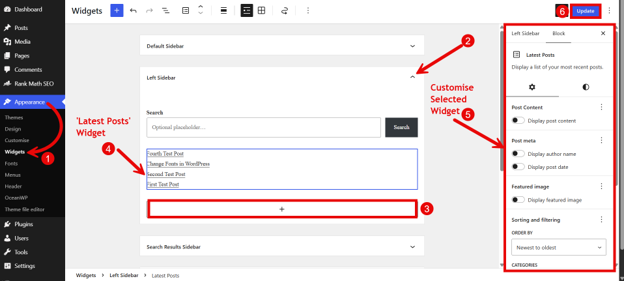
- From your dashboard, go to Appearance → Widgets.
- Click into the widget area you wish to use, your main sidebar or a footer column.
- Click the + button (also called the block inserter).
- Find the block you want, the Search or Latest Posts block for example, and click it to add it in.
- Adjust the settings. A Latest Posts widget allows you to set how many posts to display and whether to include the date.
- Once done, click Update to save it. Your widget is now live.
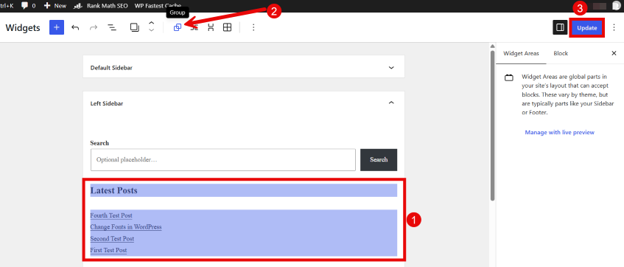
There’s one thing that often trips people up here. If you add a separate Heading block above your widget to give it a title, WordPress treats the two as unrelated blocks, and they can drift apart in the layout.
To keep them together, select both blocks by holding Shift and clicking each one, then click Group. They will then behave as a single unit and stay put.
Add a Widget in a Block Theme
Block themes don’t have the Widgets menu at all. Instead, you work in the Site Editor.
Here’s how:
- Go to Appearance → Editor to open the Site Editor.
- Open the template part you wish to change. For instance, your header or footer.
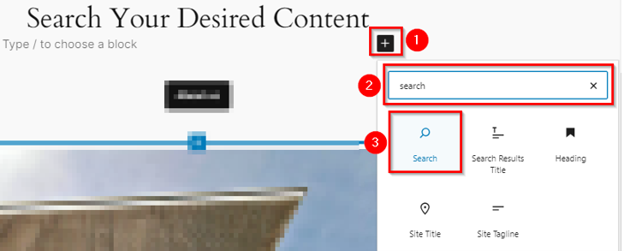
- Click the + button where you’d like the widget to sit.
- Search for the block you need and select it to place it.
- Edit your widget using the settings on the right.
- Click Save to publish the change.
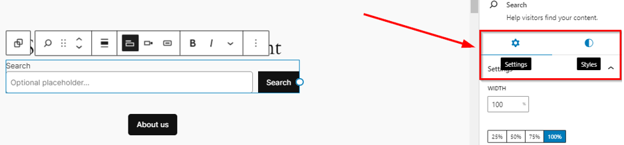
Because the entire layout is built out of blocks, you’re editing the widget right where it appears, with the same tools you’d use anywhere else in the editor.
Add a WordPress Widget via Plugin
WordPress and your theme won’t cover every feature you want. When there’s a gap, a plugin fills it. As an example, we’ll add a contact form here, since collecting enquiries and quote requests is a common requirement for South African businesses, and we’ll use WPForms. Its free version handles a basic contact form, and it works as a block you can drop directly into a widget area.
First, create your form:
- Install the WPForms plugin. If installing plugins is new ground, our guide on how to install WordPress plugins covers this in more detail.
- Go to WPForms → Add New Form in your dashboard.
- Give the form a name, then choose the Simple Contact Form template. It includes the usual fields ready to go: name, email, and message.

- To change a field, click it and edit the options on the left. To add one, drag a new field from the Fields menu onto the form.
- Click Save at the top.

Next, place it in a widget area.
To do this:
- Go to Appearance → Widgets, or Appearance → Editor if you’re on a block theme.
- Click into the area you want, your sidebar or a footer column, then click the + button.
- Search for the WPForms widget and click it to add it in.
- Click Select a Form in the block, then choose the form you just made from the dropdown.
- Click Update to save or Save in the Site Editor. Your form is now live in that area.

The same pattern applies to other widget plugins. You install and activate it, set up the widget, then place its block in your chosen area. Where the settings are located can vary from one plugin to the next, so check the plugin’s own guide if a step looks different on your screen.
What to Check Before Installing a Widget Plugin
A plugin adds someone else’s code to your site, so a little care up front saves a lot of bother later:
- Start with the date it was last updated, because a plugin left untouched for a year or two may have security holes or clash with current WordPress.
- Check that it’s tested with your version of WordPress, and that it works with your theme, since some widget plugins support classic themes only and fall over on block themes.
- Read a few recent reviews and glance at the support forum to see whether the developer responds to problems.
- It’s also worth asking whether the plugin does something you could already do with a built-in block, as there’s no point adding weight for a feature you already have.
- Lastly, consider what happens if you remove it later. A well-built plugin bows out cleanly, while a poor one can leave a broken layout or stray code behind.
Style WordPress Widgets with Custom CSS
Sometimes a widget does the correct job but doesn’t quite match your brand. Maybe you want your call-to-action box to stand out in its own colour, or a little more space around a form. A small amount of CSS lets you customise WordPress widgets without touching anything else on the page.
- Navigate to Appearance → Widgets.
- Select the widget that you wish to style.
- In the Block settings panel, open Advanced.
- In the ADDITIONAL CSS box, add the CSS property and value. For instance, background-color: beige.
- Click Update to save.

IMPORTANT:
Before you call it done, check the widget on a phone as well as a desktop, and ensure your new style doesn’t clash with your theme. One more thing worth trying first: block themes often allow you to change colour, spacing, and borders directly from the block’s own settings, with no code at all. For simple WordPress website customisation, that is quicker, so save the custom CSS for when the built-in controls cannot get you there.
Widgets, User Experience, Conversions, & SEO
The point of a widget is to make a visitor’s life easier. When someone lands on your site, they’ve got a goal in mind: finding an answer, comparing a product, or getting in touch.
The right widget shortens the path to that goal.
For instance:
- A search box saves them from scrolling.
- A clear menu shows them where to go.
However, when you crowd too many widgets into one spot, you do the opposite. A packed sidebar splits attention and buries the one thing you wanted them to notice. So, aim for a few widgets with a clear purpose, placed where people expect to find them.
That clarity is what turns attention into action. A well-placed widget can carry someone to the next step, whether that’s requesting a quote, tapping a click-to-call button, booking an appointment, downloading a brochure, adding an item to the cart, or joining a mailing list.
The trick is to keep things obvious and give them room to breathe. One strong call to action will always beat five competing ones. Just don’t lean on placement alone. A widget can open the door, but your offer and the page behind it must still deliver.
WordPress Widgets also impact SEO, though not in the way people often hope. They won’t lift your rankings on their own; what they can do is help visitors and search engines find more of your content.
A related posts list, a category menu, or a search box all guide people deeper into your site, and that steady internal linking helps your pages be discovered.
The trap is overdoing it. Stuffing the same keyword-packed links into every sidebar and footer looks spammy and does little for the reader. Keep your widget links relevant and genuinely useful, and they’ll support your SEO rather than work against it.
Keep WordPress Widgets Fast & Mobile-Friendly
Not all widgets carry the same weight. A text box, a menu, or a search field is light and loads in an instant. Others request much more of your site. Social media feeds, image sliders, embedded maps, oversized images, and anything that gathers scripts from another service all add extra requests to every page they sit on.
A few won’t hurt, but as they pile up and your page speed slows, you risk frustrating visitors and hurting your search rankings.
Remember, you don’t have to drop the features to keep the speed. Instead, lean on the light widgets wherever they will do the job, and be choosy with the heavy ones. A static image linking to your social profile, for instance, does the same work as a live feed at a fraction of the cost.
Also, since large images are among the most common culprits, it’s worth learning how to optimise WordPress images before you add them to a widget.
Mobile requires a second look, because widgets don’t sit where you’d expect on a small screen. On most themes, a sidebar drops below your main content on a phone, so a widget that’s front and centre on desktop can end up well down the page.
Footer widgets fall even lower. A large widget can also push your content down and interrupt someone mid-read or mid-purchase.
So, test your site on a real phone, not just a shrunk-down browser window on your computer. If a widget adds little on mobile, consider hiding it there, and always keep the actions that matter most (a call button, a WhatsApp link, a cart) within easy reach on a small screen.
WordPress Widgets for South African Websites
The way South Africans browse shapes which widgets earn their place. Most people reach your site on a phone, often on mobile data, and they want the important things within thumb’s reach. That makes a few widgets genuinely useful for local businesses.
If you run a service business, place your key actions where visitors can’t miss them.
For example:
- A WhatsApp button allows someone to message you in the app they already use all day.
- A click-to-call link turns a tap into a phone call.
- A short quote form in the sidebar or footer collects enquiries without the visitor hunting for your contact page, and a booking widget allows them to lock in an appointment on the spot.
And, if you cover set areas, a small navigation widget listing the towns or suburbs you serve will help people confirm you work close to where they are located.
Online stores lean on a different set. A cart widget keeps the checkout one tap away while shoppers browse, a product category menu helps them narrow down fast, and a small trust widget showing your payment or delivery options can settle last-minute doubts.
Bloggers and publishers, meanwhile, get the most from a recent posts list, a category menu, a search box, and a newsletter sign-up that turns a one-off reader into a regular one.
Whatever your site, the rule stays the same. Add the widgets that match how your customers behave and leave the rest.
Stay Reachable During Load-Shedding
Load-shedding doesn’t have to take your website down when the power goes out. Your site is on a server in a data centre, not in your office, so if your host runs backup power, your pages stay online even when your area is dark. That’s really a hosting question, and dependable WordPress hosting in South Africa is what keeps you available around the clock.

Widgets come in on the customer’s side. Outages are exactly when people sit down with their phones and browse, and it’s also when your team or your shop phone may be offline.
So, set your site up to help visitors help themselves. Keep contact options visible with a WhatsApp or messaging widget, as a message will wait for you even if a call cannot get through.
Point people to answers with an FAQ or a self-service link widget, keep a booking or enquiry form handy so they can reach you on their own schedule, and leave cart access open so a shopper can still place an order while you’re offline. The goal is simple. When you cannot respond in the moment, your site still can.
POPIA & Widgets
Some widgets gather or display personal information, and in South Africa that brings POPIA into the picture. Contact forms, sign-up forms, login boxes, comment widgets, and embedded social feeds can all collect or reveal personal details. This isn’t legal advice, but a few sensible habits keep you on the right side of it.
Only ask for what you need on a form. A name, an email, and a message are usually enough for an enquiry, so resist collecting extra fields you will never use.
Tell people what you’ll do with their details, and link to a privacy policy from anywhere you collect them. If a widget sets cookies or loads content from another company, a social feed or an analytics tool for instance, let visitors know and get their agreement where it’s required.
And don’t hang on to data you no longer need. The less personal information a widget stores, the less you have to protect.
Best Habits to Avoid Common Mistakes
The difference between widgets that help and widgets that get in the way usually comes down to a handful of habits. Here’s what tends to go wrong, and the simple practice that heads off each problem.
The most common error is adding widgets and never checking whether anyone uses them. This leaves you with clutter, so instead, let your data decide. Your analytics can show which links and buttons receive clicks, and the ones that don’t earn their place can go.
The next slip is leaving plugins to gather dust. An outdated widget plugin can break or create a security gap, so update your plugins regularly and test your site after each WordPress or plugin update to catch any changes.
Switching themes also trips a lot of people up. Widget areas and their names differ from one theme to the next, so a widget that sat neatly in your old sidebar might vanish or land somewhere odd. After any theme change, open each widget area and check that everything’s still where it should be.
It’s also easy to ignore what visitors tell you. If people say they can’t find your contact details or your search box, treat that as a prompt to move it, not a one-off complaint. Small placement tweaks often fix real frustration.
Design also matters. A widget that clashes with your colours and fonts looks bolted on rather than built in, so keep its styling consistent with the rest of your site.
Just never trade away usability for the sake of appearances. You’ve already seen how a crowded layout and an untested mobile view cause trouble, and those deserve the same ongoing attention. A quick audit every so often, dropping any widget that no longer serves a purpose, keeps each area lean and working.
Troubleshoot WordPress Widget Problems
When a widget misbehaves, work through the simple checks before anything drastic. Start by clearing your cache, including any caching plugins, your CDN, and your browser, since you’re often seeing an old version of the page rather than a real fault.
If a widget won’t appear at all, confirm that your theme offers that widget area, because not every theme or page has a sidebar, and check whether the plugin behind it supports your theme type, as some work only on classic themes and not block themes.
If the problem started after a recent change, that change is your first suspect, so revisit the widget or update you just made. To track down a plugin conflict, test on a staging copy of your site rather than the live one, switching plugins off one at a time until the culprit shows itself.
It’s also worth checking your custom CSS, where a stray rule can hide or distort a widget, and viewing the page on a real phone, since a widget can render differently on a small screen. For the more technically minded, your browser’s console and your site’s error logs often point right to the cause.
Know When to Get Help
If you’re building a custom widget from scratch, editing your theme’s templates, or adding a brand-new widget area, all call for someone comfortable with code.
The same applies to tricky WooCommerce cart work, membership or login setups, and form integrations that need to talk to other tools, along with stubborn performance or accessibility issues.
If it turns out that the trouble sits with your server rather than your site, that’s a hosting matter, and Domains.co.za support can help you sort it out.
Final Thoughts
Widgets aren’t decoration; they are working parts of your website that help people find their way around, get in touch, purchase from you, and stick around. Used well, a small set of them can lift your site’s usability and your results without a single change to your main pages.
The approach that gets you there is straightforward. Choose a few widgets with a clear purpose, place them where they genuinely help, keep them fast and mobile-friendly, and check on them now and then. If you’re starting out, add one widget that supports your main goal, a search box, a contact form, or a call-to-action, then test it on both desktop and phone and build from there.
None of this will count for much if your site is slow or offline. Domains.co.za WordPress Hosting is hosted locally for faster load times across South Africa, with a 99.9% uptime guarantee, daily backups, free SSL, and support during local hours, so the features you add stay available to every visitor who comes looking.
![Strip Banner Text - WordPress Hosting that's built for speed. Ultra-fast NVMe drives, free SSL, and daily backups on a proudly South African host. [Learn More]](/articles/wp-content/uploads/2026/10/wordpress-widgets-02.webp "WordPress Hosting that's built for speed. Ultra-fast NVMe drives, free SSL, and daily backups on a proudly South African host. [Learn More]")
Power Up Your Site: How to Install a WordPress Plugin
VIDEO: Power Up Your Site: How to Install a WordPress Plugin
FAQS
What’s the difference between a widget and a plugin?
A widget is a small feature you drop into a widget area or a search box or a menu. A plugin is add-on software you install to extend what WordPress can do. Some plugins add new widgets or blocks, while many others handle tasks that have nothing to do with widgets at all.
Can I show a widget on some pages and hide it on others?
Not with core WordPress on its own, as a widget shows on every page that uses its area. To control this, you can add a widget visibility plugin to show or hide items by page, post type, or device. On a block theme, you can also use different templates, so an area only appears where you want it.
Do page builders (Elementor, Divi) work with WordPress widgets?
Page builders include their own drag-and-drop elements that do the same jobs inside builder-designed pages, so you’ll usually use those there. Your theme’s normal widget areas, the sidebar and footer, still work as before. Many builders also let you place a standard WordPress widget through a dedicated widget or shortcode element.
Do I need a separate plugin for every widget I want to add?
No. WordPress and most themes already include widgets and blocks for the common requirements: a search box, recent posts, categories, an image, or a button. You only need a plugin when you want something core doesn’t offer, a contact form or a live social feed being two examples. Sticking to what you truly need keeps your site lighter and faster.
What happens to my widgets if I move from a classic theme to a block theme?
The old Widgetsscreen disappears, and your existing widgets don’t carry over automatically. WordPress stores them, and you rebuild the ones you want in theSite Editor as blocks, placed in the header, footer, or other template parts. It’s worth checking each area after the switch so nothing important goes missing.
Other Blogs of Interest
- Disabling xmlrpc.php Can Reduce a Common WordPress Security Risk – If Your Site Does Not Need It
- The WordPress get_post_meta Function Helps You Turn Custom Fields Into Dynamic Content
- The wp_get_attachment_image Function Makes WordPress Image Output Cleaner & More Reliable
- WordPress Stuck In Maintenance Mode? Here’s What It Means & How To Prevent It
- WordPress Blocks Make Website Customisation Easier Without Being Into A Developer

Rhett isn’t just a writer at Domains.co.za – he’s our resident WordPress content guru. With over 8 years of experience as a content writer, with a background in copywriting, journalism, research, and SEO, and a passion for websites.
Rhett authors informative blogs and articles that simplify the complexities of WordPress, website builders, domains, and cPanel hosting. Rhett’s clear explanations and practical tips provide valuable resources for anyone wanting to own and build a website. Just don’t ask him about coding before he’s had coffee.