


Disabling xmlrpc.php Can Reduce a Common WordPress Security Risk – If Your Site Does Not Need It
The xmlrpc.php WordPress file has a bad reputation, but it isn’t malware, and it wasn’t built to harm your site. It’s a standard WordPress file that allows your website to communicate with external apps and services. That task is useful for some sites.
The catch is that the same file offers attackers a door to knock on. That’s why xmlrpc.php in WordPress is a common security target.
This guide explains what the file does, why it exists, and why attackers go after it. More importantly, it helps you decide what to do. Some sites are safer when it’s switched off. Others still need it. You’ll also learn how to check whether it’s active and how to disable or restrict it properly.
KEY TAKEAWAYS
- xmlrpc.php is a normal WordPress file that links your site to outside apps.
- Attackers target it to run brute force logins and pingback DDoS attacks at scale.
- If nothing on your site uses it, disabling it removes a common target at no cost.
- Keep it but restrict it if you rely on the mobile app, Jetpack, or remote publishing.
- Blocking it is one layer only, so pair it with strong passwords and two-factor login.
TABLE OF CONTENTS
What Is xmlrpc.php in WordPress?
xmlrpc.php is a single file located in the main folder of every standard WordPress installation. It operates as an endpoint, a fixed address that other software can send requests to. When an external app wants to do something on your site, such as publish a post, it sends a request to xmlrpc.php.
The file is named after the system it runs XML-RPC. This is an older protocol, or set of rules, for sending data between two systems. It packages information in a format called XML and moves it over the web using HTTP, the same method your browser uses to load pages.
In plain terms, XML-RPC WordPress support allows programs outside your dashboard to read from and write to your site. None of that is harmful on its own; the file only becomes a risk based on how it’s used and who can reach it.
Why WordPress Added XML-RPC
XML-RPC is older than WordPress itself. To see why it was built in, picture the early web. Connections were slow and often dropped, so writing a full post inside a browser wasn’t always practical.
So, people turned to offline blogging tools instead. You could write a post on your computer with no connection, then send it later. XML-RPC made that handoff possible: when you were ready, the tool used xmlrpc.php to publish your work.
As WordPress grew, the file took on more tasks. It allowed you to post from a mobile phone or a second computer without logging in. It powered trackbacks and pingbacks, small alerts that tell one site when another links to it.
It also allowed outside services to connect for extra features. For years, this remote access was a genuine convenience.
Modern WordPress Architecture: XML-RPC vs the REST API
Most of those tasks now work in more modern ways. You can manage almost everything from the WordPress dashboard, and many apps use the REST API instead. The REST API is a newer way for software to connect to WordPress, and it’s what most current development is built on.
Because of that shift, plenty of sites no longer touch xmlrpc.php. But it hasn’t gone away. WordPress still ships with the file switched on, and some plugins, services, and older setups still rely on it.
Here’s the part that trips many people up. The REST API doesn’t automatically cover every old XML-RPCjob. A tool you use may still call xmlrpc.php behind the scenes. So, don’t disable it blind. Check what your site depends on first, then decide.
Why Attackers Target xmlrpc.php
The file is attractive to attackers for one main reason: it accepts remote requests and can handle many of them in a single call. That design is efficient for genuine tools, but it’s also efficient for abuse.
Two attack types stand out:
WordPress Brute Force Attacks
A brute-force attack means guessing usernames and passwords repeatedly until one works. On a normal login page, each attempt is a single guess, and security tools can detect the flood and block it.
However, xmlrpc.php changes the maths. Using a method called system.multicall, it allows an attacker to pack hundreds of login attempts into a single request.
That means fewer requests to your server and far more guesses per request. WordPress brute-force attacks through this file can slip past tools that only monitor the login page. That makes them more difficult to spot if you aren’t checking.
DDoS & Pingback Abuse
The second problem is the pingback feature. A pingback is meant to notify another site that you’ve linked to it. Attackers can twist this into an attack.
They send pingback requests to many WordPress sites simultaneously and tell each one to ping the same target. All those sites then hit the target together. This turns innocent websites into a weapon and can bury the victim under traffic.
WordPress Distributed Denial of Service (DDoS) attacks that use pingbacks are a known problem, and your site could be one of the attackers without you even realising.
There’s also a quieter cost. Even failed attempts eat server resources. Each request uses a little CPU, memory, and PHP power, and on a smaller hosting plan that adds up fast.
Any remote feature you don’t use is also extra surface for attackers to probe. A legitimate file can still be a weak point if it’s left open and ignored.
Should Every WordPress Site Disable XML-RPC?
Here’s the honest answer: No.
Not every site should switch it off, and doing so blindly can break things you rely on.
The right call depends on how your site works. If nothing you use requires xmlrpc.php, turning it off removes a common target and costs you nothing. If a tool or service depends on it, disabling it will cause problems.
So, the decision comes down to one question: Does your site use it?
When Disabling Makes Sense
Switching this off is usually safe if your site doesn’t lean on remote access. That’s the case if you don’t use the WordPress mobile app or Jetpack features that need XML-RPC.
It also fits if you never publish through offline or remote tools. The decision is easier if your logs show repeated hits to xmlrpc.php or your site has already faced brute-force or WordPress DDoS attacks.
Also, wanting fewer open access points is a fair reason on its own. When most of these describe your site, you’re a strong candidate to disable xmlrpc.php in WordPress.
When to Keep It Enabled
There are real cases where you should leave it on. Keep xmlrpc.php active if you publish remotely, use the WordPress mobile app, or run a plugin or service that depends on it.
Older integrations sometimes require it, and some Jetpack features won’t work without it. If any of these apply, don’t disable the file outright. Look at the restriction options further down instead, which cut the risk while keeping what you need.
How to Check If XML-RPC Is Enabled
Before you change anything, find out whether xmlrpc.php is even active. There are three easy ways to check, and the first takes under a minute:
Browser Check
Open your browser and go to your own domain followed by /xmlrpc.php. For example:
yourdomain.co.za/xmlrpc.phpThen press Enter.
If the file is active, you’ll see a short message that reads, XML-RPC server accepts POST requests only.” That’s normal and expected. It means the file is on and responding.

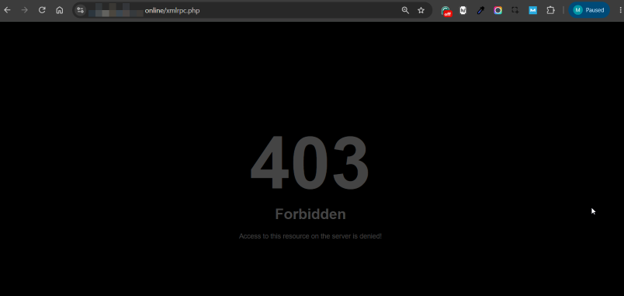
If the file is blocked or missing, you’ll get an error instead, usually 403 Forbidden or 404 Not Found. Either error means that outside requests can’t reach it.
Online Testing Tools
You can also use a free XML-RPC validator. Enter your site’s address and click Check. The tool tells you whether the endpoint responds. It’s a quick second opinion if the browser result was unclear.

WARNING:
Only check status. Never type your WordPress username or password into an unknown third-party tool. A status check doesn’t require your login, and no honest tool will request it.
Server Logs & Security Plugins
The most useful check over time is your own logs. Your server’s access logs, or a security plugin, show every request to xmlrpc.php. If you see the same file hit repeatedly, especially from strange locations, you know it’s being probed.
Reading raw logs takes a little practice. If you’re unsure how to find or read them, our guide on how to configure WordPress error logs explains this. Steady, repeated hits are your cue that blocking is worthwhile.
Ways to Disable or Restrict XML-RPC
You’ve got several options, and they trade ease against control:
- A plugin is the simplest.
- Editing .htaccess provides more control but requires care.
- Restricting by IP or using a firewall sits in between.
So, choose the one that matches your comfort level and your setup.
Disable with a Plugin
For most people, a plugin is the safest route, especially if you’d rather not touch core files. A well-known option is Disable XML-RPC-API. Here’s how to set it up:
- Install the Disable XML-RPC-API plugin on your WordPress website.
- Navigate to XML-RPC Security → XML-RPC Settings and ensure the following options are disabled/turned off:
- XML-RPC Api Master switch.
- Enable xml-rpc for Jetpack.
You may also whitelist some IPs to allow access to the XML-RPC API if you wish.
- Click Save to apply changes.
- To confirm it worked, visit yourdomain.co.za/xmlrpc.php. You should now see a 403 or 404 error.

NOTE:
You can adjust settings depending on whether you wish to disable it entirely. If you ever need the file back, deactivating the plugin restores it.
Block with .htaccess
If you’re comfortable editing files, you can block xmlrpc.php at the server level with .htaccess. This file controls how an Apache server handles requests, so a few lines can shut the door before WordPress even loads.
- Create a website backup. If you’re unsure how, see our guide on how to back up your WordPress site.
- Connect to your site with an FTP client, or open File Manager in your hosting control panel.
- Navigate to public_html. This is usually the root of your WordPress install, though a few hosts use a different name.
- Find .htaccess. If you can’t see it, refer to the instructions on how to view hidden files in cPanel.
- Right-click on it and choose Edit.
- Add this snippet to the bottom of the file:
# Block all access to xmlrpc.php
<Files xmlrpc.php>
Require all denied
</Files>- Save the file, then visit yourdomain.co.za/xmlrpc.php to confirm you receive a 403 error.
IMPORTANT:
.htaccess only works on Apache-based hosting. It does nothing on Nginx and various other setups. If your site throws a 500 error after you save, the rules likely don’t match your server. Remove the code and check our guide on how to fix the WordPress 500 Internal Server Error. Turning on WordPress Debug Mode can also help you find out what went wrong.
Restrict to Trusted IP Addresses
If you need the xmlrpc.php WordPress file for yourself but not the whole internet, you can allow only certain IP addresses. On a modern Apache server, the code looks like this:
# Allow xmlrpc.php only from a trusted IP
<Files xmlrpc.php>
Require all denied
Require ip xxx.xx.xx.xx
</Files>
Replace xxx.xx.xx.xx with the IP you want to allow and add another Require ip line for each extra address.
This works well in controlled setups with fixed addresses. However, it’s shakier for everyday use. Most home and mobile connections use dynamic IPs that change automatically.
If your address changes, you’ll lock yourself out and will need to update the file once more. Only use this method if your IP is stable, or you’re happy to manage it.
Use a Web Application Firewall or Security Plugin
A web application firewall, or WAF, sits in front of your site and filters traffic before it arrives. A good WAF, or a security plugin with firewall rules, can spot abusive xmlrpc.php requests and block them while still letting real ones through.
That’s handy when you need the file working but want the abuse gone. It also requires less upkeep than IP rules, which suits busy sites and owners who would rather manage security from a single dashboard.
Disable Pingbacks Only
Sometimes the real worry is pingback abuse, not XML-RPC. If so, you can switch off pingbacks and leave the rest of the file working. This keeps remote publishing and other features intact.
The simplest way is a small code snippet. Add this to a site-specific plugin or your theme’s functions.php file:
add_filter( 'xmlrpc_methods', function( $methods ) {
    unset( $methods['pingback.ping'] );
    return $methods;
} );
This removes only the pingback method.
IMPORTANT:
We recommend you use a child theme when editing the theme files. Otherwise, you may lose the customisations when the theme is updated. Or you may use a code snippets plugin (e.g., WPCode) so that an update cannot delete your changes.
What Could Break After Disabling XML-RPC
Disabling the file is low risk for many sites, but it isn’t zero risk. Knowing what may stop working helps you test the correct things afterwards.
If you disable xmlrpc.php:
- The WordPress mobile app may lose its connection.
- Some Jetpack features can break, since parts of Jetpack still use the file.
- Remote and offline publishing tools will stop posting.
- Pingbacks and trackbacks won’t be sent or received.
- A few older integrations that quietly depend on the file may fail without an obvious error.
If you use any of these, restrict the file instead of blocking it outright.
Pair It with Stronger Login Security
Blocking the xmlrpc.php WordPress file closes one door, but it doesn’t lock the entire house. It’s one step in WordPress XML-RPC security. Attackers still probe the normal login page, plugins, and weak passwords, so your other defences matter just as much.
Here’s what you need to do:
- Use long, unique passwords and avoid the obvious admin username.
- Turn on two-factor authentication so that a stolen password isn’t enough on its own.
- Limit failed login attempts to slow down guessing.
- Review who has an account, reduce the roles that are located higher than necessary, and remove old administrator accounts that nobody uses.
- Monitor your login logs so you notice trouble early.
Two more habits round this out. Secure your website with SSL so data moves over an encrypted connection. And scan regularly, because if something does slip through, our guide on WordPress malware removal helps you clean it up fast.
XML-RPC, Performance & Hosting Resources
It’s easy to think disabling xmlrpc.php will speed up your site. For a normal, healthy site, it won’t. The file sits idle until something calls it, so switching it off doesn’t make your pages load faster on its own.
The real gain is different. If your site is being hammered with xmlrpc.php requests, blocking them stops that wasted work. Your server no longer consumes CPU and memory on junk traffic, freeing resources for genuine visitors.
However, large-scale attacks are another matter. A serious DDoS can overwhelm any server, and a single file rule won’t hold it back. That traffic needs server-level controls, a firewall, and a CDN or WAF to absorb the flood.
If attacks keep straining your plan, a stronger environment helps too. Our VPS hosting for resource-heavy WordPress websites provides more room and control than shared hosting.

What This Means for South African Businesses
For South African businesses, this isn’t just a technical clean-up. Many local SMEs run their site without a dedicated tech team, so security often falls to whoever is closest to the keyboard. That makes it worth taking simple, high-value steps.
Your website probably does real work. It handles quote requests, takes bookings, collects WhatsApp enquiries, and processes online orders. If repeated xmlrpc.php attacks slow the site or knock it offline, you don’t just lose uptime. You lose leads, sales, and trust.
In this case, eliminating an avoidable risk protects the income your site generates. Reliable WordPress hosting in South Africa provides a stronger base to build on.

Load-Shedding & Staying Online
Load-shedding makes an online presence even more important. When the power’s out, your shop or office might not trade as usual. Your website is often the one part of the business that stays open. Customers still check it, message through it, and order from it.
That only holds if the site is live. An attack that takes it down during load-shedding hits at the worst possible time. Keeping xmlrpc.php closed when you don’t need it is one small way to protect that always-on channel when everything else is disrupted.
POPIA & Handling Personal Information
If your WordPress site collects personal information through contact forms, customer accounts, orders, or bookings, you are responsible for handling it with care. POPIA, South Africa’s data protection law, expects businesses to keep that information reasonably secure.
This isn’t legal advice, and every business should get its own protection where necessary. In practical terms, the direction is clear. Reduce avoidable security risks, keep backups, control who can access your data, and watch your logs. Closing an unused, often-attacked endpoint fits neatly into that kind of sensible, everyday care.
Common Mistakes to Avoid
A few slip-ups turn a simple security step into a headache. Watch out for these.
- Disabling the xmlrpc.php WordPress file without checking what depends on it, then wondering why Jetpack or the mobile app stopped.
- Editing .htaccess with no backup, since one wrong line can take the whole site down.
- Assuming that blocking xmlrpc.php secures WordPress on its own.
- Not testing the site after disabling the xmlrpc.php file.
- Keeping old, unmaintained security plugins. They can do more harm than good, so keep them up to date.
- Whitelisting a dynamic IP, which locks you out the moment your address changes.
- Confusing XML-RPC with the REST API, which is a separate system your site may still require.
- Assuming SSL stops this abuse. Remember, SSL encrypts the connection, but it doesn’t block malicious requests to the file.
- Skipping your logs, which means you’re guessing instead of measuring.
Post-Disable Checklist
Once you’ve disabled or restricted xmlrpc.php, run through this quick check to ensure nothing important broke:
- Revisit yourdomain.co.za/xmlrpc.php and confirm you receive a 403 or 404 error.
- Load your homepage and click through a few pages.
- Login and check your admin dashboard works.
- Submit a test message through your contact forms.
- If you sell online, complete a test WooCommerce checkout.
- If you use them, check the mobile app or Jetpack still connects.
- Review your security logs for anything odd.
- Clear your site cache so visitors see the current version.
- Watch your logs over the next few days for fewer xmlrpc.php hits.
- Confirm no important integration has quietly stopped working.
If everything checks out, you’re done. If something breaks, switch to a restriction method rather than a full block.
When to Ask Domains.co.za Support or a Developer to Help
Some jobs are worth handing over, and there’s no shame in that. Ask for help if you’re editing .htaccess and unsure of the syntax, or your site returns a 500 error after a change.
Get support if you’re on Nginx or another non-Apache setup, where the usual rules don’t apply. The same goes for Jetpack or integration conflicts you can’t untangle, heavy xmlrpc.php traffic, or signs of a brute force or DDoS attack.
Setting up firewall or server-level rules, and reading security logs properly, are also areas where an expert saves you time. If you’re stuck on any of these, Domains.co.za support can point you in the right direction.
Final Thoughts
xmlrpc.php is a useful file for sites that require remote access, and an unnecessary risk for those that don’t. That’s the entire decision in one line: keep it if you use it, restrict or disable it if you don’t.
If you do switch it off, treat it as one move in a bigger plan. Pair it with strong passwords, two-factor login, current plugins, regular backups, and an eye on your logs. Check what your site depends on, choose the method that fits, and test your work. Do that, and you’ll cut a common risk without breaking a thing.
Strengthen your WordPress website with reliable hosting from Domains.co.za, supported by secure infrastructure, practical local assistance, and the tools South African businesses require to stay online with confidence.
![Strip Banner Text - Give your WordPress site a safer, faster home with hosting designed for South African businesses. [Get Started]](/articles/wp-content/uploads/2026/09/xmlrpcphp-wordpress-02.webp "Give your WordPress site a safer, faster home with hosting designed for South African businesses. [Get Started]")
Power Up Your Site: How to Install a WordPress Plugin
VIDEO: Power Up Your Site: How to Install a WordPress Plugin
FAQS
Will disabling xmlrpc.php hurt my SEO or search rankings?
No. xmlrpc.php isn’t a ranking factor, so blocking it won’t lower your position. If anything, a more secure and stable site helps, because search engines favor sites that stay online and load reliably.
Should I delete the xmlrpc.php WordPress file instead of blocking it?
It’s better to block or disable it than to delete it. A WordPress core update can restore a deleted file, so the risk quietly comes back. Blocking with a plugin or .htaccess is more reliable and easier to reverse.
Does disabling xmlrpc.php break the WordPress block editor or REST API features?
No. The block editor and most modern features use the REST API, not xmlrpc.php. Turning off xmlrpc.php leaves them working as normal. Only tools that rely on the old file are affected.
Is xmlrpc.php the same as the wp-login.php page?
No, they’re two separate entry points. Your normal login page is wp-login.php, while xmlrpc.php handles remote requests. Securing one doesn’t secure the other, so it’s worth protecting both.
Do WordPress hosts block xmlrpc.php automatically?
Some do, and others limit how often it can be called. It varies by host and plan, so it’s worth checking yours. If you’re not sure, Domains.co.za support can tell you what’s already in place.
Other Blogs of Interest
- Should You Disable WordPress Comments Or Manage Them More Effectively?
- WordPress Debug Mode Turns Hidden Website Errors Into Useful Diagnostic Evidence
- WordPress Version Control Helps Teams Build, Test, & Recover With Less Risk
- Your WordPress Header Does More Than Sit At The Top Of The Page
- Deleting Unused WordPress Themes Keeps Your Website Cleaner, Safer, And Easier To Manage

Rhett isn’t just a writer at Domains.co.za – he’s our resident WordPress content guru. With over 8 years of experience as a content writer, with a background in copywriting, journalism, research, and SEO, and a passion for websites.
Rhett authors informative blogs and articles that simplify the complexities of WordPress, website builders, domains, and cPanel hosting. Rhett’s clear explanations and practical tips provide valuable resources for anyone wanting to own and build a website. Just don’t ask him about coding before he’s had coffee.