


Should You Disable WordPress Comments Or Manage Them More Effectively?
This article will show you how to disable WordPress comments and manage them more effectively. Comments can be one of the most useful features of a WordPress site, or one of the most draining. They allow readers to ask questions, share views, and build community.
They can also invite spam, abuse, and hours of clean-up. So, the real question isn’t only how to disable comments in WordPress. It’s whether to switch them off, moderate them, or keep them open.
This guide assists South African site owners to make that call and act on it.
KEY TAKEAWAYS
- Disable comments in WordPress where they only attract spam and bring extra work. However, keep them where they add value.
- Moderation often beats removal. Approving comments and filtering spam keeps genuine discussion without switching everything off.
- Closing, hiding, and deleting are all different. Closing stops new replies, hiding removes them from view, and deleting erases them for good.
- Turning comments off won’t stop every type of spam. Contact forms, fake sign-ups, and bots can still get through.
- Comments don’t decide your rankings, but deleting a useful discussion can change how a page ranks.
- Future-post settings don’t affect existing posts, WooCommerce reviews can switch off by accident, and POPIA makes you responsible for personal data in comments.
TABLE OF CONTENTS
Role of Comments on a WordPress Website
By default, every new WordPress post can accept comments below the content. This offers readers space to respond, ask questions, and talk to each other.
Well-run WordPress comments turn a one-way article into a two-way conversation. They surface feedback you would miss by email and help readers feel involved. If placed on the wrong page, that same space requires monitoring.
When Comments Are Worth Keeping
Some sites gain real value from discussion, so switching comments off costs more than it saves.
Blogs, publications, and thought-leadership sites flourish on debate. A strong opinion piece draws thoughtful responses that extend the article and make readers return.
Educational and community sites also benefit. Comments let people ask questions, assist each other, and keep a topic alive after publishing. South African training providers and local-interest publishers see this often.
Product, tutorial, and support content also learn from comments. Repeated questions or reported errors show where a guide needs work.
When WordPress Comment Moderation Outweighs Its Value
For many business sites, open comments offer more problems than benefits, especially service sites, brochure sites, and campaign pages.
WordPress comment spam is the most common issue. Bots post junk and links to lift their own rankings, and someone clears it out daily.
Off-topic responses are another drain. Unrelated chatter pulls attention from the page and confuses new visitors. Capacity also matters. Most small teams can’t review comments properly, so abusive posts slip through and harm trust.
On a quote or landing page, comments also sit outside the path to enquiries.
Disable Comments or Moderate Them?
Removing comments isn’t the only fix; often the smarter move is to keep them and control them.
Disabling comments makes sense when:
- The comments are consistently irrelevant.
- Your site isn’t built around community.
- Your team can’t moderate reliably.
- Spam clearly outweighs genuine discussion.
- Comments create legal, reputational, or support risk.
- Your main conversion path happens elsewhere.
Moderation is the better option when:
- Genuine reader questions add value.
- You want to grow a community.
- Comments support tutorials or learning content.
- You have the people to review them.
- Your audience expects to join in.
Decide which set suits before you disable comments in WordPress.
Closing vs Hiding vs Deleting Comments
These three actions sound similar but differ a lot, so consider each before changing anything.
- Closing Comments: Stops new submissions but usually keeps the existing discussion on the page.
- Hiding Comments: Removes them from public view without deleting the records in your database. You can restore them later.
- Deleting Comments: This action is permanent. It wipes replies for good and can erase useful customer queries, feedback, and years of genuine discussion. Choose it carefully.
4 Ways to Disable Comments in WordPress
There are multiple ways to turn off comments in WordPress. The right one depends on how much you want to switch off.
Stop Comments on Future Posts
In your WordPress Dashboard:
- Go to Settings → Discussion.
- Untick Allow people to submit comments on new posts.
- Click Save Changes.
This affects new content only.

Close Comments on Existing Posts or Pages
To close comments on your already published pages and posts:
- Go to Posts → All Posts (or Pages → All Pages if working with pages).
- Select all the items.
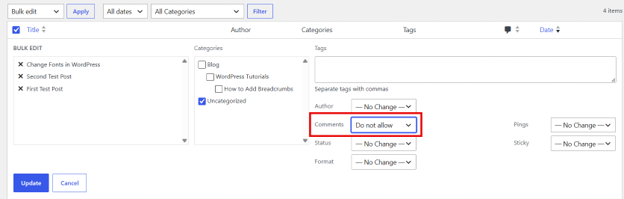
- Choose Bulk actions → Bulk Edit and click Apply.
- Set Comments to Do not allow.
- Click Update to save changes.
To close comments on a specific published post/page:
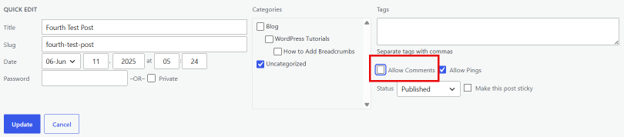
- Hover over your target post/page.
- Click Quick Edit and uncheck Allow Comments.
- Click Update to save changes.
Use a Dedicated Plugin
The Disable Comments plugin can switch comments off across the site or by content type.
Here’s how:
- Install the Disable Comments plugin on your site. Our guide on how to install WordPress plugins covers the setup.
- After installation, go to Settings → Disable Comments.
- Choose options based on your requirements. To disable comments on your entire site, select Everywhere.
- Click Save Changes.
NOTE:
On the DELETE COMMENTS tab, you can permanently delete comments from a specific content type or from your entire website.

Apply Custom Code
If you prefer a lightweight approach without installing plugins, a developer can add custom PHP code to your child theme’s functions.php file.
This:
- Stops comments on existing content.
- Prevents new comments.
- Removes comment support from post types,
- Hides existing comments on the front end.
- Removes the Comments menu and icon from the admin dashboard.
You can edit the functions.php file using File Manager and an FTP client (e.g., FileZilla):
```php
1. Disable comment support for all post types
$post_types = get_post_types();

    foreach ($post_types as $post_type) {

        if (post_type_supports($post_type, 'comments')) {

            remove_post_type_support($post_type, 'comments');

            remove_post_type_support($post_type, 'trackbacks');

        }

    }

});
2. Close comments and pingbacks on the front end
add_filter('comments_open', '__return_false', 20, 2);

add_filter('pings_open', '__return_false', 20, 2);
3. Hide existing comments on the front end
add_filter('comments_array', '__return_empty_array', 10, 2);4. Remove the Comments menu page from the WordPress Admin Dashboard
add_action('admin_menu', function () {

    remove_menu_page('edit-comments.php');

});
5. Remove the Comments icon/link from the Admin Bar
add_action('wp_before_admin_bar_render', function () {

    global $wp_admin_bar;

    $wp_admin_bar->remove_menu('comments');

});
6. Redirect any user trying to access the edit-comments page directly
add_action('admin_init', function () {

    global $pagenow;

    if ($pagenow === 'edit-comments.php') {

        wp_safe_redirect(admin_url());

        exit;

    }

});

```
Why Turning Off WordPress Comments Won't Stop All Spam
Switching comments off seems a clean fix for spam, but it only closes one door. Bots have others.
Turning comments off won't stop:
- Contact-form spam.
- Fake account registrations.
- Trackback and pingback abuse.
- Bot form submissions.
- Email spam.
- WooCommerce review spam.
- Forum or membership spam,
To cut spam properly, you still need form protection, registration controls, and site-wide filtering.
Better Alternatives to Completely Disabling WordPress Comments
If comments still add value, WordPress comment moderation keeps control without losing the discussion. There are various built-in options:
Require Manual Approval
Nothing appears until you approve it. To do this:
- Click Comments.
- Hover over your target comment and click Approve.
This stops spam completely but adds a daily review job.

Hold Comments Containing Links
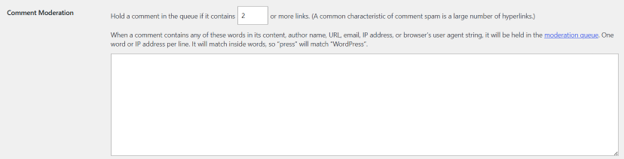
Navigate to WordPress Dashboard → Settings → Discussion, queue any comment with n links so promotional spam gets caught first.
If a comment includes any listed word in the message, author name, URL, email, IP address, or browser info, it will go to the moderation queue for review.
Put one word or IP address per line. Note that partial matches count; for example, 'press' will flag 'WordPress'.
Use a Spam-Filtering Plugin
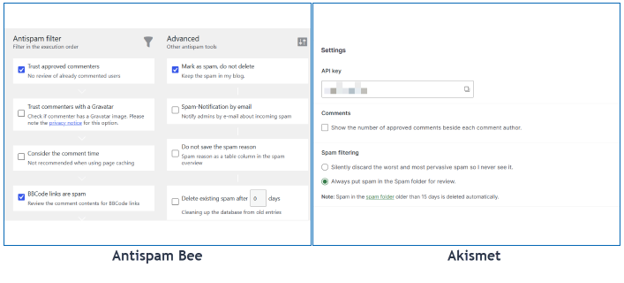
Install a dedicated anti-spam plugin like Akismet or Antispam Bee to automatically filter out bot submissions. Always verify their current features and licensing structure before committing.
Here's how to set it up:
- Install Akismet or Antispam Bee, then activate it.
- Go to the plugin's settings page (under Settings → Akismet Anti-Spam or Settings → Antispam Bee) to configure your filtering rules.
Close Comments on Older Posts
Older articles are primary targets for automated spam bots. However, setting WordPress to automatically close comments after a specific timeframe keeps active discussions open on new posts while reducing long-term moderation overhead.
Here's how to do it:
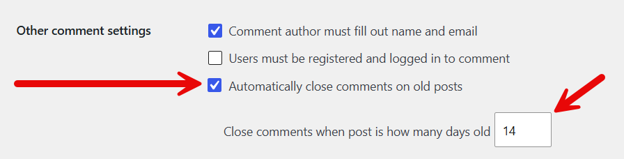
- Go to Settings → Discussion.
- Under Other comment settings, check the box for Automatically close comments on old posts.
- Enter your desired number of days (e.g., 14, 30, or 60).
- Click Save Changes at the bottom of the page.
Require Registration or Login
Restricting comments to logged-in users stops automated spambots in their tracks, though it adds friction that may discourage genuine readers from participating.
- Go to Settings → Discussion.
- Check Users must be registered and logged in to comment under Other comment settings.
- Click Save Changes.

Allow Comments on Selected Content Only
Keep comment sections active on your blog posts while disabling them on static pages, landing pages, and legal notices where reader discussion isn't required. Here’s how to do this:
To do it globally for future static pages:
- Go to Settings → Discussion.
- Find Default post settings.
- Uncheck Allow people to submit comments on new posts and save your changes.
- Then, manually check the box on individual blog posts where you do want comments.

However, to do it per page or post:
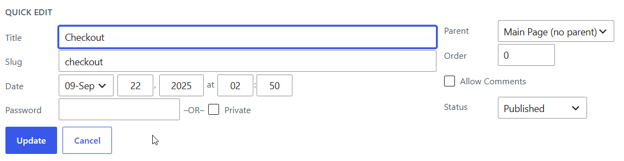
- Hover over your post/page and click Quick Edit.
- Uncheck Allow Comments.
- Click Update to apply changes.
Comments & SEO: What Actually Matters
The link between comments and rankings is real but often misunderstood.
Useful comments add relevant supporting content. Genuine questions and answers deepen a topic and reveal the words your audience uses to search.
Low-quality comments do the opposite. Spam, copied text, stray links, and thin responses add no value and dilute a strong page.
Disabling comments doesn't cause a ranking penalty on its own. Comments are optional, so judge them by quality, not by whether search engines expect them.
Removing a large, useful discussion still changes the page, shifting its depth and the long-tail searches it once answered.
Performance, Maintenance, & Website Security
Comments affect how your site runs, though it's easy to overstate this.
A big comment database, avatars, anti-spam scripts, and notifications all add a little overhead. However, removing comments rarely brings a major speed boost.
Security also deserves a thought. Comments can carry spam links, social engineering attempts, and the usual risk of user-generated content. Still, a well-maintained WordPress site with proper moderation isn't inherently insecure.
If you ever face an infection, our WordPress malware removal guide can help you recover.
POPIA & Personal Information in Comments
Treat this section as good practice, not legal advice.
When someone comments, they often share personal details without thinking. That matters under South Africa's POPIA rules.
A single comment can hold a name, an email address, a website, IP-related records, and sometimes sensitive information in the message itself. As the site owner, you're responsible for how that data is stored and who can reach it.
Manage access, set a sensible retention approach, moderate what goes public, and be clear in your privacy notice about comment data.
What South African Businesses Should Consider
Local habits and business models should guide your strategy as much as any technical setting.
Many South African service businesses do better with direct enquiries than public comments. A quote form, phone call, online booking, or WhatsApp message often leads to real work in a more reliable manner. Also, pairing your site with professional email hosting for website enquiries keeps those conversations organised.

Publishers and educational sites can go the other way. Local news, industry commentary, and training content often gain from open discussion. Most SMEs have no dedicated community manager, so don't open a channel you can't watch.
WooCommerce Reviews & Multisite Need Extra Care
Two setups need extra care before you change any comment settings:
- WooCommerce product reviews are technically comments, but they have a different task; they build buyer trust and drive sales. A global comment setting or a broad plugin can switch reviews off by accident, so always check your product pages afterwards.
- WordPress Multisite adds another layer. Comment settings may need managing separately on each subsite, or through a network-compatible plugin. Our WordPress Multisite setup guide shows how the network fits together first.
Plugin or Custom Code for Site-Wide Control?
To control comments across an entire site, you will usually choose between a plugin and custom code.
A plugin suits most people. It's easier for non-technical users, reversible, and can set rules by post type; many also support Multisite. The trade-off is another plugin to maintain and check for compatibility.
Custom code provides precise control with no extra plugin, but it requires development skill. A wrong edit can break your site, and theme edits can vanish after an update.
That's why we always recommend working in a child theme and testing on a staging site. However, if you're new to site administration, take a moment to review the following guides:
- How to Install a WordPress Theme.
- How to Back Up Your WordPress Site before making major adjustments
This groundwork will help you manage WordPress comments safely and confidently.
Common Mistakes to Avoid
A few errors trip people up time and again:
- Assuming future-post settings change existing posts.
- Deleting comments when you meant to hide them.
- Forgetting custom post types.
- Switching off product reviews in error.
- Editing a parent theme directly.
- Installing an outdated plugin.
- Forgetting to clear the cache.
- Ignoring pingbacks and trackbacks.
- Removing a valuable discussion without reading it first.
- Leaving no other way for people to get in touch.
Quick Decision Framework & Post-Change Checklist
Still unsure? Run through these questions, then use the checklist once you act.
Ask yourself:
- Does your audience use the comments?
- Are the discussions relevant?
- Can your team moderate consistently?
- Do comments support the page's goal?
- Are comments mainly drawing spam or abuse?
- Would another channel work better?
- Should comments stay only on the blog?
- Should older comments remain visible?
After a change, confirm each item:
- Test a new post.
- Review existing posts.
- Check pages and custom post types.
- Confirm WooCommerce reviews still work.
- Check the mobile display.
- Clear site and server cache.
- Review old comments.
- Disable pingbacks if necessary.
- Confirm another contact channel is live.
- Watch spam levels for a while.
Steady WordPress website management comes down to these small checks.
Final Thoughts: How to Choose the Best Comment Setup for Your Website
Comments aren't good or bad by default. They are correct only when they suit your site's job.
Keep them where they create genuine value: real questions, useful feedback, or an active community. Disable or limit them where they distract from the user journey or pile on work you cannot sustain.
When code, caching, multisite, or custom post types make things tricky, lean on a developer or Domains.co.za support.
Manage your WordPress site with greater confidence on a reliable WordPress hosting foundation in South Africa from Domains.co.za. It's built for local businesses, with secure infrastructure and practical support.
![Strip Banner Text - Give your WordPress theme the fast, reliable hosting it needs to perform. [Get Started]](/articles/wp-content/uploads/2026/09/install-wordPress-theme-02.webp "Give your WordPress theme the fast, reliable hosting it needs to perform. [Get Started]")
Power Up Your Site: How to Install a WordPress Plugin
VIDEO: Power Up Your Site: How to Install a WordPress Plugin
FAQS
Will disabling comments delete my existing comments?
No. When you disable comments in WordPress, you stop new ones, but the old comments remain as they were. To remove them, you must delete them yourself, and that step cannot be undone.
How do I turn off comments on a single post or page?
Go to All Posts or All Pages. Hover over the post/page in your list and click Quick Edit. Untick Allow Commentsand update the post.
What are pingbacks and trackbacks, and should I turn them off?
These are automatic notices that appear when another site links to your post. Spammers abuse them heavily, so most site owners switch them off under Settings → Discussion.
Can I switch comments back on after turning them off?
Yes, if you only closed or hid them. Just reverse the setting or the plugin, and your comments return. Deleted comments won't return unless you restore a backup.
Does disabling comments improve my SEO or make my site faster?
Not on its own. Comments are not a ranking requirement, and cutting a helpful discussion can even shrink what a page ranks for. They add only minor weight, so turning them off rarely gives a real speed boost.
Other Blogs of Interest
- A WordPress 500 Internal Server Error Can Cost You More Than a Broken Page
- WordPress Error Logs Help You Find Problems Before They Become Bigger Website Issues
- WordPress Multisite Can Simplify Multi-Website Management
- Your WordPress Theme Shapes How Customers Experience Your Website
- A Malware-Infected WordPress Site Can Put Your Customers, Rankings, & Business At Risk

Rhett isn’t just a writer at Domains.co.za – he’s our resident WordPress content guru. With over 8 years of experience as a content writer, with a background in copywriting, journalism, research, and SEO, and a passion for websites.
Rhett authors informative blogs and articles that simplify the complexities of WordPress, website builders, domains, and cPanel hosting. Rhett’s clear explanations and practical tips provide valuable resources for anyone wanting to own and build a website. Just don’t ask him about coding before he’s had coffee.