


A WordPress 500 Internal Server Error Can Cost You More Than A Broken Page
It’s a regular Tuesday morning until a customer tries to open your site and sees the WordPress 500 Internal Server Error page instead. There are no product photos, there is no booking form, or a way to get in touch.
You check the site yourself and get the same error with no explanation. It just appears, often when someone is ready to buy or book. For a small business, that’s a lost lead.
In this guide we show you:
- The common causes of this error.
- Methods to fix it.
- How to stop it from happening again.
KEY TAKEAWAYS
- A WordPress 500 Internal Server Error is a generic server-side issue with no single fixed cause.
- Common triggers include plugin conflicts, theme issues, a corrupted .htaccess file, and low PHP memory.
- Downtime can cost you enquiries, bookings, and sales, especially for ecommerce stores.
- Back up your site before making any changes, and check server logs first to save time.
- Persistent errors can affect SEO, even though a single short outage usually won’t.
TABLE OF CONTENTS
What Is the WordPress 500 Internal Server Error?
A WordPress 500 Internal Server Error is a generic server-side error. It means the server encountered a problem while trying to load your site, but couldn’t pinpoint exactly what went wrong.
This is different from most other errors you see online. For example, a 404 response indicates that a page is missing. A 403 tells you access is blocked. However, HTTP Error 500 WordPress only tells you something broke, without saying what.
Also, this isn’t caused by your visitor’s device, browser, or internet connection. The problem sits on the server side, not on their end.
Why the 500 Error Is So Frustrating
This error is annoying because it gives you little to work with. There’s no error message pointing to a broken plugin or a bad line of code. Sometimes it takes down your entire site. Other times, it only affects one page, while the rest of your site works fine. To make things trickier, the error can look different depending on the browser or host you’re using.
One visitor may see a blank white screen, while another receives a short text message instead. That inconsistency is exactly why you need a clear process to track down the cause, which is why we discuss this next.
Common Ways the Error Appears
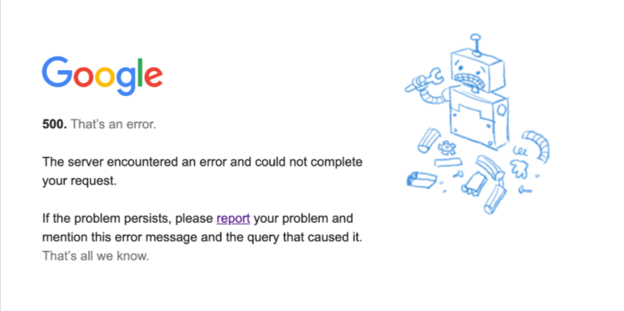
This WordPress server error doesn’t always look the same. WordPress and web browsers communicate it differently, so it helps to know what you may see.
Here are the most common versions:
- 500 Internal Server Error.
- HTTP Error 500.
- 500 Error.
- Internal Server Error.
- The website cannot display the page.
- This page isn’t working.
- A blank white screen.
- HTTP Status 500 – Internal Server Error.
- 500. That’s an error.
- The website cannot display the page – HTTP 500.
- Is currently unable to handle this request. HTTP ERROR 500.
- 500 Internal Server Error. Sorry, something went wrong.
- 500. That’s an error. There was an error. Please try again later. That’s all we know.
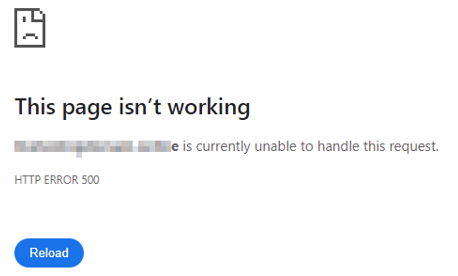
Whatever wording appears points to the same problem. Your server encountered an issue and couldn’t load the page properly.
What Causes a WordPress 500 Internal Server Error?
A 500 error usually comes down to something on your site clashing with the server. It could be a plugin, a theme, a broken file, or a resource limit. Here are the most common causes:
Plugin Conflicts
Plugins are a common trigger for this error. A recent update may not sit well with your setup, or two plugins could be fighting over the same function. Abandoned plugins that no one maintains anymore, or ones built with poor code, tend to cause the most trouble.
Theme Conflicts
Your theme can cause the same type of problem. An outdated theme may not keep up with newer WordPress updates. Custom edits you made yourself, or edits made by someone else, can also conflict with core files when WordPress updates in the background.
Corrupted .htaccess File
The .htaccess file handles redirects, permalinks, and other server instructions behind the scenes. When it gets even slightly corrupted, it can stop your pages from loading altogether. This file is common on Apache-based hosting so it won’t apply to every server setup.
PHP Memory Limit Issues
WordPress needs a certain amount of memory to run its plugins, themes, and dynamic features properly. If your site has grown busier or more complex over time, the memory limit set for it may no longer be sufficient, and that shortfall can trigger the error.
Server Configuration or Resource Problems
Sometimes the issue is with the server itself, not your site. Misconfigured settings, resource caps, or an overloaded process can all bring on a 500 error. This tends to happen more on sites that have heavy traffic or run resource-hungry features, where VPS hosting for resource-heavy websites can make a real difference.
Custom Code or File Permission Issues
Custom code changes, whether in a plugin, a theme, or a core file, can introduce errors that trigger this problem. Changing file permissions incorrectly has the same effect. Even a small typo in a code snippet can take a page or an entire WordPress website down.
How a 500 Error Can Affect Business Performance
A WordPress 500 Internal Server Error doesn’t just annoy visitors; it costs you business.
For instance:
- A quote request that never arrives because the form crashed before it could be submitted.
- A WhatsApp click that leads to a dead page instead of a chat window.
- A booking that a customer gives up on halfway through, before choosing a competitor instead.
Each of these moments looks small on its own, but they add up to lost revenue and lost trust. Visitors rarely wait around to try again. They leave, and they remember which site let them down.
The SEO Impact of a WordPress 500 Error
A single, short-lived error usually won’t do much damage. Search engines expect the odd hiccup and won’t penalise your site for one bad crawl. The risk grows when a WordPress server error keeps happening, or drags on for hours.
Repeated errors make it harder for search engines to crawl and index your pages properly. They also affect how visitors experience your site, and that user signal matters, too. Over time, frequent or prolonged errors can chip away at your rankings, even if no single incident causes long-term harm on its own.
First Steps Before You Try to Fix the Error
Before you touch anything:
- Back up your site. This provides a safe copy to fall back on if a fix makes things worse.
- Next, consider any recent changes, updates, new plugins, or edits you made yourself.
- Check whether the error affects every page or just one, since that narrows down where to look. It also helps to ask someone else to load the site on their computer, so you know whether the problem is on your end or theirs.
- If you haven’t set up a backup routine yet, our guide on backing up your WordPress site is worth reading first.
The Practical Troubleshooting Process
Once you know the likely causes, you need a clear way to test them. Work through these steps in order, starting with the simplest checks first:
Refresh the Page & Check from Another Browser or Network
Start simple. Refresh the page, then try loading it from a different browser or a different network, like your phone’s data instead of Wi-Fi. Sometimes the error is just a one-off glitch on your end. If the site loads fine elsewhere, you can rule out a bigger problem immediately.
Clear Browser Cache & WordPress Cache
If refreshing doesn’t help, your browser cache may be holding onto an older version of the page. Browsers cache pages to load them faster, but that cached copy can still show the error even after it’s been fixed on the server.
Clear your browser cache and reload the page. If you’re using a caching plugin or your host runs server-side caching, clear that, too. For a quicker check without touching your settings, open the page in an incognito window. It loads without any cached files, so it’s a fast way to confirm whether the cache was the issue.
How to Clear Cache in Chrome
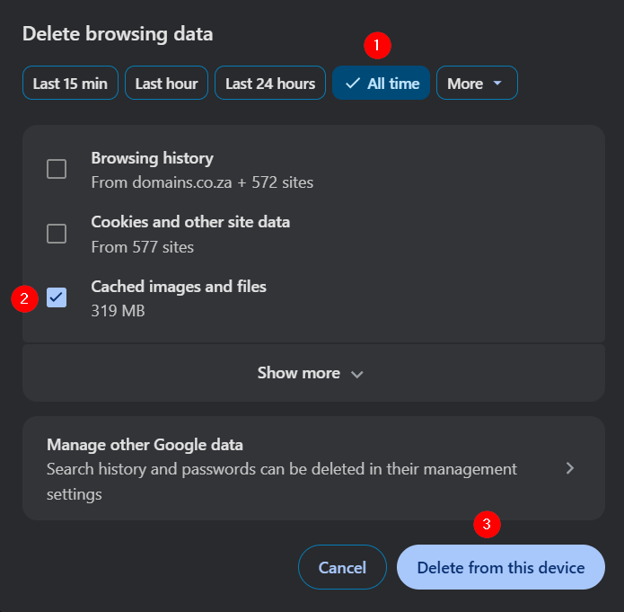
- Open Chrome and press Ctrl + Shift + Del.
- From the time range tabs, select All time to clear everything, or a shorter range to clear only recent data.
- Check the box next to Cached images and files. You can leave other boxes unchecked if you only want to clear the cache.
- Click Delete from this device.
- Reload the page you were trying to view and check if the error has gone.
How to Clear WordPress Cache Through cPanel
The exact steps depend on your hosting provider. However, if you’re a Domains.co.za client, try the following steps:
- Login to your cPanel account.
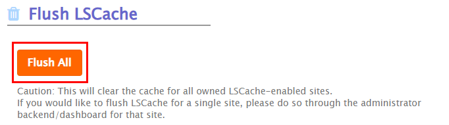
- Navigate to Advanced → LiteSpeed Web Cache Manager.
- Click Flush All under Flush LSCache. This removes all cached files from the server.
- Wait a minute or two, then reload your site to check if the error has cleared.
How to Clear WordPress Cache Through a Caching Plugin
If you’re using a caching plugin like WP Fastest Cache, you can clear the cache directly from your WordPress dashboard. Here’s how to clear the cache using WP Fastest Cache:
- Login to your WordPress admin area.
- Go to Dashboard → WP Fastest Cache, then click Clear All Cache.
- Reload your site to see if the error is gone.

IMPORTANT:
Browser cache and WordPress cache are separate, so clearing one won’t always fix an issue caused by the other.
Check Server Error Logs
Server error logs record exactly what went wrong and when. They are often the quickest way to spot the real cause, whether it’s a specific plugin, a broken file, or a memory issue. Most reliable web hosting accounts for your business let you view these logs through your control panel.
Here’s how:
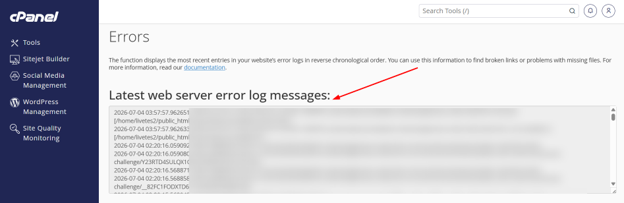
- Go to cPanel → Metrics → Errors.
- Check entries near the time your error occurred. Matching timestamps narrows down which entry matters.
- Note the file or plugin name mentioned in the entry. This usually points directly to the root cause.
- Turn on WordPress debug logging if your host doesn’t show detailed logs. Add this to wp-config.php and save the changes:
define( ‘WP_DEBUG’, true );
define( ‘WP_DEBUG_LOG’, true );
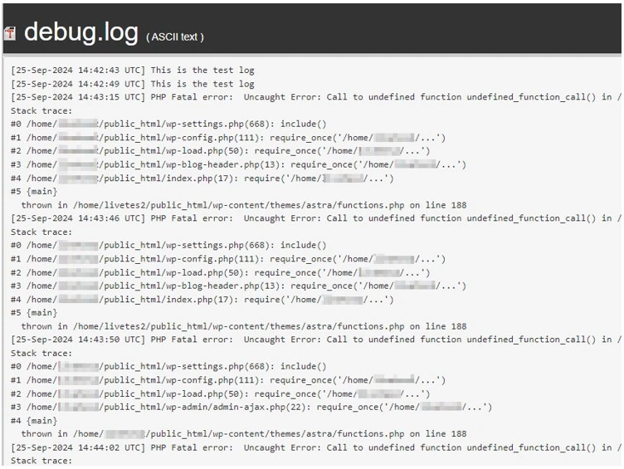
define( ‘WP_DEBUG_DISPLAY’, false ); - Check the debug.log file created in your wp-content folder. It lists errors as they occur. Turn debug logging to “off” once you’ve found the problem.
- Contact your hosting provider’s support team if the logs don’t make sense to you. They can read them and explain what’s causing the WordPress 500 Internal Server Error.
Regenerate .htaccess File
If your site runs on Apache hosting, a corrupted .htaccess file could be the cause. You can regenerate it by renaming the current file, then saving your permalink settings again in WordPress. This creates a fresh file and often clears the error immediately.
Here’s how to do it:
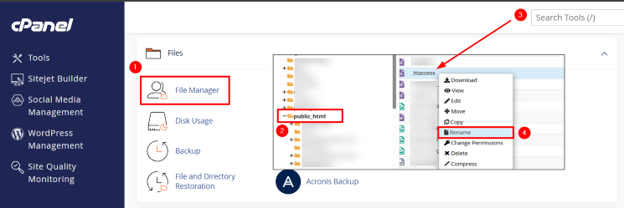
- Navigate to cPanel → Files → File Manager.
- Open the folder named public_html. This is where WordPress keeps your site’s core files.
- Locate the .htaccess file (If it’s hidden, click Settings and enable Show Hidden Files (dotfiles)).
- Once you find the .htaccess file in your root folder, right-click it, choose Rename, and change the name to .htaccess_old. Keep this file rather than deleting it, in case you need to undo this later.
- Now, open your site in a browser and refresh the page. If it loads properly now, the renamed file confirms that the old .htaccess was the cause.
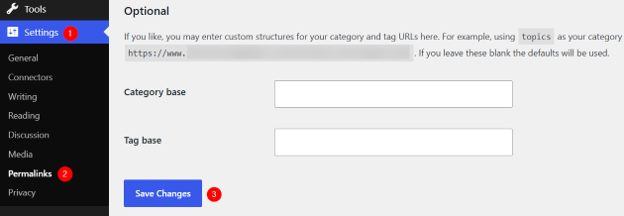
- Go to WordPress Dashboard → Settings → Permalinks. Don’t change any of the options on this page. Scroll to the bottom and click Save Changes. This tells WordPress to create a brand-new .htaccess file on its own.
- Refresh your site once more. Open two or three different pages, not only the homepage, to ensure everything loads correctly across the site.
If you or a developer had added custom rules to the old file, such as redirects, you need to copy them into the new one.
Here’s how:
- Open .htaccess_old using the built-in text editor in File Manager.
- Copy the custom lines.
- Now, open the new .htaccess file the same way and paste them in, underneath the block of code that starts with # BEGIN WordPress.
- Once you’ve confirmed the site works and any custom rules are back in place, delete .htaccess_old to keep your file list tidy.
Audit Plugins
Plugins are one of the most common causes of a WordPress 500 Internal Server Error, so this check often reveals the problem quickly. When a plugin update goes wrong or conflicts with another plugin, it can break the whole site without any warning. Auditing your plugins helps you find and isolate the exact one responsible, rather than guessing.
Here’s how to do it:
- Go to your WordPress Dashboard → Plugins → Installed Plugins.
- Select all plugins and deactivate them immediately.
- Check if your site loads normally.
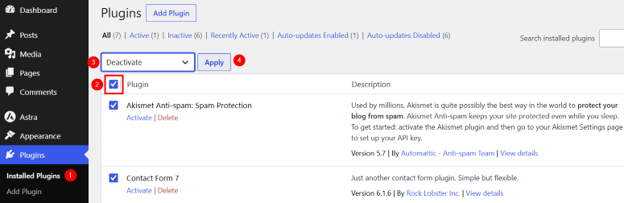
- If it does, activate your plugins again one at a time.
- Reload the site after each activation to test it.
- Stop when the error returns. The last plugin you activated is the cause.
- Remove or replace that plugin, then keep the rest active.
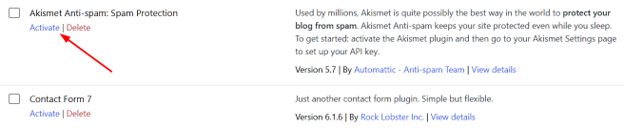
If you can’t reach your dashboard to deactivate plugins this way, WordPress Recovery Mode can get you back in safely.
Audit the Theme
Your theme is close to how WordPress renders every page, so it’s worth checking whether the error has cleared yet. An outdated theme, a custom edit that didn’t carry over properly, or a theme update that conflicts with your current setup can all trigger a 500 error. In this case, switching to a default theme tells you quickly whether your theme is the cause.
Here’s how to check it:
- Login to your WordPress dashboard.
- Go to Appearance → Themes.
- Install a default WordPress theme, such as Twenty Twenty-Four, if it isn’t already there.
- Click Activate to enable the default theme.
- Reload your site and check whether the error has cleared.
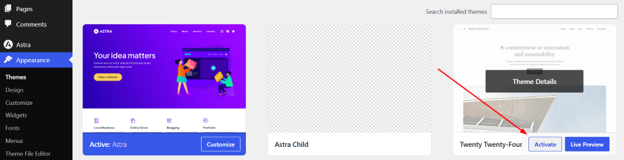
If the site loads normally, your original theme was the cause.
IMPORTANT:
If you can’t access it, use Recovery Mode or switch the theme through your hosting File Manager instead.
Review PHP Memory Limits & Recent Changes
If nothing above works, check your PHP memory limit and consider raising it slightly. This can help, but it isn’t a guaranteed fix, and it can mask a deeper issue instead of solving it.
You can increase the PHP memory limit in a few ways:
- Using cPanel.
- Editing the .htaccess file.
- Updating the php.ini file.
- Revising the wp-config.php.
Here’s how to raise it through each method:
Increase PHP Memory Limit in cPanel
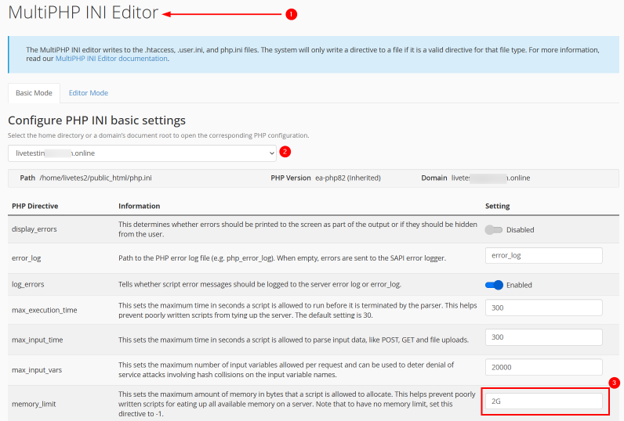
- Go to cPanel → Software → MultiPHP INI Editor.
- Select your domain from the dropdown list.
- Find the memory_limit field and increase the value, for example, from 128M to 256M, or to 2G.
- Click Apply, then reload your site to check if the error clears.
Increase PHP Memory Limit by Editing the .htaccess File
If your host uses Apache, you can add a line to your .htaccess file to raise the limit:
php_value memory_limit 256MIMPORTANT:
Always save a copy of your original .htaccess file before editing it, so you can restore it if something goes wrong.
Increase PHP Memory Limit in the php.ini File
Some hosting setups let you edit the php.ini file directly. Add or update this line:
memory_limit = 256MThis method is more advanced and works best if you’re comfortable accessing files through File Manager or FTP.
Increase PHP Memory Limit in wp-config.php
You can also set the limit from within WordPress itself. Open public_html/wp-config.php and add this line above the “/* That’s all, stop editing! Happy publishing. */” comment:
define('WP_MEMORY_LIMIT', '256M');Save a backup of the file first, since a small typo here can stop your site from loading altogether.
Also, think back to any recent code or configuration changes. These are often the fastest clues to what broke.
WordPress 500 Error & eCommerce Risk
For an online store, this error is even more costly. If your WordPress website is down during a sale:
- Customers can’t add products to their cart, complete checkout, or even browse your catalogue.
- Payment gateways may fail mid-transaction, leaving customers unsure if they have been charged.
- Stock updates can stall, too, which risks selling items you no longer have.
- Account areas going offline stop returning customers from tracking orders or logging in.
Every minute of WordPress website downtime during peak shopping hours means real, measurable lost sales.
South African Business Continuity Considerations
South African businesses often get traffic outside normal working hours, especially from customers browsing late at night or over weekends. Marketing campaigns can keep driving visitors to your site even when your team isn’t around to notice a problem.
Add load-shedding into the mix, and website reliability becomes even more important, since customers already deal with enough disruption elsewhere. A missed quote request, an abandoned booking, or a WhatsApp click that leads nowhere can cost you a customer who never returns.
This is where choosing reliable WordPress hosting in South Africa helps reduce these avoidable gaps.
POPIA, Customer Data, & Error Recovery
POPIA, South Africa’s Protection of Personal Information Act, sets out how businesses should handle customer data. It applies to your website too, including the data sitting inside your backups, logs, and form submissions.
When you’re troubleshooting a WordPress 500 Internal Server Error, remember that your backups, logs, and form submissions may hold personal customer information. Names, email addresses, and order details often sit inside these files.
Keep access limited to people who genuinely need it, whether this is your web developer or a trusted team member. This isn’t legal advice, just a practical reminder to handle recovery carefully and keep customer data protected throughout the process.
Preventing Future WordPress 500 Errors
Prevention is far easier than repeatedly fixing the same problem. Here’s how you can prevent it:
- Keep WordPress core, plugins, and themes constantly updated.
- Remove any plugins you no longer use, since inactive ones still pose a risk.
- Stick to reputable plugins and themes with a solid update history.
- Always back up your site before making changes, and test major updates on a staging site first.
- Keep an eye on server resources and PHP compatibility, and check your error logs every so often.
- Secure your website with SSL to build trust and protect data.
Why Hosting Quality Matters for WordPress Stability
Your hosting plays a bigger role in preventing WordPress 500 Internal Server Errors than most people realise.
It determines:
- How many resources your site gets.
- What PHP settings are available.
- Whether caching is set up properly.
Good hosting also provides easy access to backups and error logs, which speeds up troubleshooting when something does go wrong.
Reliable support matters just as much, since a knowledgeable team can spot the cause faster than you can on your own. This is why choosing the best WordPress hosting in South Africa gives your site a stronger foundation.
When to Contact Your Hosting Provider or Developer
Some problems are worth solving yourself. Others need an expert.
Reach out for help if:
- You’ve lost dashboard access.
- The error keeps returning.
- The logs don’t make sense to you.
The same goes for suspected malware, database errors, or a failed plugin and theme audit that hasn’t found the cause. Server-level issues are usually outside what you can fix on your own.
If your store is offline or your site is business-critical, don’t wait; get in touch with Domains.co.za support straight away.
Common Mistakes to Avoid When Fixing a 500 Error
A few habits make this error harder to fix than it needs to be. For example:
- Skipping a backup before making changes is the biggest one, since it leaves you with no return if something goes wrong.
- Editing .htaccess or wp-config.php without saving a copy first carries the same risk.
- Raising your PHP memory limit without first identifying the actual cause often only delays the problem.
- Reactivating every plugin at once, ignoring your logs, or assuming the site is fixed after a single page loads are all errors worth avoiding.
- Skipping checkout and form tests, forgetting to document the fix, and waiting too long to ask for assistance round out the list.
Recovery Checklist After Fixing the Error
Once your site is back up and running smoothly, don’t stop there:
- Test your homepage and any key service or product pages.
- Check that forms, checkout, and login or account areas all work as expected.
- Load the site on mobile, too, since issues don’t always appear the same way on every device.
- Clear your cache, check that analytics and tracking are still recording properly, and monitor your logs for a while.
- Finish by creating a fresh backup and writing down what caused the issue in the first place.
Final Thoughts: A 500 Error Is a Warning Sign, Not Just a Temporary Glitch
Getting your site back online is only half the job. The real value comes from understanding why the WordPress 500 Internal Server Error occurred, so you can prevent it from recurring.
Treat it as a signal to review your plugins, your hosting, and your update habits, not just a glitch to dismiss. Reduce avoidable WordPress downtime with reliable hosting from Domains.co.za, built to support South African businesses with secure infrastructure, practical support, and dependable website performance.
![Strip Banner Text - Get dependable WordPress Hosting built for South African businesses. [Get Started]](/articles/wp-content/uploads/2026/08/wordpress-500-internal-server-error-02.webp "Get dependable WordPress Hosting built for South African businesses. [Get Started]")
Power Up Your Site: How to Install a WordPress Plugin
VIDEO: Power Up Your Site: How to Install a WordPress Plugin
FAQS
What does a 500 Internal Server Error WordPress message mean?
It means your server ran into a problem while trying to load the page, but it couldn’t identify the exact cause. It’s a general error rather than one tied to a specific issue.
Can a 500 error happen even if I haven’t changed anything on my site?
Yes. Automatic plugin or theme updates, a sudden traffic spike, or a temporary server issue can all trigger the error without you making any direct changes yourself.
Is WordPress troubleshooting for this error something I can do myself, or do I need a developer?
Many cases are simple enough to fix yourself, like clearing your cache or deactivating plugins. If the logs are unclear or the issue involves your server or database, it’s worth contacting a developer to assist.
How long does a 500 error usually take to fix?
It depends on the cause. Cache-related issues can clear quickly, while a corrupted file or a deeper server problem may take longer, especially if you need support from your host.
Does clearing my cache fix the error permanently, or will it return?
Clearing your cache only helps if outdated files caused the error. If the real cause is a plugin conflict or a server issue, the error will return until that underlying problem is fixed.
Other Blogs of Interest
- How To Fix Common WordPress Performance Issues
- How To Reinstall WordPress Without Losing Your Website Content
- Why WordPress Recovery Mode Matters When Your Website Breaks
- WooCommerce Shortcodes Make It Easier To Build A Better Online Store
- Export WordPress Site Is The Smartest Ways To Protect Your Website

Rhett isn’t just a writer at Domains.co.za – he’s our resident WordPress content guru. With over 8 years of experience as a content writer, with a background in copywriting, journalism, research, and SEO, and a passion for websites.
Rhett authors informative blogs and articles that simplify the complexities of WordPress, website builders, domains, and cPanel hosting. Rhett’s clear explanations and practical tips provide valuable resources for anyone wanting to own and build a website. Just don’t ask him about coding before he’s had coffee.