


This guide will show you how to backup a WordPress website with Domains.co.za. Regular backups ensure your files and data can be recovered in case of theft or corruption. Our WordPress Hosting plans include automated daily Acronis backups. These backups are kept off-site in a secure data center. This provides peace of mind and allows you to restore your WordPress website instantly. If you need to restore your website from a backup and are unsure how to proceed, please contact our Support Team, who will gladly assist you.
TABLE OF CONTENTS
How To Backup a WordPress Website
While automatic backups are included with your WordPress hosting plan, there are two primary methods to manually backup a website: using a plugin or your hosting control panel.
Backup Plugins
A range of WordPress plugins can help you create backups. These plugins often let you schedule automated backups, choose multiple storage options, and perform easy restorations if needed. Popular options include UpdraftPlus, BackWPup, and Duplicator, all of which are available in the WordPress plugin library.
Control Panel
Most hosting providers, including Domains.co.za, offer tools in their control panels (in our case cPanel) to manually back up your website. This usually involves creating a full backup of your website files and database, which can then be downloaded to a local device like your computer or an external hard drive for safekeeping.
Backup a Website with cPanel
You can perform a manual backup using cPanel by following the steps below:
1. Login to your Domains.co.za account by entering your Email and Password and click the Sign In button.
2. Open the Manage Services dropdown.
3. Next, choose WordPress Hosting.
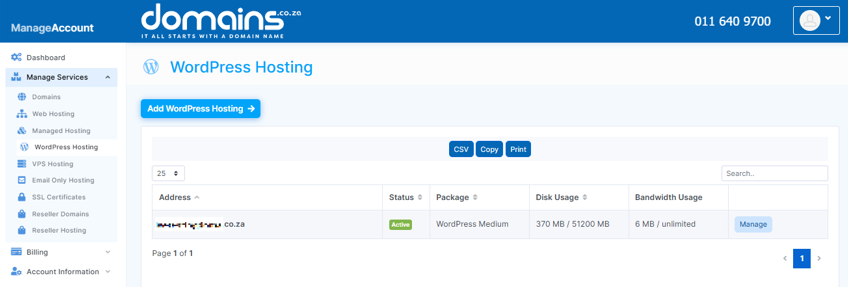
4. Click Manage next to the domain name you want to work with.
5. Under Product Information, scroll down to Control Panel, which will display cPanel to the right.
6. Click on the Login button.
The cPanel Dashboard will now be displayed.
7. Navigate to Backup Manager, which can be found in the Files section.

8. Choose the type of backup you want to perform. For example you can choose whether to do a full site backup or just specific parts (e.g., home directory, databases).
8. Click to start the backup process, saving a copy of your entire site.
9. After the backup has finished, download it to your local device for additional security. (Optional)
Additional Information
Why it’s Important to Backup a WordPress Website
Issues like corrupted files or missing data on your website can be a major setback. Here’s why regular backups are essential:
- Data Loss Prevention: Prepare a backup for quick restoration to protect against server crashes, hacking, or accidental deletions.
- Malware Recovery: If your site is infected with malware, a clean backup allows you to restore to stable version without losing data.
- Safe Updates: Before updating WordPress, themes, or plugins, having a backup ensures you can revert if any issues or conflicts happen.
- Peace of Mind: Knowing your site data is backed up allows you to focus on growing your business without worrying about starting from scratch.
Domains.co.za WordPress Backup Support
At Domains.co.za, we prioritise the safety and security of your WordPress site. Our support includes:
- Daily Acronis Backups: We automatically back up your WordPress site daily, ensuring you always have a recent copy to restore.
- Expert Assistance: Our Support Team is ready to help with any backup or restoration issues.
- User-Friendly Tools: Our tools are designed to simplify the backup process for all users, regardless of technical expertise.
Login to Domains.co.za Account
1. Go to the Domains.co.za website Account Login page.

2. Enter your Email and Password.
3. Then click the “Sign In” button.

Access WordPress from your Domains.co.za Dashboard
4. On the right of the Dashboard under the “Manage Account” menu, click “Manage Services” on the drop-down menu and select your Hosting plan, our example uses Web Hosting.

5. Scroll down to the “Quick Manage” section (below “Product Information”) and click on the WordPress icon. If you haven’t yet installed WordPress, it will ask you to first do so.
Access WordPress via cPanel from your Domains.co.za Account
6. On the right of the Dashboard under the “Manage Account” menu, click “Manage Services” on the drop-down menu and select your Hosting plan, our example uses Web Hosting. (refer image above).
7. Click “Manage” next to the website domain you wish to access in cPanel.

8. The Product Information section will display – click the “Login” button next to Control Panel.

9. On the cPanel Dashboard, in the menu on the right, select “WP Toolkit”, or if you haven’t yet installed WordPress “WordPress Management”.

10. There is also a WordPress icon under the “Popular Applications” section on the cPanel Dashboard.
WordPress can be Accessed Online via cPanel
1. Go to your cPanel URL or cPanel Login page.

2. Enter your “Email” and “Account Password” and click “Log In”
3. On the cPanel Dashboard, in the menu on the right, select “WP Toolkit”, or if you haven’t yet installed WordPress “WordPress Management”. There is also a WordPress icon under the “Popular Applications” section on the cPanel Dashboard.


