


To install a WordPress Plugin manually, is usually considered good practice, particularly for custom or premium Plugins that aren’t listed in the WordPress Plugin repository.
This procedure gives you more control over your website’s functioning so you can tailor it to your requirements and tastes. Here we show you how to install a WordPress Plugin manually, this article assumes that you are logged in to your WordPress website’s Dashboard and is in support of our You Tube Video: Power Up Your Site: How to Install a WordPress Plugin.
TABLE OF CONTENTS
How to Install a WordPress Plugin Manually
Step 1: Download the Plugin
1. First, download the Plugin from the source. This is typically a .zip file, with all the Plugin’s necessary files.
2. Make sure to save the .zip file to a location on your computer where you can easily find it, such as your desktop or a dedicated folder for website resources.
Step 2: Access the WordPress Dashboard
3. Open your Web Browser and navigate to yourwebsite.com/wp-admin. Enter your Username and Password to log in.
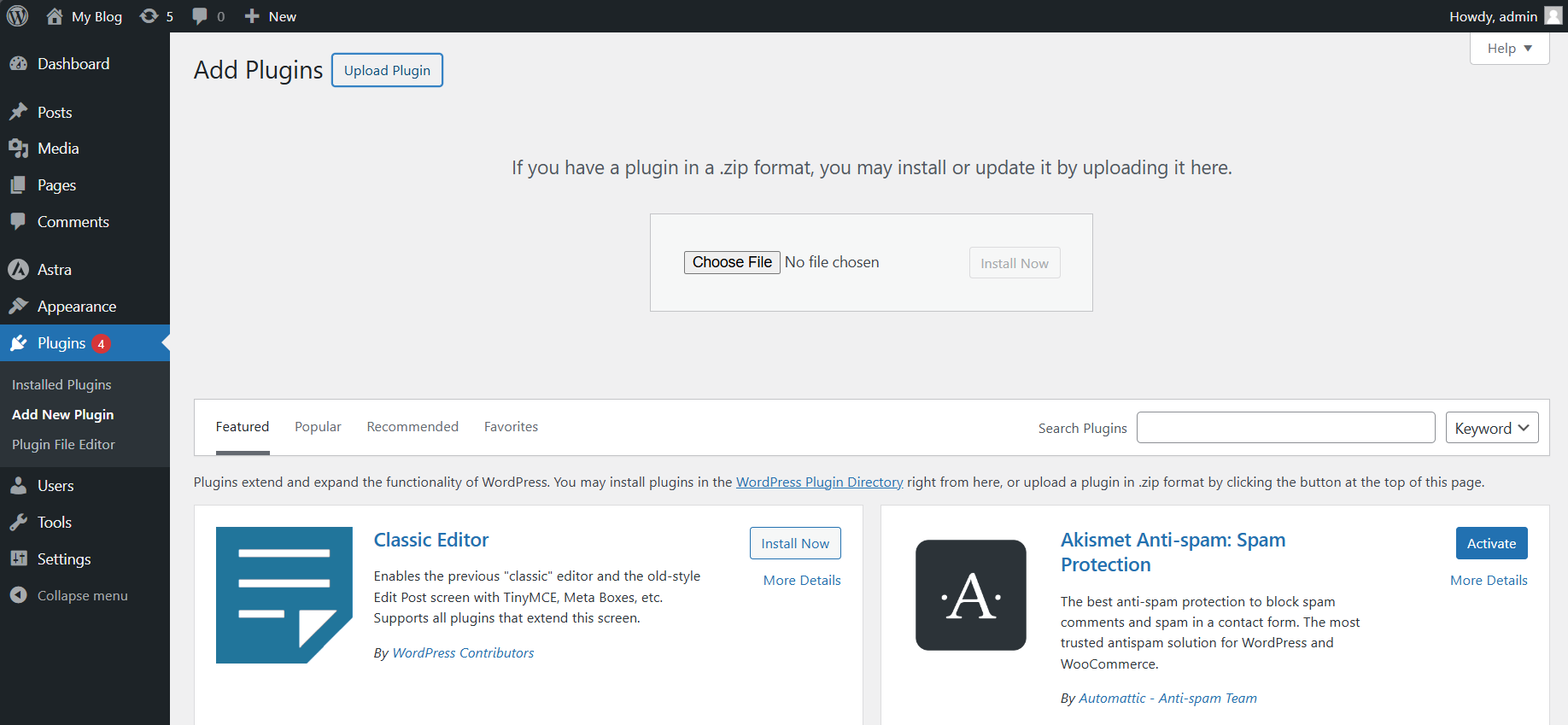
4.Go to the menu on the left. Hover over “Plugins” and click “Add New”. This will take you to the Plugins page where you can manage your WordPress website’s Plugins.

Step 3: Upload the Plugin
5. At the top of the “Add Plugins” page, you will see “Upload Plugin”. Click on this to open the upload interface.
6. Click “Choose File” to open a file selection dialogue. Navigate to where you saved the .zip file, select it, and click “Open”.
7. After you select the file, click “Install Now”. WordPress will upload and install the Plugin for you.
Step 4: Activate the Plugin
8. Once the Plugin is installed, you will see a success message with an “Activate” link. Click “Activate” to enable the Plugin on your WordPress website.
9. Now you can configure the Plugin to suit your needs. Go to the Plugin’s settings page, usually found under the “Settings” menu or in the Plugin’s menu on the Dashboard.
Step 5: Verify the Installation
10. View your WordPress website online, to ensure the Plugin is applied correctly and everything looks as expected. Navigate through different pages to ensure that all elements are displaying properly.
11. If you encounter any issues, refer to the Plugin’s documentation or support for troubleshooting tips. Many premium Plugins have dedicated support channels to help you resolve any problems.
You Tube Video: Power Up Your Site: How to Install a WordPress Plugin Manually
Additional Information:
WordPress Plugin Practices
Back up Your Site
Back up your website before making significant changes, like adding a new Plugin. This guarantees that if problems arise, you can repair your website.
Verify Compatibility
Ensure the Plugin works with the other Plugins you have installed and your version of WordPress.
Read ratings and reviews
Evaluate the Plugin’s support and quality by checking user ratings and reviews.
Update Plugins Regularly
To take advantage of the newest features and security updates, ensure your Plugins are regularly updated.
Deactivate & Delete Unused Plugins
To keep your website tidy and lower security risks, deactivate and remove any Plugins you don’t use.
Test After Installation
Carefully test your website after installing and activating Plugins to ensure everything functions properly and there are no conflicts with other Plugins or Themes.
Use Reliable Sources
To reduce security risks, only download Plugins from reliable sources, such as recognised developers or the official WordPress Plugin repository.
Track Performance
Some Plugins can impact website speed. Consider your website’s speed and how it functions to ensure the Plugins don’t cause problems.
Recognise Plugin Settings
Learn about each Plugin’s options and settings. If you properly configure Plugins you can fully use their advantages and functionality.
Different Login Steps:
Login to Domains.co.za Account
1. Go to the Domains.co.za website Account Login page.

2. Enter your Email and Password.
3. Then click the “Sign In” button.

Access WordPress from your Domains.co.za Dashboard
4. On the right of the Dashboard under the “Manage Account” menu, click “Manage Services” on the drop-down menu and select your Hosting plan, our example uses Web Hosting.

5. Scroll down to the “Quick Manage” section (below “Product Information”) and click on the WordPress icon. If you haven’t yet installed WordPress, it will ask you to first do so.
Access WordPress via cPanel from your Domains.co.za Account
6. On the right of the Dashboard under the “Manage Account” menu, click “Manage Services” on the drop-down menu and select your Hosting plan, our example uses Web Hosting. (refer image above).
7. Click “Manage” next to the website domain you wish to access in cPanel.

8. The Product Information section will display – click the “Login” button next to Control Panel.

9. On the cPanel Dashboard, in the menu on the right, select “WP Toolkit”, or if you haven’t yet installed WordPress “WordPress Management”.

10. There is also a WordPress icon under the “Popular Applications” section on the cPanel Dashboard.
WordPress can be Accessed Online via cPanel
1. Go to your cPanel URL or cPanel Login page.

2. Enter your “Email” and “Account Password” and click “Log In”
3. On the cPanel Dashboard, in the menu on the right, select “WP Toolkit”, or if you haven’t yet installed WordPress “WordPress Management”. There is also a WordPress icon under the “Popular Applications” section on the cPanel Dashboard.


