


Managing access to your Domains.co.za account login is essential, especially if you work with a team or require assistance from colleagues, developers, or administrators. Add a sub contact will allow you to grant controlled access to specific areas of your account without sharing your primary login credentials.
This feature helps you maintain security while ensuring that the correct people can manage billing, technical support, or account updates as required. You can also customise permissions for each contact, giving you full control over what they can view or manage.
TABLE OF CONTENTS
How to Add a Sub Contact
1. Login to your Domains.co.za Customer Portal.
2. Navigate to Account Information.
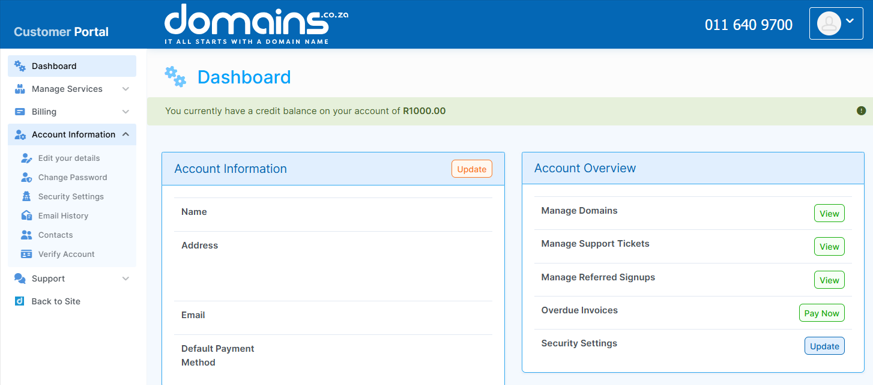
3. Select Contacts from the dropdown menu.
4. Click Add New Contact to create a new contact profile.
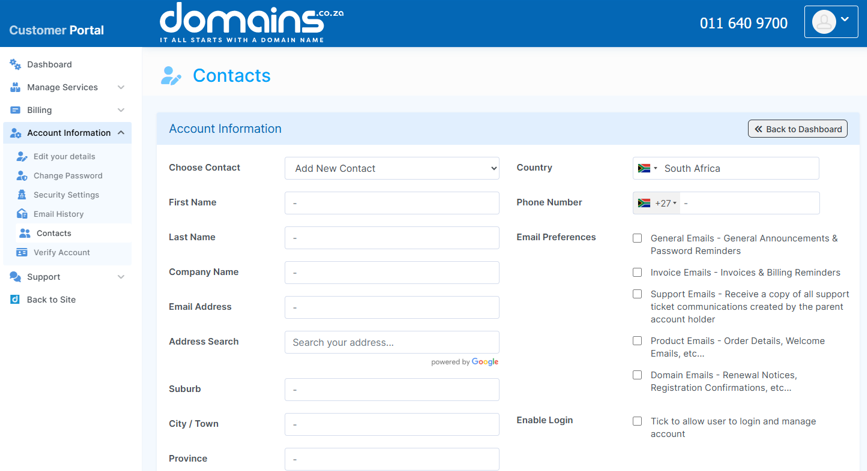
5. Enter all relevant contact details in the required fields.
6. Select the appropriate email preferences for the contact.
7. Tick the Enable Login option if the contact requires account access.
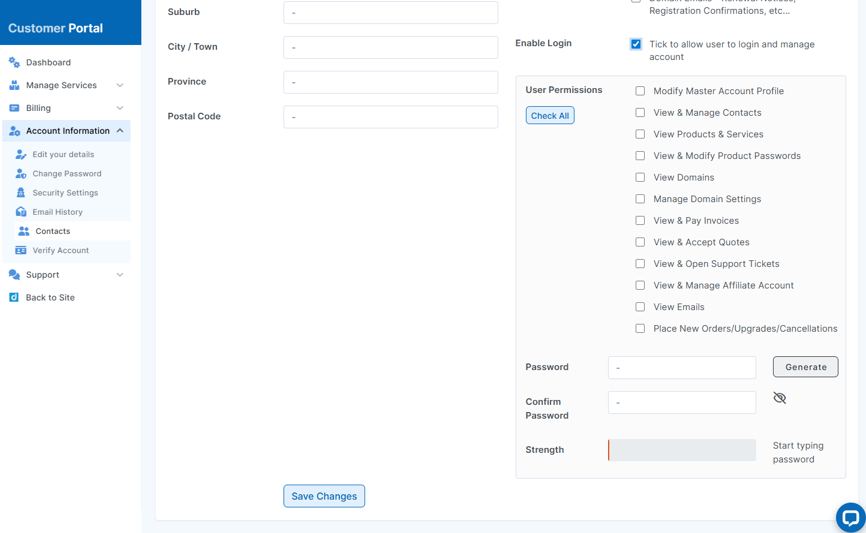
8. Assign the correct user permissions based on the level of access required.
9. Save your changes to add the sub contact to your account.
Additional Information
- Sub contacts allow multiple users to manage different aspects of your account without sharing your main login credentials.
- You can control exactly what each contact can access by assigning specific permissions.
- Email preferences can be customised to ensure contacts only receive the relevant notifications.
- Enabling login access grants the contact secure access to the portal using their own credentials.
- You can update or remove sub contacts at any time in the Contacts section.
- This feature is particularly useful for businesses working with developers, accountants, or support teams.
- Always review permissions carefully to ensure account security is maintained.
Login to Domains.co.za Account
1. Go to the Domains.co.za website Account Login page.

2. Enter your Email and Password and click the Sign In button.
3. You will see the Domains.co.za Dashboard, displaying the Manage Account menu on the left and your Account Information, Account Overview and Open Support Tickets on the right.


