


This guide explains how to invite users to access a WordPress website safely and securely.
WordPress Hosting allows website owners to create multiple user accounts with different permission levels. This makes it easier to collaborate with employees, freelancers, content creators, developers, or contributors without sharing administrator login credentials.
Each user role has different levels of access and permissions, allowing administrators to control what actions users can perform on the website.
TABLE OF CONTENTS
How To Invite Users To Access A WordPress Site
1. Login to the Domains.co.za Customer Portal using your account credentials.
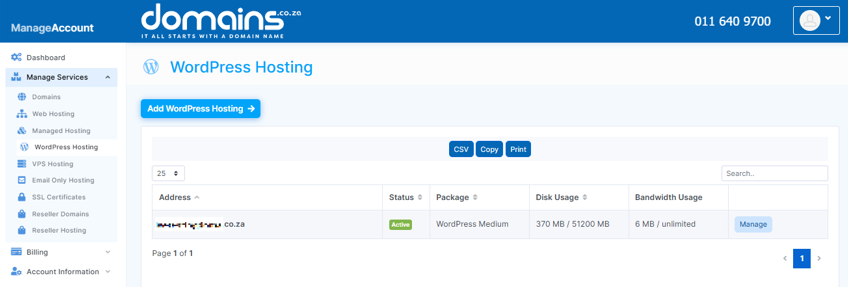
2. Navigate to Manage Services from the dashboard menu.
3. Select your WordPress Hosting package and click Manage.
4. Click Login to cPanel to access your hosting control panel.
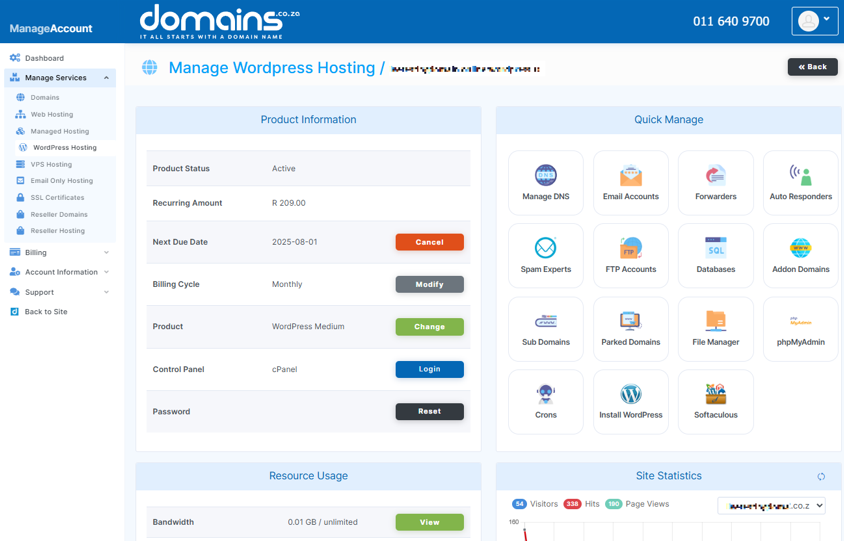
5. In cPanel, locate the WordPress Manager.

6. Open the WordPress Dashboard for your website.
7. Navigate to Users and select Add New User.
8. Enter the new user’s username and email address.
9. Add optional details such as first name and surname if required.
10. Generate a secure password for the user account.
11. Ensure the Send User Notification option is enabled.
12. Select the appropriate user role from the dropdown menu.
13. Click Add User to send the invitation and create the account.
Common WordPress User Roles
- Administrator: Full access to all website settings and management features.
- Editor: Can manage and publish content created by all users.
- Author: Can create and publish their own posts.
- Contributor: Can create posts but cannot publish them.
- Subscriber: Limited access for profile management and restricted content.
Additional Information
- User roles should be assigned carefully based on the necessary level of access.
- Administrators have full control over website settings and user management.
- Separate user accounts improve website security and accountability.
- Strong passwords should always be used for all WordPress accounts.
- User access can be removed or modified at any time through the WordPress Dashboard.
- Sending invitations avoids having to share primary administrator credentials.
- Regularly reviewing active user accounts helps maintain website security.
- Website backups are recommended before granting administrator-level access.
Login to Domains.co.za Account
1. Go to the Domains.co.za website Account Login page.

2. Enter your Email and Password and click the Sign In button.
3. You will see the Domains.co.za Dashboard, displaying the Manage Account menu on the left and your Account Information, Account Overview and Open Support Tickets on the right.


