Domains.co.za
  • Domains
    Register Domains
    Register your perfect domain today.
    It’s quick and easy.
    AI Domain Name Generator AI Domain Name Generator
    Create your perfect Domain Name today.
    Transfer Domains
    Transfer your domains to us in a few easy steps.
    Whois Search
    View the whois information on a domain name.
    Bulk Domain Registrations
    Register and check the availability of multiple domains at once.
    Bulk Domain Transfer
    Move multiple domains to us quickly and easily.
    Domain Protection
    Protect your personal information.
  • Hosting
    cPanel Hosting Web Hosting
    cPanel Web Hosting From R109/mo
    WordPress Hosting
    Experience the best in WordPress Hosting
    Email Only Hosting
    Easy setup, automated updates & backups
    Site Builder Site Builder
    Create your stunning website, it's fast and easy
  • VPS
    Linux VPS Hosting
    UltraFast  VPS Hosting From R209/mo
    Windows VPS Hosting
    UltraFast  VPS Hosting From R1139/mo
    Managed cPanel Hosting Managed cPanel Hosting
    Managed cPanel Virtual Machines From R2999/mo
    Self-Hosted n8n VPS Self-Hosted n8n VPS
    Unlimited Workflow Automation From R319/mo
  • Security
    Domain Validated SSL
    Domain Validated SSL Certificates
    Organization Validated SSL
    Organization Validated SSL Certificates
  • Resellers
    Domain Reseller
    Resell Domains on our platform From R89 per domain
    Web Hosting Reseller
    Reseller Web Hosting on SSD Hosting Servers From R419/mo
  • Help
    Open a Ticket
    Log a support or billing enquiry with one of our departments.
    011 640 9700
    Need Help? Give us a call
    About Us
    Information about Domains.co.za
    Knowledgebase
    Check out our extensive Knowledge Base for help
    Network Status
    Just to check everything is hunky dory
    Accreditations
    View the organisations and registries we are accredited with
    Blog
    View insights into the latest scoops
    Articles & Tutorials Articles & Tutorials
    Practical guides and insights to help you succeed
  • Checkout
011 640 9700
Contact Support
Sign In

How To Setup An Account On Samsung Email App  

< All Topics
  1. Main
  2. General
  3. How To Setup An Account On Samsung Email App  
Summarize with:
ChatGPT
Claude
Perplexity

Accessing your email, managing messages, and maintaining connectivity from anywhere is made simple and quick when you set up your email account on Samsung Email app. The Samsung Email software supports many email providers, such as Gmail, Outlook, Yahoo!, and custom email addresses via IMAP, POP, or Microsoft Exchange, whether you’re setting up a personal or professional account.

TABLE OF CONTENTS

  • How to Setup an Account on Samsung Email App
    • Account Information:  
    • Incoming Server:  
    • Outgoing Server:  
  • Additional Information
    • What to do Before Setting Up An Email Account
    • After Email Account Setup

How to Setup an Account on Samsung Email App

This guide explains the steps to set up your Samsung Email app, add your email account, and how to ensure smooth communication. 

1. Open the Samsung Email app on your mobile device.  

2. A Setup Email page will appear. Click Other. 
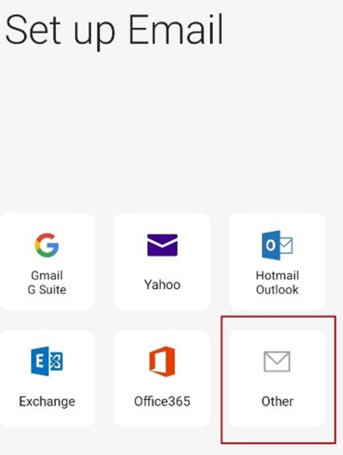
Setup An Account On Samsung Email App - Set Up Email Screen

A new page will appear asking you to enter your Email address and Password.
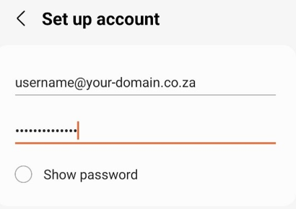
Setup An Account On Samsung Email App - SetUp Account

Fill in the above details, click Manual setup and then IMAP account.
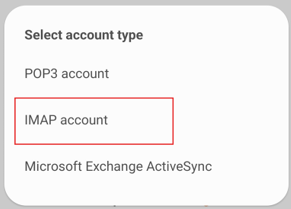
Setup An Account On Samsung Email App - Select Account Type

The Server settings page will display. Fill out the following information:  

Account Information:  

  • Email address: e.g. username@your-domain.co.za*  
  • Username: e.g. username@your-domain.co.za*  
  • Password: your password.

Note: Replace username@your-domain.co.za* with your actual email address and password. 
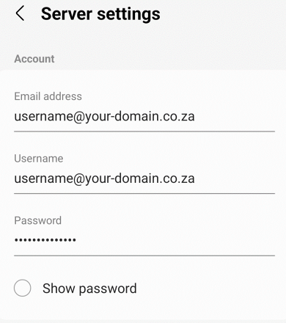
Setup An Account On Samsung Email App - Server Settings

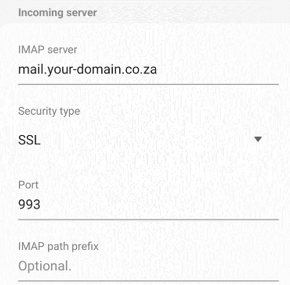
Incoming Server:  

  • IMAP server: e.g. mail.your-domain.co.za*  
  • Security Type: SSL  
  • Port: 993  
  • IMAP path prefix: Leave blank. 
Setup An Account On Samsung Email App - Incoming Server Settings

Outgoing Server:  

  • SMTP server: e.g. mail.your-domain.co.za*  
  • Security Type: SSL  
  • Port: 465  
  • Require authentication to send Emails: Enabled (toggled On)  
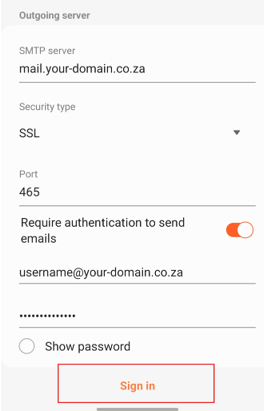
Setup An Account On Samsung Email App - Outgoing Server Settings

Enter your email address and password, and click Sign In. Your mailbox in your Samsung email app should now be configured and ready to receive emails. 

Additional Information

What to do Before Setting Up An Email Account

Ensure you have the following email account information available before you start:

  1. Email Address & Password: The email address you wish to connect and its corresponding password.
  2. Incoming & Outgoing Server Settings: For custom or business email accounts, you may need server information (SMTP and IMAP/POP). Your email provider’s help section should have this data.
  3. Security Type: Whether SSL, TLS, or no encryption is needed for your email.

The Samsung Email app allows users to set up their accounts using either IMAP or POP protocols.

  • IMAP: Using this protocol, all your devices’ emails are synchronised, so any modifications you make on one (like marking an email as read) will also be reflected on other devices.
  • POP: Downloads emails to your device; however, modifications are not synchronised between devices. POP# is preferable for users who access their email on a single device.

If you’re using an account from your work or business, you may need to set up Microsoft Exchange. By selecting this option, you can use additional features on your Samsung device, such as syncing contacts and calendars.

After Email Account Setup

Once your account is set up, you can adjust your notification preferences.

You can set up push notifications for real-time alerts with Samsung Email or adjust the sync frequency to receive emails regularly (every 15 minutes, hourly, etc.). Push notifications are ideal for people who need instant updates, while scheduled or manual syncs can help prolong battery life.

You can choose different notification tones for individual accounts to distinguish between professional and personal emails, as well as sound alerts and vibrations.

Views774
Previous How To Setup A Gmail Account On iPhone
Next How To Setup An Email Account Apple Mac
[post-views]

Categories

  • Home
  • 23 Billing
  • 69 Domains
  • 126 Email
  • 16 ESET
  • 41 General
  • 197 Hosting
  • 3 Integrations
  • 3 Link In Bio
  • 3 n8n VPS Hosting
  • 6 Pre-Sales
  • 21 Registrars
  • 21 Resellers
  • 59 Site Builder
  • 65 SSLs
  • 8 VPS Hosting
  • 85 WordPress
Domains.co.za - Web Hosting
Domains.co.za - Site Builder Add-on
Domains.co.za - WordPress Hosting
Domains.co.za - AI Domain Name Generator
Domains.co.za

We are a domain name and website hosting provider committed to offering affordable web hosting solutions that enable businesses to establish a strong online presence.

Secure Payment Gateways

Peach Logo DPO Logo PayFast Logo Visa Logo Mastercard Logo Netcash Logo Ozow Logo

Read more about our secure payments.

Hosting

  • WordPress Hosting
  • Web Hosting
  • Managed cPanel Hosting
  • Email Hosting
  • Linux VPS Hosting
  • Windows VPS Hosting
  • Site Builder
  • PHP Extended Support
  • Self-Hosted n8n VPS

Domains

  • Register Domains
  • Transfer Domains
  • WHOIS Search
  • Bulk Domain Registrations
  • Bulk Domain Transfers
  • Domain Protection

Security

  • Domain Validated SSLs
  • Organization Validated SSLs

Resellers

  • Reseller Web Hosting
  • Domain Reseller
  • Registrar Services
  • Integration
  • Domain Reseller Login

Legal

  • Terms and Conditions
  • UDRP
  • Our SLA
  • Abuse Policy
  • Disclosure Requests

Our Company

  • About Us
  • Contact Us
  • Accreditations
  • Careers

Help

  • System Status
  • Affiliate Program
  • Knowledgebase
  • Blog
  • Report Abuse
Facebook Instagram YouTube Twitter LinkedIn Google Business
Copyright © 2026 Domains.co.za. All Rights Reserved.