


Your WordPress Theme Shapes How Customers Experience Your Website
This guide explains everything about how to install WordPress Theme, choosing, and setting it up with confidence. It’s written for South African business owners, bloggers, online store owners, agencies, and anyone new to WordPress.
Your WordPress theme does far more than make your website look good. It decides how your pages are laid out, how fast they load, how easy your site is to use, and how much visitors trust you. For a small business, this can be the difference between a customer who enquires and one who leaves.
KEY TAKEAWAYS
- A theme affects far more than appearance, shaping speed, mobile experience, trust, and conversions.
- You can install a theme three ways: through the WordPress Theme Directory, a manual .zip upload, or FTP and SFTP.
- Back up before switching themes, and test important sites on a staging copy, because menus and layouts can change even when your content remains.
- South African sites benefit most from fast mobile pages, simple WhatsApp and click-to-call access, clear trust signals, and reliable hosting.
TABLE OF CONTENTS
What is a WordPress Theme?
A WordPress theme is a set of files that controls how your website looks and how its content is arranged. It sets your layout, fonts, colours, spacing, and the templates used for pages, posts, and product listings. In short, it’s the design system that controls your content.
Your content and your theme are separate. Your words, images, and pages are stored in your WordPress database; the theme simply decides how they appear on screen. That’s why you can change your entire look by switching themes, without rewriting a single page.
Themes also shape your site’s structure, keeping your pages neat and easy to follow on phones, tablets, and computers.
Why Your Theme Choice Matters
Your theme is the first thing visitors notice, and first impressions form in seconds. A clean, professional design shows people you’re a professional business worth trusting. However, a cluttered one makes them wonder if you’re still trading.
Your theme also shapes how people move through your site. It controls your menus, buttons, and the path from landing on a page to making an enquiry or a purchase. If that path is confusing, you will lose sales.
It also affects speed and upkeep. A heavy, badly built theme slows everything down and costs you website visitors. A light, well-supported one keeps your site fast and simpler to maintain for years.
That’s why choosing carefully now saves you time, money, and stress later.
Theme vs Template: A Simple Explanation
People often mix up themes and templates, although each does a different job:
- A theme controls the design of your entire website. It sets the overall style that runs across every page.
- A template controls the layout of one type of page or post inside that theme.
For example, your blog posts may use one template while your contact page uses another. In simple terms, the theme is the entire outfit, and a template is one piece of it.
Free vs Premium WordPress Themes
When you choose a theme, you’ll usually decide between free, premium, and custom options. Each suits a different budget and goal. Here’s how they compare so you can decide what suits your business:
Free WordPress Themes
Free WordPress themes are available in the official WordPress Theme Directory at no cost. They’re a solid start for blogs, simple business sites, and testing an idea. Because they pass a review before being listed, they meet basic quality and security standards.
The trade-off is fewer design controls and, sometimes, slower updates. However, a well-rated free theme with recent updates can carry a small site comfortably.
Premium themes are paid, and they often include more layouts, design settings, integrations, and dedicated support. For a growing business that wants finer control, this can be worth it.
But paid doesn’t automatically mean better or safer. Quality varies from one developer to the next. Check reviews, update history, and support before you purchase, rather than trusting a price tag.
Custom WordPress Themes
A custom theme is built from scratch for your specific brand and features. Agencies and developers usually create them for businesses that cannot be served by off-the-shelf themes.
They provide full control and a design no competitor shares. The cost and build time are higher, so they suit established businesses or unusual requirements.
What to Check Before Installing a WordPress Theme
A theme that looks great in a demo can still be wrong for your site. Before you commit, run through the following checks. They will help you avoid a slow, awkward, or insecure result.
Responsive Design
A responsive WordPress theme adjusts its layout to fit any screen, from a wide monitor to a small phone. Visitors shouldn’t have to zoom or scroll sideways to read your content.
This matters even more in South Africa, where most people browse on mobile. Test the theme’s demo on your own phone before you decide.
Speed & Performance
A lightweight theme loads faster, and speed keeps visitors around. If a page takes too long to load, many people leave before they view it. Watch out for themes packed with features you’ll never use. Heavy code, large images, and bloated builders all drag down your loading times. So, choose a theme designed for speed.
Customisation Flexibility
Check how easily you can change the parts that show your brand. This involves colours, fonts, headers, footers, menus, and layouts, ideally without having to touch code. Themes with a built-in visual editor allow you to make changes and see them immediately. This keeps you in control and saves hours.
Compatibility with WordPress & PHP
Every theme lists the WordPress and PHP versions it supports. Ensure you check these requirements and select a theme that’s compatible with your PHP and WordPress version. An outdated theme can break your layout, trigger errors, or open security gaps.
Before installing, check that the theme still receives updates and works with the current version of WordPress. If it hasn’t been touched in a couple of years, consider that a warning.
Plugin Compatibility
Your theme needs to work with the plugins your business relies on. This includes contact forms, SEO tools, WooCommerce, caching, security, and page builders. Most quality themes list the plugins they support. If you plan to run an online store, first confirm WooCommerce support.
Support & Update History
Active support shows you a theme is looked after. Regular updates fix bugs, patch security holes, and keep pace with new WordPress releases. Look for clear documentation and a way to reach the developer. A theme with no support and no recent updates can leave you stuck.
Accessibility & Readability
A good theme is easy for everyone to read and use. This means clear fonts, strong colour contrast, and navigation that works with a keyboard, not just a mouse. Accessible design widens your audience and often helps your SEO, too. It’s a quick point to check that pays off broadly.
How to Install a WordPress Theme
Now for the practical part. There are three main ways to install a WordPress theme, and each suits a different situation. Before you try any of them, back up your entire website.
Install from WordPress Theme Directory
This is the easiest method, and it’s perfect for free, approved themes.
- Login to your WordPress dashboard.
- Navigate to Appearance → Themes.
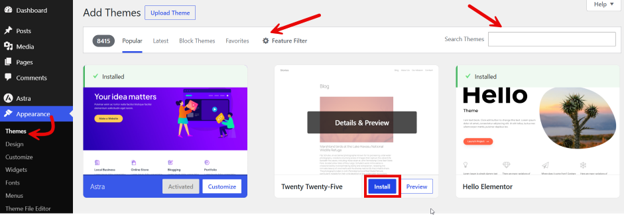
- Click Add Theme at the top to open the directory.
- Search by keyword or use the filters to find a theme you like.
- Hover over it and click Install, then click Activate to take it live. That’s a full WordPress theme installation done in a few clicks.
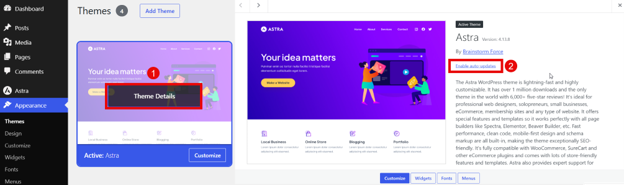
Afterwards, go to Appearance → Themes. Hover over your newly installed theme, click Theme Details, and turn on auto-updates. This keeps it patched without you having to remember.
Upload WordPress Theme Manually
Use this method for premium, custom, or downloaded themes that aren’t in the directory. It allows you to upload WordPress theme files you’ve bought or found elsewhere. First, download the theme as a .zip file from a trusted source, and don’t unzip it, because WordPress needs the .zip as it is.
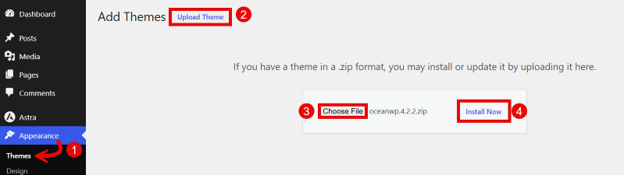
- Go to Appearance → Themes.
- Click Add Theme, then click Upload Theme.
- Click Choose File and select your .zip.
- Click Install Now, and WordPress unpacks it for you. Finally, click Activate.
Only download from developers you trust. A cheap or pirated theme can hide malware that puts your whole site at risk.
Install a Theme with FTP or SFTP
This is an advanced method for when you cannot reach the dashboard or need direct server access. It allows to you install WordPress theme files straight onto your server. It isn’t the best choice for beginners, so skip it unless you’re comfortable with files and folders. SFTP is the safer, encrypted version and is usually the better option.
To continue with this approach, you need:
- An FTP client, for example FileZilla.
- Your FTP login details from your hosting account. You can find it by navigating to cPanel → Tools → Files → FTP Accounts → Configure FTP Client.
Once you have these, go through the following steps:
- Fill in Host, Username, Password, Port, and click Quickconnect.
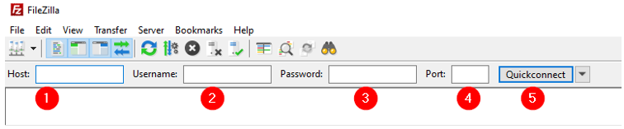
- Go to wp-content/themes. Unzip your theme on your computer, then drag the theme folder into this directory.
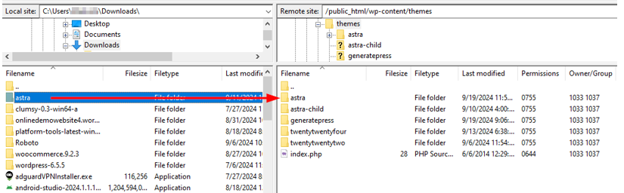
- Once the upload finishes, go to Appearance, then Themes in your dashboard, and click Activate.
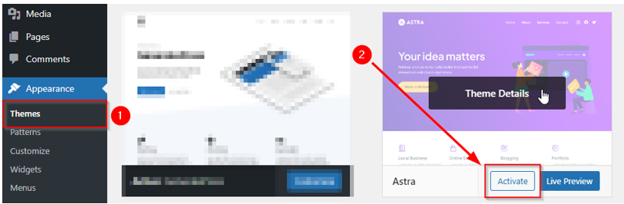
What Happens After You Activate a New Theme?
The moment you activate a theme, your site’s design changes immediately. To avoid any unexpected surprises, it’s important to understand what stays and what changes.
Your content is safe. Your posts, pages, and images are found in your database, so they don’t disappear when you switch themes. What changes is how they are displayed.
Some things often need attention after a swap. Your menus, widgets, sidebars, shortcodes, and theme-specific settings may not carry over. Don’t assume a new theme leaves everything untouched. Set aside a little time to check your site and rebuild these parts where necessary.
How to Customise a WordPress Theme After Installation
Once your theme is live, it’s time to make it yours. You can customise your WordPress theme without code, using either Customizer or the newer Site Editor, depending on the theme.
Both allow you to change your design and see the result as you work. Here’s what to sort out first:
Colours & Brand Styling
Start with your colours, since they carry your brand. Set your main colours to match your logo and marketing and keep them consistent across the site.
Also watch your contrast. Dark text on a light background is easiest to read, especially on phones in bright sunlight.
Fonts & Typography
Choose fonts that are easy to read on any screen; one font for headings and one for body text is usually enough, and it keeps things clean. Avoid tiny or fancy fonts that may strain the eyes. If you wish to fine-tune this, here’s how to change fonts in WordPress properly.
Menus & Navigation
Your menu is how visitors find what they need. Keep it short and clear, and place your key pages first, for example Home, Services, and Contact. Good navigation shortens the path to an enquiry or sale.
Test on mobile to ensure every link is easy to tap.
Widgets, Sidebars, Headers, & Footers
These areas often need rebuilding after a theme change. Check your footer for contact details, opening hours, and important links. Your header usually holds your logo, menu, and a call to action. Ensure both look right and have the information customers expect.
Homepage & Key Landing Pages
Review your most important pages after activating them. This includes your homepage, service pages, product pages, and contact page. These pages do the primary job for your business, so they need to look sharp and load fast. If you’re building a focused page for a campaign, learn how to create a WordPress landing page that converts.
South African Business Considerations when Choosing a Theme
A theme that works well overseas isn’t always right for local customers. South African buyers browse and shop in their own way, and your theme should support that. Keep these local factors in mind:
Mobile-First Browsing Behaviour
Most South Africans visit the web on a phone, often on mobile data. So, your theme needs to load fast and read clearly on small screens. A clean mobile layout keeps data use low and pages fast. This matters when someone is deciding whether to enquire or move on.
Local Trust Signals
Local customers look for proof that you’re genuine before they purchase. Your theme should simplify displaying reviews, contact details, and the areas you serve.
Room for payment options, delivery details, and business credentials also helps. These small signals build the confidence that turns a visitor into a customer.
WhatsApp, Forms, & Click-to-Call Actions
Many South African businesses win work through WhatsApp, quick calls, and enquiry forms. So, these need to be easy to find on every page. Choose a theme that supports a floating WhatsApp button, click-to-call links, and simple quote forms. This is important, because making contact effortless often seals the deal.
eCommerce Theme Considerations
If you run an online store, your theme carries even more weight. It shapes how products look and how smoothly people can purchase. Before you commit, check these points:
- Product grid layout that displays items clearly on mobile and desktop.
- Clean product pages with room for photos, prices, and descriptions.
- Cart and checkout styling that seems simple and safe.
- A smooth mobile checkout, since many buyers pay on their phones.
- Support for the payment plugins you plan to use.
- Fast image handling so pages don’t crawl.
- Clear secure-checkout messaging that reassures buyers.
If you get these right you will remove the small frustrations that cause abandoned carts.
Hosting, Performance, & Theme Quality
A great theme can still seem slow on weak hosting, and a bloated theme can drag down strong hosting. Speed is a team effort. It comes from your theme, your hosting, caching, images, and how many plugins you run.
So don’t rely on one fix alone. Pair a light, well-built theme with solid WordPress hosting in South Africa, and your site has the foundation to stay fast. Local hosting also means quicker load times for local visitors, since the server sits closer to them.
Also, keep your images sized properly and your plugins tidy to run the whole system better.
Load-Shedding & Website Reliability
Load-shedding may close your doors, but your website can stay open. When your shop or office loses power, a reliable site allows customers to keep browsing, enquiring, and buying. That’s income you’d otherwise lose.
The key is a stable setup that doesn’t depend on your premises. A light theme and dependable hosting keep your site running while you’re offline. For many businesses, reliable web hosting keeps them online, even when the power is off on-site.
POPIA, Forms, & User Trust
If your theme includes enquiry forms, account areas, or a checkout, trust and privacy matter. POPIA sets rules for how South African businesses handle personal information. Your design should make privacy and consent easy to find. However, this is practical guidance, not legal advice.
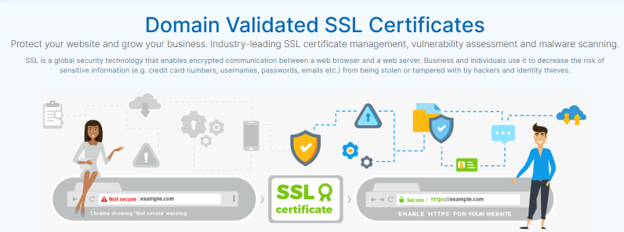
In plain terms, your forms should link clearly to your privacy notice. A visible consent message and a secure connection reassure people that their details are safe. When you secure your WordPress website with SSL, the browser shows the https:// prefix that many customers now look for before sharing anything.
NOTE:
Clear, honest design isn’t only good for compliance; it builds the trust that makes customers return.
Common WordPress Theme Installation Problems
Sometimes an install doesn’t go according to plan. Most problems are common and quick to fix once you know the cause. Here are the ones you’re most likely to meet:
Missing style.css Stylesheet
If you see:
“the theme is missing the style.css stylesheet“
You’ve usually uploaded the wrong file. This often happens when the download includes extra folders and documentation.
To fix this, unzip the download on your computer and find the actual theme folder, the one containing style.css. Zip only that folder and upload it again.
Broken or Incomplete Theme
A theme that looks broken after installing may not have fully uploaded. This can happen due to a weak internet connection or a missing file.
To fix this, delete the theme and upload it again so every file appears. If it still won’t display correctly, check the theme’s documentation or contact the developer.
Incompatibility with WordPress or PHP
An old theme may not work with modern WordPress or your server’s PHP version. This can break layouts or stop features from working. To fix this issue, first update WordPress to the latest version. If the theme still fails, look for a newer release, or choose a better-supported theme.
Plugin Conflicts
When a theme and a plugin clash, your site can look or behave strangely. This is one of the more common causes of odd layouts. To find the culprit, deactivate your plugins one at a time and watch what changes. When the problem disappears, you’ve found the plugin causing the issue.
Demo Content Doesn’t Match the Preview
Your new theme rarely matches its demo. Those demos usually rely on specific content, settings, templates, and plugins. However, many popular themes include demo content you can import, plus setup notes. Follow the theme’s own guide to get closest to the look you viewed originally.
Common Mistakes to Avoid
When you install a WordPress theme, a few simple errors cause most theme headaches. Avoiding these will save you significant time and effort.
The biggest one is choosing looks over performance. A stunning theme that loads slowly will still cost you visitors. Also, watch out for these traps:
- Installing themes from untrusted or pirated sources.
- Skipping a backup before you switch.
- Not testing on a staging site first.
- Ignoring how the theme looks and works on mobile.
- Keeping many unused themes installed.
- Overlooking a theme’s support and update history.
- Choosing a theme that needs too many plugins to work.
- Going live without testing your key customer journeys.
Avoid these, and your install stays smooth and safe.
Post-Installation Checklist for a New WordPress Theme
Before you call the job done, run through this quick checklist. It confirms everything works for your customers, not just for you.
- Backup completed before the change.
- Theme activated.
- Homepage checked.
- Menus set up and working.
- Widgets and footer checked.
- Contact and enquiry forms tested.
- Mobile view tested on a real phone.
- Blog posts displaying correctly.
- Product pages checked, if you have a store.
- Checkout tested, if you have a store.
- Page speed checked.
- SSL installed and active.
- Analytics and tracking still recording.
- Unused themes removed.
- One default theme kept as a fallback.
When to Ask a Developer for Help
You can handle most theme tasks yourself, but some are worth handing over. Bringing in a professional early can save you money and stress later.
Consider getting assistance with custom themes, FTP or SFTP installs, and child themes. The same goes for broken layouts you can’t fix, WooCommerce theme changes, and any business-critical site you can’t afford to have down. If you get stuck, Domains.co.za support can point you in the right direction.
There’s no shame in asking. A little expert assistance often prevents a much bigger problem.
Final Thoughts: A Good WordPress Theme Should Support Your Business, Not Just Look Good
Your theme is a business decision, not only a design one. The right choice balances good looks with speed, usability, support, and your goals. Get that balance right, and your website works hard for you, welcoming customers, earning trust, and turning visits into sales.
Take your time to choose well, back up before you change anything, and test properly before you go live. Those habits keep your site steady as your business grows.
Build your WordPress website on a reliable foundation with Domains.co.za, made to support South African businesses with secure infrastructure, practical support, and dependable performance. Ready to go online? You can register a domain for your website and get started today.
![Strip Banner Text - Give your WordPress theme the fast, reliable hosting it needs to perform. [Get Started]](/articles/wp-content/uploads/2026/09/install-wordPress-theme-02.webp "Give your WordPress theme the fast, reliable hosting it needs to perform. [Get Started]")
Power Up Your Site: How to Install a WordPress Plugin
VIDEO: Power Up Your Site: How to Install a WordPress Plugin
FAQS
How many WordPress themes can I have on my site at once?
You can install as many WordPress themes as you like, but only one can be active at a time. The active theme controls how your entire site looks. To give different pages their own style, use templates or a page builder rather than a second theme. If you truly need separate designs, this usually means separate sites or a WordPress Multisite setup.
What is a child theme, and do I need one?
A child theme is a small add-on that inherits everything from your main theme. It allows you to change code or styling without directly editing the parent theme. The benefit is that your changes stay safe when the main theme updates. You only need one of these if you plan to edit theme files. If you just use the Customizer or Site Editor, you can skip it.
Do WordPress themes affect my SEO?
Yes, but indirectly. Your theme influences page speed, mobile-friendliness, and how clean your code is, and search engines care about all three. A slow, heavy theme can harm your rankings, while a light, responsive theme supports them. A theme alone won’t put you at the top of Google, though. You still need strong content and solid SEO basics.
How often should I change my WordPress theme?
There’s no set schedule for changing your theme. Switch when your current one no longer suits your brand, feels slow, stops receiving updates, or lacks features you need. Changing themes too often can hurt your design consistency and confuse returning visitors. In most cases, it’s better to keep a good theme and update it than to swap it for something new.
Will switching themes affect my page builder designs?
It depends on how your pages were built. Content made with a theme-independent page builder often carries over, since it doesn’t rely on the theme. But layouts built with theme-specific templates or blocks may break or need rebuilding. Before you switch, back up your site and test the new theme on a staging copy. This way, you can fix any broken pages before they go live.
Other Blogs of Interest
- A WordPress 500 Internal Server Error Can Cost You More Than a Broken Page
- WordPress Error Logs Help You Find Problems Before They Become Bigger Website Issues
- WordPress Multisite Can Simplify Multi-Website Management
- A Malware-Infected WordPress Site Can Put Your Customers, Rankings, & Business At Risk
- A Reliable WordPress Backup Can Be the Difference Between a Quick Fix and a Costly Rebuild

Rhett isn’t just a writer at Domains.co.za – he’s our resident WordPress content guru. With over 8 years of experience as a content writer, with a background in copywriting, journalism, research, and SEO, and a passion for websites.
Rhett authors informative blogs and articles that simplify the complexities of WordPress, website builders, domains, and cPanel hosting. Rhett’s clear explanations and practical tips provide valuable resources for anyone wanting to own and build a website. Just don’t ask him about coding before he’s had coffee.