





A Reliable WordPress Backup Can Be The Difference Between A Quick Fix & A Costly Rebuild
You open your laptop to find your WordPress site down. Perhaps it’s a failed plugin update, a hack, or a corrupted file. If you don’t have a backup, recovery could take days. If you do, you could be back online within the hour.
For any South African business that relies on its website for leads, sales, or customer enquiries, a WordPress backup isn’t optional. This guide covers what a backup includes, which method suits your site, where to store copies, how often to back up, and the errors to avoid.
KEY TAKEAWAYS
- A complete backup includes both your website files and your database; without one, you won’t be able to fully restore your site.
- Use automatic backups for regular protection and manual backups before any major update, change, or migration.
- Never store backups only on your hosting server; always keep at least one copy off-site or in the cloud.
- Match your backup frequency to how often your site changes; WooCommerce stores need daily backups at a minimum.
- Cloud-based backup storage is especially important in South Africa, where load-shedding and connectivity issues can limit local access.
- Test your backups by restoring on a staging site; if you’ve never tested yours, you don’t know if it works.
TABLE OF CONTENTS
Why WordPress Backups Matter More Than Most Website Owners Think
Most website owners consider a backup a technical precaution. However, it’s a business one. For a South African SME, your website is often where a potential customer forms their first impression, submits an enquiry, or places an order. When it goes down without a backup in place, the damage isn’t just technical; you lose leads, miss sales, and erode the trust you’ve built.
Recovery without a backup is slow and expensive. A developer must rebuild what’s gone, and not everything can be recovered. However, with WordPress hosting in South Africa, which includes reliable backup support, you reduce that risk considerably. But the backup itself remains your responsibility.
What Is a WordPress Backup?
A WordPress website backup is a saved copy of everything that makes your site work. If something breaks, is deleted, or is compromised, you use that copy to restore your site to its state before the problem occurred. Consider it a restore point you can fall back on when things go wrong.
However, a backup is only useful if it’s complete. A partial backup can leave you with a site that looks right but doesn’t function, or one that functions but has lost weeks of content.
What Should a Complete WordPress Backup Include?
A complete backup has two parts:
- Your website files.
- Your database.
You need both. One without the other won’t get your site back to how it was.
Website Files
Your website files are everything that controls how your site looks and functions. This includes your active theme and any installed plugins, your media uploads such as images, PDFs, and videos, the WordPress core files, your wp-config.php configuration file, and any custom code added to your site. If these files are lost or corrupted, your site won’t display or work correctly.
Website Database
Your database is where all the content and settings are stored. Every blog post, page, comment, user account, WooCommerce order, customer detail, form entry, and plugin setting lives in the database.
A WordPress database backup protects this layer of your site. Without it, you might restore your site’s design, only to find all your content is gone.
Full Backups vs Partial Backups
Not all backups cover the same ground. The type you create depends on what you’re protecting and when you’re doing it.
Full Backup
A full backup saves your website files and database together in one go. It’s the most complete form of protection and the one you would rely on for a full site recovery or when moving your site to a new host. If something goes seriously wrong, a full backup is what gets your site back exactly as it was.
Database-Only Backup
A database-only backup saves your posts, pages, settings, and other dynamic content, but nothing else. It’s useful to have before making content-heavy changes, but it won’t help back up your WordPress site fully if your files are also affected. If your theme breaks or your plugins are corrupted, a database backup alone won’t restore them.
File-Only Backup
The WordPress files backup covers your theme, plugins, media, and core files, but not your database. It’s a practical option before making theme or plugin changes, since it protects your site’s structure and functionality.
However, it doesn’t save your posts, pages, orders, or any content stored in the database. If you only have a file backup and your database is lost, your content goes with it.
The Most Common Reasons WordPress Sites Need Backups
WordPress sites face real risks every day. Understanding what those risks are makes it easier to treat backups as a priority rather than an afterthought.
Hacks, Malware, & Security Incidents
No site is completely immune to attack. If yours is infected with malware or hacked, a clean backup lets you restore it quickly without paying for emergency recovery work.
Without a WordPress backup, you’re relying on a developer to manually clean and rebuild what’s been compromised, which can take time and cost more than you budgeted.
Failed WordPress, Theme, or Plugin Updates
Updates are necessary, but they aren’t always smooth. A plugin update can conflict with your theme. A WordPress core update can break a feature your site depends on.
These conflicts aren’t always predictable, which is why making a backup before any update will let you roll back immediately if something goes wrong.
Human Error & Accidental Deletion
Mistakes happen at every level. For example:
- A staff member deletes the wrong page.
- A developer edits the wrong file.
- A content editor accidentally removes a product or a pricing table.
Without a backup, that content may be gone permanently. With one, it’s a recoverable situation.
Server, Hosting, or File Corruption Issues
Server crashes and file corruption are less common, but they do happen. A corrupted database can take your entire site offline without warning. If your backup is stored off the server, you have something to restore from. If it isn’t, you may be starting from scratch.
Redesigns, Migrations, & Development Work
When you’re about to make significant changes to your site, a fresh backup is non-negotiable. Because changing hosts, switching themes, redesigning page layouts, or testing new functionality all carry some level of risk. Making a backup beforehand means that if the work doesn’t go as planned, you have a stable version to return to.
Manual vs Automatic WordPress Backups
There are two main approaches to backing up a WordPress site. Each has its place, and for most businesses, using both makes more sense than choosing one over the other.
Manual Backups
With a manual backup, you handle everything yourself. You use an FTP or SFTP client to download your website files from the server, and phpMyAdmin to export the database.
It provides full control over what gets backed up and when, but it requires technical confidence, time, and discipline. If you forget to do it before a major update or something goes wrong between backups, there’s no fallback.
Automatic Backups
A plugin or your hosting provider handles automatic WordPress backups on a schedule you configure. Once set up, they run without you having to remember. That’s the main advantage.
The risk, though, is assuming they’re working when they aren’t. A backup that fails silently gives you false confidence. That’s why automatic backups need to be checked periodically to confirm they have been completed successfully, and that the files can be restored.
Why Many Businesses Should Use Both
Scheduled automatic backups handle your day-to-day protection. A manual backup fills the gap before anything significant happens, such as:
- A WordPress core update.
- A plugin installation.
- A code change.
- A site migration.
Relying on automatic backups alone means your most recent copy might be hours or days old when you need it most. We recommend using both approaches together (manual and automatic backups) to ensure you are properly covered.
WordPress Backup Methods Explained
There are three main ways to back up a WordPress site. The right one depends on your technical comfort level, the size of your site, and how much control you want over the process.
Using a Backup Plugin
Backup plugins handle the entire process for you and can store copies directly to a remote location. UpdraftPlus is one of the most widely used options.
Before settling on one, check that it:
- Is actively maintained.
- Is compatible with your current WordPress version.
- Supports the remote storage service you plan to use.
Features differ between plugins, and so do pricing structures. What’s available on a free plan may not be enough for a busy WooCommerce store or a site with large media files.
Automatic Backup
Here’s how to use the UpdraftPlus plugin to set up automatic backups:
- Go to WordPress Dashboard → Plugins → Add Plugin.
- Search for UpdraftPlus, install it, and activate it.
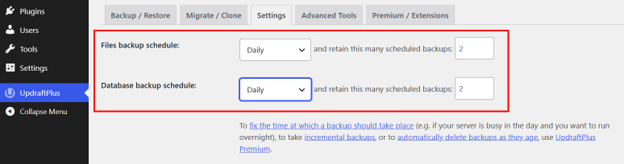
- Navigate to UpdraftPlus → Settings.
- Set your preferred backup frequency for both files and the database. Daily, weekly, and monthly are the standard options.
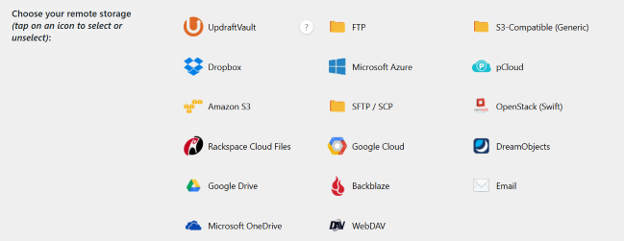
- Scroll down to the remote storage section and select where you want your backups saved. Google Drive, Dropbox, and Amazon S3 are available options.
- Connect your chosen storage account by following the on-screen prompts (if any).
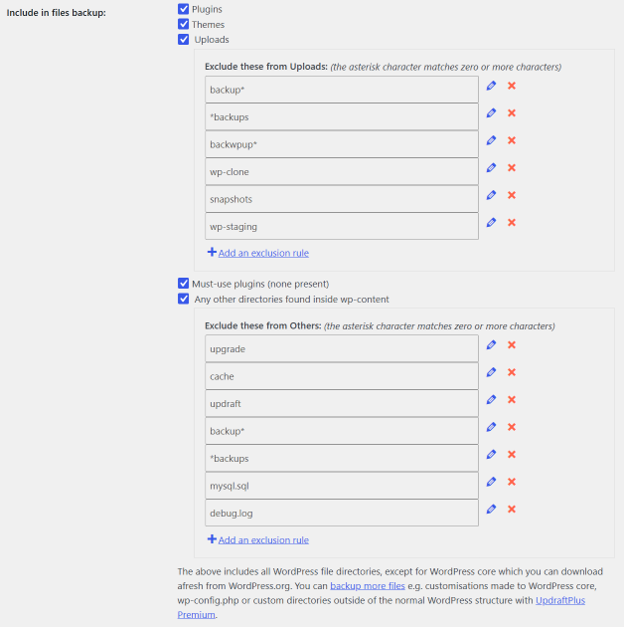
- Select which files you want included in each backup.
- Click Save Changes to apply your settings.
NOTE:
Database backups are not encrypted on the free version of UpdraftPlus. If encryption matters to your setup, you need the premium version.
Manual Backup
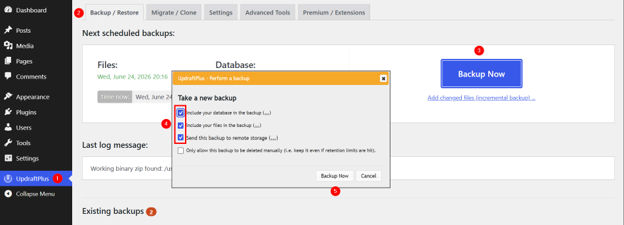
- Go to WordPress Dashboard → UpdraftPlus → Backup / Restore.
- Click Backup Now.
- A pop-up box will appear. Ensure the following checkboxes are ticked:
- Include your database in the backup.
- Include your files in the backup.
- Send this backup to remote storage (if you have already linked Google Drive, Dropbox, or OneDrive).
- Click Backup Now at the bottom of the pop-up.
A progress bar will appear. Once finished, a new backup entry will appear under Existing Backups further down the page, allowing you to restore your site with a single click if anything goes wrong during your updates.
Using Your Hosting Control Panel
Many hosting providers include a backup tool directly in cPanel or their own dashboard. This lets you create a full or partial backup without installing anything extra.
It’s a straightforward option, but what’s available depends on your hosting plan. Check what your plan includes before assuming you’re covered. Some plans offer automated backups as standard; others require you to initiate them manually or upgrade to access the feature.
If you’re a Domains.co.za client, here’s how to back up WordPress sites manually and automatically:
Manual Backups: The cPanel Backup Wizard
- Login to your Domains.co.za client portal.
- Navigate to your active hosting service and login to cPanel.
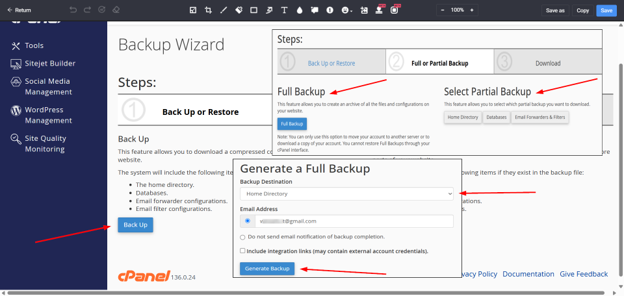
- From there, locate Files and click Backup Wizard.
- Once inside the wizard, click Back Up.
- Choose between a Full Backup and a Partial Backup.
Note: A Full Backup archives everything (including emails and server configurations) to your server directory, but it cannot be restored directly through the cPanel interface. It requires a hosting administrator. - Choose your preferred destination for the backup file. Most configurations let you download it directly to your local computer or transfer it to a remote storage server.
- Once selected, click Generate Backup. Keep in mind that larger websites may take a few minutes to process fully.
Hands-Off Security: Automated Acronis Backups
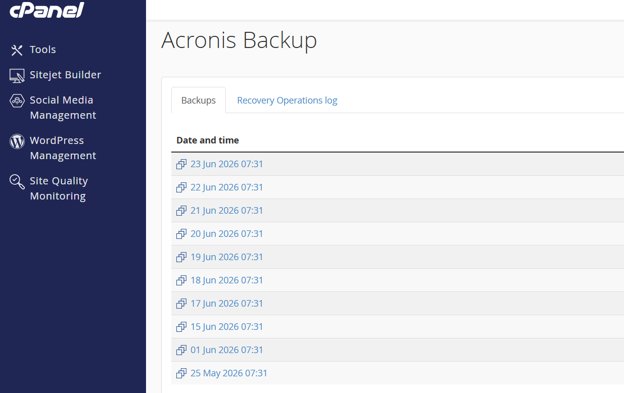
While manual backups are excellent for peace of mind before an update, Domains.co.za removes the daily stress by including automated, daily Acronis backups across all Web Hosting, WordPress Hosting, and Reseller plans.
Acronis is a premium, enterprise-grade backup solution that runs entirely in the background.
- Off-Site Data Protection: Backups are securely stored off-site in a separate, redundant data centre location in Johannesburg. If anything happens to the primary server environment, your website data remains safely isolated.
- Point-in-Time & Granular Recovery: Acronis doesn’t force an “all-or-nothing” recovery. If a plugin update breaks your layout, or an employee accidentally deletes an important folder, you can use the Acronis tool inside your cPanel dashboard to restore just that specific folder, file, or database to its exact state from a previous day.
- POPIA Compliance: Because the infrastructure of Domains.co.za is hosted locally in South Africa, utilising their built-in Acronis system helps keep your website fully aligned with local POPIA data compliance requirements.
Using FTP/SFTP & phpMyAdmin
This is the manual, developer-level approach. You connect to your server using an FTP or SFTP client to download your website files, then use phpMyAdmin to export your database as a .sql file.
It works reliably and doesn’t depend on any third-party plugin, but it takes longer and requires care. If you’re not familiar with these tools, it’s worth getting a developer to explain the process first.
Avoid making any edits to your files or database directly unless you know exactly what you’re doing.
We’ve already discussed how to back up using FTP/SFTP and export the database using phpMyAdmin. You can find more information at the following link:
Method 4: Manual Export with SFTP and phpMyAdmin
Where Should You Store WordPress Backups?
Creating a backup is only half the task. Where you store it determines whether you can use it when something goes wrong.
Why Server-Only Backups Are Risky
Storing your backup on the same server as your website is a common error. If that server is hacked, crashes, or becomes corrupted, your backup is at risk along with everything else.
If your backup is in the same directory as your live site, it faces the same risks. A robust recovery strategy requires off-site storage to ensure your data survives even if the primary server fails.
That’s why you should always keep at least one copy somewhere separate from your hosting server.
Cloud Storage Options
Cloud storage is one of the most practical options for off-site backup storage. Google Drive, Dropbox, and Amazon S3 are widely used and supported by most backup plugins, which can automatically send copies there after each backup.
If your server fails or your local device is unavailable, your cloud copy remains accessible. It’s also easy to retrieve from anywhere, which matters when you’re trying to restore a site quickly.
Local & External Storage
Downloading a backup to your computer or saving it to an external hard drive provides an offline copy that doesn’t depend on Internet access or a third-party service.
This has value, but local storage carries its own risks. Devices fail, get lost, or are stolen. A local copy works well as part of a broader storage strategy, not as your only option.
The 3-2-1 Backup Principle
A straightforward rule worth following is:
- Keep at least three copies of your backup.
- Store them across at least two different types of storage.
- Ensure at least one is off-site or in the cloud.
This approach protects you against most failure scenarios, including server issues, device failure, and accidental deletion. It doesn’t require expensive tools; it just requires some planning.
How Often Should You Back Up a WordPress Website?
Backup frequency should reflect how often your site changes. The more active your site, the more you stand to lose between backups.
Static or Brochure Websites
If your site rarely changes, a weekly or monthly backup is usually enough to keep you covered. But always create a manual backup before making any updates, even minor ones. Changes that seem small can occasionally cause unexpected problems.
Blogs & Content Websites
Content is the core value of a blog or editorial site, and it should be protected accordingly. Back up after publishing new posts and run a scheduled backup at least once a week. If you publish frequently, consider increasing this to daily.
Lead Generation Websites
If your landing pages, forms, or campaign content change regularly, weekly backups are the minimum. Consider how many enquiries your forms capture in a week. Remember, losing that data between backups is a real business cost, not just a technical inconvenience.
WooCommerce & eCommerce Websites
To properly back up a WordPress site running WooCommerce, daily backups are the baseline. Orders, inventory levels, customer records, and payment-related data can change multiple times throughout the day.
For high-volume stores, daily may not be enough. Some backup solutions offer real-time or near-real-time backups, which are worth considering if your store processes a significant number of transactions.
South African Business Continuity Considerations
Load-shedding and connectivity issues create recovery challenges that most WordPress guides don’t address. If your site goes down mid-outage, you may not be able to access your control panel or backup plugin until power and connectivity are restored. Every hour your site stays down is an hour your customers are going elsewhere.
South African customers browse, enquire, and place orders after hours. If something breaks at 9 pm, that’s a full evening of missed leads before you can act. For local SMEs that rely on their website as their primary enquiry channel, downtime has a direct commercial cost.
The storage location of your backups also matters. A backup saved only to a local device isn’t accessible during load-shedding or a connectivity outage. This is where cloud-based backups assist. These are available from any device, at any time.
Pairing solid, reliable web hosting for small businesses in South Africa with off-site backup storage provides a recovery setup that holds up under local conditions. However, if you’re still on a hosting plan that doesn’t meet your site’s requirements, it’s worth considering one that includes backup infrastructure.

POPIA, Customer Data, & Backup Security
A WordPress backup isn’t just a copy of your website; it’s also a copy of your customers’ personal information. Names, email addresses, phone numbers, form submissions, WooCommerce order data, and user account details can all be present in a backup file.
Under the Protection of Personal Information Act (POPIA), South African businesses are accountable for how that data is stored and who can access it. That accountability extends to your backups:
- Store backup files in secure locations with restricted access.
- Don’t share them through email or messaging apps where they could be intercepted.
- Limit access to authorised team members only, and avoid leaving old backup files in publicly accessible folders on your server.
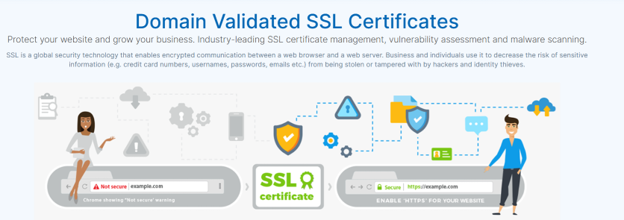
It’s also worth taking steps to secure your WordPress website with SSL and ensure your overall security posture is sound. Backups are a recovery tool, but prevention still matters.
IMPORTANT:
This isn’t legal advice, but these are practical steps every South African website owner should have in place.
Common WordPress Backup Mistakes to Avoid
Backups only protect you if they are set up and managed correctly. These are the errors that leave most website owners exposed when something goes wrong:
- Not Backing Up Often Enough: If your site changes weekly but you back up only monthly, you may lose weeks of content, orders, and data in a single incident.
- Storing Backups Only on the Server: A backup on the same server as your site won’t survive a server failure or a serious hack.
- Forgetting the Database: Without a database backup, your site’s design may be recoverable, but all your content will be lost.
- Forgetting Files and Media: A database alone won’t restore your theme, plugins, or uploaded images. You need both parts.
- Never Testing Restore Files: A backup that can’t be successfully restored isn’t a solution; it’s a false sense of security.
- Relying on an Outdated or Abandoned Plugin: A plugin that’s no longer maintained may stop working without warning or introduce security vulnerabilities.
- Not Backing Up Before Major Changes: Every update, redesign, or migration needs a fresh backup taken immediately beforehand.
- Not Organising Backup Files Properly: Poorly named files or those that aren’t labelled correctly make it difficult to identify the correct restore point when you’re under pressure.
- Giving Too Many People Access to Backup Files: Backup files contain sensitive data. Access should be limited to people who genuinely need it.
How to Test Whether a Backup Actually Works
A WordPress backup you’ve never tested is just an assumption. The only way to know it works is to restore it. Don’t do this on your live site. Use a staging site or a development environment where a failed restore won’t affect your real visitors. Most backup plugins like UpdraftPlus include a built-in restore function that explains the process.
Run a test restore periodically. Check that the files are intact, the database restores correctly, and the site loads as expected. If you find an issue during a test, you have time to fix it.
For larger WordPress sites, having a dedicated staging environment makes this easier to manage. VPS hosting for larger WordPress websites provides the resources and isolation to run a proper staging setup without affecting your live site.

When to Ask Your Hosting Provider or Developer for Help
Some situations go beyond what most website owners can handle alone. If any of the following apply, contact Domains.co.za support or find a developer to assist:
- Your site has been infected with malware and needs a clean restore.
- A backup restore has failed, and you can’t identify why.
- You’re migrating a large or complex WordPress site.
- You are running a WooCommerce store with a large product catalogue or order history.
- You’re dealing with a corrupted database.
- You are unfamiliar with phpMyAdmin, cPanel, or your hosting control panel.
If your business doesn’t yet have a proper domain or business email, now is a good time to register your business domain name and set up professional email hosting for your business.
A recoverable website, backed by a professional online presence, builds long-term credibility with your customers.
Final Thoughts: Backups Are Part of Responsible Website Ownership
A WordPress backup isn’t a one-time technical task you can forget about; it’s a habit that protects everything your website represents for your business. For South African businesses that depend on their site for leads, sales, and customer communication, a backup is what separates a quick fix from a costly rebuild.
Set up automatic backups, create manual backups before major changes, store copies in multiple locations, and test them regularly. That’s a straightforward routine that most website owners can implement without specialist assistance.
Protect your WordPress website with reliable hosting from Domains.co.za, built to support South African businesses with secure infrastructure, practical support, and easier site management.
![Strip Banner Text - See how Domains.co.za WordPress Hosting supports faster fixes and fewer surprises. [Learn More]](https://www.domains.co.za/articles/wp-content/uploads/2026/08/wordpress-error-logs-02.webp "See how Domains.co.za WordPress Hosting supports faster fixes and fewer surprises. [Learn More]")
Power Up Your Site: How to Install a WordPress Plugin
VIDEO: Power Up Your Site: How to Install a WordPress Plugin
FAQS
What is a WordPress backup?
A WordPress backup is a saved copy of your website’s files and database. If your site is hacked, broken by an update, or affected by a server issue, you can use the backup to restore it to its previous state.
What should a WordPress backup include?
A complete backup includes two parts: your website files (theme, plugins, media, core files, and configuration files) and your database (posts, pages, settings, orders, and user data). Both are required for a full restore.
What’s the difference between a full backup and a partial backup?
A full backup saves your files and database together. A partial backup saves only one part, either files or the database. Partial backups have specific uses but aren’t sufficient for a complete site recovery on their own.
How often should I back up my WordPress site?
It depends on how often your site changes. Brochure sites can manage with weekly or monthly backups. Blogs should be backed up at least weekly. WooCommerce stores should back up daily as a minimum, with more frequent backups for high-volume stores.
Where should I store my WordPress backups?
Store backups in multiple locations. Cloud storage services such as Google Drive, Dropbox, or Amazon S3 are reliable off-site options. An external hard drive adds an offline copy. Avoid storing backups only on your hosting server.
What is the 3-2-1 backup principle?
Keep at least three copies of your backup, stored across at least two different types of storage, with at least one copy off-site or in the cloud. This approach protects you against the most common failure scenarios.
What’s the best WordPress backup plugin?
UpdraftPlus, BackWPup, Jetpack Backup, and VaultPress are widely used options. Before choosing one, check that it’s actively maintained, compatible with your WordPress version, and supports the remote storage service you plan to use.
Can I back up my WordPress site without a plugin?
Yes. You can use an FTP or SFTP client to download your website files and phpMyAdmin to export your database manually. This method requires more technical confidence and takes longer, but it doesn’t depend on any third-party plugin.
Do WordPress backups contain personal data?
Yes. Backups can include names, email addresses, phone numbers, form submissions, WooCommerce order data, and user account details. Under POPIA, South African businesses are responsible for storing this data securely and limiting access to authorised users only.
How do I know if my backup works?
Test it by restoring it on a staging site or development environment. Most backup plugins include a restore function. Run through it periodically to confirm the files are intact, the database restores correctly, and the site loads as expected.
Other Blogs of Interest
- How To Fix Common WordPress Performance Issues
- How To Reinstall WordPress Without Losing Your Website Content
- Why WordPress Recovery Mode Matters When Your Website Breaks
- WooCommerce Shortcodes Make It Easier To Build A Better Online Store
- Export WordPress Site Is The Smartest Ways To Protect Your Website

Rhett isn’t just a writer at Domains.co.za – he’s our resident WordPress content guru. With over 8 years of experience as a content writer, with a background in copywriting, journalism, research, and SEO, and a passion for websites.
Rhett authors informative blogs and articles that simplify the complexities of WordPress, website builders, domains, and cPanel hosting. Rhett’s clear explanations and practical tips provide valuable resources for anyone wanting to own and build a website. Just don’t ask him about coding before he’s had coffee.