


WordPress Taxonomies Give Your Content Structure, Context, & Better Navigation
When a WordPress site is small, finding anything is simple: you have a few posts, one menu, and you know where everything is located. But as your content increases into dozens or hundreds of posts, pages, and products, that order slips. Your visitors struggle to see how your topics connect, and search engines are left to work out the relationships on their own.
This is what a WordPress taxonomy solves. It’s the system WordPress uses to group related content so both people and search engines can follow how your content fits together. Categories and tags are the two you’ve probably already met, but these are only the start.
This guide teaches you:
- All about taxonomies and terms.
- How the built-in options differ.
- When to use each one.
From there, we go deeper: building custom taxonomies with a plugin or with code, planning a structure that won’t cause problems later, and seeing how taxonomies affect your URLs, your SEO, and the ongoing job of keeping a large site tidy.
KEY TAKEAWAYS
- Taxonomies group related content for better navigation, filtering, and site structure.
- Categories are broad and required. Tags are specific and optional.
- Use custom taxonomies only for attributes people will really browse by.
- A post type defines what content is. A taxonomy classifies it.
- No show_in_rest, no taxonomy in the Block Editor.
- Keep taxonomy code in a site-specific plugin or child theme, never the parent theme.
- Plan your terms, hierarchy, and slugs before you scale.
- Keep archives meaningful, as thin or duplicate ones weaken SEO.
TABLE OF CONTENTS
What Is a WordPress Taxonomy?
A taxonomy is the system WordPress uses to group related content. It offers your posts a shared structure, so visitors and search engines can see how your topics connect rather than encountering a flat pile of pages with no order.
To understand this concept clearly, consider a supermarket, where products aren’t dropped on the shelves at random. They are sorted into aisles, and aisles sit within larger sections, so you can walk directly to whatever you need.
A WordPress taxonomy does the same job for your content. It sorts your posts into groups that make sense, then those groups guide people around your site.
WordPress includes several taxonomies by default, and you can create your own when the built-in ones aren’t enough. Everything in this guide grows from that one idea: content that’s grouped on purpose is easier to find, manage, and maintain.
Taxonomy vs Term: Simple Difference
These two words are often confused, but the difference is simple once you see it:
- A taxonomy is the classification system.
- A term is a single item inside that system.
For example, you run a property website. Here, Property Type is the taxonomy, the overall way you’re sorting listings. Apartment, House, and Commercialare the terms, the actual labels you put on each listing. The taxonomy is the container. The terms are what goes inside it.
This matters because you never file a post directly under a taxonomy; you file it under one or more terms. When someone says they’ve added a new category, what they’ve really done is add a new term to the Categories taxonomy. Keeping that split clear and your WordPress taxonomy terms consistent makes everything later, from planning to code, far easier to follow.
Why Taxonomies Matter for WordPress Content Organisation
WordPress taxonomies are the backbone of your site’s information architecture, the underlying plan for how everything is arranged. They feed your navigation menus and any filters you offer, so visitors can narrow a large library down to the few posts they want.
They also build archive pages for you. Every term gets its own page listing the content filed under it. These pages become useful landing spots and natural hubs for internal linking.
When you group your posts well by clustering related content around a topic, it helps readers find more of your work and encourages them to stay.
There are also some behind-the-scenes benefits:
- A clear set of taxonomies provides your whole team with a shared filing system.
- Content then stays consistent, even as different people add to it over months or years.
- Search engines gain from the same structure.
- When your content is grouped logically, crawlers can follow the connections between pages. That gives them a clearer map of what your site covers and how its topics relate.
4 Default WordPress Taxonomies
WordPress ships with four built-in taxonomies. There are two of them, categories and tags, that you will use all the time. The other two are used far less often, and most sites can leave them alone. Here’s what each one does and when it earns its place:
Categories
Categories group your posts under broad topics, and they are the one taxonomy WordPress treats as required. Every post needs at least one category. If you don’t choose a category, WordPress files the post under Uncategorised by default.
They are also hierarchical, which means you can nest them. A parent category called Recipes might hold child categories for Breakfast and Desserts. Each category has its own archive page listing its posts, and it can shape your post URLs when your permalink settings include the category name, for example /category/recipes/.

You can add a category in two places. The first is handy while you’re writing; the second is better when you want to plan your structure in advance.
To add one while editing a post:
- From your WordPress Admin Dashboard, open Posts and add a new post, or edit an existing one.
- In the editor, find Categories in the right-hand sidebar.
- Click Add Category.
- Type the name and choose a parent category if you want to nest it.
- Click Add Category to apply it to the post.

To add one from the categories management screen:
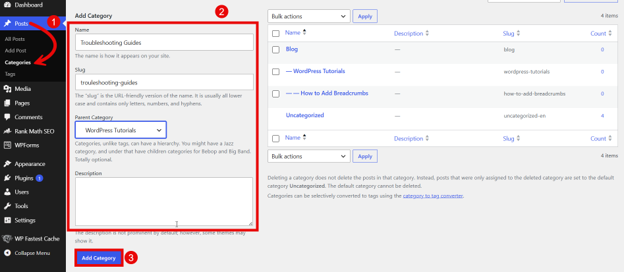
- Navigate to Posts → Categories.
- Enter the name, an optional slug, and a parent if it’s a subcategory. Then, add a description if you want one, as some themes show it on the category’s archive page.
- Click Add Category to save it.
Maintenance Tip: You can’t delete the Uncategorised category, but you can rename it to something more useful and set a better default under Settings → Writing. That stops stray posts collecting under a vague label.
Tags
Tags are the second WordPress taxonomy you often reach for, but they work the opposite way to categories. They are optional and non-hierarchical, so there’s no parent-child relationship.
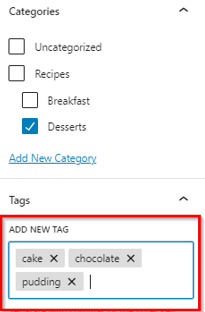
Rather than marking a broad section, a tag describes a specific detail inside a post. For example, a dessert recipe might carry tags for chocolate, cake, and no-bake.
Adding these follows the same pattern as categories. Type them into the Tags box while editing a post or set them up in advance under Posts → Tags. Because they are so quick to create, it’s easy to end up with far too many, so it pays to use them with restraint. We will discuss exactly when to reach for a tag over a category shortly.
Post Formats
Post formats sort posts by the type of content they contain rather than by their subject. The built-in formats include items such as aside, image, gallery, quote, audio, and video. A theme can use the format to style that post differently, for example, showing a quote post without a headline.

The catch is that post formats only work if your theme supports them. Many modern block themes don’t, so you may not see the option at all. Where a theme does support them, you’ll find the setting in the editor’s side panel. Unlike categories and tags, post formats are mainly about presentation, so they don’t usually offer visitors something to browse.
Link Categories
Link categories are a leftover from WordPress’s early days, when many sites kept a blogroll, a public list of links to other websites. This taxonomy grouped those external links into sets.
It’s the least used of the four categories by a wide margin. WordPress hid the built-in Links Manager back in version 3.5. On a current install, you won’t see link categories at all unless you add the Link Manager plugin to switch the feature back on. For almost every site today, it’s enough to know this one exists and move on.
Categories vs Tags: Which to Use & When
Now that you know how WordPress categories and tags behave, the practical question is which to reach for on a given post. The split is simpler than it seems at first. Categories are for the broad sections your site is built around. Tags are for the specific, repeating details that cut across those sections.
A good example to help you understand is to picture your menu. Categories are the handful of topics you’d happily list in your navigation, the pillars your content sits under. A cooking site might be organised around Recipes, Techniques, and Reviews. Because they shape your structure, you need only a few of them, and you want each one to hold a healthy number of posts over time.
However, tags work at a smaller scale. A tag marks a detail that recurs across different categories. On that same cooking site, chocolate, 30-minute, or vegetariancould each apply to posts filed under several sections at once. A tag earns its place when it links posts that readers would genuinely want to browse together.
That last idea is where tags often go wrong, so a few traps are worth naming:
- The first is the one-off tag, used on a single post. It creates an archive page with just one entry, which is thin and almost empty, and does nothing for readers or search engines.
- The second is duplicates. Type slightly different versions of the same idea and WordPress treats recipe, recipes, and Recipe as three separate terms, splitting your posts across pages that should be one. Agree on a naming rule and stick to it.
- The third is keyword stuffing. Piling on tags to chase search terms won’t increase your rankings. It clutters your posts and spreads your content thinly across weak pages.
What Custom Taxonomies Are & When They Make Sense
Categories and tags cover most essentials, but they only sort content in two ways: broad and specific.
Sometimes your content has other qualities worth grouping by, and that’s where custom taxonomies come in. A WordPress custom taxonomy is a classification system you create yourself. It sits alongside the built-in ones and behaves the same way, it’s just organised around a quality that matters to your site.
The clue that you need one is a structured attribute, a piece of information that repeats across your content and that people would want to filter or browse by.
On a property site, Province is a natural example. It isn’t a broad section, and it isn’t a loose detail. It’s a defined attribute of every listing, with a fixed set of values. Forcing this into categories or tags would muddle your structure, so it deserves a taxonomy of its own.
Custom taxonomies also bring proper order to sites with this type of content. They power precise filters, cleaner archives, and clearer links between related items.
These aren’t something every site should rush into. A simple blog or brochure site is usually served well just by WordPress categories and tags. Adding taxonomies you don’t really need just creates extra screens to manage and more structure to maintain, with nothing gained for your visitors. The value comes from a real match between the taxonomy and the way your content is organised.
Custom Taxonomy Examples for Different Websites
If you’re still confused about whether you should use taxonomies or not, let’s find out the answer by going through a few examples.
The easiest way to judge whether a custom taxonomy fits, is to see how different sites use it. In every case below, the taxonomy groups an attribute that visitors want to filter by. South African sites often lean on location for this reason, since customers tend to search by province, city, or suburb, and a location taxonomy lets them narrow results to their own area fast.
| Website Type | Custom Taxonomies That Work Well |
| Recipe Sites | Cuisine, Meal Type, Dietary Preference, Difficulty |
| Property and Real Estate | Property Type, Province, Suburb, Price Range |
| Portfolios and Agencies | Industry, Service Type, Project Type |
| Event Sites | Event Type, City, Venue, Speaker |
| Training and Course Providers | Course Topic, Skill Level, Delivery Method |
| Directories and Local Services | Business Type, Service Category, Province, Service Area |
Two more cases are worth a mention. Content that supports an online shop (e.g., the buying guides, comparisons, and FAQs that sit around your products) can be grouped by product type or by buyer need, so shoppers reach the correct advice without digging through your entire blog.
Local publishers and news sites apply the same thinking to their coverage, sorting articles by topic or region so readers can follow just the local business or technology stories they care about.
Across all of these, the rule from the previous section still holds. Build a custom taxonomy only for an attribute people will really browse by, and one you’re prepared to keep tidy as your content grows. A taxonomy nobody uses, or that fills up with messy terms, costs you more than it gives back.
Custom Taxonomies vs Custom Post Types
These two features are often confused because they usually appear together, but they do different jobs:
- A custom post type defines a kind of content.
- A custom taxonomy sorts that content into groups.
One is the thing itself, while the other is how you file it.
WordPress starts with a few built-in post types you already use, Posts and Pages. A custom post type adds a new kind of content beyond those. For instance, on a property website, Property would be a custom post type, because a listing isn’t really a blog post or a static page; it’s its own type of entry, with its own fields and its own screen in the dashboard.
Once that content exists, you still need to organise it, and that’s the taxonomy’s role. Property Type and Location are custom taxonomies attached to the Propertypost type.
They allow you to group and filter listings without changing what a listing is. So, the post type answers what the content is, while the taxonomy answers how it’s classified. Most structured sites use both together: a post type to hold the content and one or more taxonomies to simplify browsing.
Hierarchical vs Non-hierarchical Taxonomies
When you create a custom taxonomy, one of the first choices you’ll make is whether it should be hierarchical. You’ve already seen both models at work. Categories are hierarchical, so their terms can nest as parents and children. Tags are non-hierarchical, so their terms sit in a single flat list with no ranking between them.
Your custom taxonomy can follow either pattern. The right choice depends on the shape of your content.
- Choose hierarchical when your terms have a natural sense of broad and narrow. A Location taxonomy may hold a province as the parent and its cities as children, which mirrors how the places relate.
- Pick non-hierarchical when your terms are simply a set of equal labels with nothing sitting above them, for example, a Dietary Preference taxonomy where vegan, halal, and gluten-free all belong side by side.
Neither option is better on its own. A structure that matches how people already consider your content will always be easier to browse and to maintain than one forced into the wrong shape.
How WordPress Taxonomy Shapes URLs & Archive Pages
Every term you create receives its own web address, so taxonomies quietly build a chunk of your URL structure as you go. The key piece is the slug, the short, URL-friendly version of a term’s name. A term called Cape Town gets the slug cape-town, and that slug becomes part of the link to its archive page.
Those archive pages follow a set pattern:
- Category archives sit under /category/.
- Tag archives sit under /tag/.
- A custom taxonomy’s archives sit under whatever slug you gave the taxonomy itself, for example /property-type/apartment/.
Knowing the pattern allows you to visualise the URLs your site will generate before any visitor sees them.
This is why it pays to plan your slugs before you publish at scale. Once pages are live and indexed, altering a slug changes its URL, which breaks old links and means setting up redirects to avoid dead ends. So, ensure you decide on clean, sensible slugs early to save that cleanup later.
One technical snag that catches people out is with custom taxonomies added through code. New archive pages sometimes return a 404 error at first, because WordPress hasn’t refreshed its list of URL rules. To fix it, go to Settings → Permalinks, and click Save Changes without editing anything. This refreshes the rules and brings the archive pages to life.

How Taxonomies Affect SEO & User Experience
Taxonomies and SEO have a real but often overstated relationship. A sensible taxonomy strengthens your WordPress SEO structure in a few concrete ways:
- It creates clear crawl paths, so search engines can move through your site and reach your posts by following category and tag links.
- It groups related content around shared topics, which helps search engines see what you cover in depth.
- The archive pages it produces add internal links that pass authority around your site.
What taxonomies won’t do is lift your rankings on their own. Grouping posts is housekeeping, not a ranking trick, and the content itself still must be worth ranking.
Taxonomies can even work against you when they’re handled carelessly. For instance, thin archive pages holding one or two posts, or several near-identical archives built from duplicate terms, give search engines weak, repetitive pages to crawl.
That dilutes the quality signals across your site rather than strengthening them. The answer isn’t to avoid archives, but to keep them meaningful, and to consider hiding genuinely thin ones from search results.
The user experience gain is more direct. Clear categories, useful filters, and well-stocked archive pages allow visitors to move from one relevant post to the next without having to hunt through your entire site.
Someone who lands on a single article can follow its category to a page full of related reading. That keeps people engaged for longer, and the same structure that helps them also tends to help search engines.
Plan WordPress Taxonomy Strategy Before You Build
The sites that remain orderly for years are the ones that considered structure before creating a single term. A short planning session upfront saves plenty of cleanup later, especially once you’re dealing with hundreds of posts.
Before you build anything, ask these questions:
- What content needs organising, and what problem are you solving?
- What terms will your visitors instantly understand? Use their words, not internal jargon.
- Is this best as a category, a tag, a custom taxonomy, or a custom post type?
- Should the taxonomy be public, or is it only for behind-the-scenes filing?
- Does it require its own archive pages, or will it live inside the dashboard alone?
- Will people use it to filter content on the front end?
- Do its terms need a parent-child hierarchy, or is a flat list enough?
- What will its slugs and URLs look like once content is live?
- Who owns it, and who keeps the term list clean as the site grows?
That last question is the one people skip most, and it’s often the most important. A WordPress taxonomy is only as useful as it is tidy, so someone must own it. Answer these questions before you start, and you’ll build a structure that suits your content and holds up as it grows.
How to Create a Custom Taxonomy in WordPress
There are two main ways to add a custom taxonomy. The first uses a plugin and requires no code, so it suits content managers and site owners who work from the dashboard. The second uses a small piece of code and gives developers full control. Both produce the same result, so choose the one that matches your comfort level.
Method 1: Use Custom Post Type UI Plugin
The simplest route is Custom Post Type UI, a free, widely used plugin that allows you to build taxonomies from the dashboard. To continue with this method, you first need to install and activate this WordPress plugin.
With that done, here’s how to create your taxonomy:
- In the dashboard, go to CPT UI → Add/edit taxonomies.
- In the Taxonomy Slug field, enter a short, lowercase name. If it runs to more than one word, separate the words with a hyphen, for example property-type.
- Fill in the Plural Label and Singular Label, for example Locations and Location. These are the names you will see around the dashboard.
- Under Attach to Post Type, tick the content this taxonomy should apply to, whether it’s posts, pages, or a custom post type.
- To make it behave like categories, navigate to CPT UI → Add/edit taxonomies → Edit Taxonomies → Settings and set Hierarchical to True. Leave it False for tag-style behaviour.
- Click Add Taxonomy to save it.
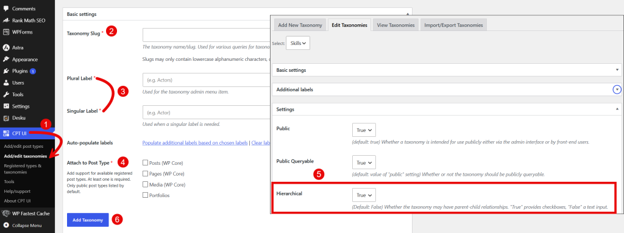
Your new taxonomy now appears in the sidebar of the post editor, ready to use. If you need to change a setting later, return to the CPT UI, then go to Add/edit taxonomies and open the Edit Taxonomies tab to adjust it.
Method 2: Write Code to Register WordPress Taxonomy
Developers who want precise control can register a taxonomy in code with the register_taxonomy() function, hooked to WordPress’s init action so it loads at the correct point. The example below creates a hierarchical Location taxonomy and attaches it to standard posts:
// Register a custom "Location" taxonomy
function mysite_register_location_taxonomy() {
    $labels = array(
        'name'          => 'Locations',
        'singular_name' => 'Location',
        'search_items'  => 'Search Locations',
        'all_items'     => 'All Locations',
        'parent_item'   => 'Parent Location',
        'edit_item'     => 'Edit Location',
        'add_new_item'  => 'Add New Location',
        'menu_name'     => 'Locations',
    );

    $args = array(
        'labels'            => $labels,
        'hierarchical'      => true,  // true behaves like categories, false like tags
        'public'            => true,
        'show_admin_column' => true,  // adds a column to the post list screen
        'show_in_rest'      => true,  // needed for the Block Editor and REST API
        'rewrite'           => array( 'slug' => 'location' ),
    );

    register_taxonomy( 'location', array( 'post' ), $args );
}

add_action( 'init', 'mysite_register_location_taxonomy' );
To make the taxonomy behave like tags instead, change hierarchical to false. And to attach it to a custom post type rather than standard posts, swap post in the last line for your post type’s slug, for example ‘property’.
Why show_in_rest Matters
You’ll notice show_in_rest is set to true in the code above, and it’s easy to miss how much it matters. The Block Editor, the default editor built on WordPress blocks, runs on the REST API. If a taxonomy isn’t exposed to that API, it simply won’t appear in the editor’s sidebar, even though it exists and works elsewhere.
So, if you register a taxonomy and can’t find it while editing a post, this setting is the first thing to check. Set show_in_rest to true, and it appears where you expect it. The plugin method handles this behind the scenes for you, which is one reason it trips up only a few people.
Where Your Taxonomy Code Should Live
If you’re using code, where you put it matters as much as the code itself. The wrong location can wipe out your work later. Avoid adding it to your parent theme’s functions.php file. Anything you place there is lost the moment the theme updates, and one small error saved through the built-in Theme File Editor can take your whole site down and lock you out of the dashboard.
A taxonomy is site functionality, so it belongs with your site rather than your theme. The most reliable home is a site-specific plugin, which is just a simple plugin file you create to hold your own custom code.
Because it’s separate from the theme, your taxonomy keeps working even if you switch themes later. If the taxonomy genuinely only makes sense with one theme, a child theme’s functions.php is a reasonable alternative, since a child theme survives updates to its parent.
Either way, keep the code out of the parent theme.
Showing Taxonomies to Visitors: Front End, Menus, & Filters
Creating a taxonomy is only half the job. It must also appear where visitors can use it. Categories and tags usually handle this for you, since most themes automatically display their terms, often as links beneath a post or in a sidebar widget.
Custom taxonomies are less predictable. Some themes display them without any extra work, but many don’t, so you may need theme support or a small template change to surface their terms on the page.
That template work is where developers step in. To display a custom taxonomy’s terms, you edit the relevant theme template, and while you’re there, you can also pull in other post data.
The get_post_meta function, for example, fetches a post’s custom field values, so a single template can show a listing’s taxonomy terms alongside details held in custom fields.
Beyond individual posts, taxonomies drive the ways people navigate your whole site. You can add category or custom taxonomy terms directly into a navigation menu under Appearance → Menus, and if you want those links in your site’s header, our guide on editing the WordPress header shows you how.
Taxonomies also power the archive pages behind filtered views, directories, and faceted browsing, where visitors combine several filters at once, for instance narrowing listings by province, property type, and price range together. Setups this advanced usually rely on a dedicated filtering plugin, but every one of them is built on the taxonomies you’ve put in place.
Load-Shedding & Content Findability
South African websites face a challenge most sites elsewhere don’t: load-shedding. It’s worth being honest about what a taxonomy can and can’t do in this case. A taxonomy won’t keep your site online during a power cut, and it won’t shorten an outage. That’s the job of your hosting and infrastructure, not your content structure.
What good grouping does help with is when your customers need information fast. During load-shedding, people are often in a hurry and low on patience, checking their phones between other tasks. If your content is well organised, people can reach what they need in a couple of taps: self-service pages, support resources, current availability or status updates, FAQs, and any notices you’ve posted. A clear category or a well-placed filter turns a frantic search into a quick answer.
So, the benefit is findability under pressure. Group your support and status content thoughtfully, and your site stays genuinely useful at the exact moment your customers are most stressed.
POPIA & Taxonomy Planning
South Africa’s Protection of Personal Information Act, or POPIA, sets rules for how personal information is handled. This isn’t legal advice, but it’s worth considering where taxonomies fit in, because it’s easy to treat them as purely technical and forget the content beneath them.
A taxonomy itself is merely structure. Supervision is required for what it groups and where it ends up, and a few everyday scenarios deserve a second look. Public archive pages can surface information you didn’t mean to publish widely, since every term pulls its posts into one browsable page. Directory listings often hold personal details, contact numbers, addresses, or names, all neatly filtered by your taxonomies.
Also, user-generated content, such as the comments and reviews people leave, can contain personal information, so this requires a moderation and publishing workflow rather than going live unchecked.
Two more areas sit behind the scenes:
- Data exports pull your content, and any personal information in it, out of WordPress in a single file, so handle those exports with care.
- The same goes for WordPress backups, which copy everything, personal data included. These should be stored securely rather than left lying around.
Here, the practical takeaway is to control who can access and publish taxonomy-grouped content and consider where that content travels once it leaves the editor.
Best Practices & Common Mistakes
You’ve now met every part of a healthy WordPress taxonomy setup. Here’s the short version to keep close, gathering the key habits into a single place:
- Keep your naming simple and consistent, using the words your visitors would use rather than internal jargon.
- Lean on categories for broad topics and tags for recurring details and use tags sparingly.
- Reserve custom taxonomies for structured attributes people will browse by.
- Plan your archives so each one holds real content, not a single stray post.
- Keep one controlled term list and stick to it, so duplicates never creep in.
- Use a parent-child hierarchy only when your terms genuinely nest.
- Check how your taxonomy pages look on the front end, not just in the dashboard.
- Review your analytics and search data regularly and prune any taxonomy that isn’t earning its keep.
These common errors are simply these habits reversed: vague or duplicated terms, tags scattered across every post, custom taxonomies built for their own sake, and archives left thin and unchecked. The thread running through all of these is the same. Taxonomies fail when they are created and then forgotten. A little upkeep is what keeps the whole system working.
Troubleshooting Custom Taxonomy Issues
Even a well-planned taxonomy can misbehave, and most problems trace back to a handful of causes. Run through these first:
- Taxonomy Is Missing from the Post Editor: It almost always means show_in_rest wasn’t set to true when it was registered.
- Terms Aren’t Showing on the Front End: The theme probably has no template for that taxonomy, so its terms have nowhere to display.
- Archive Pages Return a 404: Refresh your permalinks under Settings → Permalinks to rebuild the URL rules.
- Taxonomy Is Attached to the Incorrect Content: Check the post types it was registered against, in your code or the plugin’s settings.
- Two Things Share a Slug: A taxonomy and a page, or two taxonomies, can clash over the same slug. Rename one to clear the conflict.
- Taxonomy Has Vanished After a Plugin Change: If a plugin created it, deactivating that plugin stops the taxonomy from displaying. The stored terms remain, but you’ll need the plugin to be active to see them.
- Old Settings Keep Appearing: This is usually caching. Clear your site and browser cache to see the current state.
When a problem is harder to pin down, turn on WordPress debug mode to surface the underlying PHP errors and point you towards the cause.
When to Ask a Developer for Help
Some work is better handed to a developer from the start.
This includes:
- Designing custom post type and taxonomy architecture for a large site.
- Building custom archive templates.
- Setting up faceted search.
- Deciding which archives search engines should index.
This also covers heavier data jobs, migrating old categories and tags, cleaning up terms in bulk, or creating and assigning content in code, along with WooCommerce or directory taxonomy work. And if the issue turns out to be hosting rather than WordPress itself, Domains.co.za support can help you sort it out.
Final Thoughts
It’s irresistible to treat taxonomies as backend maintenance, a set of labels only you ever see. They are far more than that. The way you group your content quietly shapes how three different audiences experience your site:
- Visitors finding their way around.
- Your team keeping content consistent.
- Search engines working out what you cover and how it all connects.
You don’t need to build everything at once. Start with the categories and tags WordPress provides, plan before you create, and add custom taxonomies only when your content genuinely calls for them. Get the structure right early, and it will carry a growing site for years, instead of becoming a mess you must untangle later.
A clean structure works best on solid ground. You can build a better-organised WordPress website with reliable WordPress Hosting in South Africa, backed by a secure infrastructure, practical local assistance, and hosting options designed for growing South African businesses.
![Strip Banner Text - Build your growing WordPress site on hosting that keeps it fast, secure, and always within reach. [Get started]](/articles/wp-content/uploads/2026/10/wordpress-taxonomy-02.webp "Build your growing WordPress site on hosting that keeps it fast, secure, and always within reach. [Get started]")
Power Up Your Site: How to Install a WordPress Plugin
VIDEO: Power Up Your Site: How to Install a WordPress Plugin
FAQS
Can one post sit in more than one category at the same time?
Yes. A single post can belong to several categories and carry many tags simultaneously. That said, a post filed under five or six categories usually points to a structure that is too broad. It’s cleaner to give each post one main category, add a second only when it genuinely fits, and let tags handle the finer details.
Do too many tags or categories slow down a WordPress site?
For most sites, no. WordPress comfortably handles ordinary numbers of terms. Slowdowns tend to appear only on very large sites running complex filters across thousands of terms, and even then, it’s the queries and page-building that take time, not the terms themselves. The bigger risk of overdoing tags is a messy, hard-to-browse site rather than a slow one.
Should I let search engines index my category and tag archives?
It depends on how strong those archives are. A well-stocked category archive can be a useful landing page worth indexing. Thin tag archives holding one or two posts often aren’t, and letting search engines index lots of near-empty pages can weaken your site’s quality signals. Most SEO plugins allow you to set archives to noindex, so you can keep the useful ones visible and hide the weak ones.
Can I rename or merge taxonomy terms without editing every post by hand?
Renaming is effortless. WordPress stores each term by a fixed ID, so when you rename it, the change applies everywhere that term is used, with no need to touch individual posts. Merging two terms into one isn’t built into WordPress core, though, so you’ll usually need a term-management plugin or a developer to cleanly combine them and reassign the affected posts.
Is there a limit to how many categories, tags, or custom taxonomies I can create?
There’s no practical hard limit in WordPress itself, so the real limit is how much you can keep uncluttered. Every term you add is another page, and another item to maintain, and a sprawling, half-managed structure helps nobody. Create terms because visitors will use them, not simply because you can, and prune the ones that never earn their keep.
Other Blogs of Interest
- The wp_get_attachment_image Function Makes WordPress Image Output Cleaner & More Reliable
- WordPress Stuck In Maintenance Mode? Here’s What It Means & How To Prevent It
- WordPress Blocks Make Website Customisation Easier Without Being Into A Developer
- WordPress Widgets Help You Add Useful Features Without Rebuilding Your Website
- The WordPress Admin Dashboard Is Where Website Management Really Begins

Rhett isn’t just a writer at Domains.co.za – he’s our resident WordPress content guru. With over 8 years of experience as a content writer, with a background in copywriting, journalism, research, and SEO, and a passion for websites.
Rhett authors informative blogs and articles that simplify the complexities of WordPress, website builders, domains, and cPanel hosting. Rhett’s clear explanations and practical tips provide valuable resources for anyone wanting to own and build a website. Just don’t ask him about coding before he’s had coffee.