


This guide explains what web hosting disk space is used for and how it affects your hosting account on Domains.co.za.
Web hosting disk space is often associated only with website files, but it actually includes much more than just your website content. Hosting storage space is used for a variety of services and account data, which are stored on your hosting server.
Understanding how disk space is allocated can help you manage your hosting account more efficiently and avoid reaching storage limits unexpectedly.
Disk space on a hosting account can be used for:
- Website files.
- Images and videos.
- Databases.
- Emails.
- Backups.
- Logs.
- Installed applications.
Every file stored on your hosting server contributes towards your overall disk usage.
TABLE OF CONTENTS
How to Check Disk Space Usage in cPanel
1. Login to the Domains.co.za Customer Portal using your account credentials.
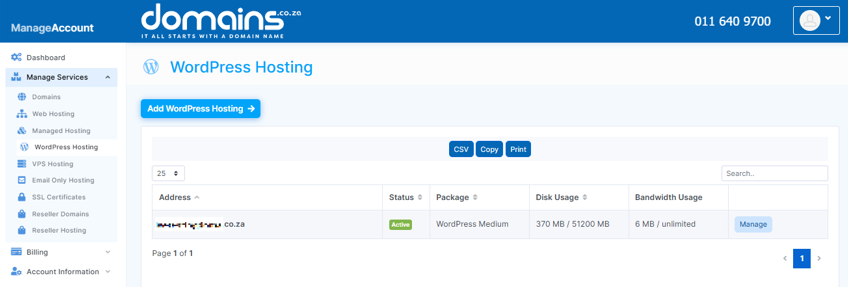
2. Open the Manage Services dropdown menu from the main dashboard navigation.
3. Select Web Hosting from the available service options.
4. Locate the hosting package linked to your domain name and click Manage.
5. Click Login next to Control Panel to access cPanel.

6. Locate Files and click Disk Usage.

7. Review the storage usage statistics displayed for your account directories.
8. Identify directories consuming large amounts of space and manage unnecessary files if required.
Additional Information
- Website images and media files often consume the largest portion of hosting storage.
- Email accounts and attachments also contribute significantly to disk usage.
- Databases used by CMS platforms like WordPress require hosting storage space.
- Backup files stored on the server can rapidly increase disk usage.
- If not managed, temporary files and server logs may accumulate over time.
- Deleting unused themes, plugins, and backups can help free storage space.
- Disk usage can affect website performance if server limits are exceeded.
- Regular monitoring of storage usage is recommended for maintaining account health.
Login to Domains.co.za Account
1. Go to the Domains.co.za website Account Login page.

2. Enter your Email and Password and click the Sign In button.
3. You will see the Domains.co.za Dashboard, displaying the Manage Account menu on the left and your Account Information, Account Overview and Open Support Tickets on the right.


