


This guide will show you how to chech or change PHP versions supported on Domains.co.za hosting services and explains why keeping PHP regularly updated is important.
PHP is a widely used scripting language that powers many websites and web applications, including popular content management systems such as WordPress. It is responsible for generating dynamic content, processing forms, interacting with databases, and handling website functionality behind the scenes.
Domains.co.za Web Hosting plans support multiple PHP versions to ensure compatibility with both modern and legacy applications. Using the latest stable PHP version is generally recommended for improved performance, security, and compatibility.
TABLE OF CONTENTS
Supported PHP Versions
Domains.co.za currently supports the following PHP versions on Linux cPanel and WordPress Hosting plans:
- PHP 7.4
- PHP 8.1
- PHP 8.2
- PHP 8.3
- PHP 8.4
Current Recommendations
- It is recommended to use newer PHP versions for improved website performance and security.
- Before upgrading PHP, always confirm that your website themes, plugins, and applications are compatible with the selected version.
- Testing website functionality in a staging environment before updating a live website is strongly advised.
- Older PHP versions may eventually stop receiving security updates from the official PHP development team.
How to Check or Change PHP Versions in cPanel
1. Login to the Domains.co.za Customer Portal.
2. Open the Manage Services dropdown menu.
3. Select Web Hosting from the list of services.
4. Click Manage next to the hosting domain you wish to access.

5. Click Login next to Control Panel to open cPanel.

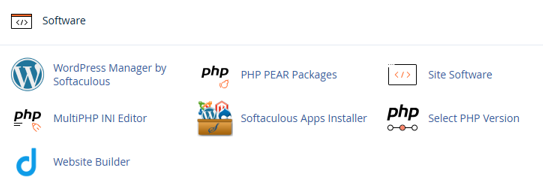
6. Scroll to Software and click MultiPHP Manager.
7. Select the domain you wish to manage.
8. Choose the preferred PHP version from the dropdown menu.
9. Click Apply to save the selected PHP version.
Additional Information
- Newer PHP versions generally offer faster execution speeds and improved memory efficiency.
- Running outdated PHP versions may expose websites to security vulnerabilities.
- WordPress websites typically benefit from newer PHP versions through better speed and compatibility.
- Some older applications may still require legacy PHP versions to function correctly.
- Plugins and themes should always be updated before changing PHP versions.
- The cPanel MultiPHP Manager tool allows users to assign different PHP versions to different domains.
- PHP updates can improve compatibility with modern technologies such as HTTP/2 and newer database systems.
- Regular website testing after PHP updates helps identify compatibility issues quickly.
Login to Domains.co.za Account
1. Go to the Domains.co.za website Account Login page.

2. Enter your Email and Password and click the Sign In button.
3. You will see the Domains.co.za Dashboard, displaying the Manage Account menu on the left and your Account Information, Account Overview and Open Support Tickets on the right.


