


Managing blog subscribers is an important part of maintaining your WordPress website and audience engagement. Over time, you may need to remove subscribers who no longer wish to receive updates, those with inactive accounts, or those who should no longer have access to private content.
WordPress allows administrators to manage subscriber accounts directly from the dashboard, making it easy to remove users while maintaining control over blog access and notifications.
This guide explains how to delete a blog subscriber in WordPress.
TABLE OF CONTENTS
How to Delete a Blog Subscriber in WordPress
1. Login to the Domains.co.za Customer Portal using your account credentials.
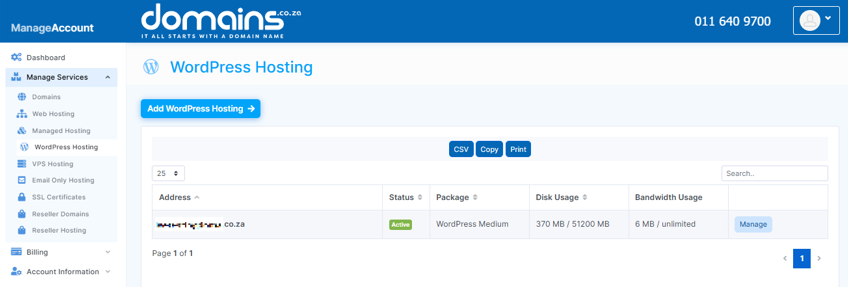
2. Navigate to Manage Services from the dashboard menu.
3. Select your WordPress Hosting package and click Manage.
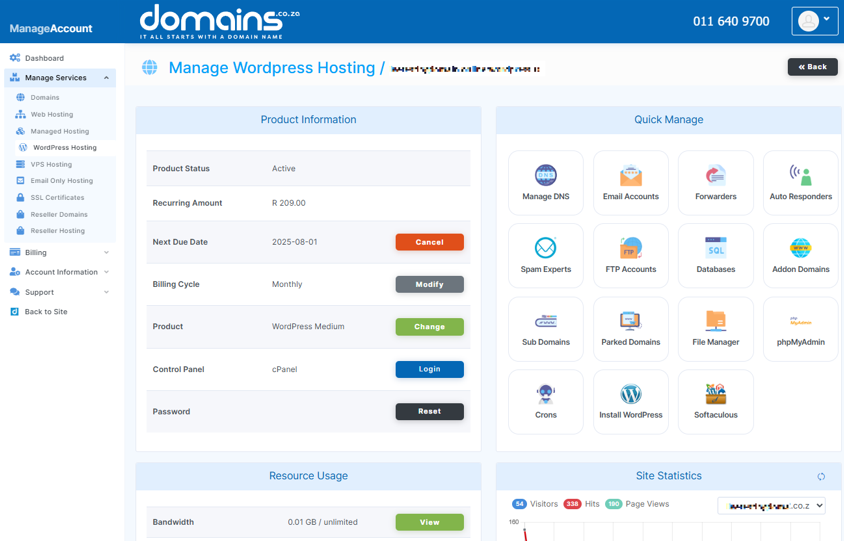
4. Click Login to cPanel to access your hosting control panel.
5. In cPanel, locate the WordPress Manager.

6. In the left-hand menu, navigate to Users, then select Subscribers or All Users.
7. Locate the subscriber you wish to remove from the list.
8. Click the options menu or hover over the subscriber’s name.
9. Select Delete or Remove.
10. Confirm the deletion when prompted.
11. Verify that the subscriber no longer appears in the user list.
Additional Information
- Removing subscribers prevents them from receiving future blog notifications.
- Deleted subscribers lose access to private blog content immediately.
- Subscriber management helps maintain a clean, organised user database.
- Privacy regulations may require removal of subscriber data upon request.
- WordPress allows administrators to export subscriber lists before making changes.
- Newsletter plugins may require separate subscriber removal processes.
- Subscriber roles have limited permissions compared to editors or administrators.
- Regularly reviewing subscriber lists can improve website security and user management.
Login to Domains.co.za Account
1. Go to the Domains.co.za website Account Login page.

2. Enter your Email and Password and click the Sign In button.
3. You will see the Domains.co.za Dashboard, displaying the Manage Account menu on the left and your Account Information, Account Overview and Open Support Tickets on the right.


