


WordPress themes control the appearance, layout, and design of your website. Over time, many website owners install multiple themes while they test new designs, troubleshoot issues, or explore different functionality. Although inactive themes do not affect visitors in the same way as the active theme, keeping unnecessary themes installed can create additional maintenance requirements, increase backup sizes, consume storage space, and potentially introduce security risks if those themes become outdated.
Deleting unused WordPress themes is an important part of routine website maintenance. However, removing the wrong theme or deleting a theme still required by your website can result in display problems, missing functionality, or an inaccessible website.
This guide explains how to safely delete a theme in WordPress using the WordPress Dashboard, cPanel File Manager, FTP/SFTP, or WP-CLI. It also explains what to check before deleting a theme and what to do afterwards to ensure your website continues functioning correctly.
TABLE OF CONTENTS
Why Delete Unused WordPress Themes?
Unused themes can create unnecessary clutter within a WordPress installation. While inactive themes generally do not significantly impact website speed, they can increase storage usage, enlarge backup files and require ongoing updates.
Keeping outdated or abandoned themes installed may also introduce security concerns if vulnerabilities are discovered and no updates are available.
Removing unused themes can help you:
- Reduce maintenance requirements.
- Keep your WordPress installation organised.
- Reduce backup sizes.
- Improve security by removing outdated code.
- Simplify theme management.
- Make troubleshooting easier.
Before You Delete a WordPress Theme
Before deleting any theme, complete the following checks.
- Back Up Your Website First: Always create a full backup of your website files and database before deleting a theme. This provides a recovery option if something goes wrong during the process. This is especially important for business websites, membership websites, and ecommerce stores.
- Ensure the Theme Is Not Active: WordPress will not allow you to delete the currently active theme through the Dashboard.If you manually delete the active theme through File Manager, FTP, or WP-CLI, your website may become inaccessible or display incorrectly.
- Check for Child Themes: A child theme relies on its parent theme to function correctly. If an active child theme is being used, do not delete its parent theme. Removing the parent theme may cause styling and functionality issues across your website.
- Check for Theme-Specific Features or Shortcodes: Some themes include custom shortcodes, widgets, templates, page builders, or custom post types. If these features are used throughout your website, deleting the theme may leave broken content or missing functionality behind.
- Test on a Staging Site Where Possible: If your website is important to your business, consider testing theme removal in a staging environment before making changes to the live website. This allows you to identify any unexpected issues before affecting visitors.
Method 1: Delete a Theme from the WordPress Dashboard
This is the easiest and safest method for most users.
Step 1: Access Your Hosting Account
1. Login to the Domains.co.za Customer Portal using your account credentials.
2. Navigate to Manage Services from the dropdown menu.
3. Select your WordPress Hosting package and click Manage.
4. Click Login to cPanel to access your hosting control panel.
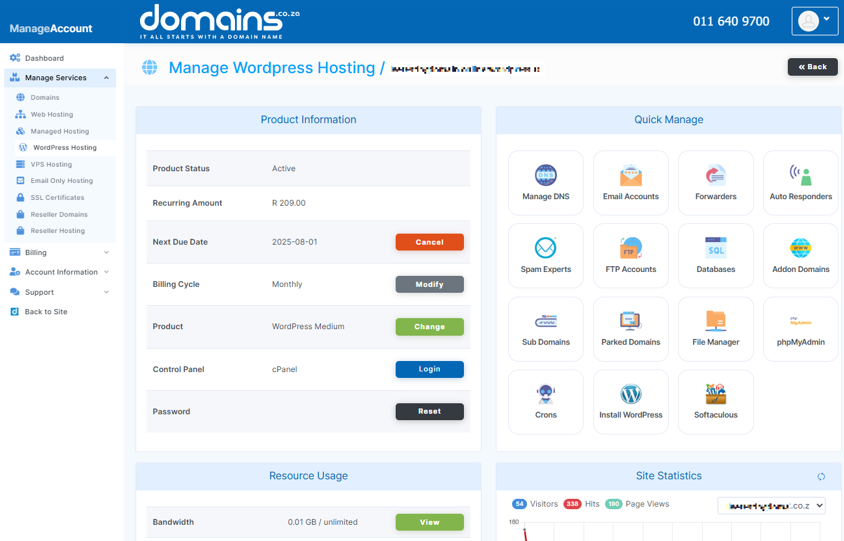
Step 2: Open the WordPress Dashboard
1. Open your WordPress Admin Dashboard.
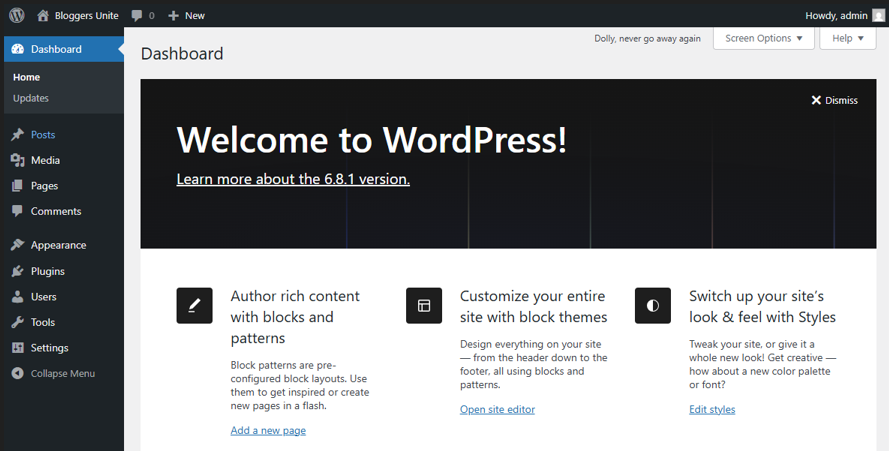
2. Select Appearance from the left-hand menu.
3. Click Themes.
Step 3: Confirm the Theme Is Inactive
1. Verify which theme is currently active.
2. If the theme you want to remove is active, activate a different theme first.
Step 4: Open Theme Details
1. Click the theme you wish to delete.
2. Wait for the Theme Details window to open.
Step 5: Click Delete & Confirm
1. Click Delete in the bottom-right corner.
2. Confirm the deletion when prompted.
WordPress will remove the selected theme files from the website.
Method 2: Delete a Theme Using File Manager
This method is useful if the WordPress Dashboard is unavailable or the theme cannot be removed normally.
Step 1: Access cPanel
1. Login to the Domains.co.za Customer Portal using your account credentials.
2. Navigate to Manage Services from the dropdown menu.
3. Select your WordPress Hosting package and click Manage.
4. Click Login to cPanel to access your hosting control panel.
Step 2: Open File Manager
1. Open File Manager from cPanel.
2. Locate your WordPress installation directory.
For many websites this will be:
public_html/However, the root directory may differ depending on your hosting configuration.
Step 3: Navigate to the Themes Directory
Open:
public_html/wp-content/themes/Step 4: Select the Correct Theme Folder
1. Carefully identify the theme folder you wish to remove.
2. Confirm that the folder does not belong to the active theme or a required parent theme.
Step 5: Delete the Theme Folder
1. Select the theme folder.
2. Click Delete.
3. Confirm the deletion.
Removing the folder permanently removes the theme from the server.
Method 3: Delete a Theme Using FTP or SFTP
This method is suitable for users who are comfortable managing website files directly and may be useful if the WordPress Dashboard is unavailable.
Step 1: Access Your Hosting Account
1. Login to your Domains.co.za account and access cPanel.
Step 2: Obtain Your FTP or SFTP Details
1. Locate your FTP or SFTP account information within your hosting account.
2. Make a note of the hostname, username, password, and port number.
3. Ensure you have an FTP or SFTP client installed, such as FileZilla.
Step 3: Connect to Your Website
1. Open your FTP or SFTP client.
2. Enter the connection details.
3. Connect to the hosting account.
Step 4: Navigate to the Themes Directory
1. Browse to your WordPress installation folder.
2. Open the following directory:
wp-content/themes/The installation directory is often located inside:
public_html/However, the root directory may differ depending on your hosting setup.
Step 5: Identify the Correct Theme Folder
1. Review the list of installed theme folders.
2. Confirm that the folder belongs to an inactive theme.
3. Verify that it is not the active theme or a required parent theme.
Step 6: Delete the Theme Folder
1. Select the theme folder.
2. Delete the folder from the server.
3. Confirm the deletion if prompted.
The theme will be permanently removed from your WordPress installation.
Method 4: Delete a Theme Using WP-CLI
WP-CLI is an advanced command-line tool designed for developers and experienced website administrators.
Step 1: Connect to the Server Using SSH
1. Ensure SSH access is available on your hosting environment.
2. Connect to the server using your preferred SSH client.
3. Confirm that WP-CLI is installed and available.
Step 2: Navigate to the WordPress Installation Directory
1. Use the terminal to access the WordPress root directory.
2. Ensure you are working within the correct WordPress installation.
Step 3: List Installed Themes
Run the following command:
wp theme listThis command displays installed themes along with their status and version information.
Step 4: Delete the Inactive Theme
Run the following command:
wp theme delete theme-nameReplace:
theme-namewith the actual theme folder name.
WP-CLI will remove the selected theme from the installation.
What to Do After Deleting a WordPress Theme
Once the theme has been removed, perform several checks to ensure your website is functioning correctly.
Clear Your Website Cache
Cached files may continue displaying old design elements after the theme has been removed.
Clear any:
- Website cache.
- Browser cache.
- CDN cache.
- Server cache.
Check the Website for Display Issues
Review your website thoroughly, including:
- Homepage.
- Key landing pages.
- Service pages.
- Blog posts.
- Contact forms.
- Product pages.
- Header and footer areas.
- Mobile layouts.
Check for Broken Shortcodes or Missing Widgets
If the deleted theme included custom shortcodes, widgets, templates, or page builder integrations, some content may no longer display correctly. Review affected pages and replace any missing functionality where necessary.
<a href=”https://www.domains.co.za/knowledgebase/site-builder/change-the-template/” alt=”Link to Knowledgebase – Do I Have To Redo My Website When I Change The Template” title=”Domains.co.za – Do I Have To Redo My Website When I Change The Template” target=”_blank” rel=”noopener”>
Review Error Logs If Something Looks Wrong
If you encounter unexpected behaviour after deleting a theme, review available WordPress debug logs or server error logs to identify the cause.
How Many WordPress Themes Should You Keep Installed?
In most cases, it is recommended to keep:
- Your active theme.
- One default WordPress theme as a fallback.
Keeping a default theme available can help with troubleshooting and recovery if problems occur with the active theme. There is usually no benefit to keeping multiple unused themes installed unless they serve a specific purpose.
Troubleshooting Common Theme Deletion Problems
- Delete Button Not Visible: WordPress only displays the Delete option for inactive themes. Activate a different theme before attempting to remove the theme.
- Theme Is Active: The active theme cannot be deleted through the WordPress Dashboard. Switch to another theme before proceeding.
- Parent Theme Is Required by a Child Theme: If an active child theme depends on a parent theme, deleting the parent theme may break the website’s appearance and functionality. Verify all theme dependencies before deletion.
- File Permissions Prevent Deletion: Incorrect file permissions may prevent themes from being removed through WordPress, File Manager, or FTP. Contact Domains.co.za Support if you are unsure how to adjust permissions safely.
- Dashboard Is Inaccessible: If you cannot access WordPress, use File Manager or FTP/SFTP to remove the inactive theme.
- Accidentally Deleted the Wrong Theme: Restore the theme from a recent backup or reinstall the theme manually from the original source.
- Site Layout Changed After Deletion: The deleted theme may have provided layouts, templates, widgets, or styling that were still being used elsewhere on the website. Review affected pages and restore any missing functionality.
- Theme-Specific Shortcodes Remain in Content: Some themes add proprietary shortcodes that remain visible after the theme is removed. Replace these shortcodes with alternatives or rebuild the affected content using your current theme.
Additional Information
- Deleting a WordPress theme does not remove your posts, pages, media files, or user accounts.
- Theme-specific settings, templates, widgets, and shortcodes may stop functioning after a theme is removed.
- Inactive themes should still be updated if they remain installed on your website.
- A complete website backup should always be created before deleting themes, particularly on live business websites.
- Testing theme removal on a staging website can help identify potential issues before affecting visitors.
- The WordPress installation directory is often located within public_html, but hosting environments may use different folder structures.
- WP-CLI is intended for advanced users and should only be used when you are comfortable working with command-line tools.
- Keeping one default WordPress theme installed provides a useful fallback option for troubleshooting.
- Clearing all caches after deleting a theme helps ensure visitors see the most recent version of your website.
- If you are uncertain about theme dependencies, file permissions, SSH access, or recovery procedures, contact Domains.co.za Support or a qualified WordPress developer before proceeding.
Login to Domains.co.za Account
1. Go to the Domains.co.za website Account Login page.

2. Enter your Email and Password and click the Sign In button.
3. You will see the Domains.co.za Dashboard, displaying the Manage Account menu on the left and your Account Information, Account Overview and Open Support Tickets on the right.


