


This guide explains how to fix a WordPress 413 Request error.
A 413 Request Entity Too Large error occurs when your WordPress website attempts to upload a file that exceeds the server’s allowed upload limit. This commonly happens when you upload themes, plugins, images, videos, or backup files larger than the configured server limits.
When this error appears, the upload process fails and may prevent you from updating your website or adding new content. Fortunately, the issue can usually be resolved by increasing the upload size limits within the WordPress hosting environment.
TABLE OF CONTENTS
How to Fix a WordPress 413 Request Error
Edit the functions.php File
1. Login to the Domains.co.za Customer Portal using your account credentials.
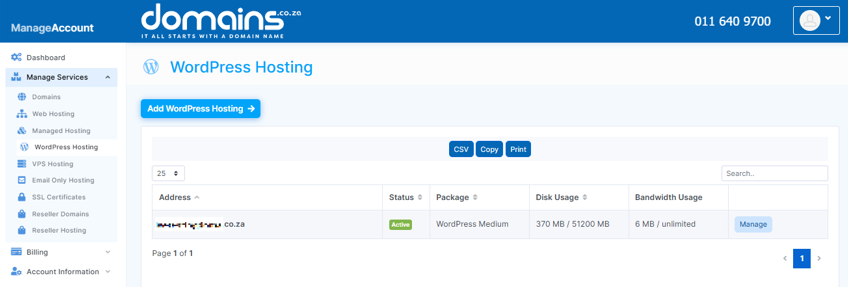
2. Navigate to Manage Services from the dashboard menu.
3. Select your WordPress Hosting package and click Manage.
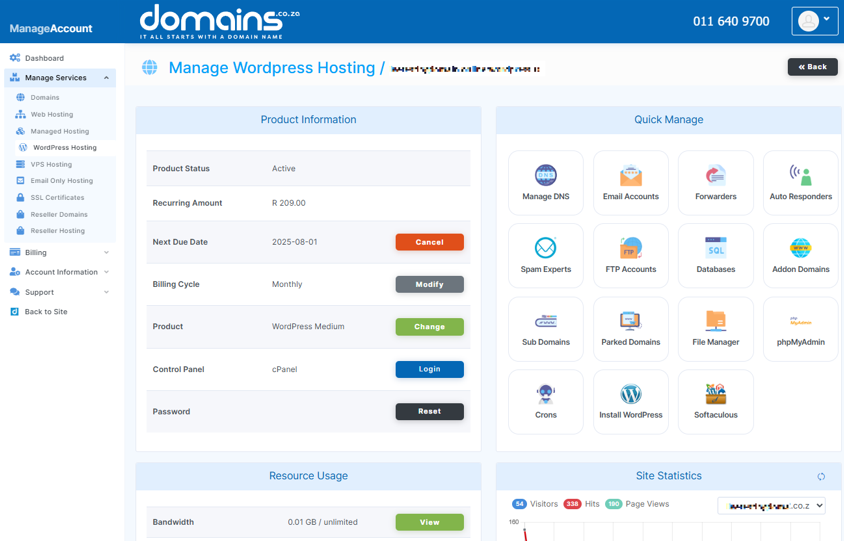
4. Click Login to cPanel to access your hosting control panel.
5. In cPanel, locate the WordPress Manager.

6. Navigate to Appearance and select Theme File Editor.
7. Open the functions.php file from the theme files list.
8. Add the following code to the bottom of the file:
@ini_set( 'upload_max_size' , '256M' );
@ini_set( 'post_max_size', '256M');
@ini_set( 'max_execution_time', '300' );
9. Click Update File to save the changes.
10. Retry the upload that previously failed.
Additional Information
- A 413 error usually occurs because server upload limits are set too low.
- Upload limits may also be controlled through .htaccess, php.ini, or server configurations.
- Large media files should be optimised before uploading where possible.
- Some WordPress plugins may impose additional upload restrictions.
- Website backups should always be created before editing theme or server files.
- Child themes are recommended when modifying functions.php to prevent changes from being overwritten during updates.
- Increasing upload limits can improve website management flexibility for large files.
- If the issue persists, contacting your hosting provider for server-side assistance may be necessary.
Login to Domains.co.za Account
1. Go to the Domains.co.za website Account Login page.

2. Enter your Email and Password and click the Sign In button.
3. You will see the Domains.co.za Dashboard, displaying the Manage Account menu on the left and your Account Information, Account Overview and Open Support Tickets on the right.


