





This guide explains how to live test a website away from public view using cPanel.
When developing or updating a website, it is often important to prevent public visitors from viewing unfinished content or incomplete functionality. Using an Under Construction or Coming Soon page allows you to test your website live on the hosting server while keeping the main site hidden from visitors.
This method helps to maintain professionalism, manage visitor expectations, and to protect your brand image while website development or maintenance is in progress.
TABLE OF CONTENTS
How to Live Test a Website Away from Public View
Create an Under Construction Page
1. Login to the Domains.co.za Customer Portal using your account credentials.
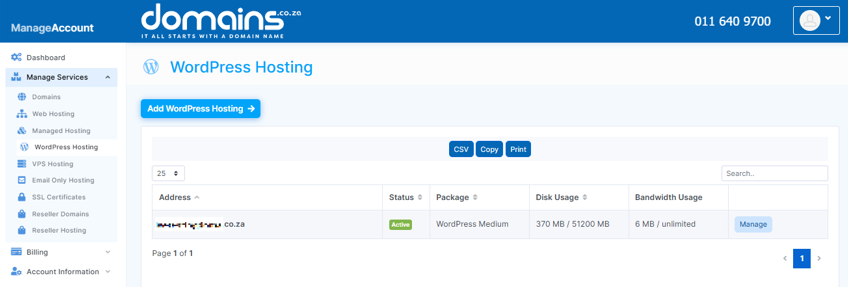
2. Navigate to Manage Services from the dashboard menu.
3. Select your hosting package and click Manage.
4. Click Login to cPanel to access your hosting control panel.
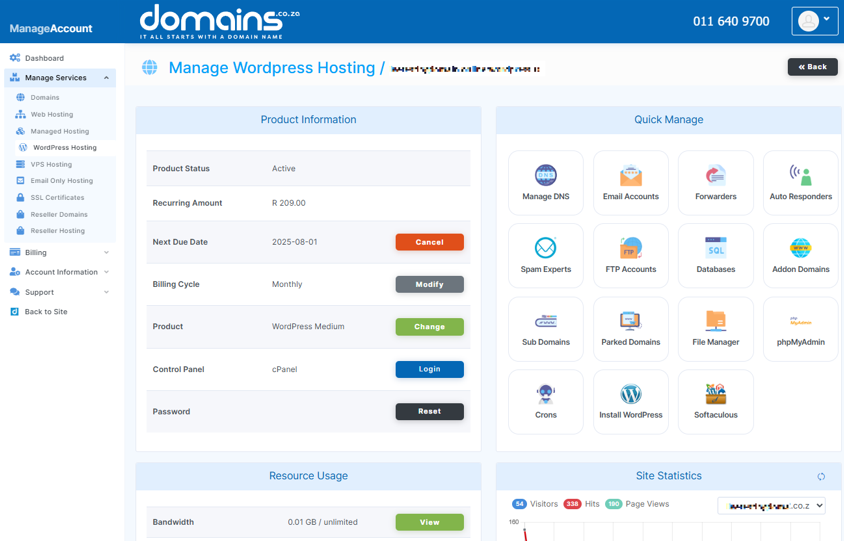
5. Open File Manager from Files.
6. Navigate to the website’s root directory, usually public_html.
7. Click + File or New File.
8. Create a file named underconstruction.html.
9. Save the new file.
Edit The Under Construction Page
1. Select the underconstruction.html file.
2. Click Edit or HTML Editor.
3. Add your placeholder content, company information, and contact details.
4. Save the changes.
Configure The Default Index Page
1. In File Manager, locate the .htaccess file within your website root directory.
2. Ensure hidden files are visible within File Manager settings.
3. Edit the .htaccess file.
4. Add the following code at the top of the file:
DirectoryIndexunderconstruction.html5. Save the changes to the .htaccess file.
6. Visit your website in a browser to confirm the placeholder page appears correctly.
Additional Information
- Under Construction pages help maintain a professional appearance during development.
- Placeholder pages can collect visitor email addresses before launch.
- Search engines may begin indexing the website before the official launch date.
- .htaccess files control various website server behaviours and should be edited carefully.
- Hidden files such as .htaccess are usually disabled by default in File Manager.
- You can restore the original website homepage by removing the custom DirectoryIndex line.
- Testing websites privately helps identify issues before public release.
- Website backups should always be created before editing important server configuration files.
Login to Domains.co.za Account
1. Go to the Domains.co.za website Account Login page.

2. Enter your Email and Password and click the Sign In button.
3. You will see the Domains.co.za Dashboard, displaying the Manage Account menu on the left and your Account Information, Account Overview and Open Support Tickets on the right.


