





This guide explains how to move WordPress website to another domain within the same hosting environment.
Moving a WordPress website to another domain is a common process when rebranding a business, changing website names, or consolidating websites. While the process may seem complicated, WordPress tools and cPanel features make migration much easier when performed carefully.
Cloning or moving a website to a new domain allows you to retain your content, themes, plugins, and settings while launching the site under a different web address.
TABLE OF CONTENTS
How to Move WordPress Website to Another Domain
1. Login to the Domains.co.za Customer Portal using your account credentials.
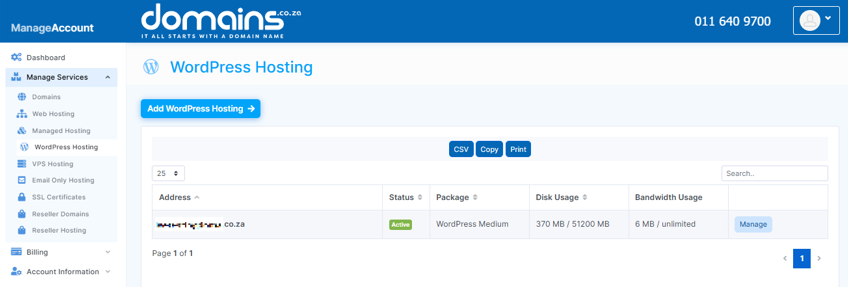
2. Navigate to Manage Services from the dashboard menu.
3. Select your WordPress Hosting package and click Manage.
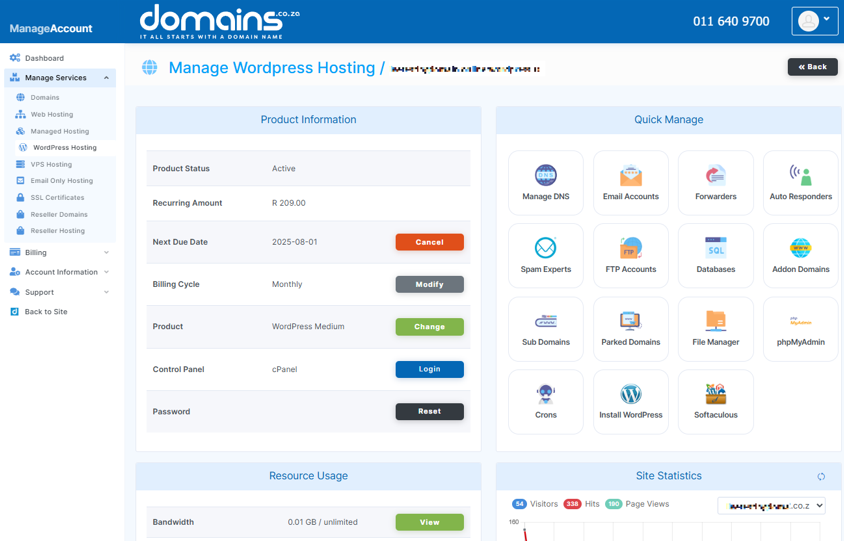
4. Click Login to cPanel to access your hosting control panel.
5. In cPanel, locate the WordPress Manager.

6. Scroll to Software and open WordPress Manager by Softaculous.
7. Locate the WordPress installation you wish to move.
8. Click the dropdown menu next to the installation.
9. Select Clone.
10. Under Choose Installation URL, select the new domain name.
11. Review the remaining settings carefully.
12. Click Clone Installation to begin the migration process.
13. Wait for the cloning process to complete successfully.
14. Update the DNS settings for the new domain if required.
15. Test the migrated website thoroughly on the new domain.
Additional Information
- Website cloning helps preserve content, themes, plugins, and configurations during migration.
- DNS propagation may take some time after updating domain settings.
- Clearing website and browser cache helps display recent changes correctly.
- SSL certificates should be installed on the new domain to maintain website security.
- Email settings linked to the old domain may also require updates.
- Temporarily keeping the old domain active can help preserve SEO rankings during migration.
- Website backups should always be created before performing migrations.
Login to Domains.co.za Account
1. Go to the Domains.co.za website Account Login page.

2. Enter your Email and Password and click the Sign In button.
3. You will see the Domains.co.za Dashboard, displaying the Manage Account menu on the left and your Account Information, Account Overview and Open Support Tickets on the right.


