


This guide explains the types of WordPress plugins that may cause compatibility issues, and why certain plugins are discouraged in managed WordPress hosting environments.
WordPress plugins are designed to extend your website functionality by adding features such as security tools, backups, caching, optimisation, contact forms, and more. While plugins can greatly improve your website, not all plugins are fully compatible with every hosting environment, WordPress version, or Theme.
Some plugins may conflict with existing server-level optimisations, consume excessive system resources, introduce security vulnerabilities, or negatively affect website speed and stability. Because of this, it is important to carefully review plugins before installing or activating them on your WordPress website.
TABLE OF CONTENTS
How to Manage Incompatible WordPress Plugins
1. Login to the Domains.co.za Customer Portal using your account credentials.
2. Navigate to Manage Services from the dropdown menu.
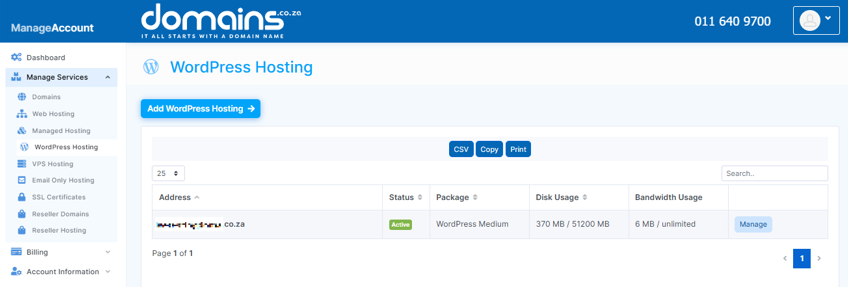
3. Select your WordPress Hosting package and click Manage.
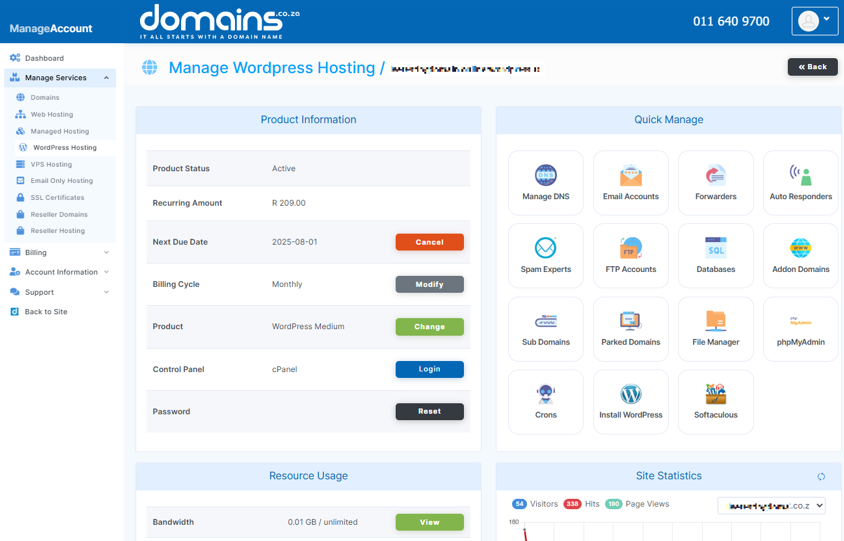
4. Click Login to cPanel to access your hosting control panel.
5. In cPanel, locate WordPress Manager.

6. Click Plugins from the left-hand menu.
7. Review the list of installed plugins.
8. Deactivate any plugin suspected of causing performance or compatibility issues.
9. Test your website after deactivating the plugin to confirm whether the issue has been resolved.
10. Remove incompatible plugins if they continue to affect website functionality or performance.
11. Install alternative plugins that are compatible with your hosting environment if necessary.
Commonly Incompatible Caching Plugins
The following caching plugins may interfere with server-level caching systems:
- W3 Total Cache.
- WP Super Cache.
- WP Fastest Cache.
- Cache Enabler.
- Comet Cache.
Commonly Incompatible Backup Plugins
The following backup plugins may consume excessive server resources:
- BackWPup.
- Duplicator.
- Backup Guard.
- WP DB Backup.
- BackUpWordPress.
Additional Information
- Some WordPress plugins may introduce security vulnerabilities if they are outdated or poorly maintained.
- Caching plugins can conflict with existing server-side optimisation systems and may reduce website performance rather than improving it. It is advised to only use one caching plugin, as multiple may cause conflicts with one another and affect site performance.
- Backup plugins that create large archives frequently can consume excessive CPU, memory, and storage resources.
- Installing too many plugins may slow down your WordPress website and increase the risk of compatibility conflicts.
- Plugins should be regularly updated to maintain security and compatibility with the latest WordPress version.
- It is recommended to test new plugins on a staging site before installing them on your live website.
- Deactivating unused plugins can improve website performance and reduce potential security risks.
- Plugin conflicts can sometimes cause errors such as broken layouts, failed updates, login issues, or White Screen errors.
Login to Domains.co.za Account
1. Go to the Domains.co.za website Account Login page.

2. Enter your Email and Password and click the Sign In button.
3. You will see the Domains.co.za Dashboard, displaying the Manage Account menu on the left and your Account Information, Account Overview and Open Support Tickets on the right.


