


This guide explains how to troubleshoot an expired SSL certificate using cPanel. SSL certificates have a limited validity period and must be renewed before they expire to maintain secure HTTPS connections. Domains.co.za Web Hosting includes AutoSSL, which automatically renews eligible Domain Validated (DV) SSL certificates before they expire.
If an SSL certificate expires, visitors may receive browser security warnings indicating that the website is not secure. In some cases, browsers may prevent users from accessing the website altogether, potentially affecting visitor confidence and online services.
Although AutoSSL renews certificates automatically in most situations, renewal can fail if the domain cannot be validated or if DNS issues prevent the certificate from being reissued.
IMPORTANT:
AutoSSL can only renew certificates for domains that successfully complete the required validation checks.
TABLE OF CONTENTS
Before You Begin
Before troubleshooting an expired SSL certificate, ensure that:
- Your domain points to your Domains.co.za hosting account.
- DNS changes have fully propagated.
- You have access to cPanel.
How to Troubleshoot an Expired SSL Certificate
Step 1: Access cPanel
1. Login to your Domains.co.za Customer Portal using your username and password.
2. Open the Manage Services drop-down menu.
3. Select Web Hosting.
4. Click Manage next to the hosting package associated with your domain.
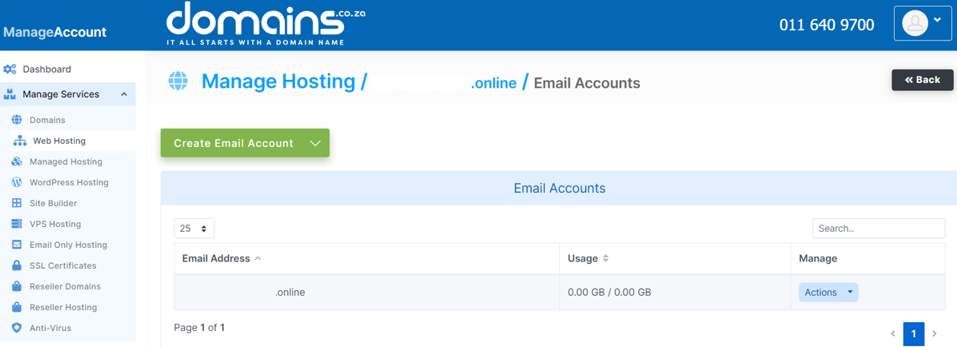
5. Click Login next to Control Panel to access cPanel.

Step 2: Check AutoSSL Status
1. Scroll to Security.

2. Click SSL/TLS Certificates.
3. Select Status.
Review whether the domain shows a valid certificate or any validation errors.
Step 3: Run AutoSSLStep
1. Select the affected domain.
2. Click Run AutoSSL.
3. Wait for the process to complete.
Step 4: Verify DNS
Ensure that:
- The domain points to your hosting account.
- The website is publicly accessible.
- No incorrect DNS records exist.
Step 5: Check HTTPS
Visit: yourdomain.co.za
Verify that:
- The certificate is valid.
- The browser displays the padlock.
- No security warnings appear.
Troubleshooting
- AutoSSL Failed: Check DNS configuration and ensure the domain can complete validation successfully.
- Certificate Has Not Renewed: Wait for DNS propagation if recent changes were made, then run AutoSSL again.
- Browser Still Shows the Old Certificate: Clear your browser cache or test using a private browsing window.
- Website Still Shows Not Secure: Confirm that every page resource loads over HTTPS.
Additional Information
- AutoSSL renews eligible SSL certificates automatically before expiry.
- DNS issues are one of the most common causes of AutoSSL renewal failures.
- HTTPS protects information exchanged between your website and visitors.
- Browser warnings may reduce visitor confidence and affect website usage.
- Running AutoSSL manually can resolve many renewal issues.
- Regularly checking certificate status helps prevent unexpected expiry.
- Contact Domains.co.za Support if AutoSSL cannot successfully renew your certificate.
Login to Domains.co.za Account
1. Go to the Domains.co.za website Account Login page.

2. Enter your Email and Password and click the Sign In button.
3. You will see the Domains.co.za Dashboard, displaying the Manage Account menu on the left and your Account Information, Account Overview and Open Support Tickets on the right.


