


This guide explains how to identify and resolve HTTPS redirect loops. After installing an SSL certificate and enabling HTTPS, your website should automatically redirect visitors from HTTP to HTTPS. However, if redirect rules are configured incorrectly, your website may become caught in a redirect loop, where the browser repeatedly redirects between different URLs and eventually displays an error such as ERR_TOO_MANY_REDIRECTS.
Redirect loops commonly occur after installing an SSL certificate, changing website URLs, enabling HTTPS within a content management system, or configuring multiple redirect rules in cPanel, your website configuration, or your application.
Because redirect loops prevent visitors from accessing your website, they should be resolved as soon as possible.
IMPORTANT:
Before making configuration changes, create a full backup of your website.
TABLE OF CONTENTS
Before You Begin
Before troubleshooting redirect loops, ensure that:
- Your SSL certificate is valid.
- HTTPS is enabled.
- You have access to cPanel.
- You have a recent website backup.
How to Troubleshoot an HTTPS Redirect Loop
Step 1: Access cPanel
1. Login to your Domains.co.za Customer Portal using your username and password.
2. Open the Manage Services drop-down menu.

3. Select Web Hosting.
4. Click Manage next to the hosting package associated with your domain.
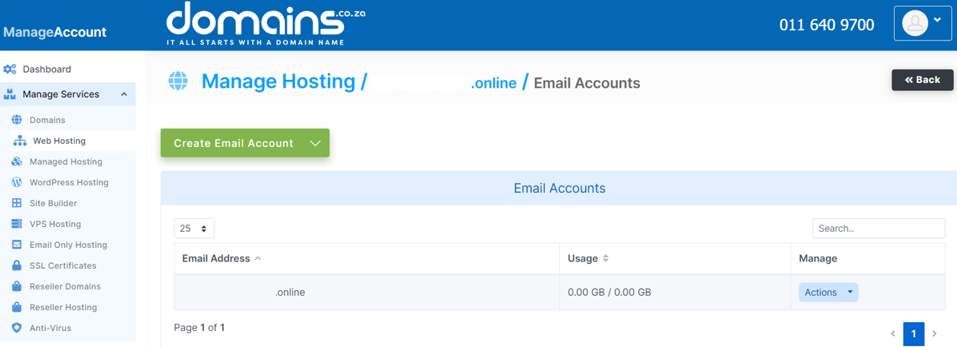
5. Click Login next to Control Panel to access cPanel.

Step 2: Test the Website
Visit:
Confirm whether the browser reports a redirect loop.
Step 3: Review Redirect Rules
Open Redirects in cPanel.

Check for:
- Multiple redirects.
- Conflicting HTTP and HTTPS redirects.
- Duplicate redirect rules.
Remove unnecessary redirects where appropriate.
Step 4: Check Your Website Configuration
If you use WordPress or another CMS:
- Confirm the Website Address uses HTTPS.
- Confirm the Home URL uses HTTPS.
- Remove duplicate redirect plugins if multiple plugins perform the same function.
Step 5: Review .htaccess
Open File Manager.
Locate the public_html directory.
Review the .htaccess file for duplicate or conflicting HTTPS redirect rules.
Only one HTTPS redirect rule should normally be required.
Step 6: Clear Cache
Clear:
- Browser cache.
- Website cache.
- CDN cache.
- Caching plugins.
Retest the website afterwards.
Troubleshooting
- ERR_TOO_MANY_REDIRECTS Appears: Review your redirect configuration and remove duplicate redirect rules.
- Website Redirects Between HTTP & HTTPS: Ensure that HTTPS enforcement is configured in only one location.
- WordPress Redirects Continuously: Verify the Website Address and Home URL both use HTTPS.
- Changes Do Not Appear: Clear all caches before testing again.
Additional Information
- Redirect loops are usually caused by duplicate or conflicting redirect rules.
- HTTPS should normally be enforced from a single location only.
- CMS settings should match your SSL configuration.
- Browser caches can continue using outdated redirect rules until cleared.
- Testing after every configuration change makes troubleshooting easier.
- Maintaining a recent website backup allows changes to be reversed if necessary.
- Contact the Domains.co.za Support team if the redirect loop continues after reviewing your configuration.
Login to Domains.co.za Account
1. Go to the Domains.co.za website Account Login page.

2. Enter your Email and Password and click the Sign In button.
3. You will see the Domains.co.za Dashboard, displaying the Manage Account menu on the left and your Account Information, Account Overview and Open Support Tickets on the right.


