


Learn how to safely test WordPress core, plugin and theme updates. Keeping WordPress, plugins and themes updated is an important part of maintaining a secure, stable and reliable website. Updates can include security fixes, bug fixes, performance improvements and new features. However, installing updates directly on a live website can sometimes cause unexpected issues if a plugin or theme is not compatible with the updated version.
A staging environment provides a safer way to test updates before applying them to your live website. A staging site is a separate copy of your website where you can install updates and check that everything continues to work as expected without affecting visitors to your live website.
Domains.co.za WordPress Hosting provides WordPress management functionality that can be used to create and manage staging environments. By first testing updates in a staging environment, you can identify compatibility problems and resolve them before making changes to your production website.
WordPress websites comprise several components that work together, including the WordPress core, plugins and themes. An update to one component can sometimes affect another component, particularly when older plugins or themes have not yet been updated to support newer WordPress or PHP versions.
Testing updates in a staging environment allows you to check important website functionality before making changes to the live website. This is particularly important for business websites, membership websites and WooCommerce stores where an issue could affect customers or transactions.
Before beginning, it is recommended that you have a recent backup of your live website. You should also make a note of the versions currently installed so that you can identify which update may have caused an issue if something stops working.
TABLE OF CONTENTS
How to Safely Test WordPress Updates
1. Login to the Domains.co.za Customer Portal.
2. Open the Manage Services dropdown menu.
3. Choose Web Hosting or WordPress Hosting from the available options.
4. Click Manage next to the domain associated with your WordPress Hosting package.
5. Click Login next to Control Panel to access cPanel.
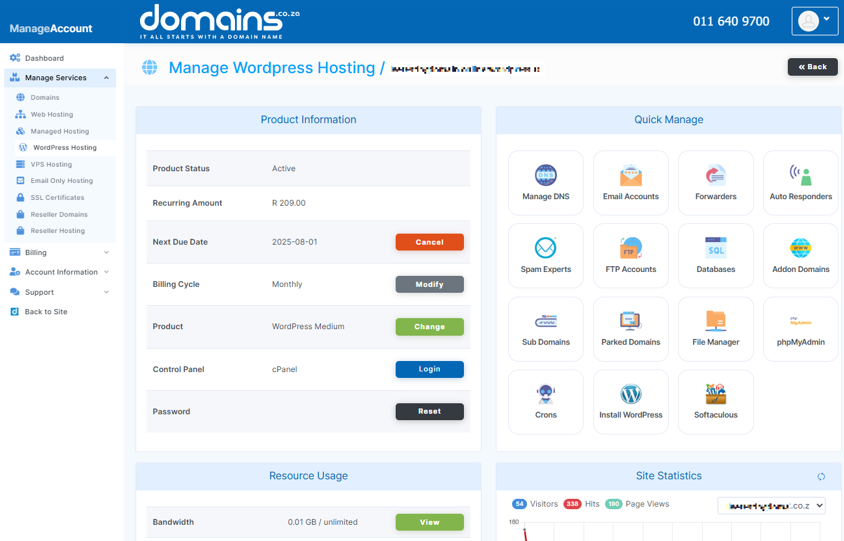
6. Open WP Toolkit from within cPanel.
7. Locate your WordPress installation and open its management options.

8. Access the staging version of your website and confirm that it is working correctly before making any updates.
9. Open the WordPress Dashboard for the staging website.
10. Update the WordPress core, plugins and themes that you wish to test.
11. Update one component at a time where practical so that any compatibility issue can be identified more easily.
12. Visit the main pages of the staging website and check that they display correctly.
13. Test important functionality such as contact forms, navigation, user logins and search features.
14. Test any integrations or third-party services that are important to your website.
15. Test your website on both desktop and mobile devices where possible.
16. If your website uses WooCommerce, test the shop, product pages, cart and checkout functionality.
17. Review the website for PHP errors, broken layouts, missing functionality or other unexpected behaviour.
18. Resolve any compatibility issues on the staging website before updating the live website.
19. Push the tested changes to the live website once you are satisfied that everything is working correctly.
20. Test the live website again after the changes have been deployed.
Additional Information
- You should always keep WordPress core, plugins and themes updated where possible to benefit from security and compatibility improvements.
- Testing updates on a staging website reduces the risk of introducing an issue to your live website.
- Creating a current backup before making significant changes provides a recovery point if something goes wrong.
- Updating one plugin or component at a time can make it easier to identify the source of a compatibility problem.
- Major WordPress updates should be tested carefully because they can affect plugins, themes and custom code.
- Premium plugins and themes may require separate license or update settings before they can be updated.
- Custom-developed themes and plugins should be tested particularly carefully, because their compatibility may depend on custom code.
- WooCommerce websites should receive additional testing, because updates can affect products, checkout processes, payment gateways and other customer-facing functionality.
- You should clear applicable website caches after testing updates if cached content prevents you from seeing recent changes.
- If a staging update causes a problem, resolve the issue on the staging site before applying the same update to the live website.
- Keeping a record of the updates tested can make future troubleshooting easier.
- If you are unable to determine why an update has caused an issue, consider contacting the plugin or theme developer or Domains.co.za Support for assistance.
Login to Domains.co.za Account
1. Go to the Domains.co.za website Account Login page.

2. Enter your Email and Password and click the Sign In button.
3. You will see the Domains.co.za Dashboard, displaying the Manage Account menu on the left and your Account Information, Account Overview and Open Support Tickets on the right.


