


This guide explains how to add IP addresses to your SPF records using cPanel on your Domains.co.za hosting account.
SPF, or Sender Policy Framework, is an email authentication method designed to help prevent spam and email spoofing. It works by specifying which mail servers are authorised to send emails on behalf of your domain name.
Adding IP addresses to your SPF record is useful when you use external mail servers, third-party applications, or additional devices that send email using your domain. Properly configured SPF records improve email deliverability and reduce the chances of messages being marked as spam.
TABLE OF CONTENTS
What are SPF Records?
SPF records are stored as TXT records within your domain’s DNS zone. When a receiving mail server checks incoming email, it compares the sending server’s IP address against the SPF record.
Adding authorised IP addresses ensures:
- External mail servers can send mail successfully.
- Email authentication passes correctly.
- Spam filtering issues are reduced.
- Your domain’s reputation is protected.
How to Add IP Addresses to SPF Records in cPanel
1. Login to the Domains.co.za Customer Portal using your account credentials.
2. Open the Manage Services dropdown menu from the main dashboard navigation.
3. Select Web Hosting from the available service options.
4. Locate the hosting package linked to your domain name and click Manage.
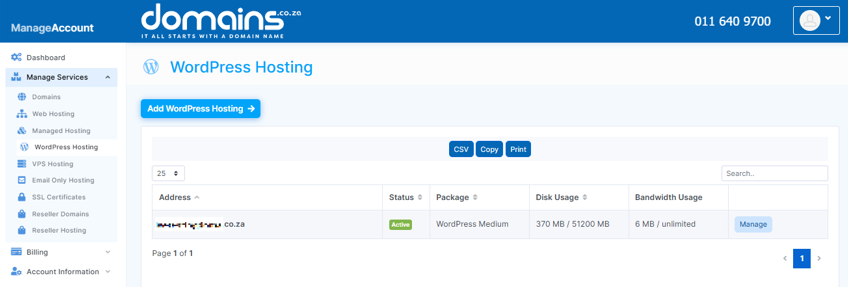
5. Click Login next to Control Panel to access cPanel.

6. Scroll down to the Software section within cPanel.
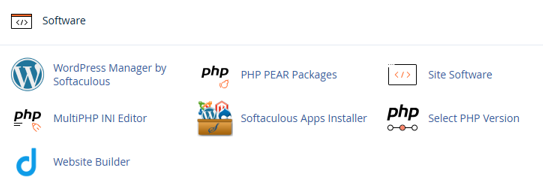
7. Scroll to Email and click Email Deliverability.

8. Locate your domain name and click Manage next to it.
9. Find the SPF record section and select the option to customise or edit the record.
10. Add the required IP address using the correct SPF syntax, such as ip4: for IPv4 addresses or ip6: for IPv6 addresses.
11. Save the updated SPF record changes.
Additional Information
- SPF records help reduce email spoofing and phishing attempts using your domain.
- Only authorised mail servers and IP addresses should be included in your SPF record.
- Incorrect SPF syntax can cause email delivery failures.
- SPF records are limited to a maximum of 10 DNS lookups.
- IPv4 addresses use the ip4: mechanism while IPv6 addresses use ip6:.
- SPF records work alongside DKIM and DMARC for improved email authentication.
- DNS propagation may take time before SPF changes become fully active worldwide.
- Testing your SPF record after changes is recommended to verify the correct configuration.
Login to Domains.co.za Account
1. Go to the Domains.co.za website Account Login page.

2. Enter your Email and Password and click the Sign In button.
3. You will see the Domains.co.za Dashboard, displaying the Manage Account menu on the left and your Account Information, Account Overview and Open Support Tickets on the right.


