


This guide explains why email go to spam and how SPF and DKIM work, how to check whether they are configured correctly, and what to do if your emails continue to be marked as spam. If your emails are landing in recipients’ spam or junk folders, it can affect communication with customers, suppliers, and colleagues. While spam filtering helps protect users from unwanted or malicious emails, legitimate messages can also be filtered if your domain’s email authentication is not configured correctly.
Two of the most important email authentication methods are SPF (Sender Policy Framework) and DKIM (DomainKeys Identified Mail). These technologies help receiving mail servers verify that your emails are genuine and have not been altered during delivery. .
Spam filtering decisions are based on many factors, including:
- SPF configuration.
- DKIM configuration.
- DMARC policy.
- Your domain name or IP reputation.
- Email content.
- Sending volume and behaviour.
Even if SPF and DKIM are configured correctly, other factors can still influence email deliverability.
TABLE OF CONTENTS
Check Your SPF Record
An SPF record specifies which mail servers are authorised to send email on behalf of your domain.
1. Login to the Domains.co.za Customer Portal.
2. Open the Manage Services drop-down menu and select Web Hosting.
3. Click Manage next to the hosting package for your domain.

4. Click Login next to Control Panel to access cPanel.

5. Open Zone Editor.

6. Locate the TXT record containing your SPF policy.
7. Verify that the record includes all authorised email servers used by your domain.
NOTE:
If your DNS is hosted elsewhere, manage your SPF record through your DNS provider instead.
Check Your DKIM Record
DKIM adds a digital signature to outgoing email, allowing receiving mail servers to verify that messages have not been modified.
1. Login to your Domains.co.za Customer Portal using your username and password.
2. Open the Manage Services drop-down menu and select Email Only or Web Hosting.
3. Locate the email service you wish to use and click Manage.
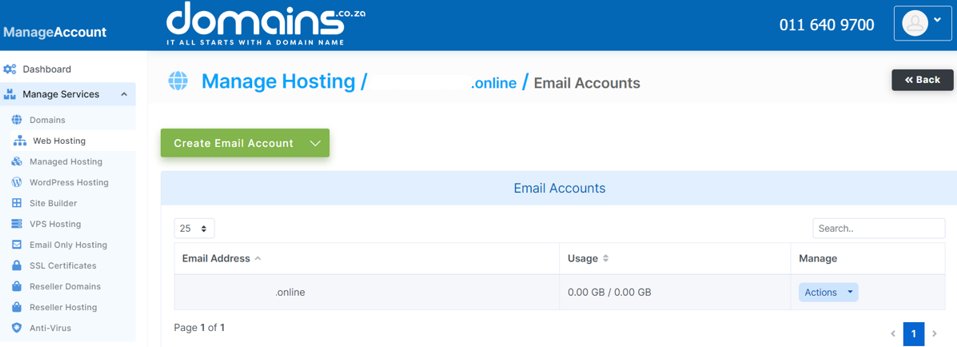
4. Click Login next to Control Panel.
5. Open Email Deliverability.
6. Review the status of your DKIM record.
If prompted, repair or enable DKIM by following the recommendations displayed in cPanel.
Check SPF & DKIM Alignment
SPF and DKIM alignment are used by DMARC to determine whether an email has been authenticated correctly.
To improve alignment:
- Ensure your domain in the From address matches the authenticated domain.
- Avoid using third-party email services that are not included in your SPF record.
- Enable DKIM signing for all outgoing email.
- Configure a DMARC policy once SPF and DKIM are working correctly.
Other Reasons Your Email Go to Spam
If SPF and DKIM are configured correctly, consider the following:
- Your domain or IP address may be listed on an email blacklist.
- Your sending reputation may be poor due to previous spam complaints.
- Your email contains suspicious wording or excessive links.
- Images significantly outweigh the amount of text.
- Recipients have previously marked your emails as spam.
- Your DNS records, including MX and DMARC, may be incorrectly configured.DNS Records In cPanel
Test Your Email
After making any changes:
- Send a test email to another email provider.
- Confirm that the message arrives in the Inbox rather than the Spam folder.
- Check the email headers to verify that SPF, DKIM and DMARC all pass.
- Continue monitoring your email deliverability over the next 24 to 48 hours.
Additional Information
- SPF helps prevent unauthorised mail servers from sending email using your domain name.
- DKIM digitally signs outgoing messages to verify their authenticity.
- DMARC builds on SPF and DKIM by instructing receiving mail servers how to handle messages that fail authentication.
- A correctly configured SPF record should contain only one SPF TXT record for your domain.
- Adding unnecessary servers to your SPF record can weaken your email security.
- Changes to DNS records may take time to propagate across the internet before taking effect.
- Good email authentication improves deliverability but does not guarantee that every email will avoid spam filtering.Spam Filters
Login to Domains.co.za Account
1. Go to the Domains.co.za website Account Login page.

2. Enter your Email and Password and click the Sign In button.
3. You will see the Domains.co.za Dashboard, displaying the Manage Account menu on the left and your Account Information, Account Overview and Open Support Tickets on the right.


