


Manage mailbox storage is essential for ensuring that you can continue sending and receiving emails without interruption. When a mailbox reaches its storage limit, new messages may be rejected or returned to the sender, and you may be unable to send outgoing emails until space is made available.
Domains.co.za offers both Email Only Hosting and cPanel Email (included with Web Hosting), each with different methods for viewing mailbox usage and managing storage. This guide explains how to check your mailbox storage, increase available space where possible, and keep your mailbox organised to avoid storage-related issues.
Mailbox storage is used by all the items stored in your email account, including:
- Emails in your Inbox and folders.
- Sent Items.
- Drafts.
- Deleted Items or Trash.
- Attachments.
- Spam or Junk folders.
Regularly monitoring your mailbox usage helps prevent delivery issues and ensures your email service continues to operate normally.
TABLE OF CONTENTS
Check Mailbox Storage for Email
Follow these steps to view your mailbox usage for Domains.co.za email.
1. Login to your Domains.co.za Customer Portal using your username and password.
2. Open the Manage Services drop-down menu and select Email Hosting.
3. Locate the email service you wish to use and click Manage.
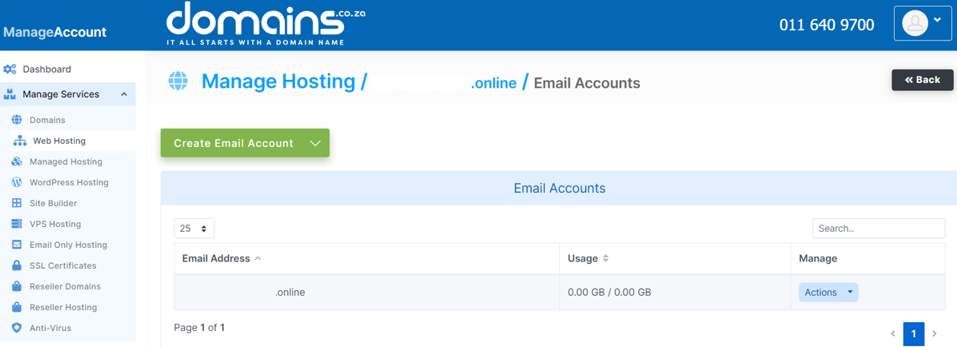
4. Open the mailbox management section to view your email accounts.
5. Select the mailbox you wish to review.
6. View the mailbox storage information to see how much storage has been used and how much remains available.
Check Mailbox Storage for cPanel Email
Follow these steps to view mailbox usage for a cPanel email account.
1. Login to the Domains.co.za Customer Portal.
2. Open the Manage Services drop-down menu and select Web Hosting.
3. Click Manage next to the hosting package for your domain.

4. Click Login next to Control Panel to access cPanel.

5. Open Email Accounts.

6. Locate the mailbox you wish to check.
The storage allocated to the mailbox and the amount currently being used will be displayed alongside the email account.
How to Free Up Mailbox Storage
If your mailbox is approaching or has reached its storage limit, you can free up space by:
1. Deleting unnecessary emails from your Inbox and Sent Items.
2. Emptying the Deleted Items or Trash folder.
3. Removing large attachments that are no longer required.
4. Clearing the Spam or Junk folder.
5. Archiving older emails to your computer or another storage location.
6. Increasing the mailbox quota if your hosting package allows it.
How to Increase a Mailbox Quota in cPanel
1. Open Email Accounts in cPanel.
2. Locate the mailbox you wish to update.
3. Click Manage next to the email account.
4. Increase the mailbox storage quota or select the maximum available option if appropriate.
5. Save your changes.
NOTE:
The maximum mailbox size depends on your hosting package and available disk space. Setting a mailbox quota larger than the available disk space on your hosting package does not increase the total storage available. For example, if your hosting package includes 20 GB of disk space, assigning a mailbox quota of 30 GB will not allow the mailbox to exceed the hosting package’s available storage. If the hosting account is full, email may stop sending or receiving even if the mailbox quota has not been reached.
Signs Your Mailbox Is Full
You may notice one or more of the following:
- New emails stop arriving.
- Senders receive bounce-back or delivery failure messages.
- You cannot send outgoing emails.
- Your email client displays mailbox quota warnings.
- Synchronisation between devices stops working correctly.
If you experience any of these issues, check your mailbox storage before investigating other possible causes.
Additional Information
- For cPanel Email, mailbox storage is shared with your Web Hosting package and uses the hosting account’s available disk space. Email Only Hosting storage is allocated separately according to your email plan.
- A mailbox quota defines the maximum size a mailbox can grow to, but it cannot exceed the free disk space available on the hosting account. If your hosting package runs out of disk space, email delivery may fail even if the mailbox itself has not reached its quota.
- Large email attachments can quickly consume your available mailbox space.
- Emptying your Deleted Items folder is necessary, because deleted emails continue to use storage until they are permanently removed.
- Archiving older emails is an effective way to reduce mailbox usage while retaining important messages.
- If multiple users share the same hosting account, each mailbox may have its own storage quota.
- Regular mailbox maintenance can help prevent email delivery issues and improve email client performance.
- If you frequently reach your mailbox limit, consider upgrading your email or hosting plan to accommodate your storage requirements.
Login to Domains.co.za Account
1. Go to the Domains.co.za website Account Login page.

2. Enter your Email and Password and click the Sign In button.
3. You will see the Domains.co.za Dashboard, displaying the Manage Account menu on the left and your Account Information, Account Overview and Open Support Tickets on the right.


