





Here is how to troubleshoot email receiving problems and what range from delayed delivery to complete non-delivery. Identifying the cause requires a systematic review of your hosting configuration and DNS records.
If you are not receiving emails in your Domains.co.za hosted mailbox, the issue may be caused by DNS settings, mailbox storage limits, spam filtering, or email client configuration.
This guide explains how to troubleshoot email-receiving issues using your Domains.co.za hosting account.
TABLE OF CONTENTS
How to Troubleshooting Email Receiving Issues
Step 1: Check Mailbox Storage
Check your mailbox storage and confirm it is not full. If full, delete or archive emails.
1. Login to your Domains.co.za account.
2. Open the Manage Services dropdown menu, choose your hosting plan from the list and then click Manage next to your domain.
3. Click Login next to Control Panel to access cPanel.
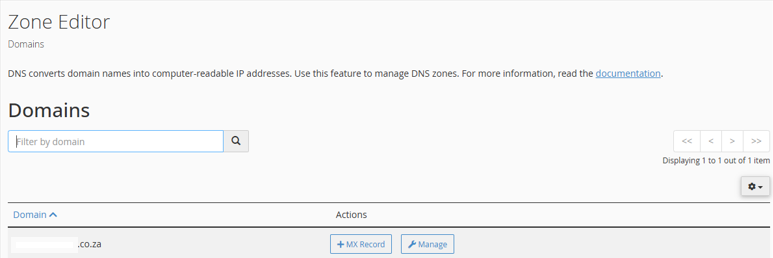
4. Scroll down to the Domains section and click Zone Editor.

5. Next to the domain you wish to manage, click Manage.
Step 3: Review Spam Filtering
6. Check your Spam folder in Webmail.
7. Review SpamExperts settings in cPanel.
8. Ensure the sender’s email or domain is not blacklisted.
Step 4: Check Email Routing
9. In cPanel, click Email Routing.
10. Confirm it is set to:
- Local Mail Exchanger (if email is hosted with Domains.co.za),
or
- Remote Mail Exchanger (if using external mail services).
11. Incorrect routing prevents delivery.
Step 5: Test with Webmail
12. Access Webmail directly via:
https://yourdomain.co.za/webmail13. If mail arrives in Webmail but not in your email client, the issue is likely related to client configuration.
Additional Information
- Always request a bounce-back message from the sender if emails are failing. Bounce messages contain valuable diagnostic information explaining why delivery failed.
- DNS changes may take up to 24 hours to propagate globally. If MX records were recently modified, allow time for updates.
- If you use external spam filtering or firewall services, ensure the mail server IP addresses are not blocked.
- If troubleshooting steps do not resolve the issue, contact Domains.co.za Support and provide:
- The sender’s email address.
- The recipient email address.
- Date and time of the attempted email.
- Any bounce-back message received.
- This information allows support technicians to accurately trace the message through server logs.
Login to Domains.co.za Account
1. Go to the Domains.co.za website Account Login page.

2. Enter your Email and Password and click the Sign In button.
3. You will see the Domains.co.za Dashboard, displaying the Manage Account menu on the left and your Account Information, Account Overview and Open Support Tickets on the right.


