


This article will show you how to access WHM and cPabel on your cPanel Hosting Account. Managed cPanel Hosting provides a central environment for managing websites, domains, email accounts, databases, security settings and other hosting services. Two of the primary interfaces used to manage a cPanel server are cPanel and WebHost Manager (WHM).
cPanel is designed for managing an individual hosting account and its associated websites and services. WHM provides higher-level server and account management functionality and is generally used by server administrators, resellers and authorised users with the required privileges. To login to WHM, you will either require root or reseller access. With our Managed cPanel services, we will provide you with a reseller account with the appropriate privileges.
With Managed cPanel Hosting from Domains.co.za, you can access your hosting environment through the Domains.co.za Customer Portal and then use the appropriate management interface. The exact options available to you depend on your hosting package and assigned permissions.
Understanding the difference between cPanel and WHM is important before making changes to a Managed cPanel Hosting environment.
cPanel is used to manage an individual hosting account. This can include website files, databases, email accounts, domains, SSL certificates and other account-level services.
WHM is used to manage the server and individual cPanel accounts. Depending on your permissions, WHM can be used to create accounts, manage packages, configure nameservers and perform other administrative tasks.
TABLE OF CONTENTS
How To Access WHM & cPanel On cPanel Hosting
How To Access cPanel
1. Login to the Domains.co.za Customer Portal.
2. Open the Manage Services dropdown menu.
3. Choose Managed cPanel from the drop-down menu
4. Click Manage next to the domain associated with your Managed cPanel Hosting package.
5. Click Login next to Control Panel to access cPanel.
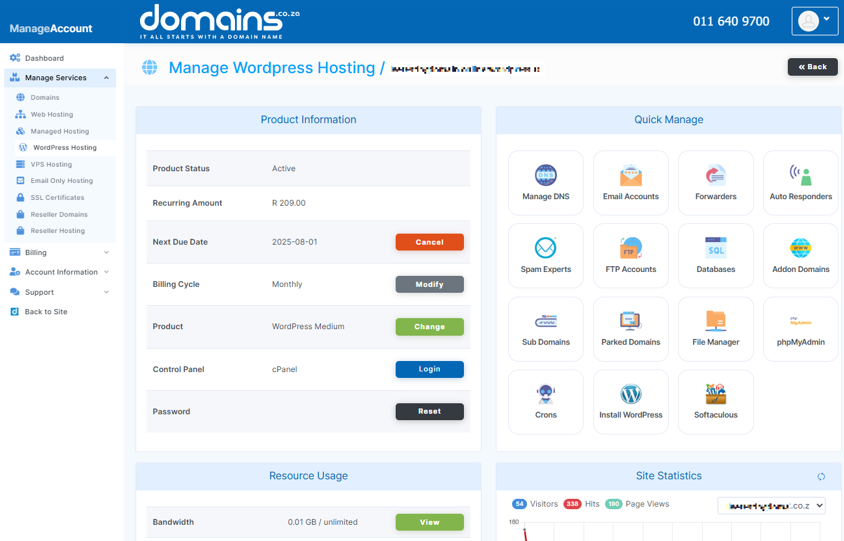
6. Use the cPanel interface to manage the individual hosting account and its available services.
How to Access WHM
1. Login to the Domains.co.za Customer Portal.
2. Open the Manage Services dropdown menu.
3. Choose Managed cPanel from the drop-down menu
4. Click Manage next to the domain associated with your Managed cPanel Hosting package.
5. Click Login next to Control Panel to access cPanel.
6. Use the available WHM access option if your hosting package and permissions provide access to WHM.
7. Enter your WHM username and password if a separate WHM login is required.
8. Complete two-factor authentication if it is enabled on your WHM account.
WHM can also normally be accessed directly using the server hostname or IP address with port 2087 over HTTPS.
Additional Information
- cPanel manages an individual hosting account, while WHM provides higher-level server and account management functionality.
- WHM access is not automatically available to every cPanel user, because it requires the appropriate root or reseller privileges.
- The options displayed in your hosting environment can vary depending on your Managed cPanel Hosting package and assigned permissions.
- You should avoid making server-level changes in WHM unless you understand their effect on other hosting accounts and services.
- Two-factor authentication can provide an additional layer of security for WHM and cPanel access.
- Keep your WHM and cPanel login credentials secure and do not share administrator credentials unnecessarily.
Login to Domains.co.za Account
1. Go to the Domains.co.za website Account Login page.

2. Enter your Email and Password and click the Sign In button.
3. You will see the Domains.co.za Dashboard, displaying the Manage Account menu on the left and your Account Information, Account Overview and Open Support Tickets on the right.


