


This article covers how to backup a website in cPanel, as well as how to restore a backup copy of the data. Backing up your website is a vital part of maintaining its security. Whether you face system failures, security breaches, coding errors, or compatibility issues, having reliable backup data can save you from potential data loss and downtime.
Domains.co.za offers daily website backups with all Web Hosting plans, ensuring your data is always protected. This guide provides essential information on the importance of backups and how to back up your website manually using cPanel.
IMPORTANT:
Although we have included the process below, we do NOT recommend using the cPanel interface for backing up your website. Added to this, a full backup can ONLY be used to keep a copy on your server or desktop, or when moving your account to another server – it CANNOT be used for a Restore Back Up through the cPanel interface.
HIGHLY RECOMMENDED – Please be sure to backup the specific folders and files mentioned in the steps below: A Precise Step-by-step Process to Backup and Restore a Website.
TABLE OF CONTENTS
A Precise Step-by-step Process to Backup a Website in cPanel
For a very precise and accurate backup of your website and restoration of backed up folders and files, please follow the steps below, we are using a WordPress website as an example.
Part 1: Set Preferences to Show Hidden Files
1. In the cPanel Dashboard, scroll down to the Files section and select File Manager a new browser tab will open to the right.

2. Click Settings and the Preferences pop-up window will display.
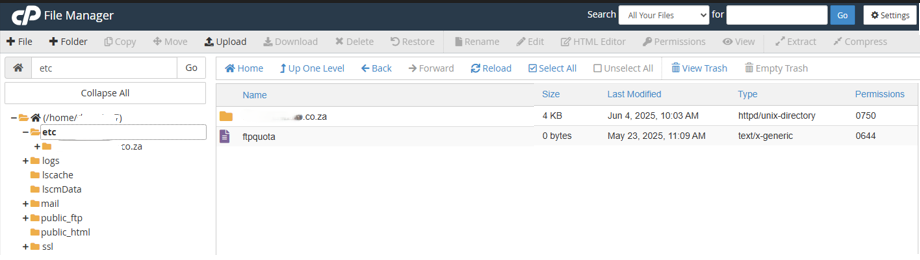
3. Tick the Show Hidden Files (dotfiles) checkbox and Save.
Part 2: Backup the ETC Folder & Files
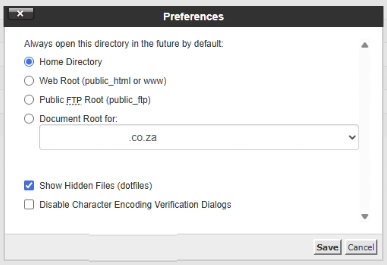
4. Select the etc Folder and double-click the Domain Name Folder. (This will be the domain name to be backed up.)
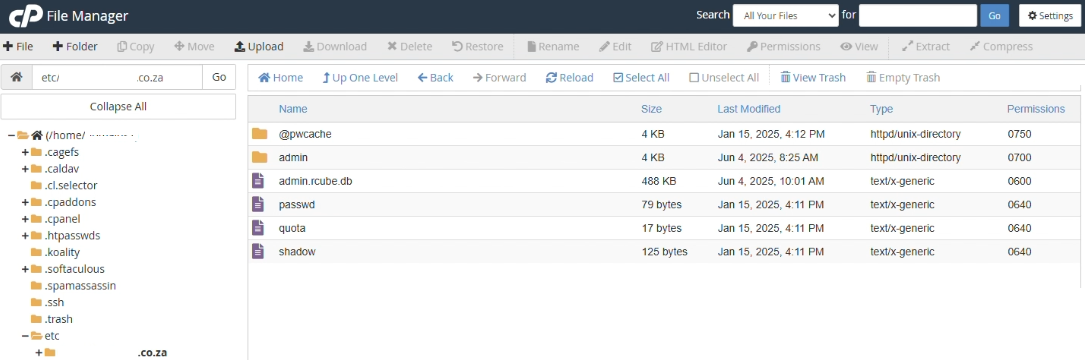
5 Click Select All. Click the Compress icon on the far right of the top menu.
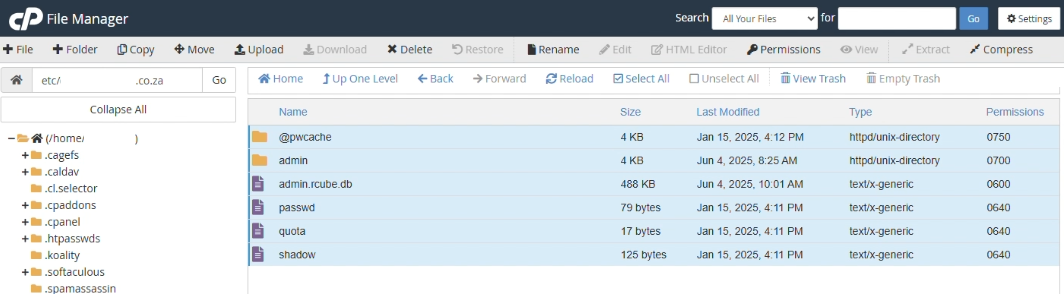
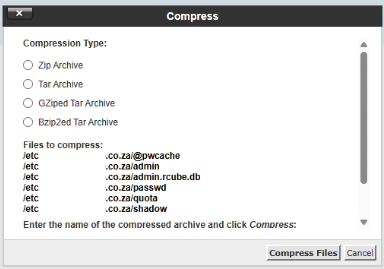
6. Select Zip Archive and Enter the name of the compressed archive in the text field below, changing the file name to etc. Click Compress Files.
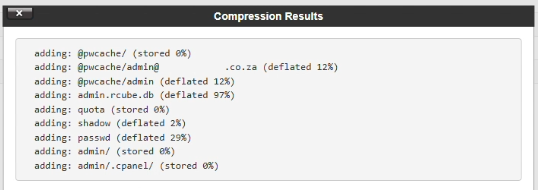
7. Compression Results will display in the window. Click Close.
8. Right click the .zip file and download to your Local Drive in a backup-specific folder of your choice.
IMPORTANT:
Please note to ensure that the zipped file is named etc, as this is the reference we are using and it will be easier to follow.
Part 3: Backup the MAIL Folder
9. Select the Mail Folder on the left-hand side. Double-click the Domain’s Folder that you are backing up.
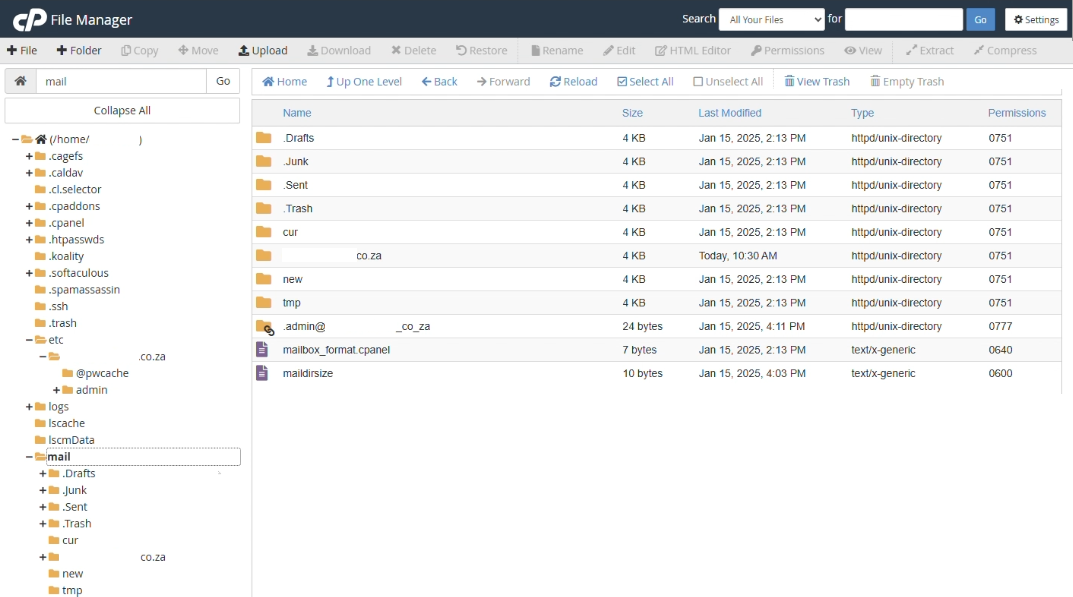
10. Right click on the Admin Folder and select Compress.
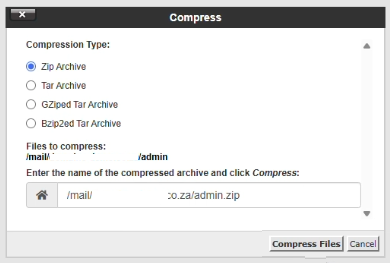
11. In the opened window, select Zip Archive and Enter the name of the compressed archive in the text field, changing it to mail. Click Compress Files.
12. Download the new zip file to the backup-specific folder on your Local Drive.
Part 4: Backup the PUBLIC_HTML Folder
13. Select the public_html Folder. Click Select All, select Compress.
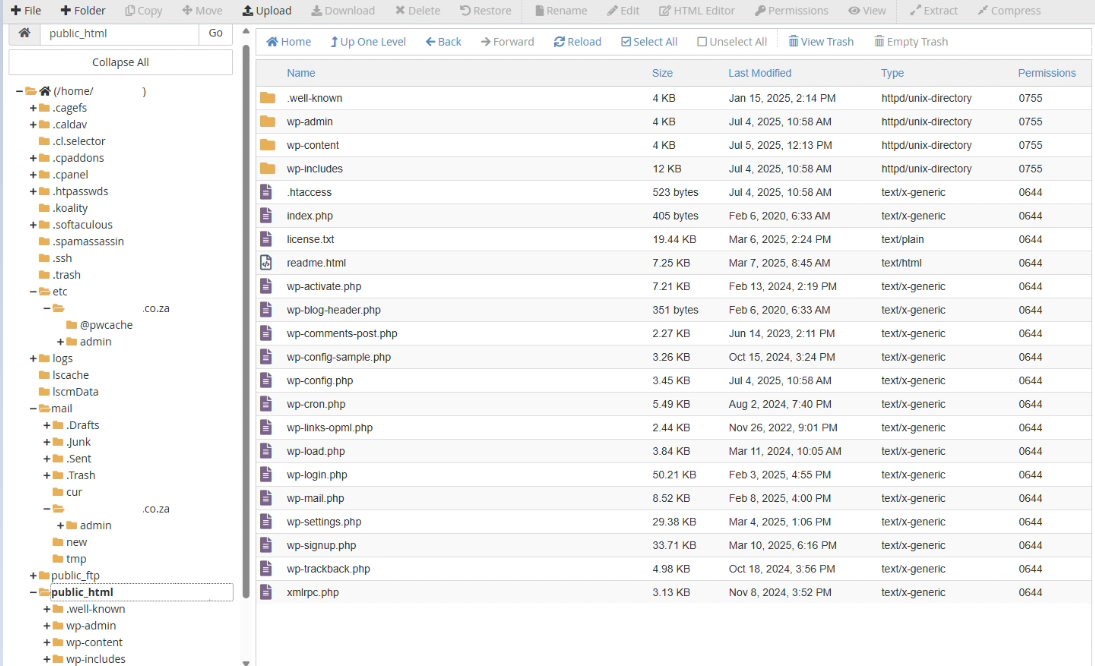
14. Select Zip Archive and Enter the name of the compressed archive in the text box and change it to public. Click Compress Files.
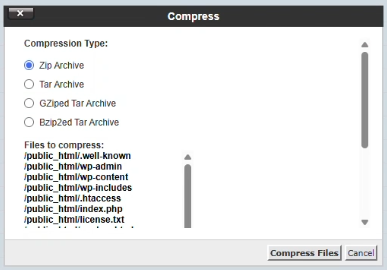
15. Download the zip file to your Backup folder on the Local Drive.
Part 5: WordPress Sites – Copy the Database Name from the WP-CONFIG.PHP File
16. Right click the wp-config.php File under public_html Folder and select Edit.
17. Click the Edit button in the pop-up window.
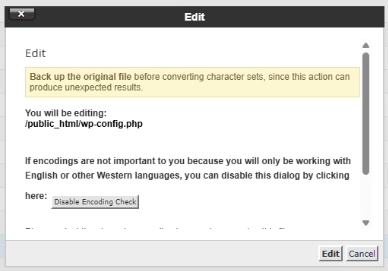
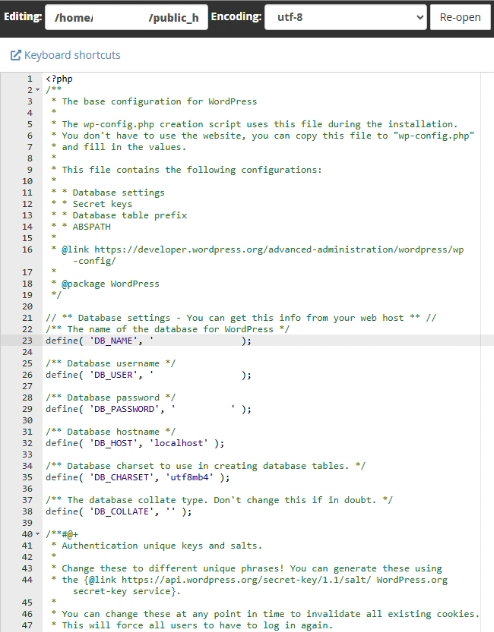
18. Copy the Database Name and paste it into a Text document (e.g. Notepad, Notepad++) to reference back to later.
Part 6: Export the Database
19. Return to the cPanel Dashboard (select the cPanel browser tab) and scroll to Databases and select phpMyAdmin.

20. Click the Database Name on the left-hand side.
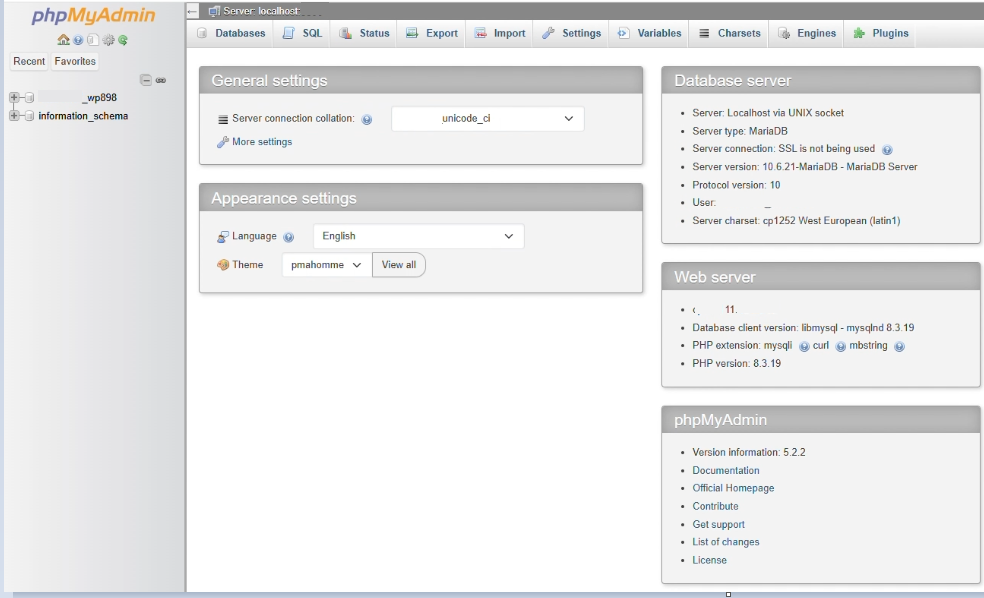
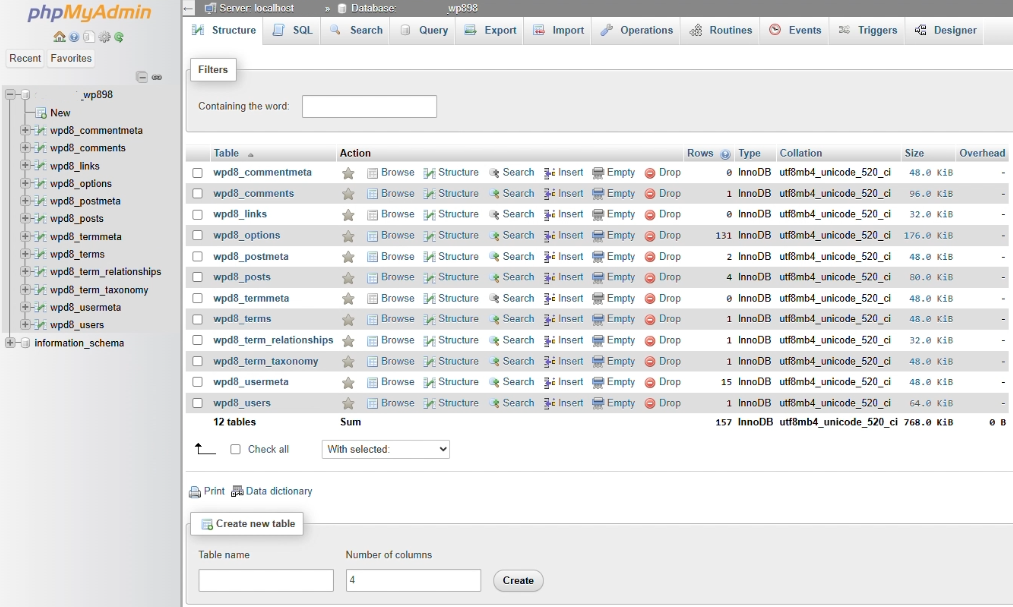
21. Click Export on the top menu bar.
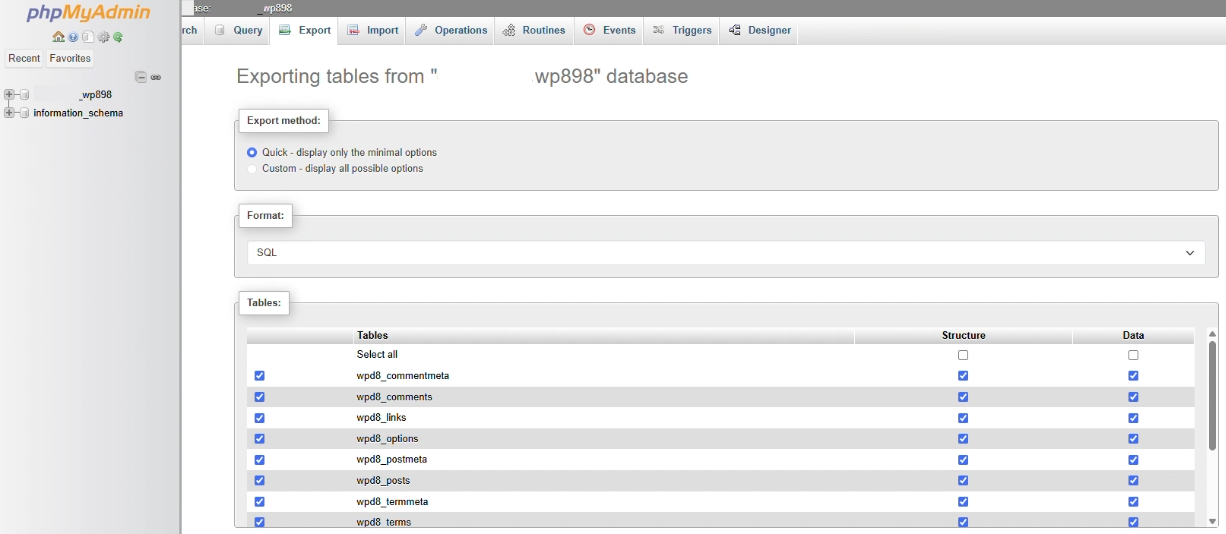
22. Leave the default Format as SQL.
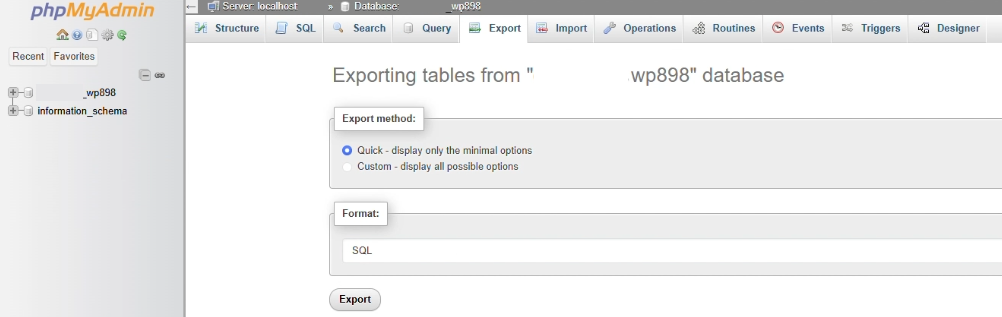
23. Click the Export button.
24. We suggest that you add the actual backup date to your Backup Folder name and ensure that you backup regularly, or as you require.
How to Restore Backup Files
Part 7: Restoring the .ZIP Files from a Backup Folder
IMPORTANT:
Before restoring a backup be aware that you will be overwriting ALL current existing files. It is therefore highly recommended that you perform another backup of the current data (even if it is corrupted) in the event that you need to refer back to it for whatever reason. It is also advised that you ascertain if it is relevant to restore all your backup folders or not, example, it may be unnecessary to overwrite Mail, unless you are performing a complete website restore.
25. After logging in to your cPanel Dashboard, select File Manager in the Files section.

26. Click Settings. In the Preferences window tick the Show Hidden Files (dotfiles) checkbox and Save.
27. Select the etc Folder and click the Upload icon.
28. Select the etc .zip Folder Downloaded in Part 2 above.
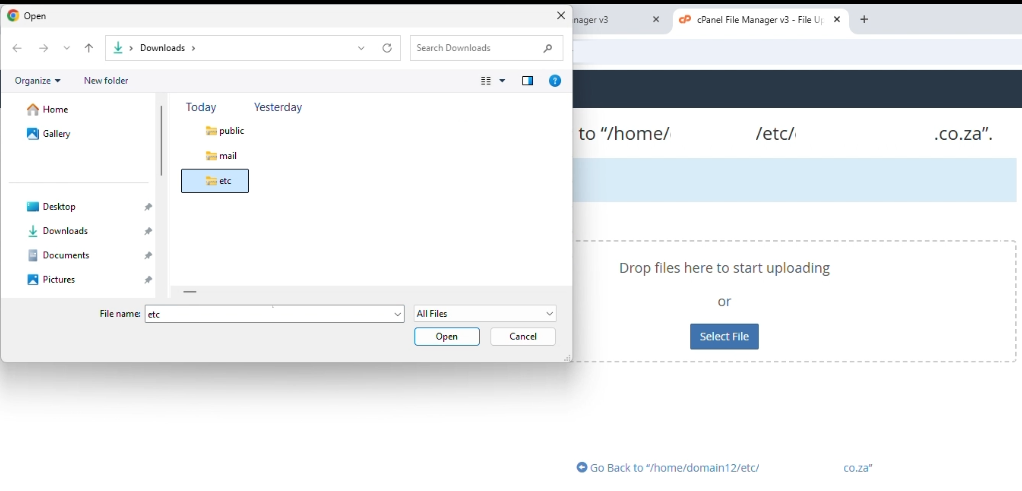
29. Click the Go Back arrow.
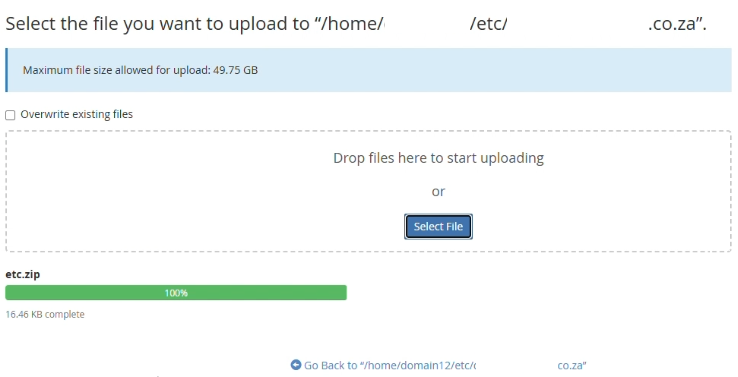
30. You can either right click the zip file and select Extract, or you can select the zip file and click Extract in the top bar.
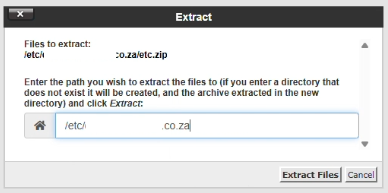
31. Click the Extract button in the window. Close the Extraction Results dialogue box.
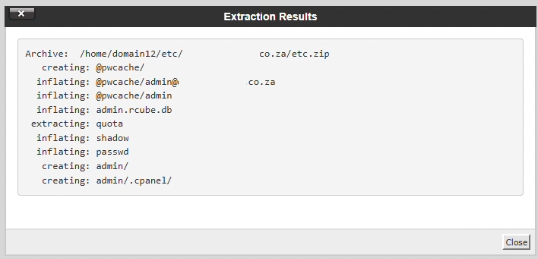
32. Select the mail folder and repeat the above process with the downloaded mail zip file.
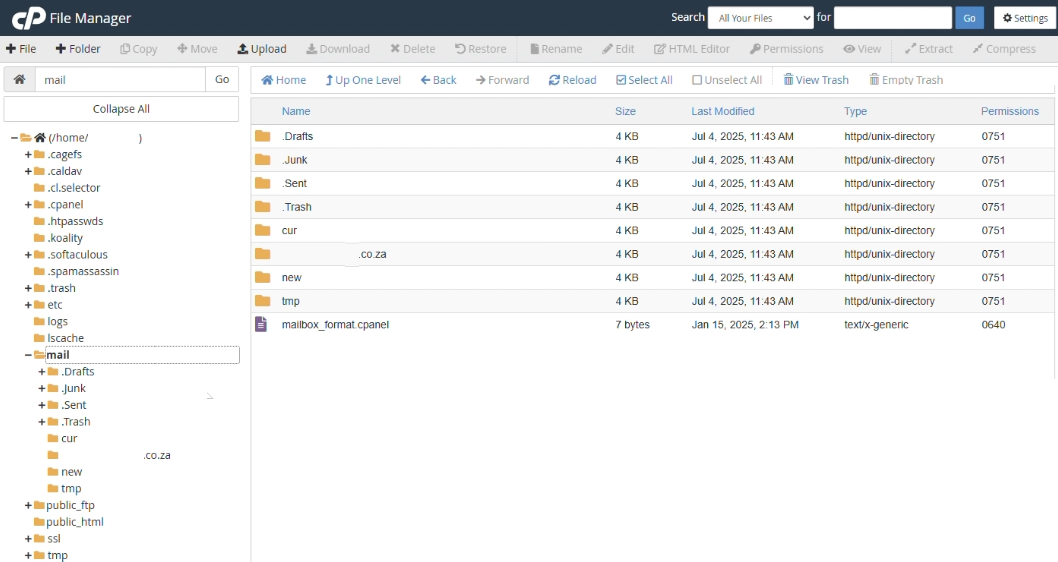
33. Next follow the same process for the public_html folder.
Part 8: Create a Database if Required
34. Go to your cPanel dashboard browser tab and select Database Wizard under Databases.
35. Copy the Database Name that you saved to Notepad in Step 18 above and paste it in the text field. Click Next Step.
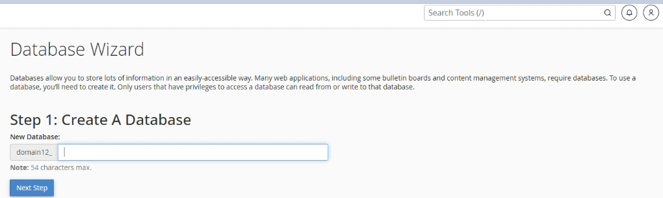
36. Under Create Database User, enter a Username and Save it to Notepad to access later.

37. Click Password Generator and save the Password to Notepad as well.
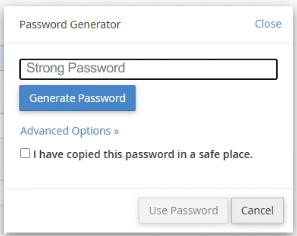
38. Click the checkbox: I have copied the password to a safe place.
39. Click Use Password then click Create User.
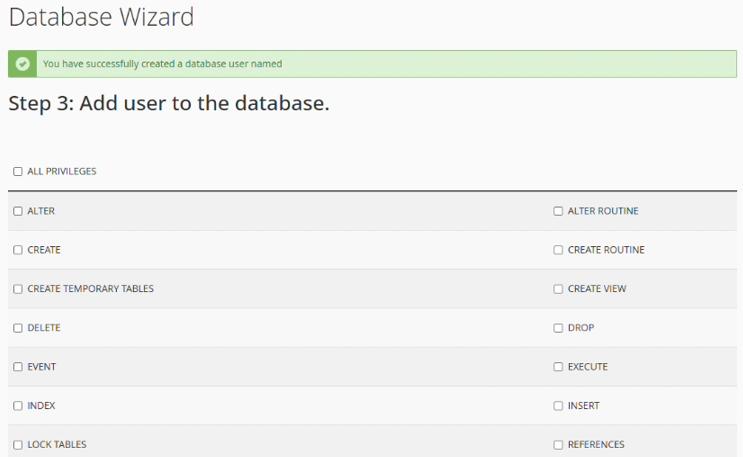
40. Tick the ALL PRIVILEGES checkbox and then Make Changes.
41. Click Return Home.

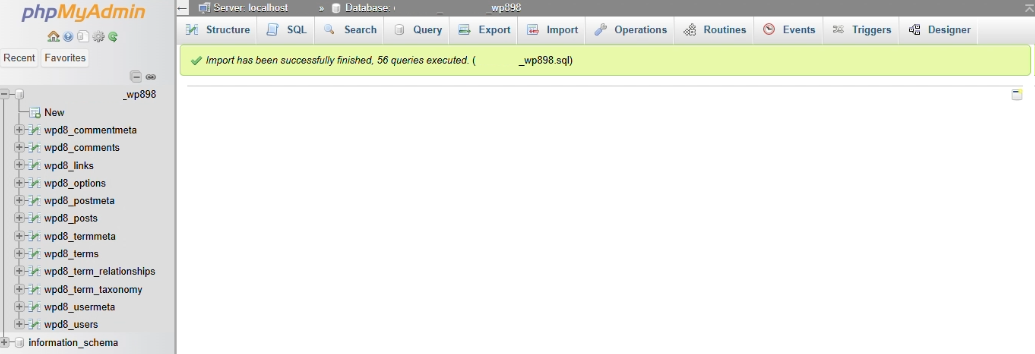
Part 9: Restoring the Database from the Backup Zip Folder
42. On the cPanel Dashboard, select phpMyAdmin under the Databases section.

43. Select the Database on the left and click Import on the top navigation bar

44. Click Choose File – select the Database ZIP File downloaded in Part 6 above. Click Import.
Part 10: Editing the WP-CONFIG.PHP File with the Created Database Details
45. Got to your cPanel Dashboard and select File Manager under the Files section.
46. Click on the public_html Folder in the left menu, right-click on the wp-config.php File and select Edit.
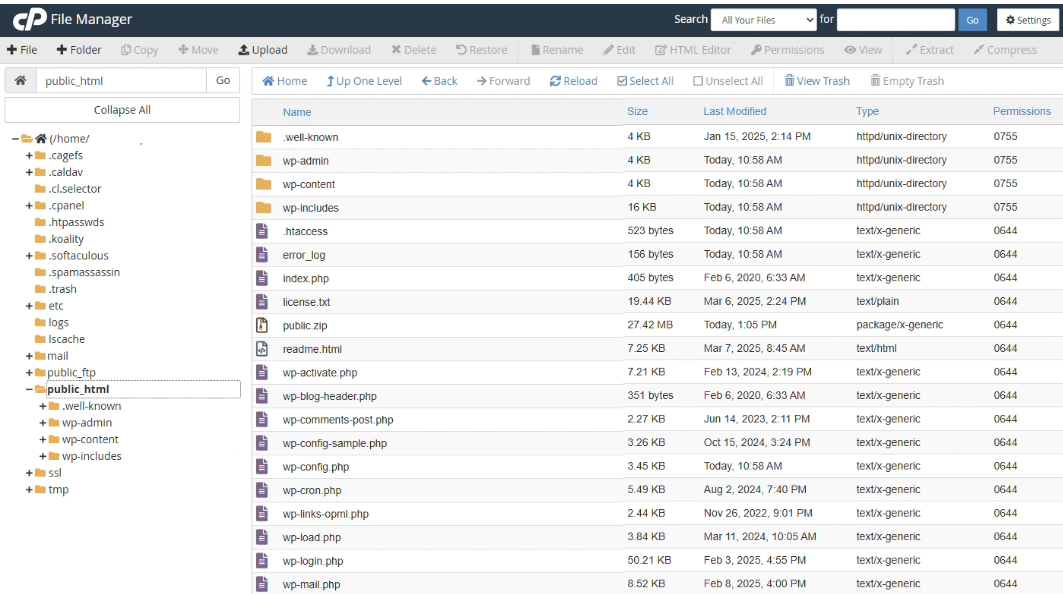
47. Click the Edit button.
48. Update the DB_NAME, DB_USER and DB_PASSWORD with the new details that you saved to Notepad.
49. Click Save Changes.
You have successfully Backed up and restored your website.
How to Backup a Website in cPanel Interface
This article assumes that you have already logged into your Domains.co.za Account and have accessed the cPanel Dashboard – refer below for steps on how to do this.
Download a Copy of the Backup
1. Under the Files section, go to Backup Wizard
2. Click the blue Back Up button

3. Select Partial Backup, and then click Home Directory

4. Once downloaded, click on Full or Partial Backup at the top

5. Click on the Backup Database shown and wait for it to download

IMPORTANT:
A full backup can ONLY be used to keep a copy on your server or desktop, or when moving your account to another server – it CANNOT be used for a Restore Back Up through the cPanel interface.
Restore a Backup File in cPanel
6. Under the Files section, go to Backup Wizard
7. Click the Restore button then Home Directory.

8. Click on Choose File and select the file from your device, and click on Upload

9. Once the restore has completed, click on Select Restore Type at the top
10. Click on Databases at the bottom left then click on Choose File, select the second file from your device, and click Upload.
11. In the Success message, copy the database name shown in between the double quotes
Restore a Backup in cPanel File Manager
12. At the top right, search for File Manager, and click on this option

13. On the far left, click on public_html then in the file list, right-click the wp-config.php file and choose Edit and Edit again
14. Paste the copied text into the single quotes after DB_NAME and DB_USER, replacing the old database name
15. Copy the password between the single quotes next to DB_PASSWORD then click Save Changes at the top right.
16. In your browser at the very top, navigate to the tab that reads cPanel – Backup Wizard
Create a New User
17. At the top right, search for Manage My Databases, and click on this option
18. Under Database Users > Add New User paste the copied password into both Password fields
19. In the Username field, referencing the database, only enter the part after the first underscore (if the database name is user1_user2_wp123, then ONLY enter user2_wp123)
20. Click the blue Create User button
21. On the new screen, click on Go Back and under Add User To Database make sure the User and Database match those created earlier, and click the blue Add button
22. Choose ALL PRIVILEGES at the top, and click on the blue Make Changes button
Additional Information
Reasons to Backup A Website in cPanel
System Failures & Security Breaches
Backups are essential for recovering lost or damaged files. In the event of a system failure or a security breach, having a website backup ensures you can prevent data loss and restore your site to a previous state where all the data was intact.
Coding Errors & Site Updates
Mistakes happen, and backups are invaluable for getting your website up and running again if issues arise from coding errors. Carelessness during site updates can also cause problems, and having a backup allows for quick recovery.
Plugins, Malware, & Website Testing
Regular backups are critical due to potential compatibility issues with plugins, malware infections, hacker attacks, and the need to create a testing version of your website. Ensuring your site is backed up regularly protects against these risks.
Domains.co.za Daily Backups
Daily website backups are included with all Domains.co.za Web Hosting plans. If you prefer to back up your website manually, you will find the process straightforward and user-friendly.
How to Access cPanel via your Domains.co.za Account
1. Go to the Domains.co.za website Account Login page.

2. Enter your Email and Password and then click the Sign In button.

3. On the right of the Dashboard under the Manage Account menu, click Manage Services on the drop-down menu and select your Hosting plan, our example uses Web Hosting. (refer image above).

4. Click Manage next to the website domain you wish to access in cPanel.

5. The Product Information section will display – click the Login button next to Control Panel – cPanel.


