


This guide teaches you how to install Joomla from Softaculous using the cPanel dashboard, available to users on one of the Domains.co.za cPanel web hosting plans.
Joomla is a versatile content management system (CMS) that allows users to create websites and online applications. Its extensibility and user-friendliness have made Joomla one of the most popular website software solutions available. The best part is that this software is an open-source solution, freely accessible to everyone.
TABLE OF CONTENTS
How to Install Joomla from Softaculous
This article assumes that you have already logged into your Domain account and have accessed your cPanel Dashboard.

1. Scroll through the cPanel Dashboard Tools to the Software section.

2. Click on the Softaculous app icon.

3. Type in the app you want in the Search field, or click the Portals / CMS app category in the left hand side and select Joomla from the app listing displayed in the dropdown.
Joomla Custom Installation
4. Click Joomla from the list – you will be taken to the Overview page where you can view more information.

5. Click the Install tab. which will default open to a Custom Install screen.
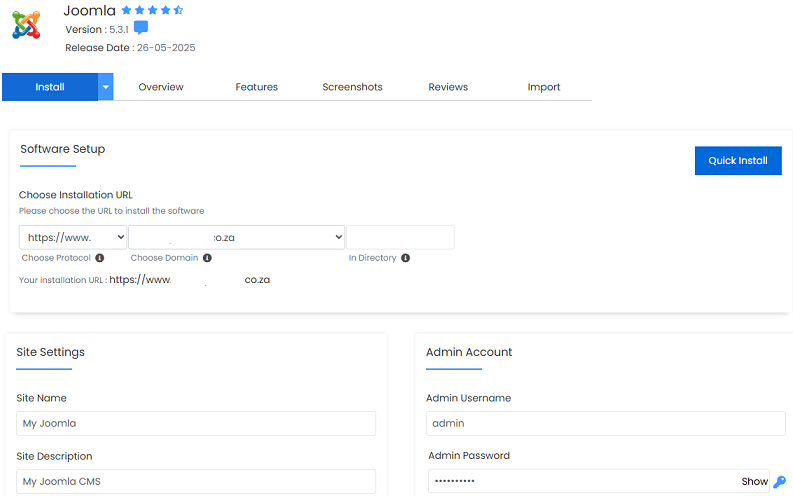
6. Under Software Setup, select the domain that you want to install Joomla on, from the boxes below Installation URL.
7. Choose the version of the script you want to install.
8. Under Site Settings, add the Site Name and Description. These can be changed at a later date from within the software’s Admin Panel.
9. Enter your Admin Username, Admin Password and Admin Email.
10. Click Install.
Joomla Quick Installation
4. For a Quick Install, please click the Quick Install button and proceed as follows:.

5. Enter your Admin Username, Password and Email.
6. Click Install.
7. Here is our new Joomla example, which is ready to be used.
12. Under Site Settings, enter a Site Name and Description. These can be changed later on from the application’s admin panel.
5. Type the desired Admin Username and Password that should be used. Also, enter a Real Name that will be displayed and the Admin’s Email. In most cases, the defaults above should work fine.
6. Click Install. After a moment, the software will be installed.
7. Once finished, you can view your new site by clicking the Installation link.

Additional Information
Joomla is an excellent choice for a wide range of websites and online projects, thanks to its diverse features:
Jooma Features
- User-Friendly Interface: Joomla has an intuitive interface that simplifies adding pages, editing content, and changing the website’s appearance, making it accessible for beginners and experienced users.
- Customisation Options: With thousands of templates and extensions available, Joomla permits extensive customisation. Whether you’re creating a blog, e-commerce site, portfolio, or corporate website, you can easily tailor your site to fit your specific needs.
- Powerful Content Management: Joomla offers robust content management capabilities for users to create, organise, and manage content through menus, categories, and tags. This feature supports the creation of articles, blog posts, galleries, etc.
- Multilingual Support: The platform’s built-in multilingual capabilities make it easy to build websites in multiple languages, which is particularly useful for businesses or organisations serving a global audience.
- Scalability: Joomla is highly scalable, accommodating websites of varying sizes. As your website grows, the software can handle increased traffic and expanded content effortlessly.
- Security: Joomla’s developers regularly release updates to address vulnerabilities and enhance security features. Keeping your Joomla installation current and follow best practices to help protect your site from potential threats.
- Softaculous always ensures that they have the current versions of any of their software, full updated.


