


In this tutorial, we’ll walk you through the process how to install WordPress from Softaculous via the cPanel dashboard, available to users on Domains.co.za’s hosting plans. Make sure you’re logged into cPanel before we get started.
WordPress is an open-source content management system (CMS) that has become a powerhouse for websites worldwide since its debut in 2003 as a blogging platform. Over the years, it has evolved into a versatile CMS, allowing users to create, customise, and manage a diverse array of websites, from personal blogs and portfolios to e-commerce sites and business platforms.
TABLE OF CONTENTS
How To Install WordPress Via Softaculous
This article assumes that you have already logged in to your Domains.co.za account and have access cPanel via your Hosting account, or that you are logged in to the cPanel Dashboard.
1. WordPress can be found under the dropdown list for Image Galleries, so expand this menu and select it from the list.

2. Once you click WordPress – You will be taken to the Overview page where you can view more information about this particular software.

For WordPress Quick Install
3. Click the Quick Install from the Install tab. The next two boxes require your selected domain and the directory. The directory is relative to your domain and should not exist. e.g. To install at http://mydomain/dir/ just type dir. To install only in http://mydomain/ leave this empty.
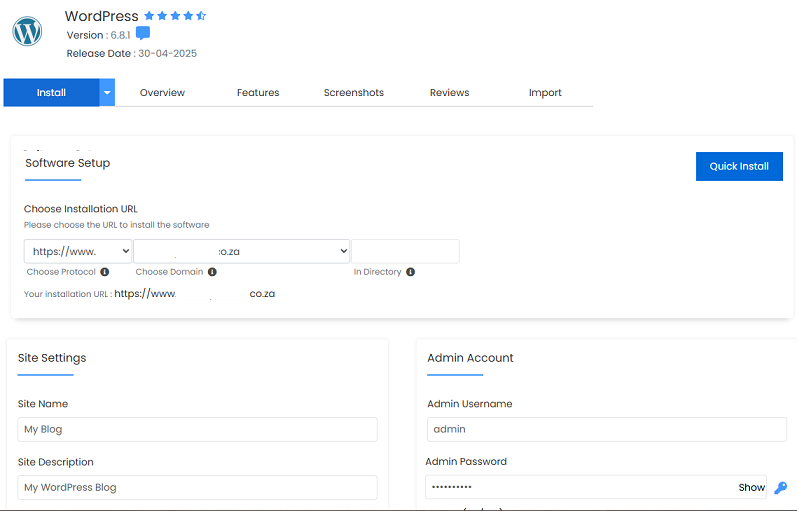
4. Fill in your Admin Account details and click Install.
For WordPress Custom Install
3. The Custom Install process is similar, simply select the option from the Install tab. Under Software Setup choose your Protocol, Domain, and Directory, which should be empty. If you have multiple domains on one account, you can select where to install.

NOTE:
The directory is relative to your domain and should not exist. e.g. To install at http://mydomain/dir/ just type dir. To install only in http://mydomain/ leave this empty.
4. Under Site Settings, enter a Site Name and Site Description. You can also select a plugin here from the list, including Backups (Backuply); Improve Page Speed (SpeedyCache); Limit Login Attempts (Loginizer); Email with SMTP (GoSMTP); File Manager (FileOrganizer); Improve Website Ranking (SiteSEO) and Classic Editor.
Finally, fill in your Admin Account details, including Admin Email and select the language. These can be changed later from the Admin panel.
After WordPress Quick and Custom Installations
5. After clicking Install in both processes, the software will be installed, and you can view your new site by clicking the Installation link.
That’s it, your new WordPress installation will be ready for use. You’ve reached the end of the tutorial, and you now know how to install WordPress from Softaculous.
Additional Information
Benefits Of Using WordPress
WordPress is the world’s most popular CMS, and it’s easy to see why. Here are several benefits of installing WordPress:
- Updates and Security – Regular updates keep WordPress secure and up to date with the latest features and improvements, ensuring your website remains safe and functional.
- User-Friendly Interface – WordPress offers an intuitive interface that makes it easy for beginners to build and manage websites without needing extensive technical skills.
- Customisation – With access to thousands of themes and plugins, WordPress allows users to customise their websites’ appearance and functionality to match their specific needs and preferences.
- Versatility – Install WordPress can be used to create a wide variety of websites, including blogs, e-commerce stores, business sites, portfolios, forums, and more.
- SEO-Friendly – Designed with SEO in mind, WordPress helps improve search engine rankings with features like clean URLs, customisable meta tags, and easy integration with SEO plugins.
- Community Support – A large and active community of users, developers, and designers supports WordPress. This vibrant network provides resources, assistance, and contributes to the platform’s ongoing development.
- Scalability – Whether you’re starting with a small personal blog or building a large business website, WordPress scales to meet your needs, accommodating growth and increased traffic.
- Cost-Effective – WordPress is free to use and offers a wide range of free or affordable themes and plugins, making it a budget-friendly choice for website creation.
WordPress Video Tutorials
If you are starting out with WordPress, then use our video WordPress Tutorial playlist to get you familiarised with it.
How to Login to Your WordPress Admin Dashboard
VIDEO: How to Login to Your WordPress Admin Dashboard
Login to Domains.co.za Account
1. Go to the Domains.co.za Login website page.

2. Enter your Email and Password and click the “Sign In” button.
3. You will see the Domains.co.za Dashboard, displaying the Manage Account menu on the left and your Account Information, Account Overview and Open Support Tickets on the right.

Login to cPanel from your Domains.co.za Dashboard
4. Click on Manage Services to view the sub-dropdown menu and select the hosting package for the domain you want to work with – in our example we are using Web Hosting.

5. Click the Manage button to the right of the domain name you want to access.
6. The display will now show Product Information, Quick Manage, Resource Usage and Site Statistics for that domain name.

7. Under Product Information, scroll down to Control Panel, which will display cPanel to the right, and click on the Login button.

8. The cPanel Dashboard will now be displayed.


