


PHP error reporting is an essential tool for developers and website administrators. It allows you to view errors, warnings, and notices generated by your PHP scripts, helping you debug and improve your website’s performance. However, on live websites, it’s strongly advised to turn this feature off to avoid exposing technical details to end users.
With web hosting from Domains.co.za, managing your PHP error reporting settings is simple and secure via cPanel.
TABLE OF CONTENTS
How To Enable Or Disable PHP Error Reporting In cPanel
This article assumes that you have already logged into your Domains.co.za Account and have accessed the cPanel Dashboard – refer below for steps on how to do this.
Follow these steps to manage PHP error display settings:
How to Access MultiPHP INI Editor
1. In the Software section, click MultiPHP INI Editor.

2. Under Basic Mode, select your domain from the dropdown list.
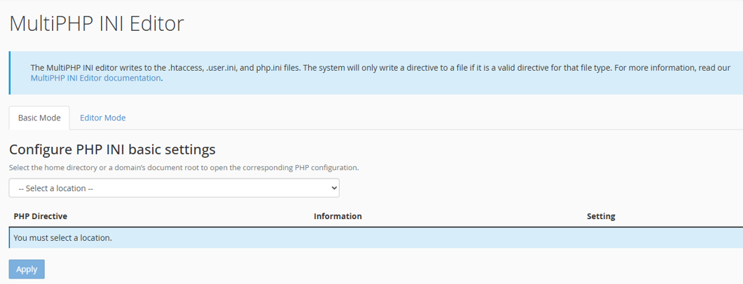
How to Locate PHP Errors
3. Locate the display_errors directive:
4. Scroll to the bottom and click Apply to save the changes.
Additional Information
What is PHP Error Reporting?
PHP error reporting controls how errors are displayed and logged. It helps developers identify issues like missing files, undefined variables, deprecated functions, or script syntax errors.
PHP Security Implications
Enabling display_errors on production sites can reveal file paths, database queries, or logic vulnerabilities to visitors.
Other Related PHP Settings:
- error_reporting: Defines the types of errors to be reported. For full reporting, use E_ALL.
- log_errors: Enables error logging to a file instead of displaying an error on screen.
- error_log: Specifies the file path for storing PHP errors.
General PHP information
- Always disable error display and enable logging instead on live environments.
- Common Use Cases: Enable during development to fix bugs, test new features, or validate code changes.
- Disable in production to avoid leaking system-level details and maintain a polished user experience.
- Where Errors are Logged: When log_errors is enabled, PHP will write errors to the default error log file set by your server. This can be accessible via cPanel → Metrics → Errors or manually under /logs or tmp directories in File Manager.
- Quick Troubleshooting Tip:
- If changes don’t take effect, confirm that:
- The correct domain is selected in MultiPHP INI Editor.
- The server uses the selected PHP version.
- No .user.ini or .htaccess files are overriding your settings.
- If changes don’t take effect, confirm that:
- PHP Version Consideration: Some older PHP versions may behave differently with error directives. Always ensure you’re using a supported and secure PHP version via MultiPHP Manager.
Login to Domains.co.za Account
1. Go to the Domains.co.za Login website page.

2. Enter your Email and Password and click the “Sign In” button.
3. You will see the Domains.co.za Dashboard, displaying the Manage Account menu on the left and your Account Information, Account Overview and Open Support Tickets on the right.

Login to cPanel from your Domains.co.za Dashboard
4. Click on Manage Services to view the sub-dropdown menu and select the hosting package for the domain you want to work with – in our example we are using Web Hosting.

5. Click the Manage button to the right of the domain name you want to access.
6. The display will now show Product Information, Quick Manage, Resource Usage and Site Statistics for that domain name.

7. Under Product Information, scroll down to Control Panel, which will display cPanel to the right, and click on the Login button.

8. The cPanel Dashboard will now be displayed.


