






This guide explains how to confirm that your AutoSSL renewed successfully using cPanel.
An SSL certificate encrypts the connection between your website and its visitors, helping to protect sensitive information and build trust by displaying HTTPS in supported web browsers. Domains.co.za Web Hosting includes AutoSSL, which automatically issues and renews Domain Validated (DV) SSL certificates for eligible domains and subdomains, helping to keep your website secure without requiring manual intervention.
Although AutoSSL is designed to renew certificates automatically before they expire, it is good practice to periodically confirm that the renewal has completed successfully. Verifying your SSL certificate ensures that your website remains protected, visitors do not encounter browser security warnings, and encrypted connections continue without interruption.
You can check your AutoSSL status directly from cPanel using the SSL/TLS Status interface, which displays the protection status of your domains and allows you to run AutoSSL manually if required.
IMPORTANT:
AutoSSL only renews certificates for eligible domains that resolve correctly and meet the required validation checks. If AutoSSL cannot validate your domain, the certificate may not renew automatically.
TABLE OF CONTENTS
Before You Begin
Before checking your AutoSSL status, ensure that:
- Your domain points to your Domains.co.za hosting account.
- Your website is active and accessible.
- You have access to the Domains.co.za Customer Portal.
- DNS changes, if recently made, have fully propagated.
How to Confirm that AutoSSL Renewed Successfully
Step 1: Access cPanel
1. Login to your Domains.co.za Customer Portal using your username and password.
2. Open the Manage Services drop-down menu.
3. Select Web Hosting.
4. Click Manage next to the hosting package associated with your domain.
5. Click Login next to Control Panel to access cPanel.
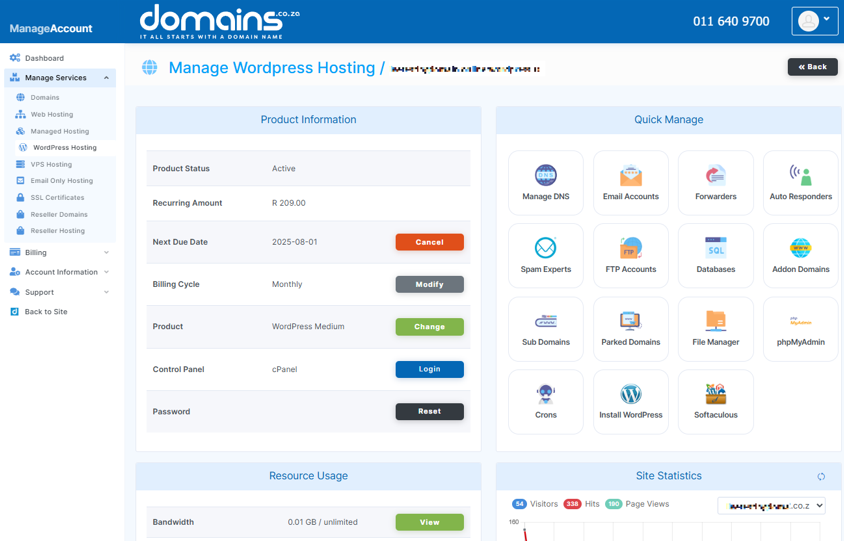
Step 2: Open SSL/TLS Status
6. Scroll to Security.
7. Click SSL/TLS Certificates.

8. Select Status from the top menu.
The Status page displays all domains and subdomains associated with your hosting account and shows whether AutoSSL is enabled and your SSL certificates are valid.
Step 3: Review the Certificate Status
Locate the domain you wish to check.
Confirm that:
- The domain displays a valid AutoSSL certificate.
- The certificate status indicates it is protected.
- There are no warnings or validation errors.
If your certificate has renewed successfully, the expiry date should reflect the new validity period.
Step 4: View Certificate Details
If required:
1. Select the domain.
2. View the certificate information.
3. Review details such as:
- Certificate issuer.
- Issue date.
- Expiry date.
- Protected domain names.
4. These details confirm that a new certificate has been issued.
Step 5: Run AutoSSL Manually (Optional)
If the certificate has not renewed automatically:
1. From Status, select the affected domain.
2. Click Run AutoSSL.
cPanel will begin validating the selected domains and attempt to issue or renew the SSL certificate.
Allow several minutes for the process to complete before checking the status again.
Step 6: Verify HTTPS
Open your website in a web browser using:
Confirm that:
- The website loads successfully.
- Your browser displays the padlock icon.
- No security warnings appear.
Troubleshooting
My SSL Certificate Has Expired
Run AutoSSL manually from the SSL/TLS Status page. If the certificate is not renewed, verify that your domain points to the correct hosting account.
AutoSSL Reports a Validation ErrorAutoSSL Reports a Validation Error
Ensure your domain resolves to your Domains.co.za hosting server and that DNS records are correctly configured.
Confirm that the SSL certificate has been renewed successfully and that your website is loading entirely over HTTPS.
The Certificate Has Not Renewed
Check that there are no DNS issues preventing AutoSSL from validating your domain. Recently updated DNS records may require additional propagation time.
Some Subdomains Are Not Protected
Review the SSL/TLS Status page to ensure the affected subdomains are eligible for AutoSSL and resolve correctly.
Additional Information
- AutoSSL automatically renews eligible SSL certificates before they expire, helping to maintain secure HTTPS connections.
- You can monitor the status of your SSL certificates from the Status tab within the SSL/TLS Certificates section of cPanel.
- AutoSSL relies on successful domain validation, so incorrect DNS settings can prevent certificate renewal.
- Running AutoSSL manually can help resolve situations where a certificate has not yet renewed automatically.
- Browser padlock icons indicate that a secure HTTPS connection has been established successfully.
- SSL certificates help protect data transmitted between your website and its visitors by encrypting network traffic.
- Regularly checking your SSL certificate status can help identify potential issues before visitors encounter browser security warnings.
- If AutoSSL continues to fail after checking your DNS configuration, contact the Domains.co.za Support team for further assistance.
Login to Domains.co.za Account
1. Go to the Domains.co.za website Account Login page.

2. Enter your Email and Password and click the Sign In button.
3. You will see the Domains.co.za Dashboard, displaying the Manage Account menu on the left and your Account Information, Account Overview and Open Support Tickets on the right.


