


This guide explains how to purchase an SSL for web hosting plan through your Domains.co.za account. An SSL (Secure Sockets Layer) certificate is a critical security feature that encrypts the data exchanged between your website and its visitors. This encryption prevents unauthorised parties from intercepting sensitive information such as contact form submissions, login credentials, and payment details. Websites secured with SSL display https:// in the address bar, and a padlock icon, which signals to visitors that the site is safe to use.
Beyond security, SSL certificates play an important role in trust and visibility. Modern web browsers actively warn users when a website does not have an SSL certificate installed, which can discourage visitors from continuing to visit the site. Search engines such as Google also favour HTTPS-enabled websites, meaning an SSL certificate can positively impact your website’s search engine rankings.
Whether you are running a personal blog, a business website, or an online store, having an SSL certificate is no longer optional. It is an essential requirement for protecting user data, meeting compliance standards, and maintaining a professional online presence.
TABLE OF CONTENTS
How to Purchase an SSL for Web Hosting Plan
1. Login to Your Domains.co.za Account.
2. From the main dashboard, open the Manage Services dropdown menu.

3. Select SSL Certificates from the list to view the available options.
4. Select the SSL certificate that best matches your website’s purpose:
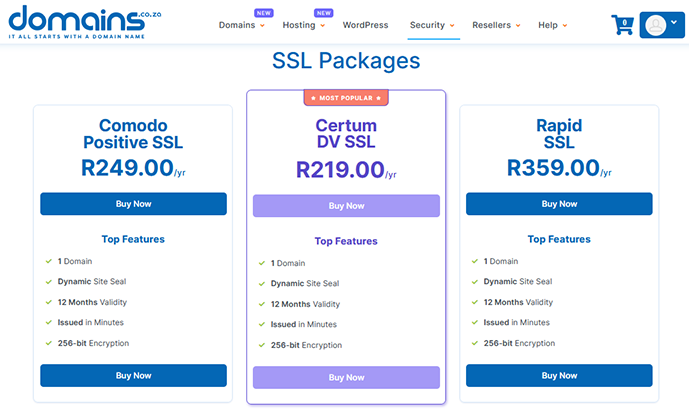
5. Domain Validation (DV) certificates are suitable for personal websites, blogs, and informational pages where basic encryption is required.
6. Organisation Validation (OV) certificates are designed for business websites and include verification of company details to increase visitor trust.
7. Extended Validation (EV) certificates offer the highest level of trust and are recommended for ecommerce websites and platforms that process sensitive customer data.
8. Each certificate type provides the same level of encryption but differs in validation depth and trust indicators.
9. Click Buy Now next to the certificate of your choice.
10. Your chosen SSL certificate will be added to the cart. Continue and proceed to checkout.
11. Review your order details carefully and complete the payment process.
12. After purchase, domain ownership verification is required before the SSL certificate can be issued. This is typically done via an approval email sent to a registered domain email address or through DNS validation.
13. Once validation is successful, the SSL certificate will be issued and installed on your hosting account.
14. After installation, visit your website using https:// and confirm that the padlock icon appears in the browser’s address bar.
Your website is now protected with SSL encryption.
Additional Information
- An SSL certificate ensures that data transmitted between your website and visitors remains private and secure at all times. This is especially important for websites that use contact forms, login areas, or payment gateways.
- Browsers such as Chrome and Firefox label websites without SSL certificates as “Not Secure”, which can affect visitor confidence negatively and increase bounce rates.
- SSL certificates are required for most modern website features, including online payments, secure login systems, and API integrations.
- Search engines prioritise secure websites, meaning SSL can contribute to improved SEO performance and better visibility in search results.
- Once an SSL certificate is installed, it may be necessary to update internal links or enforce HTTPS redirects to ensure all website content loads securely.
- Domains.co.za provides support to assist clients with SSL selection, validation, and installation if any issues arise during the process.
Login to Domains.co.za Account
1. Go to the Domains.co.za website Account Login page.

2. Enter your Email and Password and click the Sign In button.
3. You will see the Domains.co.za Dashboard, displaying the Manage Account menu on the left and your Account Information, Account Overview and Open Support Tickets on the right.


