





This guide explains several methods on how to change WordPress admin password.
Changing your WordPress administrator password regularly is an important part of maintaining website security. Whether you have forgotten your password or wish to improve account security, WordPress offers several methods for safely updating administrator login credentials.
Strong passwords help protect your website from unauthorised access, malware attacks, and compromised user accounts. It is also recommended to update passwords periodically and avoid reusing passwords across multiple services.
TABLE OF CONTENTS
How To Change WordPress Admin Password
Method 1: Reset Password from the Login Screen
1. Login to the Domains.co.za Customer Portal using your account credentials.
2. Navigate to your WordPress hosting service and open the WordPress login page.
3. Click the Lost your password? link below the login form.
4. Enter the administrator username or email address associated with the account.
5. Click Get New Password or Submit.
6. Open the password reset email sent to the administrator’s email address.
7. Click the password reset link within the email.
8. Enter a new secure password for the administrator account.
9. Click Reset Password to complete the process.
Method 2: Change Password from the WordPress Dashboard
1. Login to the Domains.co.za Customer Portal using your account credentials.
2. Navigate to Manage Services from the dashboard menu.
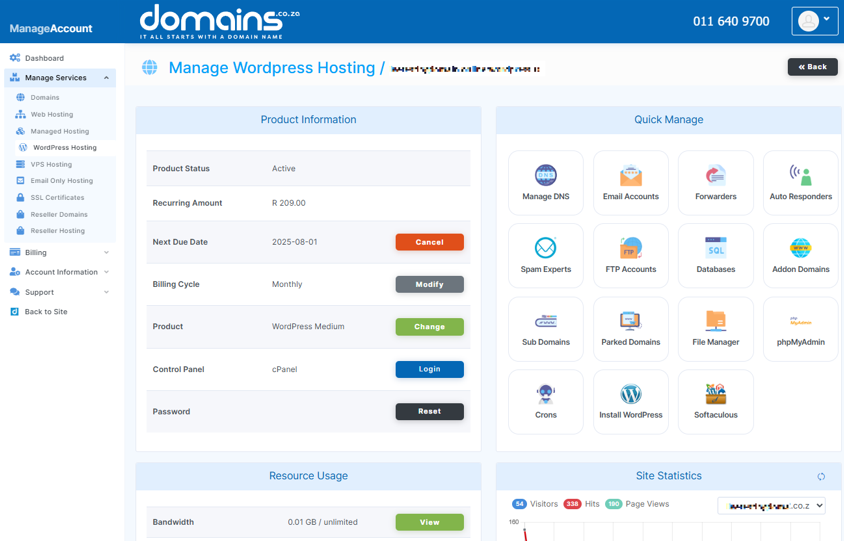
3. Select your WordPress Hosting package and click Manage.
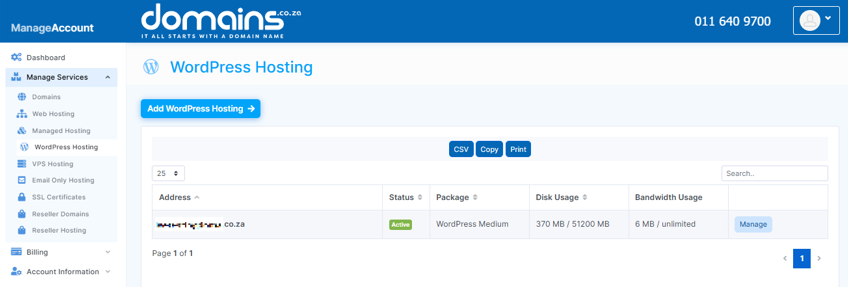
4. Click Login to cPanel to access your hosting control panel.
5. Login to your WordPress Admin Dashboard.
6. Navigate to Users and select Profile or All Users.
7. Select the administrator account you wish to update.
8. Scroll to the Account Management section.
9. Click Generate Password or enter a new password manually.
10. Confirm the new password if required.
11. Click Update Profile to save the changes.
Method 3: Change Password Using phpMyAdmin
1. Login to the Domains.co.za Customer Portal using your account credentials.
2. Navigate to Manage Services from the dashboard menu.
3. Select your WordPress Hosting package and click Manage.
4. Click Login to cPanel to access your hosting control panel.
5. Open phpMyAdmin from the Databases section.
6. Select your WordPress database from the left-hand panel.
7. Open the wp_users table.
8. Locate the administrator account you wish to modify.
9. Edit the user_pass field.
10. Enter the new password and select the MD5 encryption option if required.
11. Save the changes to update the administrator password.
Additional Information
- Strong passwords should include uppercase letters, lowercase letters, numbers, and symbols.
- Administrator passwords should never be shared with unauthorised users.
- Changing passwords regularly improves website security.
- Password reset emails are sent to the administrator’s email address linked to the account.
- Back up your website before making database changes through phpMyAdmin in cPanel.
- Security plugins can help enforce stronger password policies for WordPress users.
- It’s recommended that you log out of all active sessions after changing passwords.
- Enabling two-factor authentication (2FA) adds an additional layer of security to WordPress logins.
Login to Domains.co.za Account
1. Go to the Domains.co.za website Account Login page.

2. Enter your Email and Password and click the Sign In button.
3. You will see the Domains.co.za Dashboard, displaying the Manage Account menu on the left and your Account Information, Account Overview and Open Support Tickets on the right.


