





This guide explains how to change a language on a WordPress website using the Domains.co.za Customer Portal.
Changing the language on your WordPress website can help make your content more accessible to visitors in different regions and countries. If your business serves multilingual audiences or expands into international markets, offering your website in another language can improve user experience, engagement, and conversions.
WordPress Hosting includes built-in language support that lets you change the language of both the WordPress dashboard and your website’s front-end interface. This includes default WordPress text, menus, widgets, dates, and system messages, making it easier to manage multilingual websites and provide a more accessible experience for your visitors.
TABLE OF CONTENTS
How to Change a Language on WordPress
1. Login to the Domains.co.za Customer Portal using your account credentials.
2. Navigate to Manage Services from the dashboard menu.
3. Select your WordPress Hosting package, then click Manage.
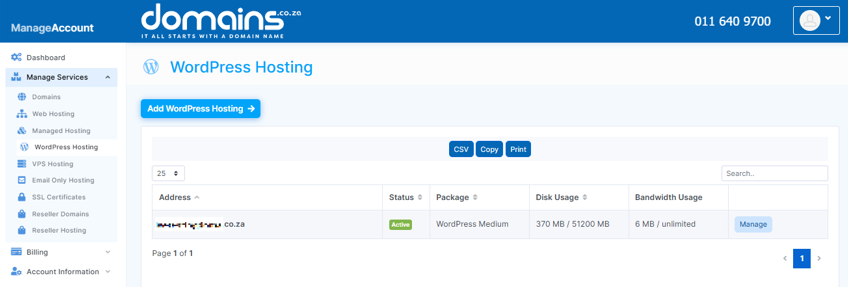
4. Click Login to cPanel to access your hosting control panel.
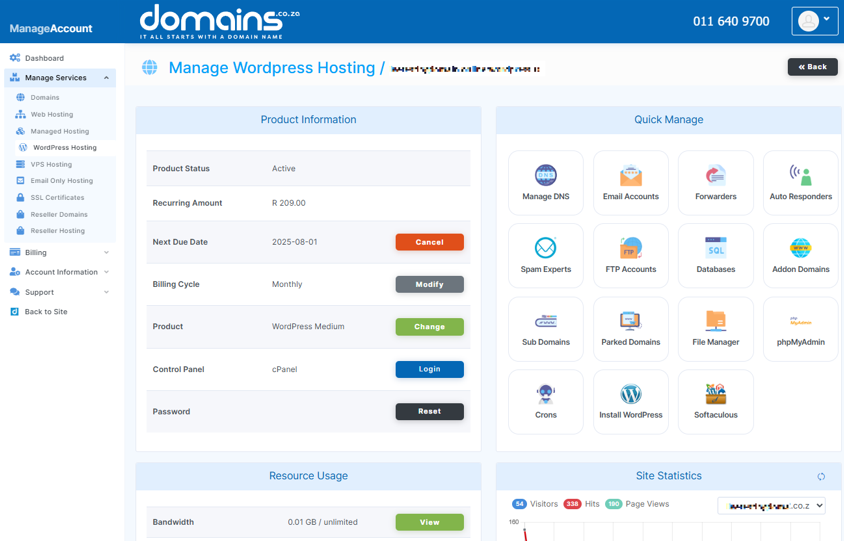
5. In cPanel, locate the WordPress Manager or WordPress installation shortcut.

6. Click on your domain name to open the WordPress Admin Dashboard.
7. From the left-hand menu, select Settings, then click General.
8. Locate the Site Language dropdown menu.
9. Select the language you want your website to use.
10. Click Save Changes to apply the new language settings.
11. Wait while WordPress downloads and installs the required language pack automatically.
Additional Information
- Changing the site language affects the WordPress dashboard and front-end interface text.
- Existing posts and pages are not automatically translated when you change the language setting.
- Some themes and plugins may not support all available languages.
- Translation plugins can be used to create fully multilingual websites.
- Right-to-left languages such as Arabic and Hebrew are automatically displayed correctly by supported themes.
- Language changes may affect widgets, menus, and date formatting across the website.
- Multilingual websites can improve accessibility and user engagement for international audiences.
- Always test your website after changing languages to ensure all content is displayed correctly.
Login to Domains.co.za Account
1. Go to the Domains.co.za website Account Login page.

2. Enter your Email and Password and click the Sign In button.
3. You will see the Domains.co.za Dashboard, displaying the Manage Account menu on the left and your Account Information, Account Overview and Open Support Tickets on the right.


