


This guide explains how to increase SSD storage limits for your WordPress hosting environment.
Your WordPress Hosting package includes a specific amount of SSD (Solid-State Drive) storage space used for website files, databases, emails, themes, plugins, and media content. As your website grows, you may eventually require additional storage to maintain performance and support new content.
SSD storage offers significantly faster read and write speeds compared to traditional hard drives, which helps improve website loading times and overall responsiveness.
TABLE OF CONTENTS
How to Increase SSD Storage Limit In WordPress
1. Login to the Domains.co.za Customer Portal using your account credentials.
2. Navigate to Manage Services from the dashboard menu.
3. Select your WordPress Hosting package and click Manage.
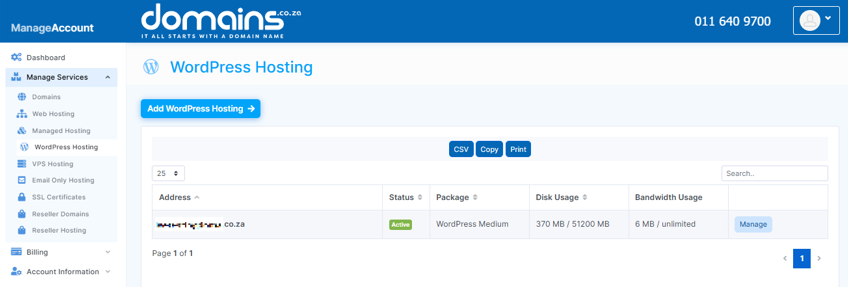
4. Review your current hosting plan, storage allocation and usage statistics.
5. Determine whether your website requires additional SSD storage.
6. Upgrade to a higher hosting plan if additional storage is required.
7. Alternatively, consider moving email services to a separate hosting package to reduce storage usage on your WordPress hosting account.
8. Complete the hosting upgrade process if required.
9. Verify that the additional storage allocation appears correctly in your hosting account details.
Additional Information
- SSD Storage improves website performance and loading speeds.
- Website media files often consume the largest portion of hosting storage.
- Email accounts and backups may also contribute significantly to storage usage.
- Regularly deleting unused WordPress plugins, themes and backups helps free storage space.
- Optimising images and videos can reduce storage consumption considerably.
- Monitoring storage usage regularly helps prevent website interruptions caused by storage limits.
- Hosting upgrades can often be completed without website downtime.
- Separating email hosting from website hosting can improve overall resource management.
Login to Domains.co.za Account
1. Go to the Domains.co.za website Account Login page.

2. Enter your Email and Password and click the Sign In button.
3. You will see the Domains.co.za Dashboard, displaying the Manage Account menu on the left and your Account Information, Account Overview and Open Support Tickets on the right.


