


WordPress Version Control Helps Teams Build, Test, & Recover With Less Risk
WordPress sites change fast. You update a theme, add a plugin, or tweak some code, and most of the time it works. But one small change on a live site can break a page, a checkout, or a contact form without warning. When that happens, you need a quick way to see what changed and undo it.
This is what WordPress version control is for. It tracks every change to your site’s code, so your team can review edits, collaborate without conflicts, and return to a version that worked.
This guide explains version control, how it differs from backups and revisions, and which tools to use. You also receive step-by-step instructions for Git, WP Pusher, and WP Rollback.
KEY TAKEAWAYS
- Version control tracks code changes and enables quick rollbacks.
- It’s not a backup, so also keep full backups and staging.
- Git is the standard, with GitHub, GitLab, or Bitbucket for teamwork.
- Never commit credentials, customer data, logs, or database dumps.
- WP Rollback is a quick fix, not full version control.
TABLE OF CONTENTS
What is WordPress Version Control?
Version control is a system that records changes to your files over time. Every time you save a set of changes, it keeps a snapshot. You can look back at what changed, who changed it, and when. If a change causes a problem, you can return to an earlier snapshot.
For WordPress, version control mainly tracks your code. This covers your themes, plugins, and configuration files. It offers your team a single, clear history of the work, instead of scattered copies across different computers.
The most common tool for this is Git, which we cover in detail below. On its own, version control won’t back up your database or your media library. It focuses on code and files, which is exactly where most WordPress problems begin.
Version Control vs Backups vs WordPress Revisions
People often mix up these three items, but each does a different job. Using one doesn’t remove the need for the others.
- WordPress Backup: A backup is a full copy of your site, including files and the database. You use it to restore everything after a crash, a hack, or a failed update. We’ve written a dedicated guide on how to back up your WordPress site and keep a recent copy before making any big changes, which you may refer to.
- WordPress Revisions: WordPress revisions are built into WordPress. They save older versions of your posts and pages inside the database. They’re useful for content, but they don’t track code, plugins, or themes.
- Version Control: Version control tracks changes to code and files. It shows the history of your development work and lets your team manage that work safely.
Here’s how they compare:
| TOOL | WHAT IT TRACKS | BEST USED FOR |
| Backups | Full site (files and database) | Recovering the whole site after a failure |
| WordPress revisions | Post and page content | Undoing content edits |
| Version control | Code and file changes | Managing development and rollbacks |
IMPORTANT:
Git does not track your WordPress database by default. Your posts, orders, and settings live in the database. So, you still need regular database backups and, where necessary, a migration strategy like exporting your WordPress site.
Why WordPress Sites Need Better Change Management
Many WordPress changes are made directly on the live site. It feels fast, but it’s risky. There’s no record of what changed, and no easy way to return if something breaks.
Untracked changes cause real problems. The common ones include:
- A theme edit breaks the layout on key pages.
- A plugin update clashes with another plugin.
- A deployment fails halfway and leaves the site broken.
- Custom code is overwritten.
- Two developers edit the same file and undo each other’s work.
- A bug appears, but nobody knows which change caused it.
- A live-site emergency begins during business hours.
Change management fixes this by giving every change a clear record. You know what changed, when, and why. That record turns a stressful guessing game into a quick, calm fix.
Main Benefits of Version Control
Version control helps both the people who write the code and the business that depends on the site. The value shows up in five main ways:
- It makes WordPress rollbacks easier. Each saved change is a checkpoint you can return to. If an update breaks something, you restore a working version without rebuilding it by hand.
- It improves teamwork. Developers, agencies, and freelancers can work on the same project without overwriting each other. The system tracks each person’s changes and helps merge them cleanly.
- It separates code changes from content changes. Code lives in Git, while content edits stay in WordPress revisions or your backups. This keeps your history clear and easy to follow.
- It supports ongoing development and testing. You can build and test new features in a safe copy of the site before they go live.
- It adds accountability. The history shows who changed what and when. That helps with reviews and audits, though it doesn’t replace proper access controls or security monitoring.
What to Track & What to Keep Out of Git
WordPress Version control works best when you track the correct files and leave the rest out. Tracking your whole WordPress install is a common error. It bloats your repository and can expose private data.
Good candidates for version control are the files you build and change:
- Custom themes and child themes.
- Custom plugins and must-use plugins.
- Theme configuration files.
- Build scripts and deployment scripts.
- Composer files, where your project uses them.
- Project documentation.
Some files and data should never go into a repository:
- The wp-config.php file with live credentials.
- The uploads folder, unless you have a clear reason and workflow for it.
- Cache files and backup archives.
- Database dumps.
- Error logs. If you need these, learn how to configure WordPress error logs instead of committing them.
- Environment files that hold secrets.
- Customer data, orders, and payment exports.
- API keys and private keys.
The tool that keeps unwanted files out is the .gitignore file. It tells Git which files and folders to skip. Add it before your first commit, so secrets never enter your history. GitHub offers a ready-made WordPress .gitignore template you can use as a starting point.
Git: The Standard Tool for WordPress Developers
Git is the most widely used version control system, and it’s the standard for WordPress Git workflows. It records changes to your code, lets you return to earlier versions, and makes teamwork far safer. It has a learning curve, but the core ideas are simple once you see them in action.
Developers often want more control over their environment for this type of work. This is where a VPS hosting for developers plan provides room to install tools and manage deployments the way your team prefers.

Local & Remote Repositories
A repository, or repo, is the folder Git watches for changes. A local repository sits on your own computer. It tracks your work as you go, even with no internet connection.
However, a remote repository is a shared copy stored online. GitHub, GitLab, and Bitbucket are popular platforms for this. A remote repo lets your team share code, review each other’s work, and connect to deployment tools. GitHub WordPress projects are common because GitHub is free to start and widely supported.
Branches, Commits, & Pull Requests
- Branch: A branch is a separate line of work. You create one to build a feature or fix a bug, without touching the main code. When the work is ready, you merge it back.
- Commit: A commit is a saved checkpoint. Each commit should cover one clear change, with a short message that explains why you made it. Good messages turn your history into something you can read later.
- Pull Request: A pull request is a way to propose merging your branch into the main code. Your team can review it, suggest fixes, and approve it before it goes in. This step catches problems early.
Set Up Git & GitHub for a WordPress Theme or Plugin
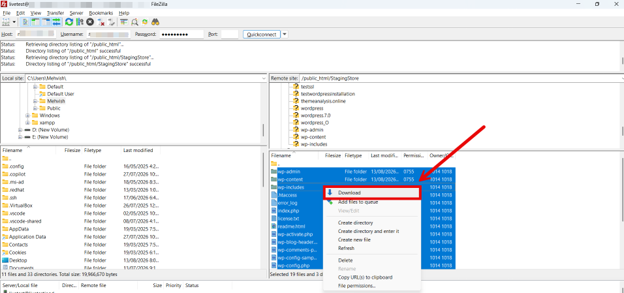
Here’s a basic workflow to place a custom theme or plugin under version control. Work on a local or staging copy, never directly on your live site. You may also use an FTP client (e.g., FileZilla) to download your website files to your local computer.
Confirm Git Installation
Open your terminal or command prompt and run the following command:
git --versionIf you see a version number, Git is ready. If not, download it from the official Git website and install it.
Open Folder You Want to Track
Go to your theme or plugin folder inside wp-content. On Windows, right-click inside the folder and choose Open Git Bash here. On Mac or Linux, open the folder in your terminal.

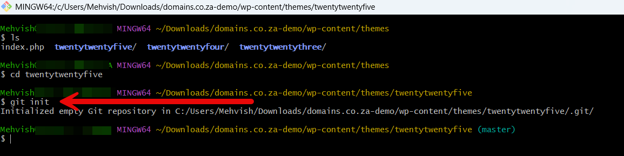
Start Repository
Run:

git init
This creates a hidden .git folder that tracks your changes.
Add a .gitignore File
Create a .gitignore file in the folder and add the files you want Git to skip or paste this in GitHub’s WordPress template. Doing this now keeps secrets out of your first commit. Here’s how to do it:
- Run the touch command to create an empty .gitignore file:
touch .gitignore- Use echo to write the most critical WordPress theme/plugin exclusion rules directly to .gitignore:
echo -e "# OS Files\n.DS_Store\nThumbs.db\n\n# Dependencies & Build Files\nnode_modules/\nvendor/\n\n# Logs & Environment Secrets\n*.log\n.env\n.env.*\n\n# IDE Settings\n.vscode/\n.idea/" > .gitignore- If you want GitHub’s comprehensive official WordPress .gitignore template instead, download it directly using curl:
curl -sL https://raw.githubusercontent.com/github/gitignore/main/WordPress.gitignore > .gitignore- Display the contents of your newly created file, then check your repository status:
cat .gitignore
git status
Save Your First Commit
Run the following command to stage your files:
git add .Then, save them by running:
git commit -m "Initial commit"Write a clear message inside the quotes.
If prompted, set the author identity using the following commands, then save your commit again:
git config --global user.email "you@example.com"
git config --global user.name "Your Name"
NOTE:
Remove the –global flag to set the identity in this repository.

Create a Repository on GitHub
Sign in, click +, and choose New repository. Give it a name and set it to Private for business code. Leave it empty, with no README or .gitignore, so your first push runs without errors.

Link Your Local Repo to GitHub
Copy the repository URL from the Code tab.

Then, run the following command:
git remote add origin YOUR-URLReplace YOUR-URL with the link you copied.

Set Branch Name & Push
Run the following command to set your branch name to main, which GitHub uses by default:
git branch -M mainThen, send your files to GitHub by running:
git push -u origin mainSign in when prompted and authorise Git Credential Manager by clicking Authorize git-ecosystem:

Keep Your Copy in Sync
When teammates push changes, run the following command to bring them into your working copy.
git pullTo review changes before merging, run:
git fetchOnce your code lives on GitHub, your team can work from the same history. The next step is getting tested code onto your live site, which is where deployment tools help.
Deployment Tools: WP Pusher, DeployBot, and Buddy
Once your code is tested and pushed to Git, you need to deploy it to your live site. Doing this by hand with FTP is slow and easy to get wrong. Deployment tools handle the transfer for you, which makes WordPress deployment safer and more repeatable.
- WP Pusher is a plugin that connects your WordPress site to a Git repository. It installs and updates your themes and plugins straight from GitHub or Bitbucket, with no FTP required. It’s a good fit for small teams and single sites.
- DeployHQ and Buddy work at a larger scale. They automate the move from your repository to staging or production, and they can run checks along the way. Teams use them to build consistent, hands-off deployment pipelines. They suit bigger projects with frequent releases.
For this section, we use WP Pusher to see how to deploy:
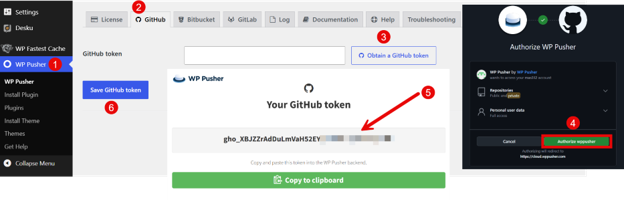
- Install the WP Pusher plugin. For step-by-step instructions, see our guide on installing a WordPress plugin.
- Navigate to WP Pusher → GitHub:
- Click Obtain a GitHub token
- Authorise the connection.
- Copy your GitHub token.
- Then paste the token back into the WP Pusher plugin page.
- Click Save GitHub token to save it.
- Go to WP Pusher → Install Theme or WP Pusher → Install Plugin to deploy your theme or plugin. As we are working with a theme, we go to Install Theme.
Then:
- Click Pick from GitHub to select our repository, or paste its URL, then choose the branch you wish to deploy. By default, it’s master if you leave this field empty.
- Turn on automatic updates if you want them. Enable Push-to-Deploy so your site updates automatically whenever you push new code to that branch. This step is optional.
- Click Install theme, then activate the theme or plugin from your dashboard as usual.

With WP Pusher in place, you push your changes to GitHub, and the plugin pushes them to your site. This keeps your live site in step with your tested code.
WP Rollback: Handy, But Not Full Version Control
WP Rollback is a free plugin that returns a theme or plugin to an earlier version. It helps when an update causes a conflict, and you need a working version back fast. Rolling back a WordPress site with this tool takes only a few clicks.
However, there’s an important limit. WP Rollback only works for themes and plugins from the WordPress.org directory. It cannot roll back premium or custom code, it doesn’t track your development history, and it won’t manage teamwork or deployments. Treat it as a quick fix, not a replacement for Git.
Go through the following steps to roll back a theme or plugin:
- Install the WP Rollback plugin.
- Create a fresh backup or export before you roll anything back, so you have a safe point to return to.
- Go to Appearance → Themes. Click theme to open its details, then click Rollback. Choose the version you want and hit Reinstall. Similarly, you can roll back a plugin by navigating to the Plugins menu.
- Check that your site works as expected. If the older version doesn’t help, roll forward again or try a different fix.

How WordPress Version Control, Backups, & Staging Work Together
No single tool keeps a WordPress site safe on its own. The strongest setup uses these three together:
- WordPress version control keeps the history of your code, so you can review and undo changes.
- Backups keep a full copy of your files and database, so you can recover the whole site after a serious failure.
- Staging provides a private copy of the site where you can test changes before they reach visitors.
When used together, they cover each other’s gaps. Version control handles the code, backups handle everything else, and staging catches problems before they go live.
This works best on a stable host that supports backups and staging. Reliable WordPress hosting in South Africa offers your team that dependable base to build on.

A Practical WordPress Development Workflow
A clear workflow keeps your changes safe from start to finish. This WordPress development workflow moves each change through testing before it reaches your live site.
- Start with a fresh backup of your files and database.
- Make your changes in a safe copy, never on the live site.
- Commit as you go, so each change is recorded.
- Commit small, focused changes. Small commits are easier to review and undo.
- Push to your remote repository to share your work with the team on GitHub, GitLab, or Bitbucket.
- Use pull requests and testing to catch issues early.
- Move the tested code to your staging site.
- Click through key paths, including forms and checkout.
- Once staging looks good, release the change to your live site.
- Watch for errors after the release. Turning on WordPress Debug Mode helps you spot problems quickly.
- Save a fresh copy of the working site as your new safe point.
Follow the same steps each time and deployments will become routine. Your team will spend less time firefighting and more time building.
Version Control for Agencies, Freelancers, & eCommerce
WordPress version control offers extra value when a site supports genuine business or client work.
Agencies and freelancers gain a clear record of every change on each client site. That record supports approvals, clean handovers, and audits. If a client asks what changed, you have the answer. It also protects you, because the history shows exactly what was done and when. Teams that manage many client sites also benefit, since each site keeps its own tidy history instead of a pile of undocumented edits.
eCommerce sites carry higher stakes. On a WooCommerce store, a single code change can affect checkout, stock levels, product pages, customer accounts, or payment links. A broken checkout means lost sales, not just a layout glitch. WordPress version control allows you to test every change first and roll back fast when a release causes trouble. That keeps the store trading and protects the customer experience during busy sales periods.
South African Business Considerations
South African teams face a few local realities that make disciplined workflows even more useful.
Local Business Context
Many South African SMEs rely on their websites for enquiries and sales. When the site goes down, so does a key channel for the business. Agencies often manage several client sites simultaneously, sometimes from different cities.
Teams may work across locations and hours, which makes shared code history and clear reviews important. Reliable deployment habits reduce avoidable downtime. They also keep sites stable during campaigns and after-hours browsing, when a lot of local shopping happens on mobile.
That’s why choosing WordPress hosting in South Africa that’s built for local conditions offers teams a steadier base for all of this.
Load-Shedding & Digital Continuity
Load-shedding is a fact of life for South African teams. WordPress version control won’t stop power cuts or connection drops, and it isn’t a technical fix for either.
What it does is support disciplined remote work. Because your code history lives online, a developer who loses power can pick up where another left off. Safer deployments and quick rollbacks also help your team recover faster when systems are business-critical.
POPIA & Repository Hygiene
Good repository habits also help you protect personal information. Under POPIA, that data needs care. As a practical rule, keep personal details out of your repositories.
Don’t store customer records, database dumps, exported orders, passwords, API keys, or sensitive logs in Git. This isn’t legal advice, but it’s a sensible habit that lowers your risk and keeps private data where it belongs.
Common WordPress Version Control Mistakes to Avoid
A few errors appear repeatedly. Knowing them saves you trouble later.
- Tracking the whole WordPress install with no plan, which bloats the repo.
- Committing credentials, so passwords end up in your history.
- Committing uploads, backups, or logs that don’t belong in Git.
- Using a public repository for private business code.
- Deploying directly to the live site with no staging step.
- Making live changes outside the repository, so your history stops matching the site.
- Writing vague commit messages that mean nothing weeks later.
- Ignoring merge conflicts instead of resolving them properly.
- Treating WP Rollback as full version control.
- Forgetting to back up the database and media.
- Skipping documentation for your deployment steps.
Avoid these, and your setup stays clean, safe, and easy to follow.
Security & Performance Considerations
A WordPress version control setup needs the same care you give the rest of your site.
For security, protect your repositories and who can reach them:
- Use private repositories for any private or business code.
- Set strong access controls, so only the correct people have access.
- Turn on two-factor authentication for your Git accounts.
- Use SSH keys or another secure sign-in method.
- Limit who can deploy to production.
- Use different credentials for each environment.
- Review access regularly and remove people who no longer require it.
Good habits here also lower the chance of a breach. If a site is ever compromised, a clean history makes it easier to spot what changed, alongside proper WordPress malware removal.
For performance, Git itself won’t slow your public site when it’s set up correctly. Problems come from poor practices. Storing repository files in public folders, tracking huge assets, or running messy deployments can all cause issues. Keep your repo lean and your .git folder out of public directories.
When You May Not Need Full Version Control
Not every site needs a full Git workflow. A small brochure site with no custom code, few changes, and a single owner may do fine without one. In that case, the setup can cost more time than it saves.
Even then, don’t skip the basics. Regular backups and a staging area are still worth having, regardless of the site’s size. They protect you when the one change you do make goes wrong.
When to Consult a Developer
Some tasks are worth handing to a professional, especially when a site earns money. Consider expert help for:
- Setting up Git.
- Building deployment pipelines.
- Managing WooCommerce workflows.
The same goes for custom theme and plugin work, tricky merge conflicts, and rollbacks after a failed deployment. Repository security, server permissions, and SSH or Git deployment setup also reward experience.
If you’d rather focus on your business than the technical detail, Domains.co.za support can point you in the right direction.
Final Thoughts
Version control changes the way WordPress teams work. It lowers risk, improves teamwork, and keeps a clear record of every change. That matters most when a site supports real business activity, where downtime has a direct cost.
You don’t have to adopt everything at once. Start with backups and staging, put your custom code under version control with Git, then add deployment tools as your needs grow. Each step makes your development safer than the last.
Build, test, and deploy WordPress changes with more confidence on a reliable hosting foundation from Domains.co.za. You’ll receive secure infrastructure, practical local assistance, and scalable options for growing South African websites.
![Strip Banner Text - BWordPress Hosting built for backups, staging, and smooth deployments. [Learn More]](/articles/wp-content/uploads/2026/09/wordpress-version-control-02.webp "WordPress Hosting built for backups, staging, and smooth deployments. [Learn More]")
Power Up Your Site: How to Install a WordPress Plugin
VIDEO: Power Up Your Site: How to Install a WordPress Plugin
FAQS
What’s the difference between Git and GitHub?
Git is the version control system that runs on your computer and tracks your code changes. GitHub is an online platform that stores your Git repositories and adds tools for teamwork. GitLab and Bitbucket do a similar job to GitHub.
Can I use version control without the command line?
Yes. Free graphical clients allow you to commit, push, and pull with buttons instead of typing commands. GitHub Desktop is one of the popular options for beginners.
Do I need to pay for a private repository?
No. GitHub, GitLab, and Bitbucket all offer free private repositories, which keep your business code hidden from the public. Paid plans mainly add extra team and management features.
Can I put an existing live WordPress site under version control?
Yes. Start by copying your theme or plugin files to a local or staging copy. Run git init in that folder, add the .gitignore file first, then make your first commit.
What happens if two developers edit the same file at once?
Git detects the clash and flags it as a merge conflict, rather than overwriting anyone’s work. You then open the file, choose which changes to keep, and save the fixed version. This keeps both people’s work safe.
Other Blogs of Interest
- WordPress Error Logs Help You Find Problems Before They Become Bigger Website Issues
- WordPress Multisite Can Simplify Multi-Website Management
- Your WordPress Theme Shapes How Customers Experience Your Website
- A Malware-Infected WordPress Site Can Put Your Customers, Rankings, & Business At Risk
- Should You Disable WordPress Comments Or Manage Them More Effectively?

Rhett isn’t just a writer at Domains.co.za – he’s our resident WordPress content guru. With over 8 years of experience as a content writer, with a background in copywriting, journalism, research, and SEO, and a passion for websites.
Rhett authors informative blogs and articles that simplify the complexities of WordPress, website builders, domains, and cPanel hosting. Rhett’s clear explanations and practical tips provide valuable resources for anyone wanting to own and build a website. Just don’t ask him about coding before he’s had coffee.