







Knowing when to upgrade your Windows VPS Hosting can make all the difference in performance and stability. If you’re currently using the Epyc VPS 5 package, or considering it, and want to understand what stepping up to Epyc VPS 6 would offer, this comparison will explain the key differences.
We also outline the resource improvements, performance gains, and scenarios where upgrading hosting makes the most sense.
TABLE OF CONTENTS
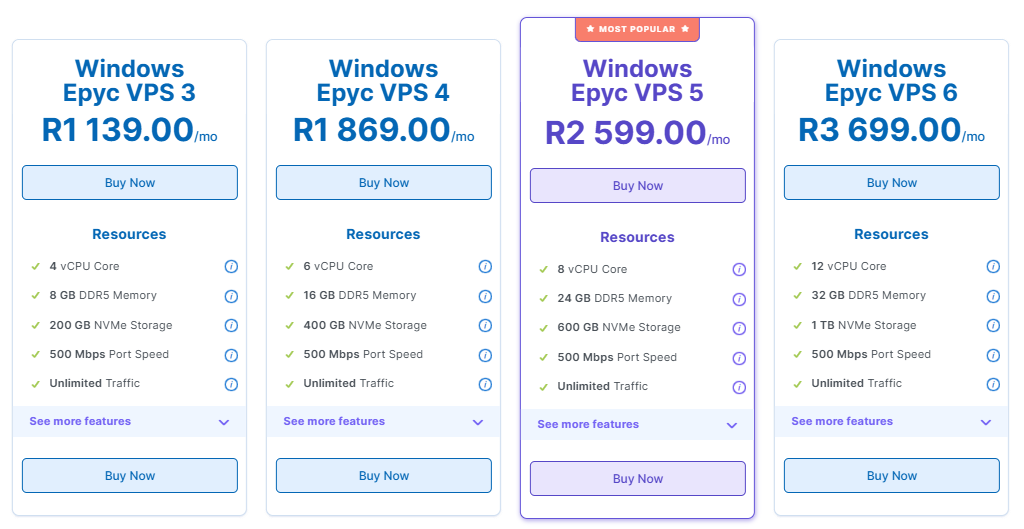
Windows VPS Hosting: Epyc VPS 5 vs VPS 6 Package
| FEATURE | EPYC VPS 5 | EPYC VPS 6 |
| vCPU (Cores) | 8 | 12 |
| RAM | 24 GB DDR5 ECC | 32 GB DDR5 ECC |
| Storage | 600 GB NVMe | 1 TB NVMe |
| Port Speed | 500 Mbps | 500 Mbps |
| Traffic | Unlimited (AUP) | Unlimited (AUP) |
Strengths & Use Cases
- Epyc VPS 5: Very capable for serious web apps, databases, or multi-site hosting environments.
- Epyc VPS 6: Offers a significant performance bump:
- 12 vCPUs provide excellent parallel compute capacity. Good for CPU-intensive tasks.
- 32 GB RAM enables in-memory operations, larger caching, or bigger application data.
- 1 TB NVMe is very generous for data storage, backups, or large databases.
Recommendation
- Choose VPS 5 if you already use a lot of resources but don’t yet need to scale dramatically.
- Select VPS 6 if you’re preparing for significant growth, or your application requires higher computing and memory.
Additional Information
- The extra vCPUs on VPS 6 are extremely helpful for bursty workloads, such as scheduled tasks, data processing, or nightly jobs.
- Use part of the 1 TB NVMe storage for data that needs high I/O (logs, temp files), and plan which data needs to be backed up more frequently.
- With more resources, you may want to enable stronger security measures (firewalls, intrusion detection) since you’re running more critical processes.
- If VPS 6 proves insufficient over time, you can move to even higher plans (VPS 7 or 8) without changing providers.
- Monitor performance metrics to make sure you’re utilising the added CPU and RAM; you’re paying for it, so make it count.
Login to Domains.co.za Account
1. Go to the Domains.co.za website Account Login page.

2. Enter your Email and Password and click the Sign In button.
3. You will see the Domains.co.za Dashboard, displaying the Manage Account menu on the left and your Account Information, Account Overview and Open Support Tickets on the right.


