


As your Windows VPS Hosting requirements increase, it’s important to know when it’s time to scale up. If you’re currently looking at the Domains.co.za Epyc VPS 4 plan and wondering whether the Epyc VPS 5 plan offers the additional resources your projects may require, this comparison will break it down for you.
We discuss the extra performance you gain, how the upgrade impacts your hosting capabilities, and when moving to VPS 5 makes the most sense.
TABLE OF CONTENTS
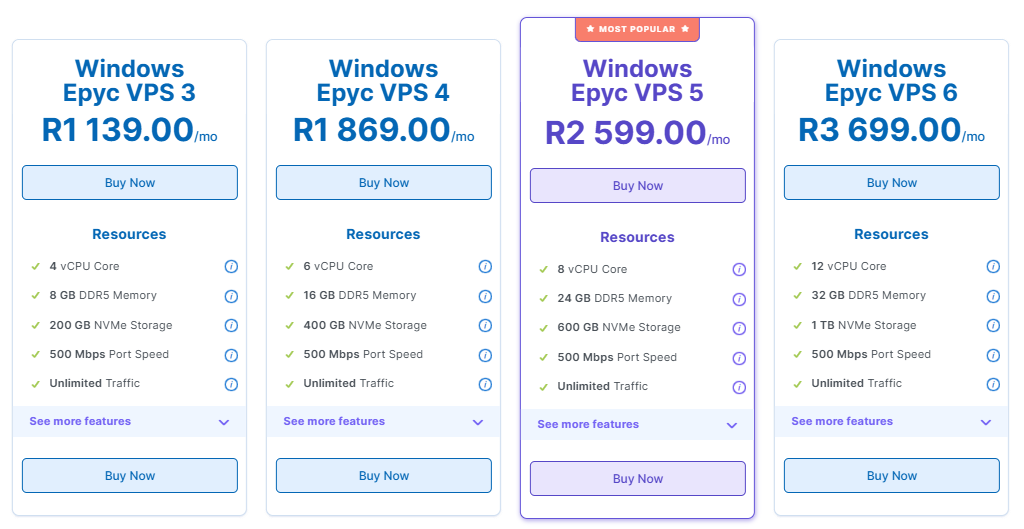
Windows VPS Hosting: Epyc VPS 4 vs VPS 5 Package
| FEATURE | EPYC VPS 4 | EPYC VPS 5 |
| vCPU (Cores) | 6 Cores | 8 Cores |
| RAM | 16 GB DDR5 ECC | 24 GB DDR5 ECC |
| Storage | 400 GB NVMe | 600 GB NVMe |
| Port Speed | 500 Mbps | 500 Mbps |
| Traffic | Unlimited (AUP) | Unlimited (AUP) |
Strengths & Use Cases
- Epyc VPS 4: Strong for moderate workloads – web applications, small to medium databases, or multiple lower-traffic sites.
- Epyc VPS 5: Gives a serious boost:
- 8 vCPUs = more parallel processing power.
- 24 GB RAM supports more memory-hungry applications or caching.
- 600 GB NVMe gives more space for data, logs, or apps.
Recommendation
- Stick with VPS 4 if you’re cost-sensitive and your workloads are moderate.
- Choose VPS 5 if you want more longevity or are running apps that benefit from higher memory or CPU.
Additional Information
- Beyond base plans, you can also add extra vCPUs, RAM, or NVMe storage over time.
- If you’re running Windows Server or other licensed software, ensure you account for licensing in your total cost.
- Use the extra RAM on VPS 5 for caching (e.g., Redis), in-memory data stores, or to host more concurrent users.
- With the increase in resources, it’s good practice to set up monitoring (CPU, RAM, disk I/O) so you can optimise usage.
- Both hosting plans include 500 Mbps ports, but if you require more bandwidth, you can upgrade.
Login to Domains.co.za Account
1. Go to the Domains.co.za website Account Login page.

2. Enter your Email and Password and click the Sign In button.
3. You will see the Domains.co.za Dashboard, displaying the Manage Account menu on the left and your Account Information, Account Overview and Open Support Tickets on the right.


